 ProMapRanker
Best Photo Recovery Software in 2026


Most people starting a recovery · Pricing starts at: $89 per year
Key takeaways
- Stop using the drive or card as soon as photos go missing, since new writes can overwrite the files you want back.
- Free tools can work well for a small job, while paid tools are usually better for large shoots, damaged cards, and video repair.
- Preview before you pay, and recover to a different drive so you do not write over the source media.
- Our pick for most people is Disk Drill for its clear preview and disk imaging, with PhotoRec as the no-cost fallback.
Quick comparison
| Pick | Great for | Pricing starts at | Free tier | |
|---|---|---|---|---|
| Disk Drill | Most people starting a recovery | $89 per year | Yes | Visit |
 EaseUS Data Recovery Wizard | Beginners who want a larger free allowance | $69.95 per month | Yes | Visit |
 Stellar Photo Recovery | Damaged photos and video repair | $59.99 per year | Yes | Visit |
 Wondershare Recoverit | Camera cards and video files | $59.95 per year | Yes | Visit |
 Recuva | Quick free recovery on Windows | Free | Yes | Visit |
 PhotoRec | No-cost recovery on any desktop system | Free | Yes | Visit |
 R-Studio | Technical users and damaged file systems | $49.99 | Free trial | Visit |
 DMDE | Low-cost technical recovery | See website | Yes | Visit |
 Tenorshare 4DDiG | Guided recovery for beginners | See website | Free trial | Visit |
The best photo recovery software
We compared official feature pages, pricing pages, and free limits, and we focused on tools that can scan cards and drives without making the problem worse. Each pick below covers a different mix of ease, cost, and control.

Disk Drill is the easiest place to start when you are not sure what went wrong. You pick the drive, run a scan, and preview the photos it finds before you spend anything. That preview step matters, because it stops you from paying for a scan that found nothing useful.
It also lets you make a byte-to-byte image of a failing drive or card, then scan the image instead of stressing the original. That is a careful way to work with media that may be getting worse. The trade-off is price and time, since a full deep scan of a large drive can run for hours.
- Clear preview before payment
- Disk imaging for failing media
- Works on Windows and Mac
- Windows free recovery is limited
- Deep scans on large drives can take a long time
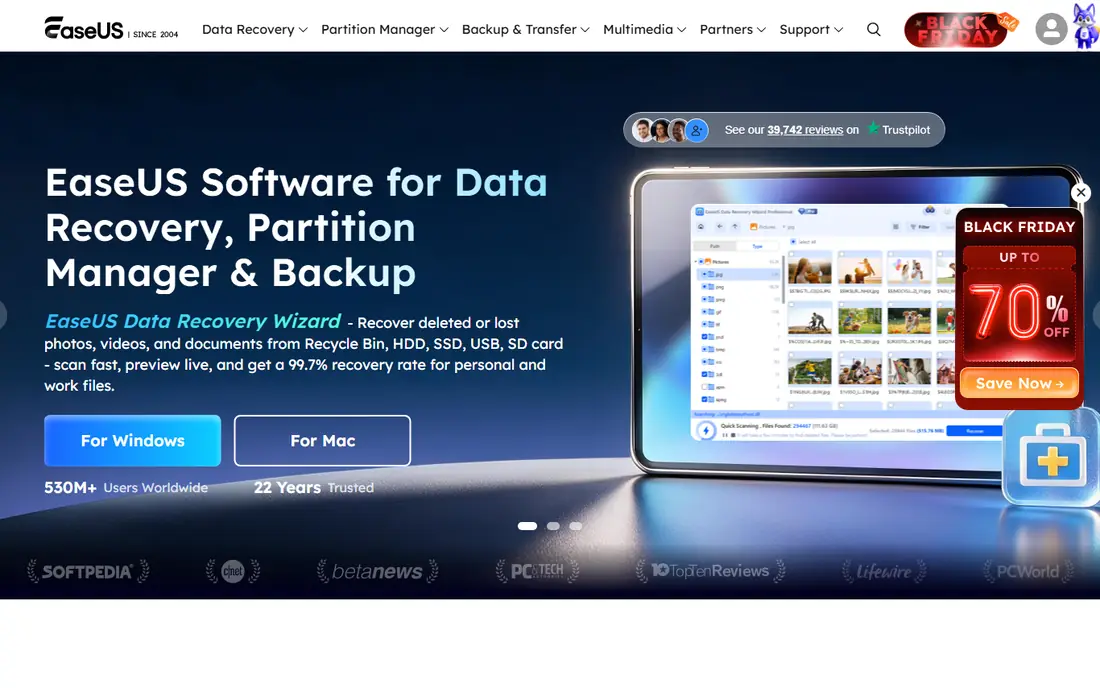
EaseUS suits a first-time user who wants clear steps and a usable free tier. The workflow is simple: choose the location, scan, preview, and recover what you need. Its free allowance, reported as up to 2 GB, can cover a folder of photos or a short shoot without payment.
The catch is the monthly price if you only need the tool once. Compare the yearly option before you buy, and check the free allowance on the current pricing page, since free limits can change. It is a good fit for deleted files and formatted cards, but not the first choice for complex RAID work.
- Guided three-step workflow
- Free recovery allowance up to 2 GB
- Handles formatted drives and lost partitions
- Monthly pricing is poor value for a one-time job
- Some advanced features sit in higher tiers
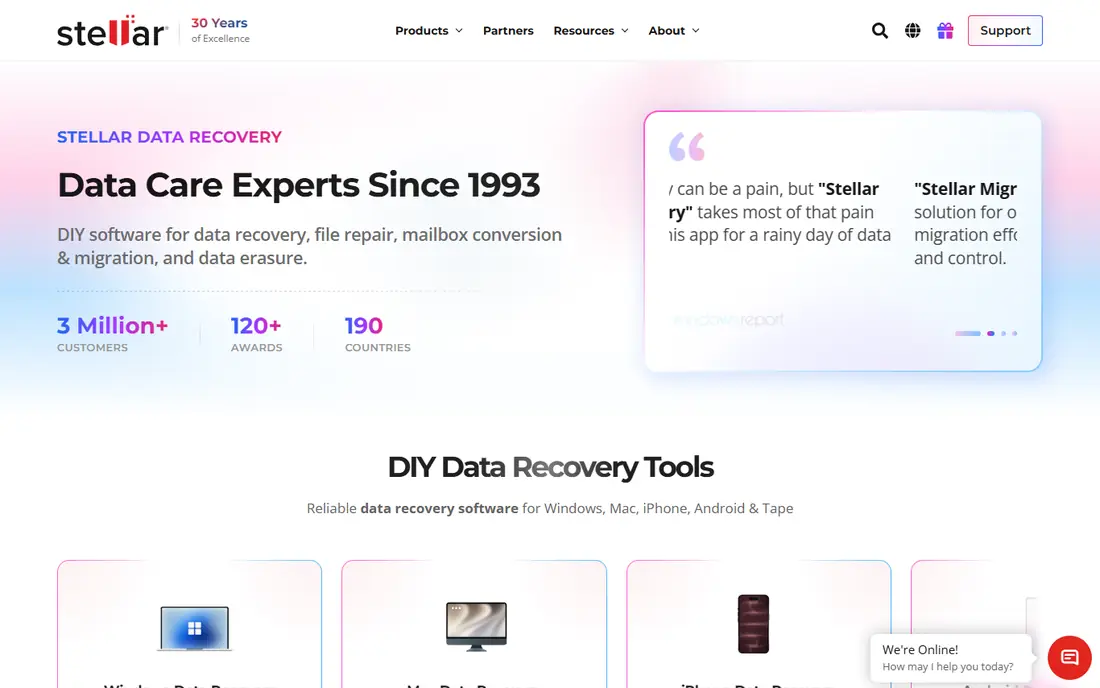
Stellar is worth a look when the recovered files open but look broken. Its higher tiers can repair damaged photos and videos, which is different from simply finding a deleted file. That extra step can save a set of images that other tools would return in unusable form.
The free edition covers up to 1 GB, which is enough to test it on a small batch. The downside is that you may need to pay more than the entry price to get the repair tools. Check which tier includes repair before you buy, and preview the results first.
- Free recovery up to 1 GB
- Photo and video repair in higher tiers
- Disk imaging on paid plans
- Repair features require a higher tier
- Scans can be slow on large result sets
Recoverit is built for the common camera workflow: a card that was formatted by mistake, or files deleted during a shoot. It scans a wide range of file types and lets you preview before recovery, which helps you judge the result early. The interface is guided, so you do not need to know file system details to start.
The free tier is mainly a way to test the scan, not a full recovery plan for a large shoot. If the preview shows your photos, the paid tier is the practical next step. For video, check that the recovered clips play fully, since fragmented video files can need extra care.
- Broad file-type support
- Free scan and preview
- Handles camera media and formatted cards
- Free recovery is limited
- Higher tiers are needed for larger jobs
Recuva is the low-friction option for a Windows user who deleted files recently. The free version is genuinely useful, not just a preview, and the interface stays simple. For a small accidental deletion, it is often the fastest answer.
Its limits show up with badly damaged cards, lost partitions, or complex file systems. It also does not cover Mac or Linux. If Recuva finds nothing, move to a deeper scan tool rather than running repeated scans on the same card, and recover to a different drive.
- Free version recovers files at no cost
- Simple interface
- Quick scan for recently deleted files
- Windows only
- Fewer tools for badly damaged media
PhotoRec is the best no-cost option when budget matters more than polish. It searches by file signatures, so it can find photos even when the file system is damaged. It runs on Windows, Mac, and Linux, and it pairs with TestDisk for lost partitions.
The price of that power is usability. There is no polished preview browser, and recovered files often come back with generic names in flat folders. That means sorting a large shoot takes time. Still, for a free tool, it is a strong fallback when paid tools fail or are out of reach.
- Completely free and open source
- Works on Windows, Mac, and Linux
- Strong file carving
- Command-line interface can feel hard for beginners
- Original filenames and folders are usually not kept
R-Studio is for users who want control over the scan itself. You can work with disk images, RAID sets, and damaged file systems in ways that beginner tools do not offer. That control helps when a drive has partition damage or a complex setup.
It is not a casual tool. The interface expects you to understand file systems and scan settings, and the demo only recovers small files. If you are comfortable with those settings, it is a capable choice. If not, start with a guided tool and keep R-Studio for a second attempt.
- Detailed scan control
- Support for RAID and varied file systems
- Works on Windows, Mac, and Linux
- Interface assumes technical knowledge
- Demo limits recovery of larger files
DMDE is a favorite among technical users who want professional-grade recovery without a high price. The free edition can recover up to 4,000 files from one selected folder in one operation, which is enough to test a drive and rescue a small set. Paid editions remove those limits and add broader folder recovery.
The interface is functional rather than friendly, and it assumes you know what you are doing. That is the trade-off for the low price. If you can work through the folder view and preview, DMDE offers strong value. If you need hand-holding, a guided tool will feel easier.
- Low-cost licensed editions
- Free edition can recover a set of files from one folder
- Cross-platform support
- Interface is plain and technical
- Free edition limits folder recovery
Tenorshare 4DDiG follows the same guided pattern as the other beginner tools in this list, with a clear scan, preview, and recover flow. It is a reasonable choice when you want a simple interface and support for common loss cases, such as deletion, formatting, and partition loss.
We list its price as See website because license types and platform pricing vary, so check the current page for your system before you buy. Use the preview to confirm your photos are found, and recover to a separate drive. For a large or damaged job, compare its result with a free tool first.
- Simple step-by-step workflow
- Preview before recovery
- Covers drives, cards, and partitions
- Pricing varies by license and platform
- Free use is mainly scan and preview
How we picked these
We compared official pricing pages, free limits, platform support, and the loss cases each tool claims to handle. We kept tools that are still offered and maintained, and we left out tools that only preview files without a clear recovery path. We also favored a mix of free, low-cost, and full-featured options, so readers with different budgets can find a fit.
We did not claim hands-on testing. Our comparison rests on vendor pages, app store listings, and public documentation, plus the free limits each vendor states. Prices change, so check the vendor page before you buy, and treat a preview as your best evidence that a tool found your files.
What to do before you scan
Stop writing to the media
Do not save new photos, install software, or copy files onto the same card or drive. New writes can overwrite deleted data and turn a recoverable loss into a permanent one. If the media is a system drive, shut the computer down and scan from another system when you can.
Image a failing drive first
If a drive clicks, disconnects, or reads very slowly, image it before a long scan. Disk imaging tools in several picks here let you work from a copy. If the drive has physical damage, stop and consider a professional lab, since repeated scans can make physical faults worse.
Match the tool to the job
Use a free tool for a small recent deletion, a guided paid tool for a formatted card or a full shoot, and a technical tool for partition damage or RAID. For video, test playback after recovery, since a file that appears in the list may still be incomplete. Keep recovered files on a different drive, and back up the recovered set at once.
Frequently asked questions
What is the best free photo recovery software?
PhotoRec is a strong free choice, and Recuva is a strong free choice on Windows. PhotoRec works across desktop systems and handles damaged file systems, while Recuva is simpler for a recent deletion. Try a free scan first, and only pay when the preview shows the photos you need.
Can I recover photos from a formatted memory card?
Often, yes, if you have not reused the card since formatting. Formatting usually removes the file index rather than erasing every photo at once. Stop using the card, scan it with a tool from this list, and recover to a different drive.
Why do some recovered photos not open?
A recovered file can be incomplete if part of its data was overwritten or split across the card. Video files are more prone to this problem than still photos. Repair features in some paid tools can help, but no tool can rebuild data that is gone.
Is it safe to recover to the same card?
No, recover to a different drive. Writing recovered files back to the source card can overwrite files that have not been recovered yet. Use a computer drive or a second card, then verify the recovered photos before you reuse the source.
How long does a photo recovery scan take?
A quick scan of a small card can take minutes, while a deep scan of a large drive can take hours. Scan time depends on drive size, speed, and damage. Let a deep scan finish when you can, and avoid interrupting it unless the drive is failing.
Sources
See where you really rank - block by block
ProMapRanker scans Google Maps across a grid of your service area. Simple monthly plans from $19, white-label on every plan.
Start freeKeep reading
 zscaler alternatives
Best Zscaler Alternatives in 2026
Looking for zscaler alternatives? We compare 9 SASE and zero trust platforms on architecture, data protection, pricing, and fit for your network and team.
Read → zapier alternatives free
Best Zapier Alternatives Free in 2026
Nine automation tools for zapier alternatives free in 2026, all with genuinely free tiers, plus free plan limits, starting prices and upgrade paths explained.
Read → which platform is best for online reputation
Which Platform Is Best for Online Reputation in 2026
Wondering which platform is best for online reputation? We compare 8 review, listing, and response tools for small and multi-location businesses and agencies.
Read →