 ProMapRanker
Best Photo Organizing Software in 2026

Key takeaways
- Google Photos and Apple Photos suit most families, since they are built into phones and offer strong search with little setup.
- Adobe Lightroom remains the default for photographers who want a catalog, editing, and cloud sync in one place.
- digiKam is the best free option for a large local library, with face recognition and AI search at no cost.
- Excire Foto and ACDSee suit photographers who want to buy once rather than pay a subscription every month.
Quick comparison
| Pick | Great for | Pricing starts at | Free tier | |
|---|---|---|---|---|
 Google Photos | Everyday phone libraries | Free | Yes | Visit |
 Apple Photos | Apple households | Free | Yes | Visit |
 Adobe Lightroom | Photographers who edit and sync | $11.99 per month | Free trial | Visit |
 Mylio Photos | Private multi-device library | See website | Yes | Visit |
 ACDSee Photo Studio | Windows library plus editing | See website | Free trial | Visit |
 digiKam | Free open-source organizing | Free | Yes | Visit |
 Excire Foto | AI tagging without a subscription | $249 one-time | Free trial | Visit |
 Adobe Bridge | Free file browsing and metadata | Free | Yes | Visit |
 Capture One | Studio-grade library and editing | See website | Free trial | Visit |
The best photo organizing software
We compared tools that help you find, sort, and protect a photo library, from phone apps to desktop catalogs for large archives.

Google Photos is our pick for most people because it does the organizing work with almost no setup. Photos back up from your phone, search finds people, pets, places, and objects in plain words, and shared albums make family sharing simple. Memories and automatic groupings help you rediscover old photos without manual sorting.
The catch is storage and control. The free 15 GB covers Gmail, Drive, and Photos together, so a large library needs a Google One plan, and the app favors cloud storage over a local folder structure. If you want a simple, searchable library that follows you across devices, Google Photos is the easiest choice. If you want a local archive you fully control, look at digiKam or Mylio Photos.
- Strong search by people, places, and objects
- Automatic backup from Android and iPhone
- Easy sharing and shared albums
- Free storage is limited to 15 GB shared across Google services
- Full-resolution backup needs a paid Google One plan
- Organization tools are simpler than a desktop catalog
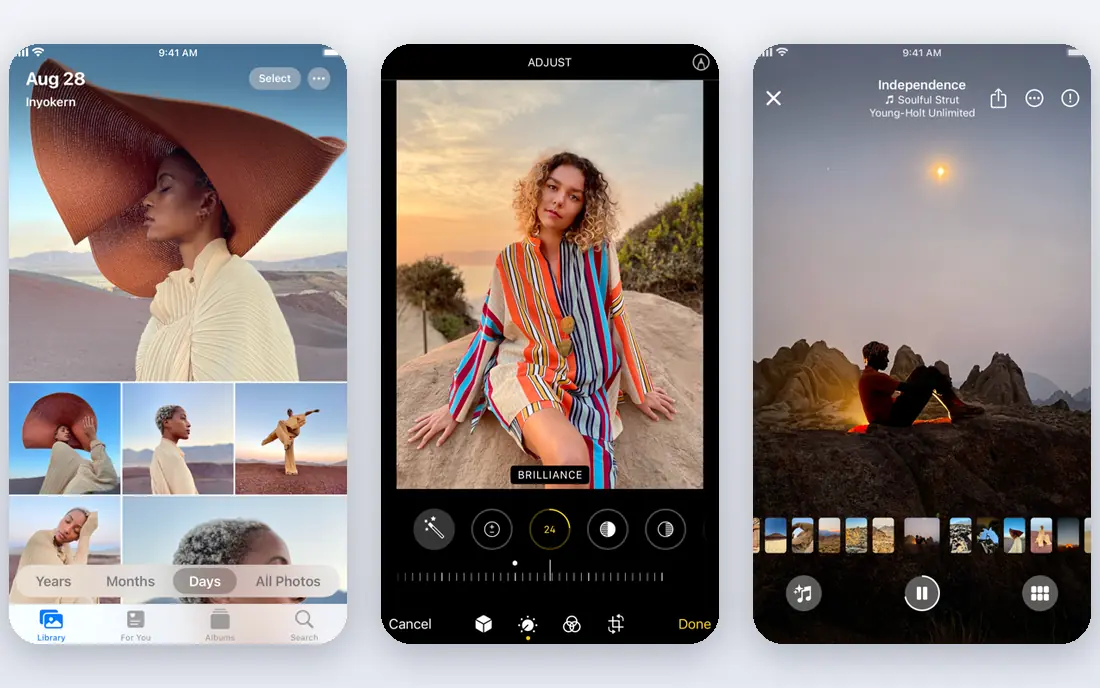
Apple Photos suits households that live on Apple devices. The app is already on every iPhone and Mac, photos sync through iCloud, and face recognition, places, and Memories make browsing pleasant without manual tagging. Editing tools cover everyday fixes, and shared libraries let family members contribute to one collection.
The limits show up outside Apple devices and with large libraries. Android users can view shared album links but cannot contribute to an iCloud shared library in the same way, and the free 5 GB of iCloud storage fills fast. If your household is Apple-only, Apple Photos is simple and fast. If devices are mixed, Google Photos or Mylio Photos will be easier to share.
- Built into iPhone, iPad, and Mac with no extra app to learn
- Fast, smooth browsing on Apple hardware
- Face, place, and Memories features
- Best only inside the Apple ecosystem
- Free iCloud storage is just 5 GB
- Keyword and rating tools are simpler than Lightroom
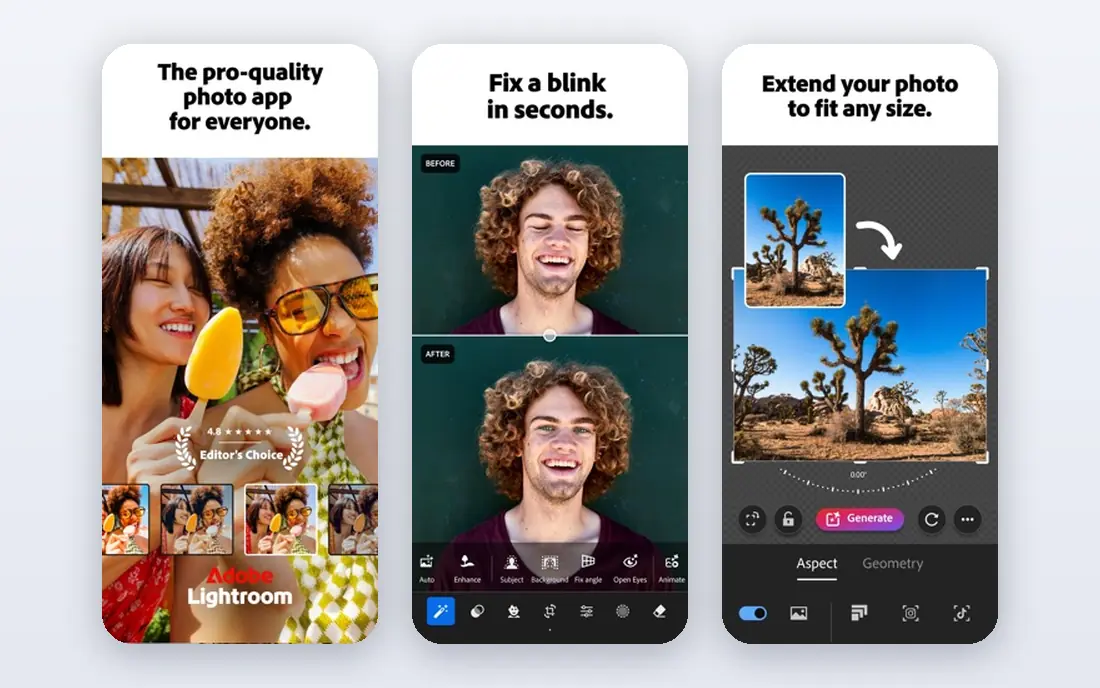
Lightroom is the default for photographers who want organizing and editing in one catalog. Keywords can be nested, smart collections fill themselves from metadata, and face recognition works across the whole library. The cloud version keeps your library identical on desktop, tablet, and phone, which helps if you cull on one device and finish on another.
The subscription model is the main drawback. You rent the software, and the develop tools stop working if you cancel, even though your files stay yours. Large catalogs can also slow down, and storage tiers add cost if you sync full-resolution originals. If you edit often and want the largest ecosystem, Lightroom is still the reference point. If you dislike subscriptions, Excire Foto or digiKam may fit better.
- Powerful catalog with keywords, ratings, and smart collections
- Cloud sync across desktop and mobile
- Large preset and tutorial ecosystem
- Subscription only, so editing stops if you stop paying
- Large catalogs can feel slow
- Plan names and storage tiers confuse new buyers
Mylio Photos suits photographers who want a private library that lives on their own devices. It keeps your folder structure intact, syncs selected collections across phones, tablets, and computers, and adds face tagging and AI search so a large archive stays searchable. Offline access is a real advantage for travel and for libraries you do not want stored only in a cloud account.
The drawback is price clarity. Published prices have varied across recent guides, so check the current plan on the vendor site before you buy. Setup also takes more thought than Google Photos, since you choose what syncs where. If privacy and device control matter most, Mylio Photos is a strong, thoughtful choice.
- Syncs across devices without forcing full cloud uploads
- Face tagging and AI search
- Preserves your folder structure
- Pricing has varied across recent comparisons, so confirm the current plan
- Advanced features need a paid plan
- Setup takes more care than a phone app
ACDSee Photo Studio is a good all-in-one for Windows photographers who want browsing, organizing, and editing without switching apps. Different viewing modes let you browse by folder or by catalog, while batch tools, metadata editing, and face recognition help tame a large library. Layered editing means many fixes never need a second app.
The interface is the main hurdle. With so many modes and tools, new users can feel lost, and very large libraries can slow the app down. Pricing also varies by edition, so confirm if the edition uses a subscription or a one-time license. If you want one Windows app for organizing and editing, ACDSee is a capable pick.
- Strong browsing, cataloging, and batch tools
- Layered editing in the same app
- Face recognition and AI keywording
- Interface can feel crowded for new users
- Performance can slow with very large libraries
- Pricing varies by edition and billing choice
digiKam is the best free photo organizer for a large local library. It offers face recognition, AI text search, visual similarity search, duplicate detection, and built-in RAW editing, all without a subscription or account lock-in. It runs on Windows, Mac, and Linux, and your library stays in folders and metadata you control.
The trade-off is polish. The interface is functional rather than beautiful, and new users need time to learn its catalog and tagging system. There is no built-in cloud sync like Google Photos, so you handle backup yourself. If you want a free, powerful, private organizer and you are comfortable with a learning curve, digiKam is hard to beat.
- Free and open source with no subscription
- Face recognition, AI search, and duplicate detection
- Works on Windows, Mac, and Linux
- Interface feels dated next to commercial apps
- Setup and learning curve are steeper
- Cloud sync is not built in like Google Photos
Excire Foto suits photographers with a large archive who want AI search without a monthly bill. You can search in plain words, find similar images, check focus and composition, and cull a shoot faster than manual review allows. The one-time license means the cost ends after purchase, which appeals to photographers tired of subscriptions.
The upfront price is steep, and Excire Foto is an organizer, not an editor, so you will still need Lightroom, Capture One, or another editor for finished work. If your main pain is finding photos in a huge library, Excire Foto solves that job well. If you need editing too, a combined tool may be better value.
- AI search by text, faces, and visual similarity
- One-time license with no monthly fee
- Culling and focus tools for large shoots
- High upfront price
- No built-in editor, so editing needs another app
- Windows and Mac only
Adobe Bridge is a useful free tool for photographers who like their folder structure and do not want a catalog database. It browses files, edits metadata in batches, previews images fast, and pairs well with Photoshop for editing. For a photographer who organizes by folders and dates, Bridge adds useful tools without changing that system.
The limit is search depth. Without a central catalog, Bridge cannot match Lightroom's smart collections and library-wide face search in the same way. It also has no cloud sync of its own, so backup and multi-device access need another solution. If you want free, folder-based organizing, Bridge is a solid pick. If you want a searchable catalog, digiKam or Lightroom will serve you better.
- Free file browser with metadata and batch tools
- Respects your existing folders
- Works well with Photoshop and Lightroom
- No true catalog database like Lightroom
- Search is folder-based rather than library-wide
- No cloud sync of its own
Capture One suits studio and commercial photographers who need top RAW quality and tethered shooting. Sessions let you organize a shoot as you capture it, while catalogs handle larger archives with ratings, keywords, and smart albums. Color tools are precise, which matters for product, fashion, and portrait work where color accuracy is part of the job.
The price and learning curve make it overkill for a family library. Casual users will find Google Photos or Apple Photos simpler and cheaper, and even keen hobbyists may prefer Lightroom's broader ecosystem. If you shoot tethered in a studio or need the best RAW handling for client work, Capture One earns its place.
- Excellent RAW quality and tethered shooting for studio work
- Strong catalog and session workflows
- Precise color tools
- Higher price than most organizers here
- Learning curve for new users
- Organizing features are built around a pro workflow
How we picked these
We compared vendor pricing pages, feature documentation, and October 2026 photo library comparisons, and we kept only tools that are live and help organize a photo collection, not just edit a single image. We mixed free phone apps, free open-source software, and paid pro catalogs so families, hobbyists, and working photographers can each find a fit. We did not claim hands-on testing, and prices that varied across sources are marked as See website.
What to check before you choose
Decide where your originals live
Cloud libraries are easy to search and share, but they tie you to a storage plan and an account. Local libraries give you control, but you must handle backup yourself. Many photographers use both, with a cloud app for phone photos and a desktop catalog for a master archive.
Test search on your own photos
Search quality matters more than feature lists. Try face search, object search, and keyword search on your own library during a trial, especially for older photos with weak metadata. A tool that finds your photos fast will save more time than any editing feature.
Keep a backup before you reorganize
Before you move, rename, or retag a large library, make a full backup of originals and sidecar files. Organizing tools write metadata in different ways, and a backup lets you undo a bulk change. This step matters most when switching from a cloud app to a local catalog, or the other way around.
Frequently asked questions
What is the best photo organizing software for beginners?
Google Photos is the best pick for most beginners, since it backs up automatically and searches well with no setup. Apple Photos is just as simple for Apple households. Both are free to start, with paid storage only when your library grows past the free limit.
What is the best free photo organizing software?
digiKam is the best fully free organizer, with face recognition, AI search, and duplicate detection at no cost. Adobe Bridge is also free and suits folder-based organizing. Google Photos and Apple Photos are free to start, but storage limits apply.
Is Adobe Lightroom worth it for organizing photos?
Lightroom is worth it if you also edit photos often and want a powerful catalog with cloud sync. The subscription cost adds up, and large catalogs can slow down, so photographers who only need organizing may prefer digiKam, Excire Foto, or a phone app instead.
How do I organize thousands of photos?
Start by backing up originals, then use face tagging, keywords, and date-based folders or albums to make the library searchable. AI search tools such as Excire Foto, Mylio Photos, and digiKam help with large archives, while regular culling keeps the library from growing out of control.
Can I organize photos without a subscription?
Yes. digiKam and Adobe Bridge are free, Excire Foto uses a one-time license, and ACDSee offers perpetual options by edition. Google Photos and Apple Photos are free to start, with paid storage only when you pass the free limit. Check the current license terms before you buy, since editions change.
Sources
See where you really rank - block by block
ProMapRanker scans Google Maps across a grid of your service area. Simple monthly plans from $19, white-label on every plan.
Start freeKeep reading
 zoho inventory alternatives
6 Alternatives to Zoho Inventory, Compared on Price and Fit
Zoho Inventory alternatives: 6 tools compared on price, free plans and fit. Katana leads the list for manufacturers. Fit and flaws are laid out for each entry.
Read → zoho crm alternatives
Best Zoho CRM Alternatives (2026)
Need Zoho CRM alternatives? We compare 7 tools on cost, free access and who each suits. Every pick gets a straight assessment. Built for quick decisions.
Read → zelle alternatives
Best Zelle Alternatives in 2026
Compare the best Zelle alternatives for sending money to friends, paying sellers and moving funds abroad, with honest notes on fees, speed and safety in 2026.
Read →