 ProMapRanker
Best Photo Organizer App in 2026


Everyday phone backup and search · Pricing starts at: See website
Key takeaways
- Google Photos and Apple Photos are the easiest starting points because most people already have one installed and set to back up.
- Mylio Photos is our pick for people who want one library across devices without handing every photo to a single cloud company.
- Adobe Lightroom suits photographers who also need editing, while digiKam suits people who want a free desktop library with deep tagging.
- Check storage limits before you commit, since a free plan can fill up fast once videos and bursts are included.
Quick comparison
| Pick | Great for | Pricing starts at | Free tier | |
|---|---|---|---|---|
| Google Photos | Everyday phone backup and search | See website | Yes | Visit |
 Apple Photos | Apple households | $0.99 per month | Yes | Visit |
 Mylio Photos | Private multi-device library | $9.99 per month | Yes | Visit |
 Adobe Lightroom | Photographers who edit too | See website | Free trial | Visit |
 Amazon Photos | Prime members and family sharing | See website | Yes | Visit |
 digiKam | Free desktop organizing | Free | Yes | Visit |
 ACDSee Photo Studio | Windows and Mac desktop control | See website | Free trial | Visit |
 Excire Foto | Fast AI search on desktop | See website | Free trial | Visit |
 Slidebox | Sorting a messy camera roll fast | See website | Yes | Visit |
The best photo organizer apps
We compared official feature pages, pricing pages, and app store listings to find tools that sort, search, and protect a real library, not just show thumbnails. The best photo organizer software for you depends on where your photos live now and how much control you want over storage.
Google Photos works best when you want the least effort. Turn on backup, and your phone photos appear on other devices and on the web without manual importing. Search is the main reason many people stay, since you can type a place, a pet, or a simple description and find photos you never tagged by hand.
The catch is storage and control. The free allowance covers Google services together, so mail and files count against the same pool. If you shoot a lot of video, check the paid Google One tiers before your library stops backing up. Albums, shared albums, and face grouping help, but people who want folder-level control may prefer a desktop tool below.
- Strong search by person, place, and object
- Easy sharing
- Works on Android, iOS, and the web
- Free storage is shared with other Google services
- Full-resolution backup can use storage quickly
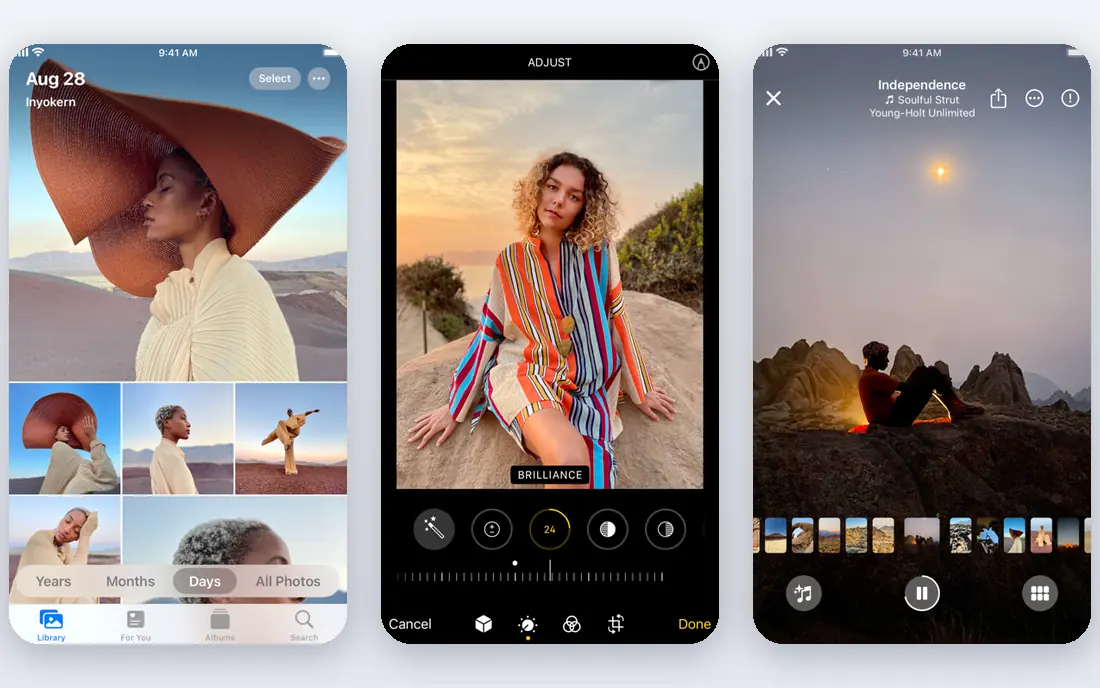
Apple Photos is the quiet default for iPhone and Mac owners. It keeps edits, albums, and favorites in sync, and its face and place views make browsing years of photos pleasant rather than painful. For a household that lives on Apple devices, there is little to learn and little to set up.
The limit is platform lock-in. Android users and Windows users can view shared albums through a link, but they do not get the same full library experience. Storage also matters, since the free iCloud allowance is small. The $0.99 per month tier in search results covers 50 GB, which suits a modest library but not a large video collection.
- Built into iPhone, iPad, and Mac
- ICloud sync across Apple devices
- Simple albums and Memories
- Much weaker outside Apple devices
- Paid iCloud storage is needed for large libraries
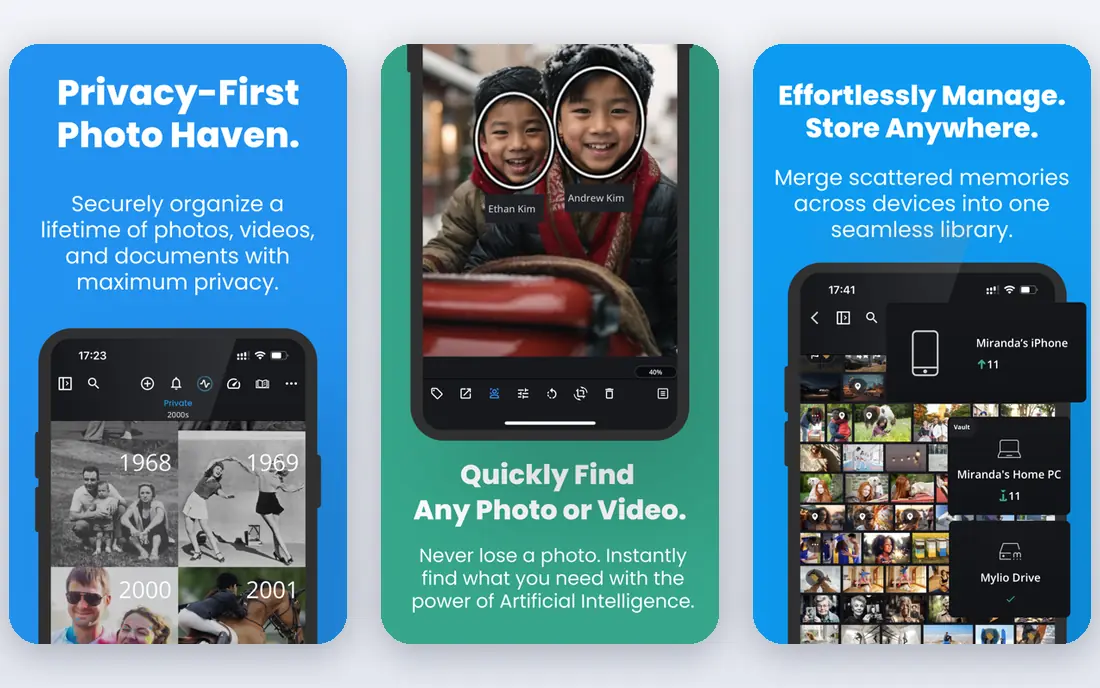
Mylio Photos takes a different path from the big cloud libraries. It can sync directly between your phones, computers, and drives, so you keep one library without moving everything into one company's cloud. Its local search tools tag objects, activities, and faces on your own devices, which helps with privacy and with offline use.
We like it for scattered libraries, such as photos split across an old laptop, a phone, and an external drive. The free tier is useful for trying the layout on one device, but the paid Photos+ plan is what connects everything. If you mainly want quick phone backup and simple sharing, Google Photos or Apple Photos will feel simpler.
- Syncs between your own devices
- Local AI tagging and face recognition
- Works offline
- Full multi-device sync needs the paid plan
- Editing tools are basic compared with Lightroom
Lightroom is an organizer first for many photographers, even though people know it as an editor. You can rate, flag, keyword, and filter thousands of RAW and JPEG files, then edit the keepers without leaving the same library. That pairing saves time for anyone who culls shoots and delivers finished images.
Casual phone photographers may find it more than they need. The subscription model also means you keep paying to keep the full workflow current, and the catalog system takes a short while to learn. Still, for a serious hobbyist or a working photographer, the combination of search, collections, and editing is hard to match.
- Strong catalog, ratings, and keyword tools
- Editing and organizing in one place
- Cloud and desktop options
- Subscription pricing
- Catalog learning curve for casual users
Amazon Photos is easy to overlook, but for Prime members it is a strong second library or even a main one. Photos can be stored at full resolution under a Prime membership, and family members can share storage through a family plan setup. The phone app backs up automatically, and the web view makes it simple to find older shots.
Without Prime, the value drops, and video limits need a careful read before you move a large video library. Search and albums are solid but not as polished as Google Photos for everyday browsing. If you already pay for Prime, try it before you pay for another storage plan.
- Full-resolution photo storage for Prime members
- Family sharing options
- Apps for phone and desktop
- Less useful without Prime
- Video storage has separate limits
digiKam is the pick for people who want a powerful desktop library without a subscription. It handles large folders, writes metadata to files, and offers face recognition, ratings, and detailed filters. Photographers who care about keeping their own folder structure will like that it does not force a cloud upload.
It is not a phone-first app, and its interface is more functional than pretty. You will need some patience to set up face tags and collections, and mobile sync is not its strength. For a free, local library on a computer, though, it gives you more control than most paid tools.
- Free and open source
- Face recognition, tagging, and metadata tools
- Works on Windows, Mac, and Linux
- Desktop only in the main workflow
- Interface looks dated to some users
ACDSee Photo Studio suits people who organize from folders rather than from a cloud feed. It opens local folders quickly, lets you batch rename and tag, and helps you cull large shoots without importing everything into a heavy catalog first. That speed matters when you work with external drives.
The range of editions can confuse a first-time buyer, so check which edition includes the editing and AI tools you want. It is also a desktop-first choice, so phone users will still need a separate backup app. For a local, folder-based workflow, it is a capable middle ground between digiKam and Lightroom.
- Fast browsing of local folders
- Batch tools and metadata editing
- Editing built in on higher tiers
- Pricing varies by edition
- Mobile experience is not the focus
Excire Foto is built around finding photos you cannot describe with a folder name. Its AI search can find similar images, detect content, and help you tag large libraries faster than manual work alone. People who already use Lightroom can use it alongside a catalog, which makes it a useful add-on rather than a full replacement.
It does not try to be your phone backup or your cloud library, so pair it with a backup service. The price also needs checking on the vendor site, since editions and offers change. If search is your main pain point and your library lives on a computer, Excire Foto is worth a trial.
- AI search by content and similarity
- Works with existing Lightroom catalogs
- Strong keyword tools
- No full cloud backup or phone app
- Best as a companion tool for many users
Slidebox is a small, focused app for the most common problem: a camera roll with thousands of unsorted shots. You swipe through photos, send them to albums, and delete the ones you do not want, which turns a chore into a short daily habit. It is a good fit for people who already back up elsewhere but never organize.
It will not replace a desktop catalog, and it does not offer the deep search or editing of the larger tools here. Use it as a front-end sorter, then let Google Photos, Apple Photos, or Mylio keep the cleaned library safe. For a phone-first cleanup, that pairing works well.
- Swipe sorting for phone photos
- Quick album creation
- Simple way to clear duplicates and clutter
- Focused on sorting, not full desktop management
- Features vary by platform
How we picked these
We compared official feature pages, pricing pages, and app store listings, and we favored tools that are still available in October 2026 and that truly organize, not just store files. We looked at search quality, album and tagging tools, backup options, device support, and whether the free or paid price was clear. Tools that only edit, only back up without organizing, or that had unclear availability were left out.
What to check before you choose
Start with where your photos already live
If most of your photos are on an iPhone, Apple Photos has the least friction. If they are spread across Android, Windows, and an old drive, Mylio or a desktop tool will save more time in the long run. Moving a library is the painful part, so pick the tool that fits your current devices first.
Decide how much control you want
Cloud libraries are easy, but you rent storage and accept the provider's rules. Local tools give you folder control and privacy, but you must handle your own backups. A good middle path is a local organizer plus a separate cloud backup, so a lost drive does not mean lost photos.
Test search with your own photos
Open a trial, import a messy folder, and search for a person, a place, and an object. That ten-minute test tells you more than a feature list. Also check duplicate tools, since bursts and shared copies are where most libraries grow out of control.
Watch the storage math
Count photos and video together, not just photos. Video fills a free plan fast, and a plan that looks cheap for photos can jump once you add 4K clips. Check whether the price covers one person or a family, and whether full-resolution storage is included.
Frequently asked questions
What is the best photo organizer software for a large library?
For a large, scattered library, Mylio Photos or a desktop tool such as digiKam or Lightroom works well because they handle folders, metadata, and search at scale. For a phone library that is already backed up, Google Photos or Apple Photos is often enough. Try a trial with a real folder before you move everything.
Is there a good free photo organizer app?
Yes. Google Photos and Apple Photos include free storage up to a limit, and digiKam is free on desktop with no subscription. Slidebox also has a free tier for sorting. Free plans work best when your library is modest or when you pair them with a paid backup for video.
What is the best app to organize photos on iPhone?
Apple Photos is the simplest choice on iPhone, since it is built in and syncs with iCloud. Google Photos is the best cross-platform choice if you also use Android or Windows. Slidebox is a useful extra if your main problem is sorting a messy camera roll.
How do I organize photos without losing them?
Keep at least two copies in different places, such as a local drive and a cloud backup. Use albums for projects, tags or keywords for people and places, and a consistent folder or date structure for the master library. Delete duplicates only after you confirm the backup is complete.
Does a photo organizer app need the cloud?
No. Tools such as digiKam, ACDSee, and Excire Foto work locally, and Mylio can sync between your own devices. The cloud helps with phone backup and sharing, but a local library with a separate backup drive can be just as safe if you maintain it.
Sources
See where you really rank - block by block
ProMapRanker scans Google Maps across a grid of your service area. Simple monthly plans from $19, white-label on every plan.
Start freeKeep reading
 zscaler alternatives
Best Zscaler Alternatives in 2026
Looking for zscaler alternatives? We compare 9 SASE and zero trust platforms on architecture, data protection, pricing, and fit for your network and team.
Read → zapier alternatives free
Best Zapier Alternatives Free in 2026
Nine automation tools for zapier alternatives free in 2026, all with genuinely free tiers, plus free plan limits, starting prices and upgrade paths explained.
Read → which platform is best for online reputation
Which Platform Is Best for Online Reputation in 2026
Wondering which platform is best for online reputation? We compare 8 review, listing, and response tools for small and multi-location businesses and agencies.
Read →