 ProMapRanker
Best Photo Editing Software for PC in 2026

Key takeaways
- For most PC photographers, a RAW workflow tool plus a pixel editor covers nearly every job, so we compared both kinds side by side.
- Affinity is now free for everyone, which makes it the first download to try if you want pro-level pixel editing without a monthly bill.
- Adobe still leads for deep retouching and large photo libraries, but you pay every month for that depth and integration.
- Free tools such as GIMP, Paint.NET, and Photopea are real options, not placeholders, though each asks you to accept a narrower feature set or a simpler interface.
- Prices for paid editors change often, so confirm the current plan on the vendor site before you buy, especially where we list See website.
Quick comparison
| Pick | Great for | Pricing starts at | Free tier | |
|---|---|---|---|---|
 Adobe Photoshop | Deep retouching and compositing | See website | Free trial | Visit |
 Adobe Lightroom | Large photo libraries and RAW editing | See website | Free trial | Visit |
 Affinity | Free pro-level pixel editing | Free | Yes | Visit |
 Capture One | Studio and tethered shooting | See website | Free trial | Visit |
 DxO PhotoLab | Maximum RAW image quality | See website | Free trial | Visit |
 Luminar Neo | Fast AI-assisted edits | See website | Free trial | Visit |
 ON1 Photo RAW | All-in-one organizing and editing | See website | Free trial | Visit |
 GIMP | Free advanced pixel editing | Free | Yes | Visit |
 Paint.NET | Simple Windows edits | Free | Yes | Visit |
 Photopea | Browser-based editing | Free | Yes | Visit |
The best photo editing software for pc
We looked for PC editors that handle real photo work in 2026, from RAW processing and cataloging to layers, masking, and print-ready export. The list below mixes paid leaders with strong free options, so you can match the tool to your budget and your patience for learning curves.

Photoshop remains the reference point for pixel-level work on a PC. Layers, masks, smart objects, and advanced selection tools let you rebuild an image piece by piece, which matters for product shots, portraits with complex retouching, and composites that combine several photos.
The catch is cost and weight. Photoshop is a subscription product, so the bill keeps coming even in months when you barely edit, and the interface can feel like overkill for a simple crop or color fix. Choose Photoshop when retouching, compositing, or design work is the main job, not an occasional task.
- Deepest layer and masking toolset
- Strong selection and generative fill tools
- Huge plugin and tutorial base
- Subscription only
- Can feel heavy for quick edits
- Full feature set takes time to learn
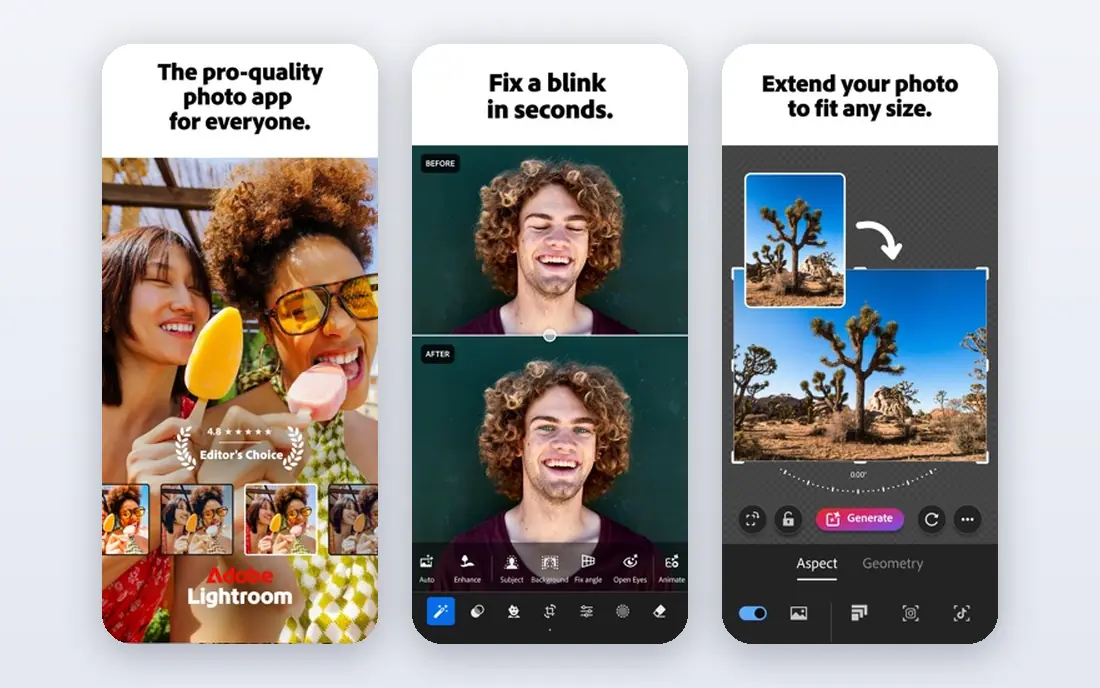
Lightroom is built around the way photographers actually work through a shoot. You import, rate, and organize hundreds of files, apply consistent color and tone adjustments, and export in batches for clients or print. Its masking tools have grown far beyond simple brushes, so you can adjust skies, skin, or backgrounds with a level of control that used to require a pixel editor.
It is not a Photoshop replacement. Complex composites, heavy object removal, and detailed graphic work still belong in a pixel editor, and Lightroom works best when you accept its catalog approach rather than fight it. If you shoot often and need order as much as editing power, Lightroom earns its monthly cost.
- Strong catalog and search tools
- Excellent RAW controls and masking
- Cloud sync across devices
- Subscription only
- Catalog setup needs care
- Pixel-level editing is limited compared with Photoshop
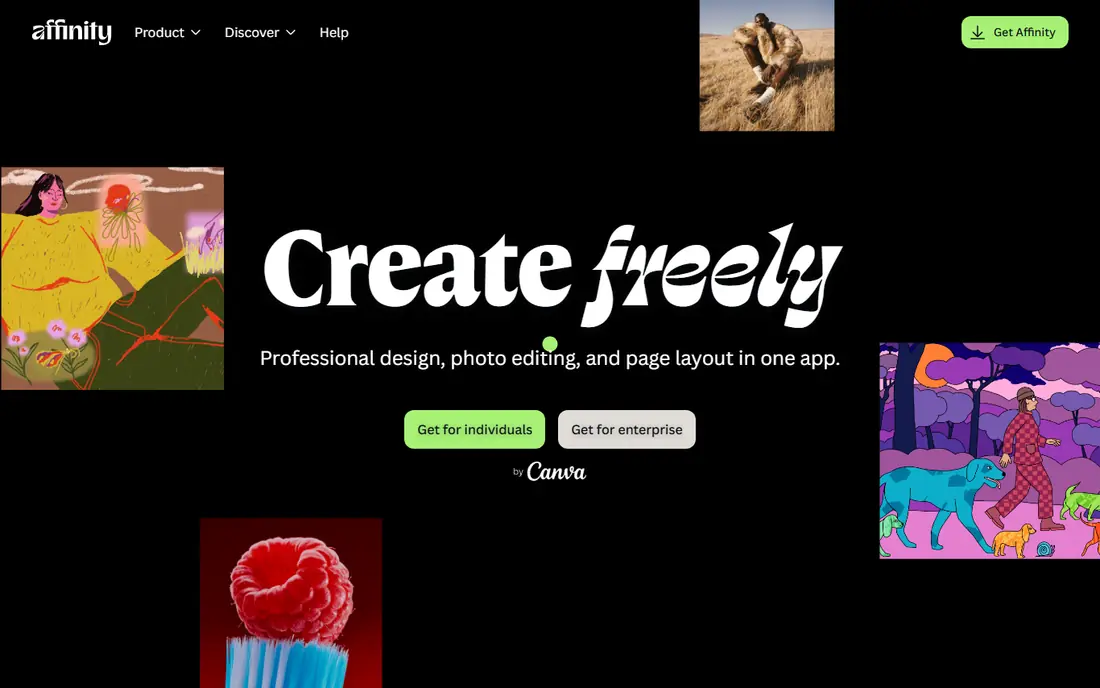
Affinity changed the value question for PC editors when Canva made the unified Affinity app free for everyone. The pixel tools inside it cover the work most photographers need: layers, masks, RAW development, retouching, and compositing, alongside vector and layout tools that Photoshop alone does not include. You need a free Canva account to download it, though core editing tools work without a subscription.
That free price does not make it a perfect Photoshop clone. The plugin library is smaller, and longtime users will need time to adjust to the unified app. Still, for a PC user who wants serious editing without a monthly bill, this is now the obvious first try. Download it, open a few of your own RAW files and PSDs, and judge it on your work before paying for anything else.
- Full photo, vector, and layout tools in one app
- No subscription for core features
- Opens PSD files
- Some AI features need a paid Canva plan
- Smaller plugin base than Photoshop
- New unified interface takes adjustment
Capture One is the studio pick in this list, and its strength shows most when a camera is connected to the PC during a shoot. Tethered capture is fast and stable, live view and session organization keep a commercial shoot moving, and color editing tools give precise control over skin tones and product colors. Photographers who shoot fashion, food, or products often prefer its color rendering.
Outside the studio, the case is narrower. Capture One costs more than several capable rivals, and its catalog and layer tools feel different enough from Lightroom and Photoshop that switching takes real practice. If you mostly edit travel or family photos after the fact, you may not use the features that justify its price. If you shoot tethered or bill clients for color-critical work, it is worth the trial.
- Excellent color tools and tethered capture
- Strong session workflow for studio shoots
- Detailed RAW controls
- Higher cost than many rivals
- Steeper learning curve
- Smaller community than Adobe
DxO PhotoLab appeals to photographers who judge an editor by the final file, not by the size of its feature list. Its noise reduction and optical corrections are built from detailed lens and camera profiles, and they can rescue high-ISO shots that look rough in other editors. The RAW engine preserves fine detail well, which matters for scenery and wildlife work where cropping is common and every bit of sharpness counts.
The trade-off is organization. PhotoLab is not a full catalog tool in the Lightroom sense, so photographers with very large libraries often pair it with another organizer or accept a folder-based workflow. Its local adjustments also work differently from the brush and mask system many Lightroom users know, so allow a few sessions to get comfortable. If image quality is your first priority and you already have a way to organize files, PhotoLab is a strong buy-once style option, subject to the current price on its site.
- Outstanding noise reduction and lens corrections
- Strong RAW detail
- One-time purchase option
- Catalog tools are basic
- Local adjustment workflow differs from Lightroom
- No subscription-free cloud sync
Luminar Neo is for photographers who want a good result quickly and do not enjoy spending an evening on one image. Its AI-assisted tools can replace a sky, clean up a portrait, or adjust a scene with a few sliders, and the interface stays approachable for beginners. It also works as a plugin inside Lightroom and Photoshop, so you can keep your existing workflow and call on Luminar only for specific jobs.
Speed comes with limits. When you need exact, repeatable control over color or complex masking, Luminar feels less precise than Capture One, Lightroom, or Photoshop, and its organizing tools are not built for huge libraries. Pricing has also shifted between subscription and one-time options over time, so check the current offer carefully before committing. Use Luminar as a fast finisher or a beginner-friendly main editor, not as your only tool for demanding commercial work.
- Quick AI tools for skies, portraits, and backgrounds
- Approachable interface
- Works as a plugin for other editors
- Less precise manual control than pro RAW tools
- Catalog features are limited
- Pricing tiers can confuse
ON1 Photo RAW tries to be the whole workflow in one place: browse folders, develop RAW files, add layers and effects, and export, without switching apps or paying a monthly fee for the core product. That breadth suits photographers who want Lightroom-style organizing plus Photoshop-style layers but dislike subscriptions. Its effects and preset library also helps when you want a consistent look across a set quickly, such as for social posts or client previews.
Breadth has a cost in polish. The interface packs in a lot, and on an older PC the app can feel slower than lighter editors, especially with large RAW files. Tutorial coverage is thinner than Adobe's, so self-taught users may need more trial and error. Still, if you want one app that covers most photo jobs on a PC and you prefer a purchase model over a subscription, ON1 deserves a serious trial with your own files.
- Browsing, RAW editing, layers, and effects in one app
- No forced subscription for the main product
- Strong preset and effects library
- Interface can feel crowded
- Performance varies on older PCs
- Fewer third-party tutorials than Adobe
GIMP has been the free Photoshop alternative for years, and it remains the most capable free pixel editor on PC. Layers, masks, selection tools, and a large plugin collection cover retouching, compositing, and graphic work that simpler free editors cannot handle. Because it is open source, there is no subscription or feature paywall, which makes it a safe choice for students and small businesses on tight budgets.
The honest catch is polish and RAW handling. The interface looks dated next to modern editors, and RAW files need a plugin such as RawTherapee or darktable in the workflow rather than opening directly with the same smoothness as Lightroom. Photoshop users will also find some tools named or placed differently, which slows the first weeks. If you need a free editor that can grow with you, GIMP is the one to learn, but pair it with a dedicated RAW tool for camera files.
- Free and open source
- Deep layer, mask, and plugin support
- Runs on Windows, Mac, and Linux
- Interface feels dated
- RAW support needs a plugin
- Learning curve for Photoshop migrants
Paint.NET is the editor we recommend when someone just wants to crop, resize, adjust color, and add text or simple layers without learning a pro app. It opens fast, runs well on modest Windows PCs, and its layer support puts it well ahead of basic paint programs. A plugin collection adds extra effects and file format support, so it grows a little beyond its simple first impression.
It is not a RAW workflow tool and not a Photoshop rival. Photographers who shoot RAW, manage large libraries, or do detailed portrait retouching will outgrow it quickly, and Mac users cannot use it at all. Judge it for what it is: a free, friendly Windows editor for everyday photo fixes, screenshots, and web images. For that job, its simplicity is a strength, not a flaw.
- Free and very easy to learn
- Fast on modest PCs
- Layers and useful plugins included
- Windows only
- No full RAW workflow
- Weaker for advanced retouching
Photopea is the practical answer when you need Photoshop-style editing on a PC you do not own, or you cannot install software at work or school. It runs entirely in a browser, opens PSD and other common formats, and supports layers, masks, and adjustments that free web editors usually lack. For a quick composite or an edit on a borrowed machine, it is remarkably capable.
Browser editing has limits you should respect. The free tier shows ads, a weak connection slows work, and very large files or long batch jobs are better handled by a desktop app. Privacy also matters: avoid uploading sensitive client images to any browser tool without checking the terms that apply. Keep Photopea as your portable backup editor, and pair it with a desktop app for your main library and heavy jobs.
- Runs in a browser with no install
- Opens PSD, XCF, and RAW files
- Layer and mask editing included
- Ads on the free tier
- Needs a steady internet connection
- Less suited to huge files or batch work
How we picked these
We compared official feature pages, pricing pages, and app listings for PC photo editors, and we favored tools that are still sold or supported in October 2026 and that handle real photo files, not just filters for social posts. We included both RAW workflow tools and pixel editors because most photographers need elements of both, and we checked that free options were genuinely free for core editing rather than short trials dressed up as free plans. Where pricing differed across sources or changed during 2026, we listed See website instead of repeating a figure we could not confirm.
We did not claim hands-on testing we did not do. Our judgment rests on documented features, published pricing models, platform support, and public user feedback about performance and learning curves. That is why some entries stress workflow fit over raw feature counts: the best editor is the one you will actually use for your kind of photos, on your PC, within your budget.
What to check before you pay
Match the editor to your file type
RAW shooters need a strong RAW engine and organizing tools, while JPEG and phone-photo editors can do well with a simpler pixel editor. If you shoot RAW often, shortlist Lightroom, Capture One, DxO PhotoLab, ON1, or Affinity first, and test them with your own camera files rather than sample images.
Frequently asked questions
What is the best photo editing app for PC for beginners?
For beginners, Affinity and Luminar Neo are strong starting points for different reasons. Affinity gives you pro tools for free, so you can learn layers and masking without a monthly bill, while Luminar Neo gets good results faster with guided AI tools. Paint.NET is even simpler if you only need basic fixes on Windows. Start with the simplest tool that handles your current photos, and move up only when you hit a real limit.
What is the top free photo editing software for PC?
Affinity, GIMP, Paint.NET, and Photopea are the strongest free choices, and the right one depends on your work. Affinity is the best free all-rounder for serious pixel editing, GIMP is best for deep free retouching with plugins, Paint.NET is best for fast simple edits on Windows, and Photopea is best when you need editing in a browser. None of them charges for core editing, though Affinity reserves some AI features for a paid Canva plan.
Is Photoshop or Lightroom better for PC photo editing?
Photoshop is better for retouching, compositing, and graphic work, while Lightroom is better for organizing large libraries and applying consistent RAW edits across many photos. Many photographers use both, with Lightroom for the bulk of a shoot and Photoshop for selected images that need detailed work. If you can only pick one, choose Lightroom for volume photography and Photoshop for image manipulation.
Do I need a paid editor for good PC photo editing?
No, not necessarily. Free editors now cover layers, masks, RAW development, and export at a level that suits many hobbyists and small businesses. Paid editors earn their cost through faster workflows, better catalog tools, tethered shooting, or advanced color and noise handling. Pay when a specific paid feature saves you measurable time or improves paid client work, not because a free tool feels less professional.
Sources
See where you really rank - block by block
ProMapRanker scans Google Maps across a grid of your service area. Simple monthly plans from $19, white-label on every plan.
Start freeKeep reading
 who has the best home internet service
Who Has the Best Home Internet Service in 2026
Who has the best home internet service in 2026? Compare fiber, cable, and 5G providers on speed, price, data caps, and availability at your address today.
Read → visio alternatives
Best Visio Alternatives in 2026
Compare 9 Visio alternatives for flowcharts, org charts, and network diagrams, with free plans, pricing, and the best pick for teams and solo users in 2026.
Read → top 10 logistics software
Top 10 Logistics Software in 2026
We compared the top 10 logistics software tools for transport, warehousing, visibility and shipping, for shippers, carriers and 3PL teams in 2026 today.
Read →