 ProMapRanker
Best Photo and Video Editing Apps in 2026

Key takeaways
- Adobe Lightroom is the strongest pick for serious photo editing, while CapCut and Filmora lead for fast social video.
- Picsart and Canva suit creators who want templates, text and collages alongside basic photo and video edits.
- PowerDirector and InShot cover more timeline control for longer or more polished mobile videos.
- VSCO and Darkroom suit a consistent photo look, with video tools for short clips and quick colour work.
- Our pick for most people is CapCut, because it handles both quick photo tweaks and polished short video in one free-to-start app.
Quick comparison
| Pick | Great for | Pricing starts at | Free tier | |
|---|---|---|---|---|
 CapCut | Quick photo and social video | Free | Yes | Visit |
 Adobe Lightroom | Serious photo editing | See website | Yes | Visit |
 Picsart | Creative photo and video edits | Free | Yes | Visit |
 Canva | Templates and social design | Free | Yes | Visit |
 Filmora | Polished mobile and desktop video | See website | Free trial | Visit |
 PowerDirector | Timeline video editing | See website | Yes | Visit |
 InShot | Fast mobile video edits | Free | Yes | Visit |
 VSCO | Film-style photo and video looks | See website | Yes | Visit |
 Darkroom | Apple photo and video workflow | See website | Yes | Visit |
The best photo and video editing apps
Most creators now need one app that can fix a photo, trim a clip, add captions and export for social media without switching tools all day. The apps below all handle both photo and video work to a useful degree, though their strengths differ sharply. We compared official app store listings, feature pages and pricing pages, and we focused on apps that work today on phone and, where offered, desktop.
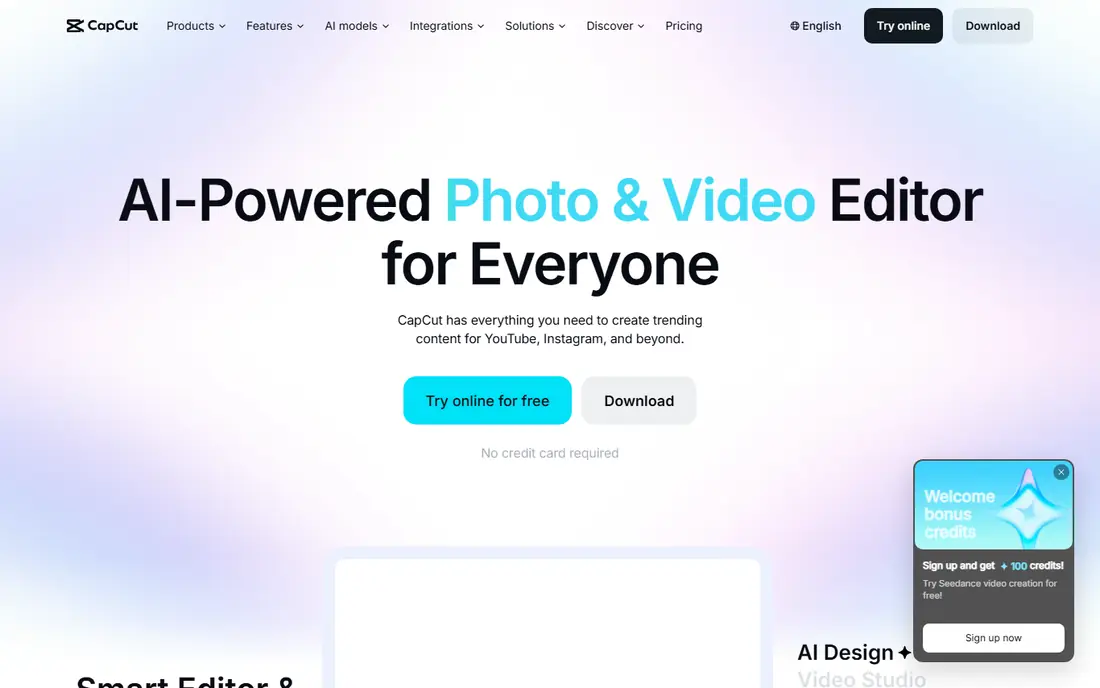
CapCut is our pick for most people because it does the everyday creator job in one place. You can trim and arrange clips, add captions, filters, transitions and music, then fix a photo for a thumbnail or post without opening a second app. Templates help beginners produce a clean short video quickly, while manual timeline controls give more experienced editors room to adjust.
The free tier is generous for starting out, but check which effects, cloud features and export options sit behind the paid plan. CapCut is also owned by ByteDance, so users who prefer a non-social-media-linked editor may choose Filmora or PowerDirector instead. For fast social content, it remains the easiest all-round choice here.
- Fast video timeline with captions and effects
- Photo editing and templates
- Large music and effect library
- Some top features need a paid plan
- Watermark and export options vary by plan
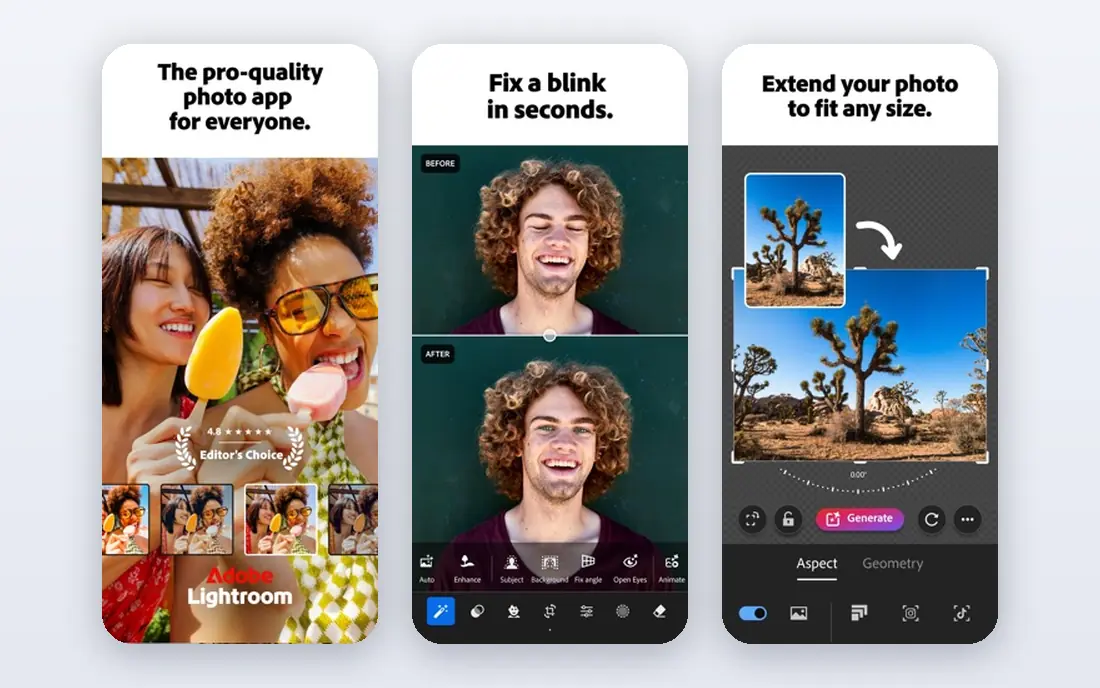
Lightroom is the photo-first pick on this list, and for photographers it is still the standard to beat. RAW editing, precise colour and tone controls, AI masking and batch edits help you keep a consistent look across hundreds of photos. Cloud sync means edits move between phone, tablet and desktop, which suits photographers who shoot and edit in different places.
Video editing in Lightroom is limited to basic trimming and colour work, so pair it with CapCut or Filmora for serious video projects. The free mobile version covers many basics, while premium tools and cloud storage need a paid plan. If photos matter more than video, start here and add a video app second.
- Excellent colour, masking and RAW tools
- Cloud sync across devices
- Strong photo organisation
- Video tools are basic compared with dedicated video editors
- Best features need a subscription
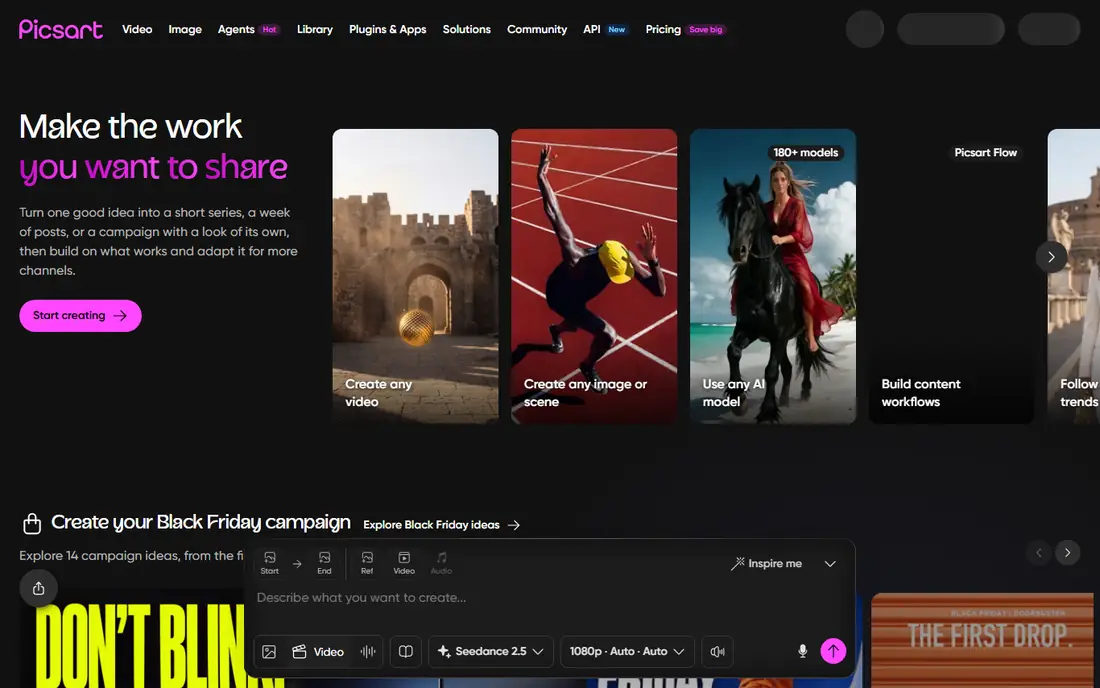
Picsart suits creators who like playful, creative edits rather than a strict professional workflow. You can retouch photos, remove backgrounds, add text and stickers, make collages and edit short videos with filters and effects. Templates speed up social posts, stories and thumbnails, which is why many small business owners use it for daily content.
The free tier covers a useful range, but expect some tools, fonts and stock assets to sit behind the paid plan. Picsart also leans toward social style over precise colour control, so photographers may still prefer Lightroom. For fun, fast and varied content, it is a strong all-rounder.
- Photo editor plus video tools and templates
- Background removal and stickers
- Large creative community
- Many top tools need a paid plan
- Interface can feel crowded
Canva is the design-first option, and it works well when a post needs text, branding and layout as much as a photo fix. You can edit photos, trim and arrange video clips, add captions and export in social sizes, all inside a template. Small businesses use it for posts, ads, presentations and short videos without learning a professional editor.
Canva will not replace Lightroom for RAW work or Filmora for complex video timelines. Its strength is speed and consistency, especially for teams that reuse brand colours, fonts and layouts. If your content is template-led, Canva saves more time than any specialist editor here.
- Huge template library
- Easy text and layout tools
- Photo and video editing in one design tool
- Not a full RAW photo editor
- Video timeline is simpler than dedicated editors
Filmora bridges mobile and desktop video work better than most apps here. The timeline supports multiple tracks, transitions, titles, audio mixing and AI features such as auto captions and object removal, while photo tools cover thumbnails and social images. Desktop users get more control, while mobile users get a familiar version of the same workflow.
Check export terms on the free version, since watermark rules matter for published work. Filmora also uses a subscription model, so casual editors who only cut a clip each month may prefer CapCut or InShot. For creators who want a polished result without learning a professional suite, Filmora is a strong step up.
- Full timeline on mobile and desktop
- AI tools for captions and object removal
- Stock media options
- Free exports may carry a watermark
- Subscription cost adds up for casual users
PowerDirector is for mobile editors who want more timeline control than a template app offers. You can work with multiple video and audio tracks, adjust speed, add transitions and titles, and export in high resolution on capable devices. Photo tools support slideshows and stills for mixed photo and video projects.
The learning curve is steeper than CapCut or InShot, and the best export and effect options sit on paid plans. That effort pays off for longer videos, tutorials and travel films where precise cuts matter. If you outgrow template editing, PowerDirector is a natural next step on mobile.
- Strong mobile timeline controls
- 4K support on capable devices
- Photo slideshow and video tools
- Some features need a paid plan
- Interface takes time to learn
InShot is the quick-edit specialist. Trimming, merging, speed changes, filters, stickers and music take only a few taps, which makes it ideal for Reels, Shorts and TikTok clips. Photo editing covers crops, filters, collages and text, so a single post with a photo and a clip stays in one app.
It is not built for long, multi-track projects, and free users should check ads and watermark terms before publishing. For daily social clips and fast photo posts, InShot is one of the least frustrating tools here, and its simplicity is the point.
- Very easy trimming, filters and music
- Photo collage and editing tools
- Fast export for social
- Free version may show ads and watermark options vary
- Fewer advanced timeline features
VSCO suits creators who want a consistent, film-inspired look across photos and short videos. Its presets and editing tools favour tone, grain and colour over heavy effects, which helps a feed look coherent without a lot of manual work. Video editing covers filters, trimming and basic adjustments for short clips.
The free tier is useful for testing the style, but many defining presets sit behind membership. VSCO also focuses less on templates and text than Picsart or Canva, so design-led posts may need a second app. For a calm, consistent photo and video style, it remains a favourite.
- Distinct film-inspired presets
- Clean editing tools
- Video filters and adjustments
- Many presets and tools need a membership
- Social features are less central than before
Darkroom is built for Apple users who want to edit inside their existing photo library without importing into a separate catalogue. It offers strong colour, curve and batch tools for photos, plus video editing for clips in the same library. That tight link to Apple Photos saves time for iPhone photographers who edit daily.
Android users should skip Darkroom, since it does not cover that platform. Some advanced tools also need a paid plan, so check the feature list against your needs. For iPhone and iPad creators who want a fast, photo-led workflow with video included, Darkroom is a clean and capable choice.
- Fast Apple Photos workflow
- Strong colour tools for photo and video
- Batch editing
- Apple devices only
- Some advanced tools need a paid plan
How we picked these
We compared official app pages, feature lists and pricing information for apps that handle both photo and video editing to a useful degree, and that work today on current phones and, where offered, desktop. We favoured a mix of free, freemium and paid options, and we noted where prices are not published instead of inventing a figure. We did not claim hands-on testing, and we left out photo-only and video-only specialists that would not meet the combined brief.
How to choose the right app
Start with the work you do most. If short social video leads, try CapCut or InShot first. If photos lead, try Lightroom or Darkroom first, then add a video app for clips. If branded posts lead, try Canva or Picsart, since templates and text matter more than RAW controls. Test export quality on your own phone before committing, since performance varies by device.
Check exports before you pay
Confirm resolution, watermark rules, caption options and file formats on the free tier, since those details decide whether an app is usable for published work. Check whether cloud storage, stock media and AI tools are included or capped. A low monthly price with a watermark on every export is not a bargain for a creator.
Keep a simple workflow
Use one app for capture and quick edits, and a second only when a project needs it, such as Lightroom for photos plus Filmora for a longer video. Too many apps slow exports and scatter files. Back up originals before heavy edits, and keep a consistent preset or template so your posts look like they come from the same creator.
Frequently asked questions
What are the best photo and video editing apps?
The best photo and video editing apps include CapCut, Adobe Lightroom, Picsart, Canva, Filmora, PowerDirector, InShot, VSCO and Darkroom. Each balances photo and video differently, so the best pick depends on whether photos, short video or branded design leads your work. Most offer a free tier to test before paying.
What is the best photo video editing app for beginners?
CapCut and InShot are strong beginner picks, since both offer fast trimming, filters, captions and templates with little learning time. Canva also suits beginners who need text and layout. Start with a free tier, make a few real posts, and only pay when you hit a limit you actually need.
What are the best video and photo editing apps for social media?
For social media, CapCut, InShot, Picsart and Canva cover the most common needs, including vertical video, captions, templates and quick photo fixes. PowerDirector and Filmora suit longer or more polished videos. Check export sizes for each platform, since Reels, Shorts and TikTok have different best formats.
What is the best photo and video editing software for professionals?
Adobe Lightroom leads for professional photo work, while Filmora and PowerDirector offer stronger video timelines for creators who need more control. True professional video suites sit outside this mobile-led list, so pair Lightroom with a desktop video editor for client work. For most creators, the apps here cover daily publishing well.
Are there free photo and video editing apps?
Yes, CapCut, Picsart, Canva and InShot all offer a free tier, and Lightroom, PowerDirector, VSCO and Darkroom offer free starting options. Free tiers may limit exports, effects or storage, so check those limits. For casual use, a free tier is often enough to start.
Do these apps work on Android and iPhone?
Most apps on this list work on both Android and iPhone, with desktop versions for some, including Filmora and Canva. Darkroom is the exception, since it is built for Apple devices. Check the app store listing for your exact device and operating system version before installing.
Sources
See where you really rank - block by block
ProMapRanker scans Google Maps across a grid of your service area. Simple monthly plans from $19, white-label on every plan.
Start freeKeep reading
 zscaler alternatives
Best Zscaler Alternatives in 2026
Looking for zscaler alternatives? We compare 9 SASE and zero trust platforms on architecture, data protection, pricing, and fit for your network and team.
Read → zapier alternatives free
Best Zapier Alternatives Free in 2026
Nine automation tools for zapier alternatives free in 2026, all with genuinely free tiers, plus free plan limits, starting prices and upgrade paths explained.
Read → which platform is best for online reputation
Which Platform Is Best for Online Reputation in 2026
Wondering which platform is best for online reputation? We compare 8 review, listing, and response tools for small and multi-location businesses and agencies.
Read →