 ProMapRanker
Best PDF Reader App in 2026: 9 Apps Compared

Key takeaways
- Adobe Acrobat Reader remains the safest default for files that must open exactly as the sender made them.
- Foxit PDF Reader and PDFgear give strong free reading and commenting without a paid plan.
- SumatraPDF suits Windows users who want a very light reader that opens fast.
- PDF Expert is the most polished choice on Apple devices, while PDF-XChange Editor suits Windows users who want a one-time style purchase.
- Paid editing, conversion and signing sit behind upgrades in almost every free reader, so check what the free plan actually includes.
Quick comparison
| Pick | Great for | Pricing starts at | Free tier | |
|---|---|---|---|---|
 Adobe Acrobat Reader | Maximum compatibility | Free | Yes | Visit |
 Foxit PDF Reader | Fast everyday reading | Free | Yes | Visit |
 PDF Expert | Apple devices | See website | Free trial | Visit |
 SumatraPDF | Lightweight Windows reading | Free | Yes | Visit |
 PDF-XChange Editor | Windows editing value | See website | Yes | Visit |
 Nitro PDF Pro | Business PDF workflows | See website | Free trial | Visit |
 Xodo | Cross-device reading and signing | Free | Yes | Visit |
 PDFelement | Editing on a budget | See website | Free trial | Visit |
 PDFgear | Free editing tools | Free | Yes | Visit |
The best pdf reader apps
We compared official feature pages, pricing pages and app store listings for readers that are still offered in October 2026. Our pick for most people is Adobe Acrobat Reader for compatibility, with Foxit PDF Reader close behind for speed.
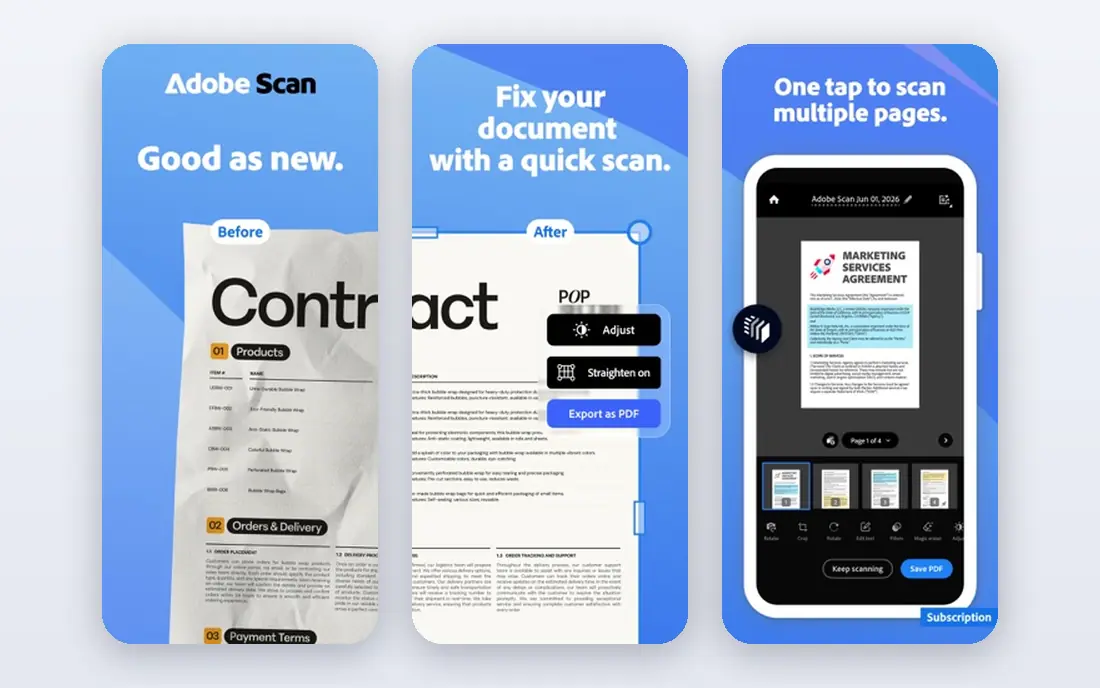
Adobe Acrobat Reader is the reference point for PDF files because Adobe created the format, and most other readers are judged against how faithfully they open its files. Forms, protected documents and complex layouts tend to open here with fewer surprises than in smaller readers. That matters when a contract, tax form or textbook chapter must look the same on every screen.
The free reader covers viewing, printing, commenting, filling forms and basic signing. Mobile apps add camera scanning, so a paper page can become a PDF without a separate scanner app. The catch is clear: full text editing, file conversion and advanced signing tools require Acrobat Pro, so readers who only open and mark up files will be happy, while editors should budget for the upgrade.
- Widely compatible rendering
- Free viewing, commenting and signing
- Works on desktop and mobile
- Editing and conversion need a paid plan
- The desktop app can feel heavy on older machines
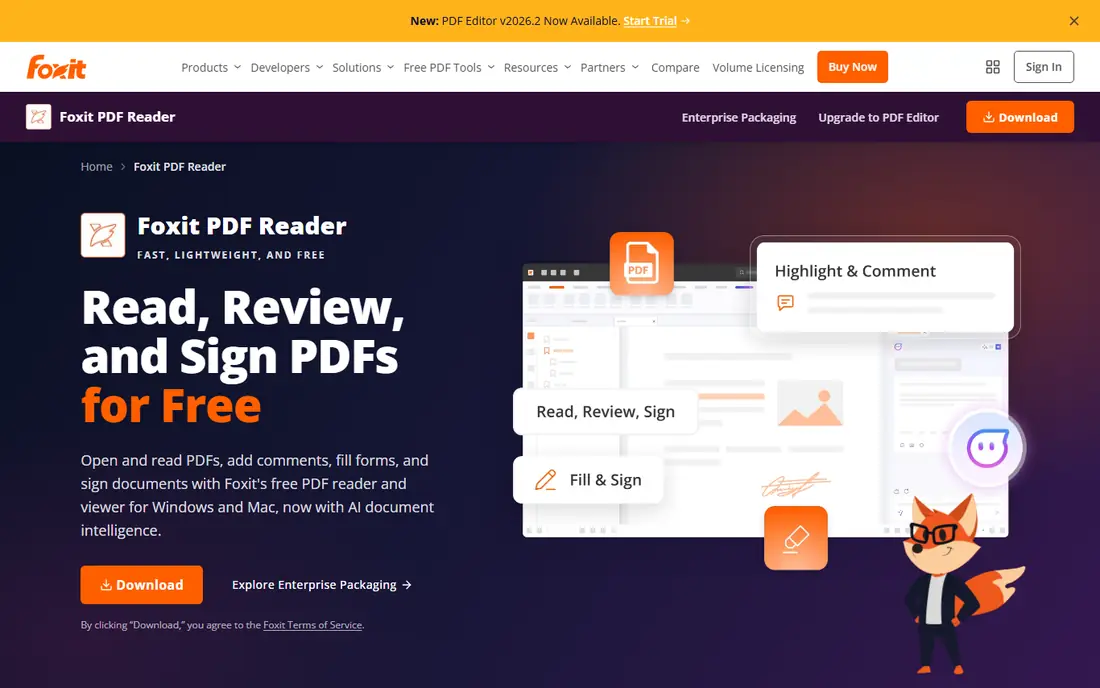
Foxit PDF Reader opens quickly and keeps several documents in tabs, which helps when you are comparing a report, a set of notes and a form at the same time. Search, zoom and annotation controls are easy to reach, and the free version is genuinely usable for reading and commenting rather than a short trial. It runs on Windows, Mac, iOS and Android, so switching devices does not mean learning a new reader.
The trade-off is that Foxit is also a business product, so menus include tools many home readers will never touch. Paid Foxit PDF Editor plans add full editing and conversion. For pure reading, though, the free reader is one of the strongest choices here, and it stays lighter than Adobe on many Windows machines.
- Tabbed reading
- Fast opening
- Useful annotation tools in the free version
- Advanced editing tools are paid
- Some business features add clutter for casual readers
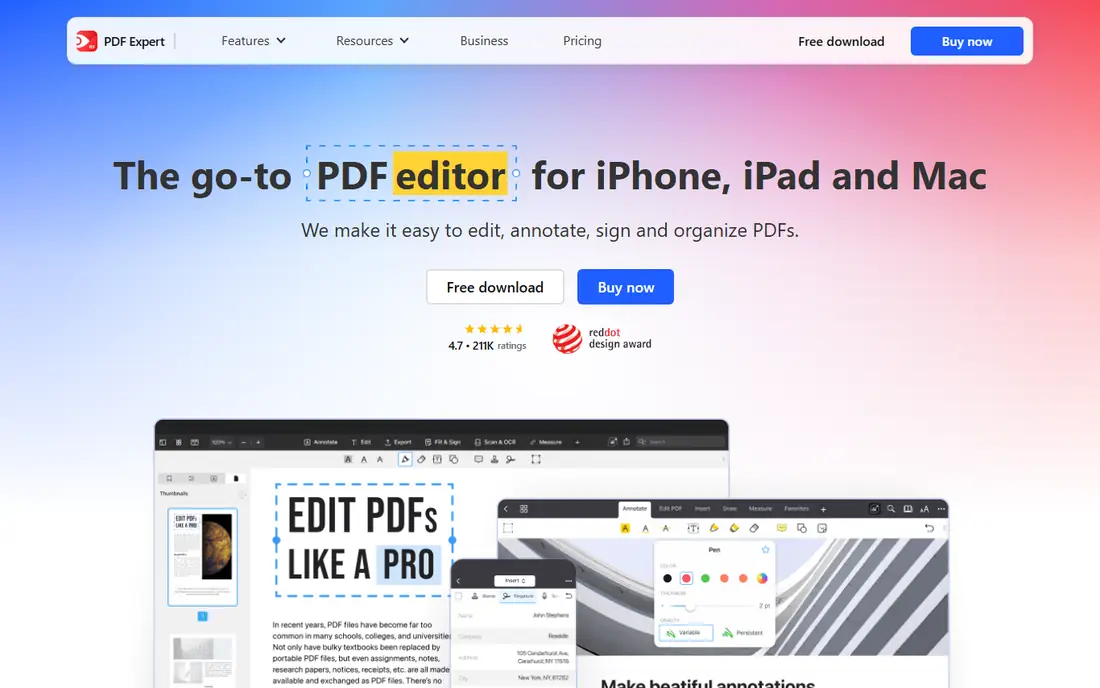
PDF Expert feels built for Apple hardware rather than ported to it. On iPad, Apple Pencil annotation feels natural, and split view with another app makes research reading easier. On Mac, tabs, bookmarks and outline navigation keep long documents manageable. Signing a form takes a few taps, and the app handles large files without the lag some cross-platform readers show.
The limit is platform. If you also use Windows or Android, you will need a second reader, and files will not sync annotations in the same way. PDF Expert is best for readers who live inside the Apple system and want the cleanest reading and markup experience there, rather than a tool for every device they own.
- Polished Mac and iPad design
- Strong annotation and signing
- Fast performance
- No Windows or Android version
- Full features need a paid plan
SumatraPDF does one job with very little fuss: it opens documents fast. The program is small, starts in a moment, and uses little memory, which makes it a good choice for older Windows laptops or for readers who open dozens of files in a day. It also reads ePub, MOBI and other document formats, so it can double as a general ebook reader.
It is not an editor. Annotation is basic, and there is no built-in signing or conversion suite. Readers who need to mark up a textbook heavily or fill complex forms should pick a fuller reader. Readers who mainly want to open, search and read will find SumatraPDF refreshingly free of distractions.
- Very small and fast
- Free and open source
- Simple interface
- Windows only
- Limited editing and annotation features
PDF-XChange Editor stands out for Windows users who want more than reading without paying a monthly fee. The free version handles viewing and basic annotation, while paid versions add editing, OCR, form creation and document assembly. Markup tools are detailed, with stamps, comments and measurement tools that suit technical documents and plans.
New users may find the toolbar crowded at first, because the app packs many tools into one window. Once the main tools are learned, though, it becomes a capable daily editor. Check the current pricing page before buying, since feature tiers differ between the Editor and Editor Plus versions, and some features add a watermark in the free version.
- Strong editing and markup tools
- OCR options
- Good value against subscriptions
- Windows only
- Interface can feel busy for new users
Nitro PDF Pro is aimed at people who work with PDFs all day: editing text, converting files, combining documents and sending them for signature. The interface will feel familiar to anyone who uses office software, with a ribbon layout and clear editing tools. Batch conversion and document comparison help when a team handles many files at once.
For a reader who only opens PDFs, Nitro is more than needed, and the price reflects that. For a small business that wants an Adobe alternative with editing and signing in one purchase or subscription, it is a credible option. Try the trial first to confirm that its editing handles your specific files, especially scanned documents that need OCR.
- Full editing and conversion
- ESigning tools
- Mac and Windows versions
- Higher price than casual readers need
- Some features suit offices more than home use
Xodo is useful when your reading moves between a phone, a tablet and a computer. The web app opens files without installing software, and mobile apps keep annotations and bookmarks in step. Filling forms and signing documents are included in the free tier, which makes Xodo a practical choice for students and remote workers who share marked-up files.
Editing text inside a PDF is more limited than in Nitro or PDF-XChange Editor, and power features sit in paid plans. Still, for reading, commenting and signing across devices, Xodo covers the daily work well. It is also a good second reader to keep alongside a desktop editor.
- Works on web, mobile and desktop
- Free annotation and signing
- Cloud sync options
- Editing is less deep than paid editors
- Some advanced tools need a paid plan
PDFelement from Wondershare bundles the tools many readers eventually want: text editing, page management, conversion to Word and other formats, form creation and OCR for scanned pages. The interface is friendlier than some Windows-only editors, and mobile apps cover reading and signing on the go. That breadth makes it a good step up from a free reader.
Pricing needs care. Plans differ by platform and by one-time versus subscription billing, and trial output can carry watermarks. Compare the plan that matches your device before paying, and test OCR on a scanned page you actually use. For readers who edit often but do not want Adobe prices, PDFelement is worth a close look.
- Editing, conversion and OCR in one app
- Form tools
- Mac, Windows, iOS and Android versions
- Pricing tiers can be confusing
- Free trial adds watermarks to some output
PDFgear has gained attention because its core editing tools are free, not locked behind a trial. Users can edit text, annotate, convert files, compress PDFs and sign documents without paying for the basics. That makes it a strong choice for students and small teams who need occasional editing but cannot justify a subscription.
The catch is maturity. PDFgear is newer than the long-standing names here, and some newer AI features are paid or limited. Support and long-term update history are shorter, so readers with strict compliance needs may prefer Adobe or Foxit. For everyday editing at no cost, though, PDFgear is hard to ignore.
- Free editing and conversion
- Annotation and signing
- Windows, Mac, iOS and Android versions
- Newer brand than Adobe or Foxit
- AI chat tools may need a paid plan
How we picked these
We compared official product pages, pricing pages and app store listings for readers that are still sold and supported in October 2026. We kept only readers that open standard PDFs, work on current operating systems and offer a real free tier or trial. We left out readers that are no longer maintained, and we favoured tools that cover reading, annotation and signing, with editing noted honestly where it costs extra.
What to check before you choose a PDF reader
Start with the device you read on most. Apple-only readers such as PDF Expert make little sense on a Windows laptop, and Windows-only tools such as SumatraPDF and PDF-XChange Editor make little sense on an iPad. Next, decide how much editing you need. If you only read and comment, a free reader will serve you well for years. If you edit text, build forms or run OCR on scans every week, a paid editor will save time and frustration.
Also check file handling. Try your reader on a large textbook, a scanned form and a protected document before you commit. Look at how it handles signatures, since some readers sign well but export in ways other apps struggle to read. Finally, check storage: a reader that syncs through a cloud service you already use will cause fewer lost annotations than one that stores files only on one device.
Free or paid
Free readers cover reading, searching, commenting and basic signing for most people. Paid plans add editing, conversion, OCR and batch tools. Buy paid only when you hit a free limit more than once a month, and prefer a trial that lets you test your own files.
Privacy and file safety
PDFs can contain personal data, so check where a reader stores files and whether online tools upload your document to a server. Desktop readers usually keep files local, while web tools may process them online. Read the privacy policy for any tool you use for contracts or medical forms.
Frequently asked questions
What is the best pdf reader app for free?
Adobe Acrobat Reader and Foxit PDF Reader are the safest free starting points, with PDFgear adding free editing. Adobe wins on compatibility, Foxit wins on speed, and PDFgear wins when you need to edit without paying. Try all three on your own files, since rendering can differ on complex documents.
Which pdf reader software is best for editing?
PDF-XChange Editor, Nitro PDF Pro and PDFelement offer the deepest editing among the tools here, with PDF Expert strong on Apple devices. PDFgear is a good free first try for light editing. For heavy daily editing, test the paid trial on scanned and complex files before buying.
Is there a good top pdf reader software for iPad?
PDF Expert is our pick for iPad because of its annotation, signing and Apple Pencil support. Xodo and PDFelement also work well on iPad and sync across devices. If you share files with Windows users, check that annotations export cleanly.
Can I sign PDFs for free?
Yes, in most readers here. Adobe Acrobat Reader, Foxit PDF Reader, Xodo and PDFgear include signing in their free tiers. Paid plans add bulk signing, audit trails and business eSignature workflows, which matter more for companies than for personal use.
Do I need Adobe Acrobat Pro to read PDFs?
No. The free Acrobat Reader opens almost any standard PDF. Pro adds editing, conversion, comparison and advanced signing. Most readers never need Pro, and a free reader plus an occasional paid editor covers many workflows.
Sources
See where you really rank - block by block
ProMapRanker scans Google Maps across a grid of your service area. Simple monthly plans from $19, white-label on every plan.
Start freeKeep reading
 zscaler alternatives
Best Zscaler Alternatives in 2026
Looking for zscaler alternatives? We compare 9 SASE and zero trust platforms on architecture, data protection, pricing, and fit for your network and team.
Read → zapier alternatives free
Best Zapier Alternatives Free in 2026
Nine automation tools for zapier alternatives free in 2026, all with genuinely free tiers, plus free plan limits, starting prices and upgrade paths explained.
Read → which platform is best for online reputation
Which Platform Is Best for Online Reputation in 2026
Wondering which platform is best for online reputation? We compare 8 review, listing, and response tools for small and multi-location businesses and agencies.
Read →