 ProMapRanker
Best PDF Editing Software in 2026


Heavy office and legal PDF work · Pricing starts at: $19.99 per month
Key takeaways
- Adobe Acrobat Pro at $19.99 per month on an annual plan remains the reference point for heavy PDF work and shared documents.
- PDFelement and Foxit PDF Editor offer much of the same desktop editing at a lower yearly cost, with perpetual options in some cases.
- PDFgear covers basic editing at no cost, which is enough for many students and casual users.
- Check platform support first, since several strong editors are Windows only or Mac and iOS only.
Quick comparison
| Pick | Great for | Pricing starts at | Free tier | |
|---|---|---|---|---|
| Adobe Acrobat Pro | Heavy office and legal PDF work | $19.99 per month | Free trial (7 days) | Visit |
 Wondershare PDFelement | Budget desktop editing with AI tools | $79.99 per year | Free trial | Visit |
 Foxit PDF Editor | Professionals who want Acrobat-style power for less | $129.99 per year | Free trial (14 days) | Visit |
 Nitro PDF Pro | Small teams that edit and sign contracts | See website | Free trial | Visit |
 PDF Expert | Mac and iOS users who edit on the move | See website | Free trial (7 days) | Visit |
 PDFgear | Free everyday PDF editing | Free | Yes | Visit |
 Smallpdf | Quick browser-based PDF tasks | $9 per month | Free trial | Visit |
 Sejda | Occasional browser editing and form work | See website | Free trial | Visit |
 PDF-XChange Editor | Windows users who want a one-time license | $62 one-time purchase | Free trial | Visit |
 UPDF | Cross-platform editing with AI help | See website | Free trial | Visit |
The best PDF editing software
We compared PDF editors on text editing, OCR, forms, signing, file conversion, and whether the price is a subscription, a one-time purchase, or free.
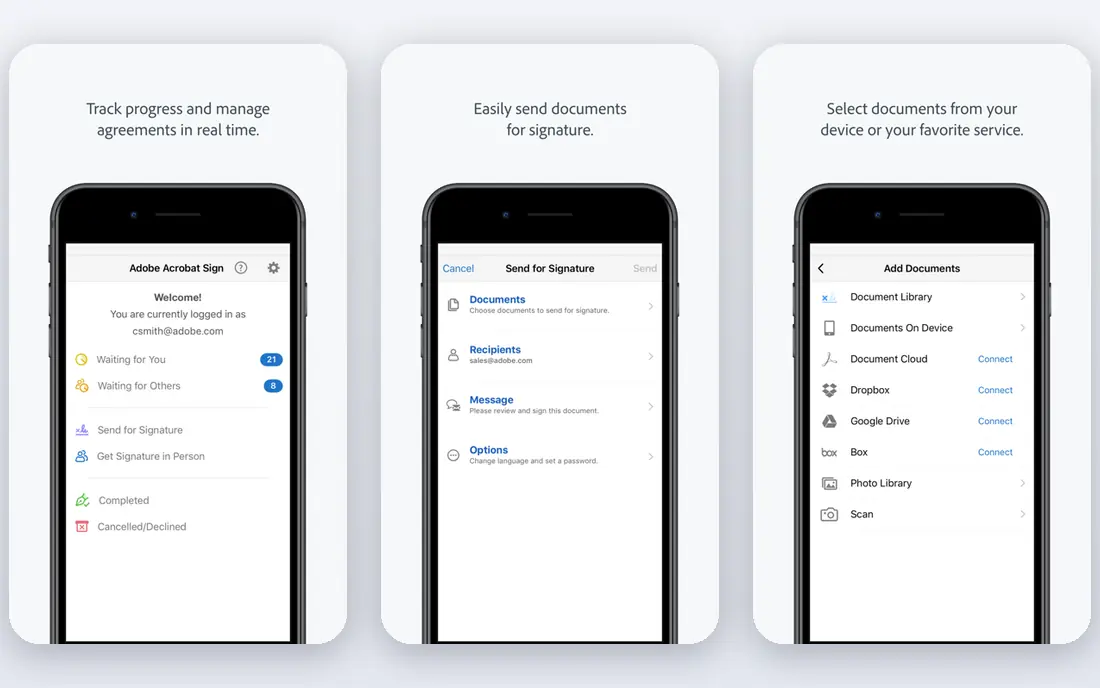
Adobe Acrobat Pro fits people who edit PDFs all day and share them with clients, lawyers, or large teams. It edits text and images, converts scanned pages into searchable text, compares document versions, and handles forms and signatures in one place. For a team comparing options on heavy office and legal pdf work, that combination is worth testing with real data, since feature pages alone do not show how daily work feels.
The catch is cost and contract terms. The annual plan costs more than most rivals over three years, and early cancellation can carry a fee, so check the plan terms before you subscribe. Before you commit, check the current pricing page for your team size and confirm trial terms, since prices and limits change. If the tool passes that check, it earns a place on a shortlist of two or three for a proper trial.
- Full text and image editing
- Strong OCR and redaction
- Broad e-signature tools
- Highest price in this list
- Annual plan cancellation terms
- Heavier app
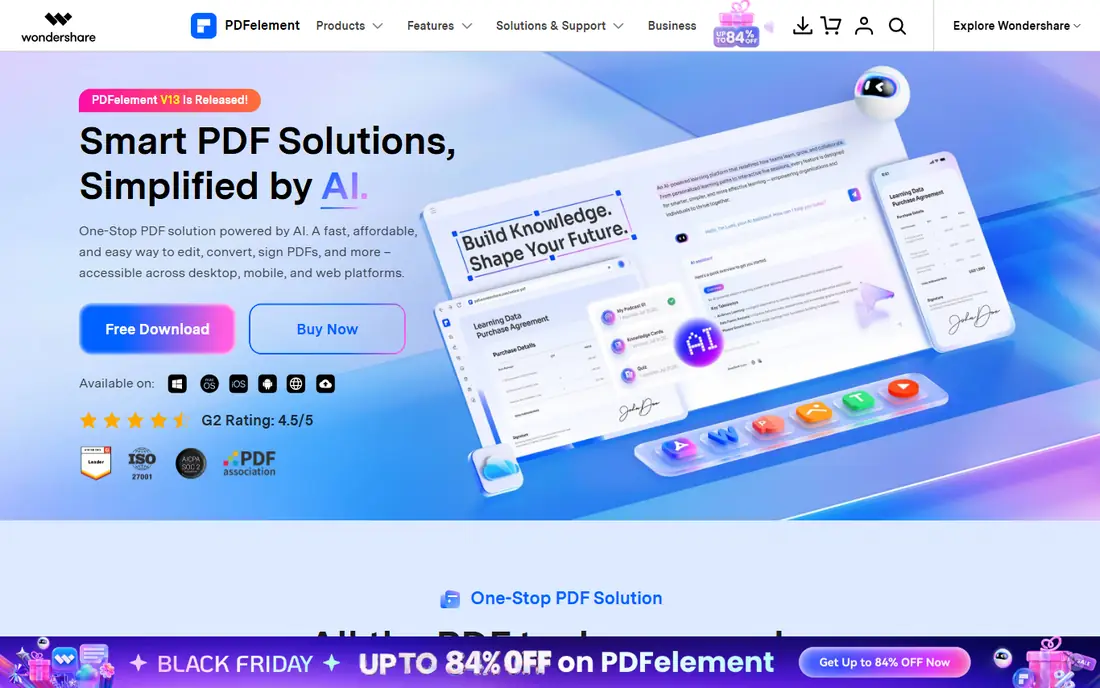
PDFelement fits freelancers and small businesses that want capable desktop editing without paying Acrobat prices. It covers editing, OCR, forms, conversion, and batch work, with AI tools for summaries and document questions on higher plans. For a team comparing options on budget desktop editing with ai tools, that combination is worth testing with real data, since feature pages alone do not show how daily work feels.
The catch is signing depth. If clients expect Acrobat-style bulk signature workflows, test that part first, since PDFelement is strongest as an editor rather than a signature platform. Before you commit, check the current pricing page for your team size and confirm trial terms, since prices and limits change. If the tool passes that check, it earns a place on a shortlist of two or three for a proper trial.
- Text, image, and form editing
- OCR
- Conversion to Office formats
- E-signature depth is lighter than Acrobat
- Some features vary by platform
- Support can be slow at peak times
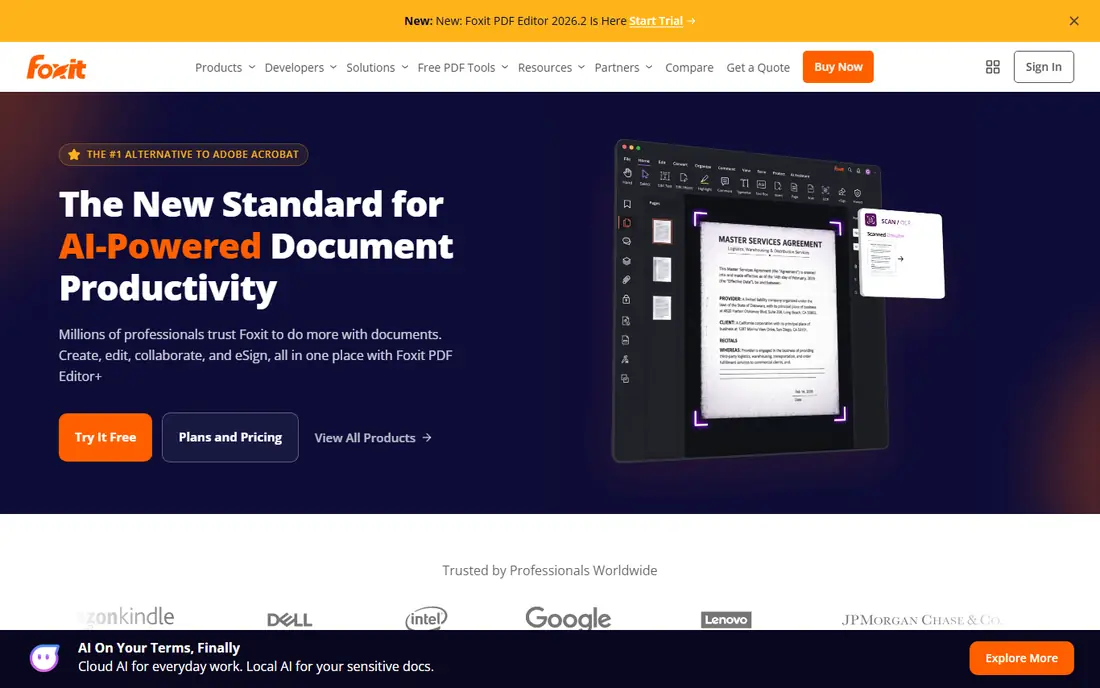
Foxit PDF Editor fits professionals who edit, sign, and share PDFs daily but want a lower yearly bill than Acrobat. It is lighter and faster to open than Acrobat for many users, while still covering text editing, OCR, redaction, and e-signatures. For a team comparing options on professionals who want acrobat-style power for less, that combination is worth testing with real data, since feature pages alone do not show how daily work feels.
The catch is AI limits. The base plan includes a limited number of AI credits, so heavy AI use needs a paid add-on or a higher tier. Before you commit, check the current pricing page for your team size and confirm trial terms, since prices and limits change. If the tool passes that check, it earns a place on a shortlist of two or three for a proper trial.
- Fast desktop editing
- OCR and redaction
- Form and signature tools
- AI credits are limited on the base plan
- Ecosystem is smaller than Adobe
- Some plans vary by region
Nitro PDF Pro fits small teams that work in Office formats and need a familiar editing layout. Its ribbon-style interface feels familiar to Word users, and it covers editing, conversion, OCR, and signatures for contract work. For a team comparing options on small teams that edit and sign contracts, that combination is worth testing with real data, since feature pages alone do not show how daily work feels.
The catch is licensing clarity. Nitro has changed its license model over time, so confirm whether the current offer is a subscription or a fixed-term license before you buy. Before you commit, check the current pricing page for your team size and confirm trial terms, since prices and limits change. If the tool passes that check, it earns a place on a shortlist of two or three for a proper trial.
- Office-style editing
- Conversion tools
- E-signature workflows
- Pricing is less clear without a quote in some regions
- No Android app for full editing
- Perpetual terms have changed over time
PDF Expert fits Mac and iPhone or iPad users who want fast, clean PDF editing across Apple devices. It opens large files quickly, handles annotation and form filling with ease, and syncs work across Mac and iOS. For a team comparing options on mac and ios users who edit on the move, that combination is worth testing with real data, since feature pages alone do not show how daily work feels.
The catch is platform scope. If your team uses Windows or Android, PDF Expert cannot be the shared editor, so check your whole team before you commit. Before you commit, check the current pricing page for your team size and confirm trial terms, since prices and limits change. If the tool passes that check, it earns a place on a shortlist of two or three for a proper trial.
- Fast Mac and iOS editing
- Clean annotation tools
- Form filling and signing
- Mac and iOS only for full editing
- Windows and Android users need another tool
- Advanced OCR varies by plan
PDFgear fits students, home users, and anyone who edits PDFs a few times a week. Its free desktop and mobile apps cover text editing, annotation, merging, compression, and conversion without a monthly bill. For a team comparing options on free everyday pdf editing, that combination is worth testing with real data, since feature pages alone do not show how daily work feels.
The catch is business depth. It lacks some enterprise controls and advanced signature workflows, but for everyday editing the free price is hard to argue with. Before you commit, check the current pricing page for your team size and confirm trial terms, since prices and limits change. If the tool passes that check, it earns a place on a shortlist of two or three for a proper trial.
- Free text editing, annotation, and conversion
- OCR on many plans
- No subscription needed
- Fewer advanced business features
- Support is limited
- Large batch work is less polished
Smallpdf fits people who want to fix a PDF fast without installing desktop software. Its browser tools cover editing, compression, conversion, merging, and signing, with a simple layout that new users grasp quickly. For a team comparing options on quick browser-based pdf tasks, that combination is worth testing with real data, since feature pages alone do not show how daily work feels.
The catch is depth and limits. Heavy desktop editing, batch OCR, and offline work are weaker than desktop rivals, and the free tier limits how much you can do each day. Before you commit, check the current pricing page for your team size and confirm trial terms, since prices and limits change. If the tool passes that check, it earns a place on a shortlist of two or three for a proper trial.
- Browser-based editing and conversion
- Simple interface
- E-signature tools
- Free tier has daily limits
- Deep desktop editing is limited
- Pricing varies by plan and region
Sejda fits people who edit PDFs occasionally and prefer a browser tool to a desktop install. It handles text edits, form filling, signatures, and common file tasks in the browser, with a clear task-based free tier. For a team comparing options on occasional browser editing and form work, that combination is worth testing with real data, since feature pages alone do not show how daily work feels.
The catch is volume. The free tier caps daily tasks, and heavy users will need a paid plan, but occasional users may never hit the limit. Before you commit, check the current pricing page for your team size and confirm trial terms, since prices and limits change. If the tool passes that check, it earns a place on a shortlist of two or three for a proper trial.
- Browser-based editing
- Form filling
- Merge, split, and compress tools
- Free tier limits tasks per day
- Desktop app is limited
- Advanced editing is lighter than desktop rivals
PDF-XChange Editor fits Windows users who want to buy once and keep editing without a subscription. It opens large files quickly, offers deep annotation and markup tools, and sells a perpetual license that keeps long-term costs low. For a team comparing options on windows users who want a one-time license, that combination is worth testing with real data, since feature pages alone do not show how daily work feels.
The catch is the platform and the layout. It is Windows only, and the toolbar-heavy interface takes a short while to learn, but patient users get strong value. Before you commit, check the current pricing page for your team size and confirm trial terms, since prices and limits change. If the tool passes that check, it earns a place on a shortlist of two or three for a proper trial.
- Fast Windows editing
- Strong annotation
- One-time license option
- Windows only
- Interface feels busy to new users
- Some advanced features need the Plus version
UPDF fits people who edit PDFs on several devices and want AI help with long documents. It covers text and image editing, annotation, conversion, and form filling across desktop and mobile, with AI tools for summaries and questions. For a team comparing options on cross-platform editing with ai help, that combination is worth testing with real data, since feature pages alone do not show how daily work feels.
The catch is plan detail. AI limits and advanced features vary by tier, so check the plan page for the exact AI allowance before you rely on it for daily work. Before you commit, check the current pricing page for your team size and confirm trial terms, since prices and limits change. If the tool passes that check, it earns a place on a shortlist of two or three for a proper trial.
- Editing across Windows, Mac, iOS, and Android
- AI summary tools
- Annotation and conversion
- AI features vary by plan
- Younger brand than Acrobat or Foxit
- Some advanced tools need a higher tier
How we picked these
We compared official feature pages, pricing pages, and app store listings, along with public user reviews, for each product in this list. We kept only products that exist and work today and that truly fit the topic, and we left prices as See website where a vendor quotes rather than publishes a price.
We also weighed who each product serves best, since the right pick for a large team is rarely the right pick for a solo owner. That focus on fit, price, and honest limits shaped the order and the trade-offs in every product section above.
How to choose a PDF editor
Start with the job you do most often. If you only highlight, sign, and merge files, a free tool may be enough. If you edit text in long documents, fill complex forms, or redact sensitive content, you need a full desktop editor with real text editing and not just annotation.
Test OCR on your own scanned pages. OCR quality varies by scan quality, language, and layout, and a tool that works well on clean pages can struggle with old scans or handwritten notes. Run the trial on the hardest file you actually handle.
Compare total cost over three years, not just the first month. Subscriptions add up, while one-time licenses can save money if you keep the same version. Also check cancellation terms, since some annual plans charge a fee for early cancellation.
Frequently asked questions
What is the best PDF editing tool for most people?
Adobe Acrobat Pro is the safest default for heavy office work, while PDFelement is a strong lower-cost desktop option. For light work, PDFgear or a free reader with annotation may be all you need.
What are the best PDF editing apps for mobile?
PDF Expert is strong on Mac and iOS, Adobe Acrobat works across desktop and mobile, and Smallpdf covers quick browser-based edits. Check whether mobile editing or just viewing is included in the plan you choose.
Is there a good free PDF editor?
Yes. PDFgear offers free core editing, and Smallpdf offers a free tier with daily limits. Free tools usually limit OCR, batch work, or advanced signing, so check those limits against your needs.
What is the best software for editing PDFs on Windows only?
PDF-XChange Editor is a strong Windows-only choice with a one-time license option. Foxit PDF Editor and Nitro PDF Pro also work well on Windows, with Mac versions available for some plans.
Do PDF editors include e-signatures?
Many paid editors include signing and form filling, but bulk sending, branded requests, and legal-grade workflows vary by plan. Confirm signature limits before you buy for client work.
Sources
See where you really rank - block by block
ProMapRanker scans Google Maps across a grid of your service area. Simple monthly plans from $19, white-label on every plan.
Start freeKeep reading
 zoho inventory alternatives
6 Alternatives to Zoho Inventory, Compared on Price and Fit
Zoho Inventory alternatives: 6 tools compared on price, free plans and fit. Katana leads the list for manufacturers. Fit and flaws are laid out for each entry.
Read → zoho crm alternatives
Best Zoho CRM Alternatives (2026)
Need Zoho CRM alternatives? We compare 7 tools on cost, free access and who each suits. Every pick gets a straight assessment. Built for quick decisions.
Read → zelle alternatives
Best Zelle Alternatives in 2026
Compare the best Zelle alternatives for sending money to friends, paying sellers and moving funds abroad, with honest notes on fees, speed and safety in 2026.
Read →