 ProMapRanker
Best PDF Compressor Tools in 2026

Key takeaways
- iLovePDF and Smallpdf suit occasional online compression, while Sejda suits users who want more control over image quality and settings.
- Desktop tools such as Adobe Acrobat and PDF24 suit sensitive files, since files do not need to leave your computer.
- Free tiers usually cap daily tasks, file size or batch size, so check limits before compressing a large set of files.
- Compression quality depends on the file type: scanned pages and image-heavy PDFs shrink most, while text-only PDFs shrink far less.
Quick comparison
| Pick | Great for | Pricing starts at | Free tier | |
|---|---|---|---|---|
 Smallpdf | Everyday online PDF work | See website | Yes | Visit |
 iLovePDF | Multi-platform batch compression | See website | Yes | Visit |
 Adobe Acrobat | Professional PDF control | See website | Free trial | Visit |
 Sejda | Detailed compression settings | See website | Yes | Visit |
 PDF2Go | Simple online compression | Free | Yes | Visit |
 PDF24 | Free desktop and online tools | Free | Yes | Visit |
 Free PDF Convert | Quick online compression | Free | Yes | Visit |
 Soda PDF | Full PDF suite with compression | See website | Yes | Visit |
 PDF Candy | Simple online PDF toolkit | See website | Yes | Visit |
The best pdf compressor tools
A PDF compressor reduces file size by lowering image resolution, removing unused data or recompressing content, so files are easier to email, upload and store. We compared official product pages, pricing pages and public documentation, focusing on compression options, free limits, batch handling and privacy.
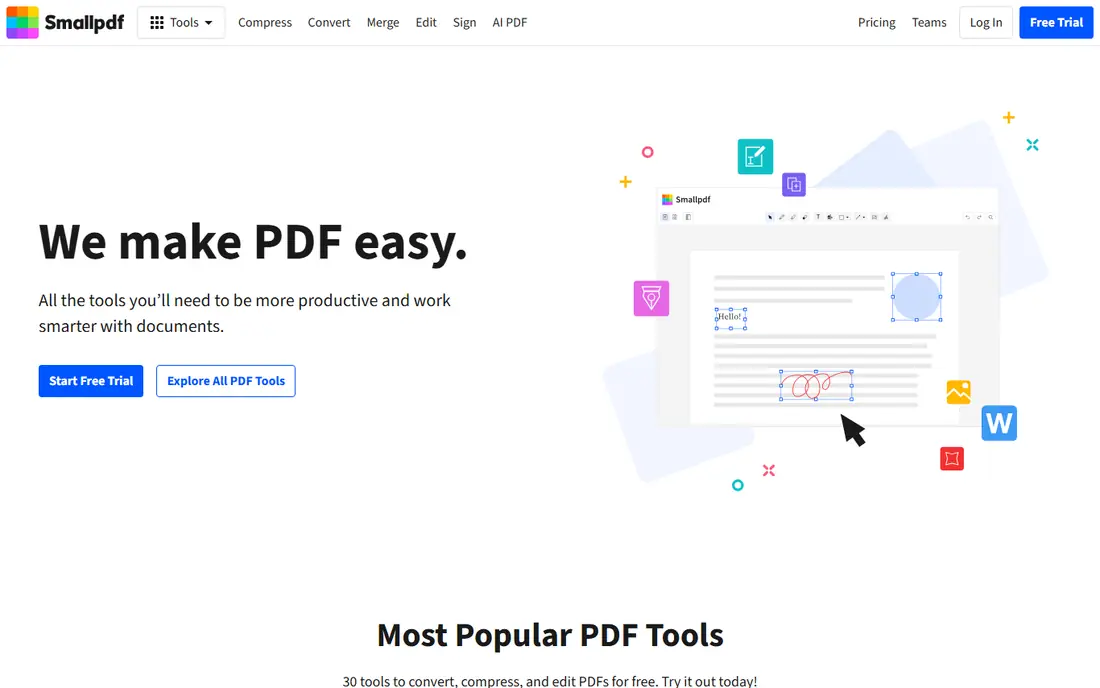
Smallpdf is the easiest online option for most people. Upload a PDF, choose basic or strong compression, and download a smaller file, with other PDF tools available in the same account. Its interface is clean, it links with Google Drive and Dropbox, and mobile apps cover compression on the go.
The free tier is the limit. It allows only a limited number of tasks per day in recent listings, so regular users hit the cap quickly. Paid plans remove caps and add strong compression, OCR and full tool access, but pricing varies by billing term. For occasional use, Smallpdf is a good first bookmark.
- Clean interface
- Strong and basic compression options
- Mobile apps and cloud links
- Free tier caps daily tasks
- Large files process slowly on free plans

iLovePDF offers a broad online PDF toolkit, with compression levels that balance size and quality, plus merge, split, convert and sign tools. Its desktop and mobile apps help users who compress often, and paid plans add batch processing and larger file limits. For teams that handle PDFs daily, that breadth saves switching between tools.
Free use has limits on file size and tasks, and the interface shows upgrade prompts. Premium pricing varies by region and billing term, so confirm the current rate before buying. If you want one account for most PDF jobs, iLovePDF is a strong, practical choice.
- Batch processing on paid plans
- Desktop and mobile apps
- Wide PDF toolset
- Free tier has file and task limits
- Free users see upgrade prompts
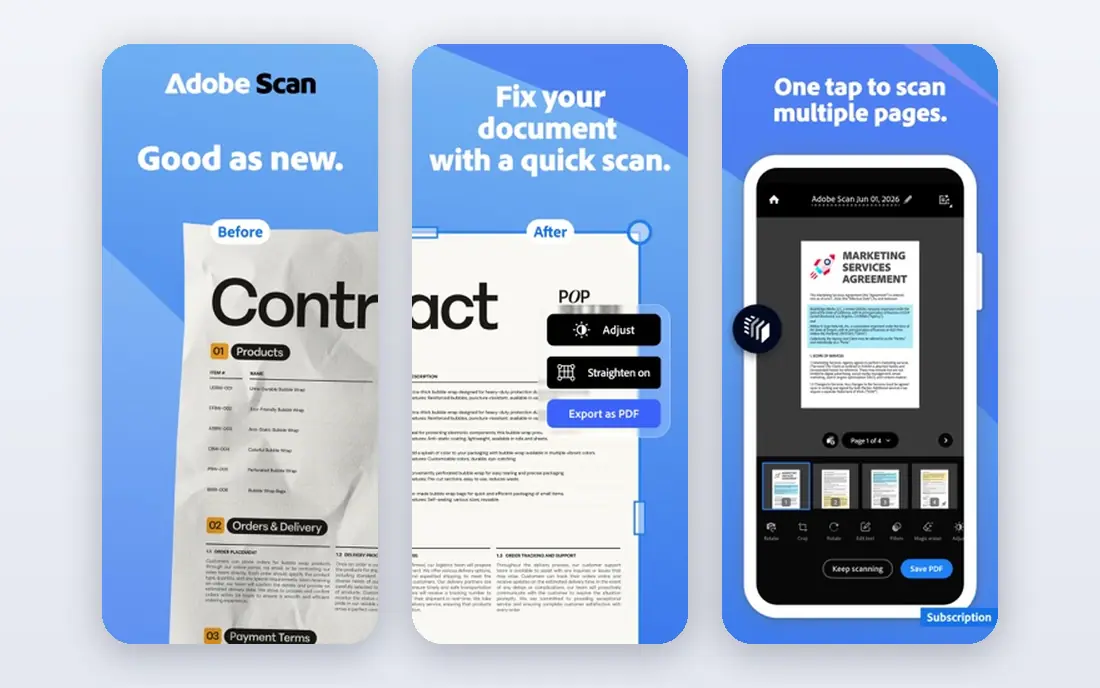
Adobe Acrobat, in its Pro desktop version, gives the most control over PDF optimisation. Users can adjust image downsampling, font embedding, object removal and compatibility settings, which helps when a file must meet a strict size or quality standard. OCR for scanned documents and enterprise security tools add further value for legal, finance and publishing teams.
Cost is the barrier. Acrobat Pro is a subscription product and costs more than online-only tools, and its full feature set can feel heavy for a single compression task. Adobe also offers free online compression with basic options. Choose Acrobat when quality control, OCR or compliance matters more than price.
- Fine control over optimisation
- OCR for scanned files
- Strong security and compliance tools
- Highest cost here
- Subscription needed for full desktop features
Sejda appeals to users who want to tune compression, not just press a button. Its online compressor lets you adjust image quality, resolution and related settings, which helps when a file must stay readable after shrinking. A desktop version covers larger files and offline work, with free limits for basic use.
Free online use caps tasks per day and file size in recent listings, so heavy users need a paid plan. Its wider toolset is also narrower than Smallpdf or iLovePDF. For careful, quality-first compression, Sejda is a good specialist option.
- Detailed image and quality controls
- Desktop editor option
- No account needed for basic tasks
- Free tier caps daily tasks and file size
- Online toolset is narrower than rivals
PDF2Go is a straightforward online tool for users who want a quick compression without installing software. Upload a file, choose a compression setting, and download the result, with other tools such as merge, split and convert nearby. It suits occasional users who do not want an account or subscription.
Free use has file size and processing limits, and files are uploaded to a server for processing, so avoid it for highly sensitive documents. Paid options raise limits, but pricing should be confirmed on the site. For simple, occasional jobs, PDF2Go does the job with little friction.
- Free online compression
- Simple upload and download flow
- Extra PDF tools included
- File size limits on free use
- Uploads leave your device
PDF24 offers a large set of free PDF tools online, plus a free desktop creator for Windows that works offline. Its compressor handles common files well, and users who dislike subscriptions often keep it as a backup tool. The lack of an account requirement for basic tasks also speeds up one-off jobs.
The interface is practical rather than polished, and advanced editing features trail paid suites such as Acrobat. For free, offline-friendly compression and a wide basic toolset, PDF24 is a strong choice, especially for Windows users who want to keep sensitive files local.
- Free online and desktop tools
- No account needed for basic use
- Wide toolset
- Interface is functional rather than polished
- Advanced editing is limited
Free PDF Convert focuses on quick online conversion and compression without software installs. Its compressor is easy to use: upload, compress and download, with conversion tools for common formats nearby. Casual users who compress a file a few times a year will find it sufficient.
Free use comes with limits and promotional prompts in recent listings, and files are processed online, so sensitive documents deserve a desktop tool instead. For fast, free, occasional compression, it remains a useful bookmark alongside a more complete tool.
- Free online compression
- Simple workflow
- Conversion tools included
- Free tier limits and ads in listings
- Uploads leave your device
Soda PDF is a full PDF suite that includes compression alongside editing, conversion, signing and form tools. Users who want one product for many PDF jobs, rather than a single-purpose compressor, often prefer this approach. Online and desktop versions cover different workflows, and paid plans add OCR and batch features.
Pricing varies by plan and billing term, so confirm the current offer. The interface packs many tools into one place, which can feel busy for a user who only wants compression. As a suite with solid compression, Soda PDF is a fair mid-priced alternative to Acrobat.
- Full PDF editing suite
- Online and desktop options
- Compression plus OCR tools
- Pricing varies by plan
- Interface can feel busy
PDF Candy offers a simple online toolkit with compression, merge, split, convert and other common tools in one place. Its clean tool pages make it easy for beginners to find the right job without learning a full PDF suite. Paid plans add higher limits and batch processing for regular users.
Free use caps tasks, and files are processed online, so desktop tools suit sensitive work better. For a simple, low-friction online toolkit with compression at its core, PDF Candy is a useful option to keep alongside Smallpdf or iLovePDF.
- Simple toolkit with many tools
- No install for online use
- Batch options on paid plans
- Free tier has task limits
- Uploads leave your device
How we picked these
We compared official product pages, pricing pages and public documentation for tools with a clear PDF compression feature that works in 2026. We kept a mix of online, desktop and suite tools, and we used See website where pricing varied by region or billing term. We excluded tools with no current product page or no real compression function.
What to check before you compress
Quality versus size
Start with a copy of the original, then test compression levels on a sample page with small text and images. Strong compression can blur scans and fine print, while basic compression may not shrink a file enough for an email limit. Check the result at full zoom before sending it to a client or printer.
Privacy and file handling
Online tools upload files to a server, process them, and usually delete them after a short period, but policies vary. For contracts, medical records or legal files, use a desktop tool such as PDF24 or Acrobat so files stay local. Always confirm deletion timing and data handling on the vendor's privacy page.
Limits, batch and format
Check daily task caps, file size limits and batch support before compressing a large set. A free tier that handles one file well may block a 50-file job. Also confirm output compatibility, since older PDF versions and some printers handle optimised files differently.
Frequently asked questions
What is the best free PDF compressor tool?
For occasional online use, Smallpdf and iLovePDF offer useful free tiers, while PDF24 offers free online and desktop tools without a subscription. The best free option depends on file size, daily volume and privacy needs. For sensitive files, a free desktop tool is safer than an online upload.
What is the best-rated PDF compressor tool for professionals?
Adobe Acrobat Pro offers the finest control over optimisation, OCR and output quality, which is why professionals often choose it despite the cost. Sejda is a good lower-cost alternative for detailed settings, while iLovePDF suits teams that need batch work. Match the tool to quality standards, not just price.
Does PDF compression reduce quality?
It can, especially for scanned pages and image-heavy files, where lower resolution and stronger recompression blur fine detail. Text-only PDFs usually shrink with little visible change. Always test a sample, keep the original, and choose the lightest compression that meets your size limit.
How do I compress a PDF for email?
Use an online tool for a quick job, or a desktop tool for sensitive files, and aim below your email provider's attachment limit, often 25 megabytes. Choose basic compression first, check the output size and readability, and only move to strong compression if the file is still too large. Splitting a very large PDF is sometimes better than heavy compression.
Is it safe to compress PDFs online?
Reputable online tools encrypt uploads and delete files after processing, but they still handle your document on a server. Avoid online tools for highly sensitive files, and use desktop software instead. Read the privacy policy, check deletion timing, and never upload a file you would not email to a third party.
Sources
See where you really rank - block by block
ProMapRanker scans Google Maps across a grid of your service area. Simple monthly plans from $19, white-label on every plan.
Start freeKeep reading
 zscaler alternatives
Best Zscaler Alternatives in 2026
Looking for zscaler alternatives? We compare 9 SASE and zero trust platforms on architecture, data protection, pricing, and fit for your network and team.
Read → zapier alternatives free
Best Zapier Alternatives Free in 2026
Nine automation tools for zapier alternatives free in 2026, all with genuinely free tiers, plus free plan limits, starting prices and upgrade paths explained.
Read → which platform is best for online reputation
Which Platform Is Best for Online Reputation in 2026
Wondering which platform is best for online reputation? We compare 8 review, listing, and response tools for small and multi-location businesses and agencies.
Read →