 ProMapRanker
Best PC Transfer Software in 2026

Key takeaways
- EaseUS Todo PCTrans and Laplink PCmover are the best picks for moving apps, files, and settings to a new Windows PC.
- Zinstall WinWin suits users who want a guided transfer with support, especially for complex setups.
- Disk cloning tools such as Acronis, Macrium Reflect, and Clonezilla suit drive upgrades rather than PC-to-PC moves.
- Always back up before a transfer, and check that licensed apps will activate on the new PC.
Quick comparison
| Pick | Great for | Pricing starts at | Free tier | |
|---|---|---|---|---|
 EaseUS Todo PCTrans | All-round PC-to-PC migration | $49.95 | Yes | Visit |
 Laplink PCmover | Guided app transfer | See website | Free trial | Visit |
 Zinstall WinWin | Supported complex transfers | See website | Free trial | Visit |
 Acronis Cyber Protect Home Office | Backup plus disk migration | See website | Free trial | Visit |
 Macrium Reflect | Reliable disk cloning | See website | Free trial | Visit |
 Clonezilla | Free disk cloning | Free | Yes | Visit |
 Rescuezilla | Friendly free cloning | Free | Yes | Visit |
 AOMEI Backupper | Backup and cloning value | See website | Yes | Visit |
The best pc transfer software
PC transfer software moves your files, and in many cases your apps and settings, from an old computer to a new one. Some tools transfer between PCs over a network or cable, while others clone a whole drive for an upgrade to a faster SSD. The right pick depends on your job: replacing a PC or upgrading a drive.
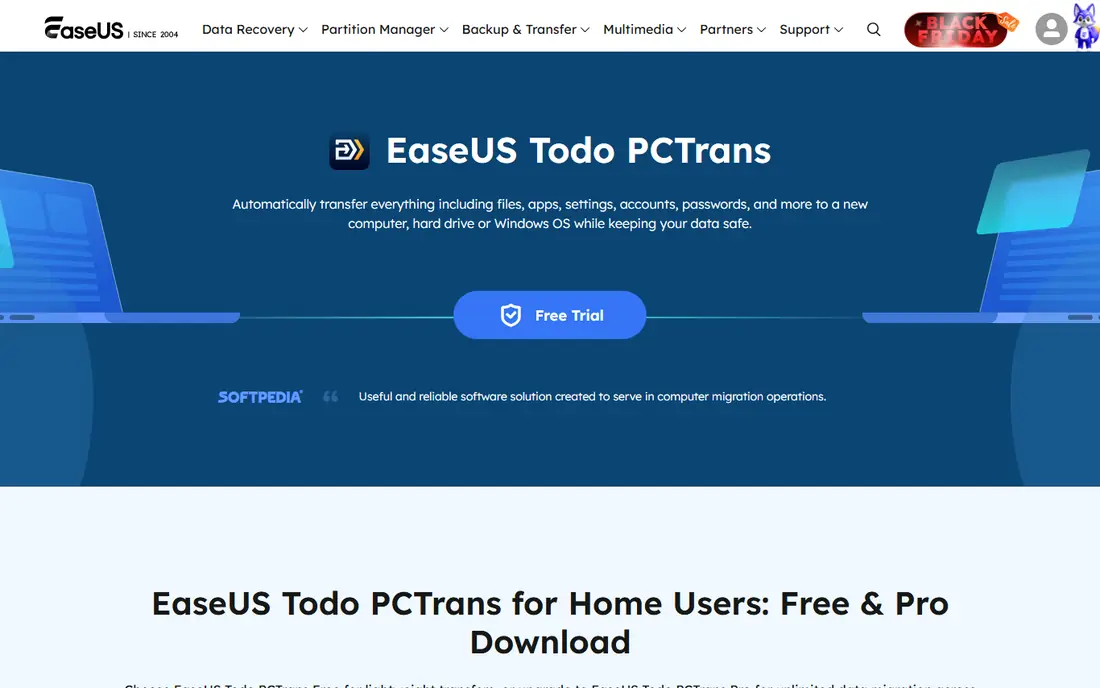
EaseUS Todo PCTrans is our pick for most people moving to a new Windows PC. It transfers installed programs, files, user accounts, and settings, which saves the long job of reinstalling everything by hand. The free tier covers basic file moves, while the paid plan opens full app transfer and larger migrations.
Not every app transfers perfectly, and licensed software may still ask for activation on the new machine, so keep license keys handy. Network speed also affects transfer time for large libraries. For a typical home or office move, EaseUS offers the best balance of ease, coverage, and price in this list.
- Transfers apps, files, and settings
- Free tier for basic moves
- Data rescue from a failing PC on paid plans
- Paid plan needed for full transfers
- Some apps still need reactivation
- Transfer speed depends on network
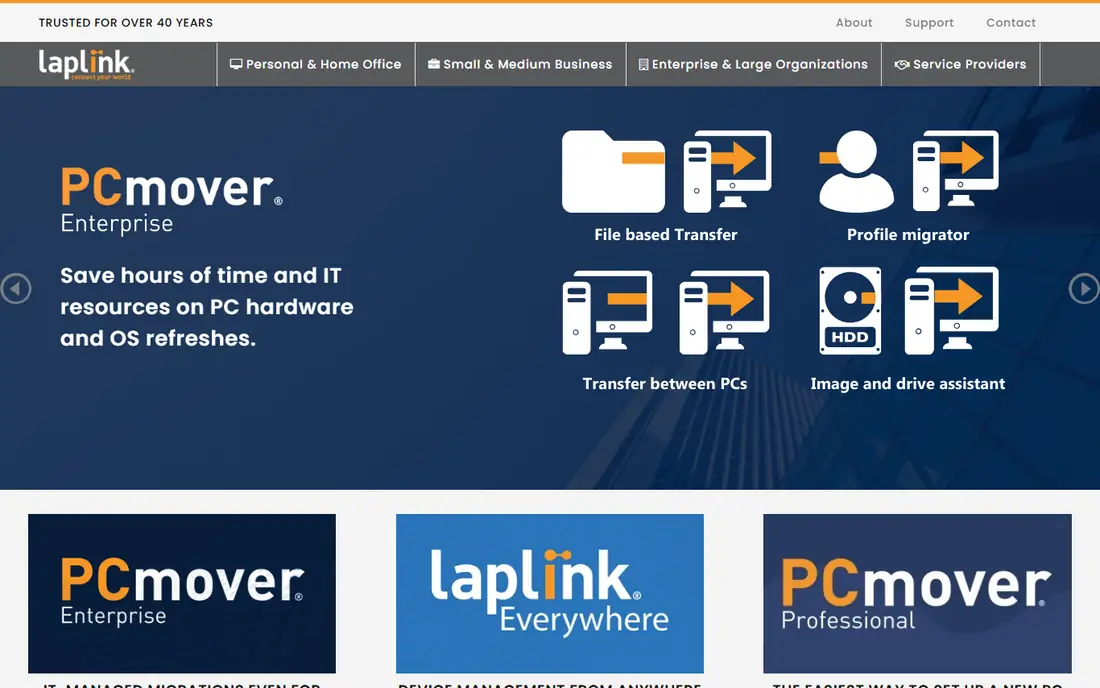
Laplink PCmover has long been the go-to tool for moving a whole Windows setup to a new PC, and its guided workflow remains its strength. It moves applications, files, folders, settings, and user profiles, and most programs arrive ready to use without old discs or installers. Free help from migration experts is available if the transfer hits a snag.
Licensing is the catch. Many PCmover plans cover a single migration, so managing several PCs means buying more licenses. It is also Windows only, so Mac users need a different approach. For a one-time Windows PC replacement, PCmover is a dependable, well-supported choice.
- Moves apps, files, and profiles
- Guided setup
- Free transfer assistance from support
- Single-use license on many plans
- Windows only
- Some apps need reinstall or activation

Zinstall WinWin suits users with complex setups who want the transfer handled carefully. It moves programs, files, settings, profiles, and personalization from an old Windows PC to a new one, over a network or direct connection. Support is a core part of the product, which helps when an old PC has unusual software or a large file library.
The price is higher than EaseUS or Laplink for a single move, and it is Windows only. Transfer time also grows with data size, so large photo and video libraries need patience. For users who value guided support and a complete setup transfer, Zinstall is worth the premium.
- Transfers full Windows setup including apps
- Works over network or cable
- Strong support focus
- Higher price than rivals
- Windows only
- Setup can take time for large transfers
Acronis Cyber Protect Home Office, formerly True Image, is best when migration is part of a wider backup plan. It clones disks for SSD upgrades, creates full system images, and can restore to different hardware, which is useful when a drive fails or a PC is replaced. Backup, antivirus, and ransomware protection are bundled in, so it does more than move files.
That breadth means subscription pricing and a busier interface than a simple transfer tool. Users who only need a one-time PC-to-PC app move may find EaseUS or Laplink simpler. For users who want migration plus ongoing backup, Acronis is a strong combined purchase.
- Full disk imaging and cloning
- Backup and ransomware protection
- Restores to different hardware
- Subscription pricing
- Broader than transfer alone
- Interface can feel busy
Macrium Reflect is a trusted choice for cloning a drive when upgrading to a larger or faster SSD. It creates exact disk images, clones drives reliably, and schedules backups so the new drive stays protected. For a same-PC drive upgrade, cloning is often faster and cleaner than reinstalling Windows and apps.
It does not transfer apps between two different PCs in the way EaseUS or Laplink do, so do not buy it for that job. Paid features are needed for the full toolset, and it is Windows only. For drive upgrades and image-based backup, Macrium is one of the most reliable tools available.
- Reliable disk imaging and cloning
- Scheduled backups
- Good for SSD upgrades
- Cloning is not PC-to-PC app transfer
- Paid features needed for full use
- Windows only
Clonezilla is the free, open source option for users comfortable with a technical interface. It clones disks and partitions reliably, supports many file systems, and costs nothing, which makes it popular with IT staff and advanced home users. For a straightforward drive clone on a budget, it gets the job done without a subscription.
The interface is text-based and less friendly than Acronis or Macrium, and it does not move apps between PCs. Beginners should back up first and follow a guide carefully. For technical users who want free, dependable cloning, Clonezilla is hard to beat.
- Free and open source
- Reliable disk and partition cloning
- Works on many systems
- Text-based interface
- Steeper learning curve
- No PC-to-PC app transfer
Rescuezilla offers Clonezilla-style cloning with a friendlier graphical interface, which makes free disk imaging more accessible. You boot from USB media, clone or image a drive, and restore it to a new drive, which suits SSD upgrades and rescue work. It is free and open source, with no license to manage.
It still requires boot media setup, and it does not transfer apps between two PCs. The community is also smaller than Clonezilla, so support resources are thinner. For users who want free cloning without a text-only interface, Rescuezilla is a welcome middle ground.
- Free and open source
- Graphical interface
- Disk cloning and imaging
- Smaller community than Clonezilla
- No app transfer between PCs
- Boot media setup needed
AOMEI Backupper gives home users a free route to backup and cloning, with paid plans adding more features. System backup, disk cloning, file backup, and scheduled jobs cover the main needs for drive upgrades and disaster recovery. The free tier is genuinely useful, not just a demo.
App transfer between PCs is not its main job, so users replacing a PC should choose EaseUS, Laplink, or Zinstall instead. Advanced cloning and sync features also need a paid plan, and the many options can overwhelm beginners. For backup plus cloning value, AOMEI is a solid free starting point.
- Free tier for backup and cloning
- System, disk, and file backup
- Scheduled backups
- PC-to-PC app transfer is not its focus
- Advanced features need a paid plan
- Interface has many options
How we picked these
We compared official product pages, pricing information, and migration-focused reviews, and we favored tools that are live in October 2026 and genuinely move files, apps, or whole drives. We included PC-to-PC transfer tools and disk cloning tools, because readers use the term PC transfer for both jobs, and we labeled which job each tool fits. Free tools are included where they are reliable and maintained, not just free to download.
What to check before you transfer
Back up first, even if the transfer tool promises a smooth move. Copy important files to an external drive or cloud storage, and note license keys for paid apps before you start. Then decide if you need app transfer or just files and a drive clone. App transfer tools suit PC replacements, while cloning tools suit SSD upgrades on the same PC.
Check compatibility too. Most tools here are Windows-focused, so Mac users need a different workflow, often using built-in migration tools. Confirm both PCs are on the same network or connected as the tool requires, allow enough time for large libraries, and test key apps on the new PC before wiping the old one. Never wipe the old PC until the new one is fully checked.
Frequently asked questions
What is the best PC transfer software overall?
EaseUS Todo PCTrans is the best all-round pick for moving apps, files, and settings to a new Windows PC. Laplink PCmover is a close alternative with strong guided support. For drive upgrades rather than PC replacement, Macrium Reflect or Acronis are better choices.
Can PC transfer software move installed programs?
Yes, tools such as EaseUS Todo PCTrans, Laplink PCmover, and Zinstall WinWin are designed to move installed programs as well as files and settings. Some licensed apps may still need reactivation on the new PC, so keep license keys ready.
Is there free PC transfer software?
Yes, for file moves and disk cloning. EaseUS offers a free tier for basic moves, Clonezilla and Rescuezilla offer free cloning, and AOMEI Backupper has a free backup and cloning tier. Full app transfer between PCs usually needs a paid plan.
How long does a PC transfer take?
It depends on data size, network speed, and app count. Small moves can finish in under an hour, while large libraries with many apps can take several hours. Use a wired connection where possible, and avoid interrupting the transfer once it starts.
Should I wipe my old PC after transferring?
Only after you have checked the new PC thoroughly. Open key apps, confirm files and settings, and verify licenses, then use a secure wipe tool if you plan to sell or recycle the old machine. Simple formatting does not fully remove data.
Sources
See where you really rank - block by block
ProMapRanker scans Google Maps across a grid of your service area. Simple monthly plans from $19, white-label on every plan.
Start freeKeep reading
 zscaler alternatives
Best Zscaler Alternatives in 2026
Looking for zscaler alternatives? We compare 9 SASE and zero trust platforms on architecture, data protection, pricing, and fit for your network and team.
Read → zapier alternatives free
Best Zapier Alternatives Free in 2026
Nine automation tools for zapier alternatives free in 2026, all with genuinely free tiers, plus free plan limits, starting prices and upgrade paths explained.
Read → which platform is best for online reputation
Which Platform Is Best for Online Reputation in 2026
Wondering which platform is best for online reputation? We compare 8 review, listing, and response tools for small and multi-location businesses and agencies.
Read →