 ProMapRanker
Best PC Optimization Software in 2026


Free official Windows maintenance · Pricing starts at: Free
Key takeaways
- Start with free built-in Windows tools before paying, since storage cleanup and startup control often solve the most common slowdowns.
- No tool on this list can promise a specific speed gain, because results depend on hardware, disk type, installed apps and system health.
- Registry cleaning carries risk, so back up or use an undo option before aggressive changes, and skip tools that promise miracle fixes.
- Legitimate optimizers focus on junk cleanup, startup apps, updates and storage, not on secret tweaks or inflated scan results.
Quick comparison
| Pick | Great for | Pricing starts at | Free tier | |
|---|---|---|---|---|
| Microsoft PC Manager | Free official Windows maintenance | Free | Yes | Visit |
 CCleaner | Familiar all round PC cleaning | $44.95 per year | Yes | Visit |
 BleachBit | Free open source cleanup without upsells | Free | Yes | Visit |
 Glary Utilities | A broad toolkit for one price | $39.95 per year | Yes | Visit |
 Advanced SystemCare | One click care for beginners | $29.99 per year | Yes | Visit |
 Wise Care 365 | Lightweight quiet maintenance | $29.95 per year | Yes | Visit |
 AVG TuneUp | Automatic app sleeping and upkeep | See website | Free trial | Visit |
 Ashampoo WinOptimizer | Buyers who prefer a one-time licence | $30 one-time | Free trial | Visit |
 Iolo System Mechanic | Hands off automated maintenance | $54.95 per year | Free trial | Visit |
 Auslogics BoostSpeed | Deep disk and system tools | $59.95 per year | Free trial | Visit |
The best pc optimization software
These tools clean junk files, manage startup apps, free storage and keep a Windows PC tidy. They will not turn an old machine into a new one, but they can remove clutter that slows daily use.
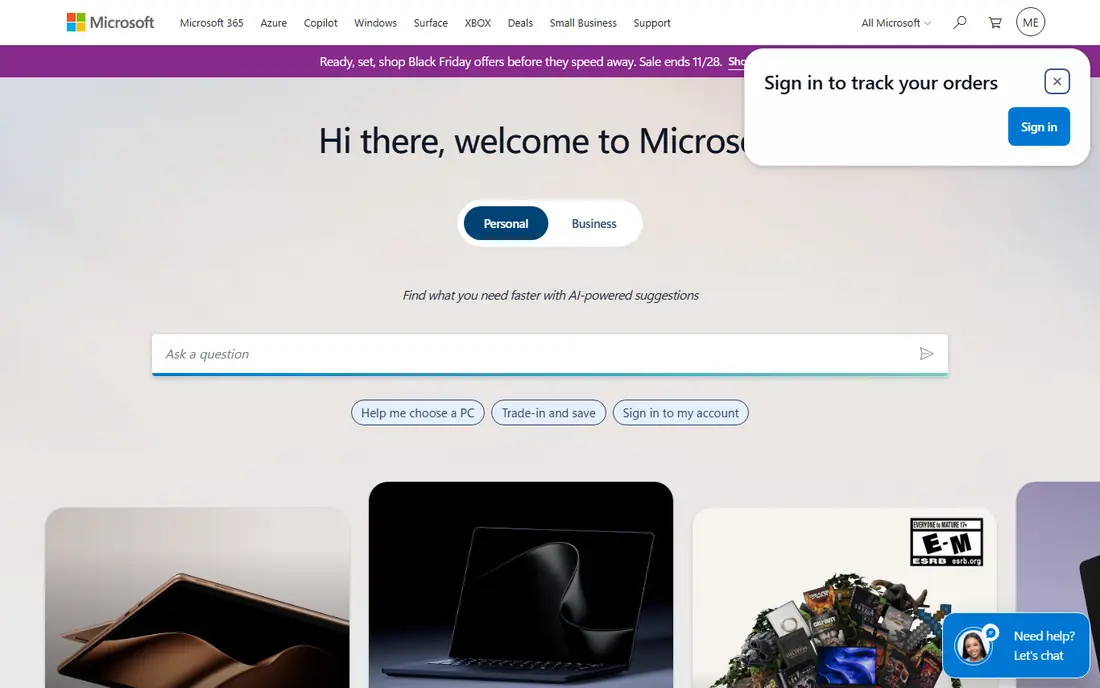
Microsoft PC Manager is the safest first step for most Windows users, because it is free, official and focused on basic jobs. It cleans temporary files, manages startup apps, checks storage and offers a health check without adding a subscription or a stream of upsell prompts. For a PC that feels cluttered rather than broken, those basics often cover the real problem. It also integrates with Windows security and storage settings, which keeps maintenance in familiar places. The limit is depth. PC Manager does not offer the large utility collections, driver updaters or duplicate finders found in paid suites, and its uninstall tools are basic. That is a fair trade for a free official tool, especially for users who want to avoid aggressive cleaners. Start here, and only pay for a suite if a specific missing job, such as duplicate cleanup or scheduled deep cleaning, matters to you.
- Free and made by Microsoft
- Storage cleanup and startup controls
- No subscription or upsell pressure
- Fewer deep tools than paid suites
- Uninstall and duplicate tools are limited
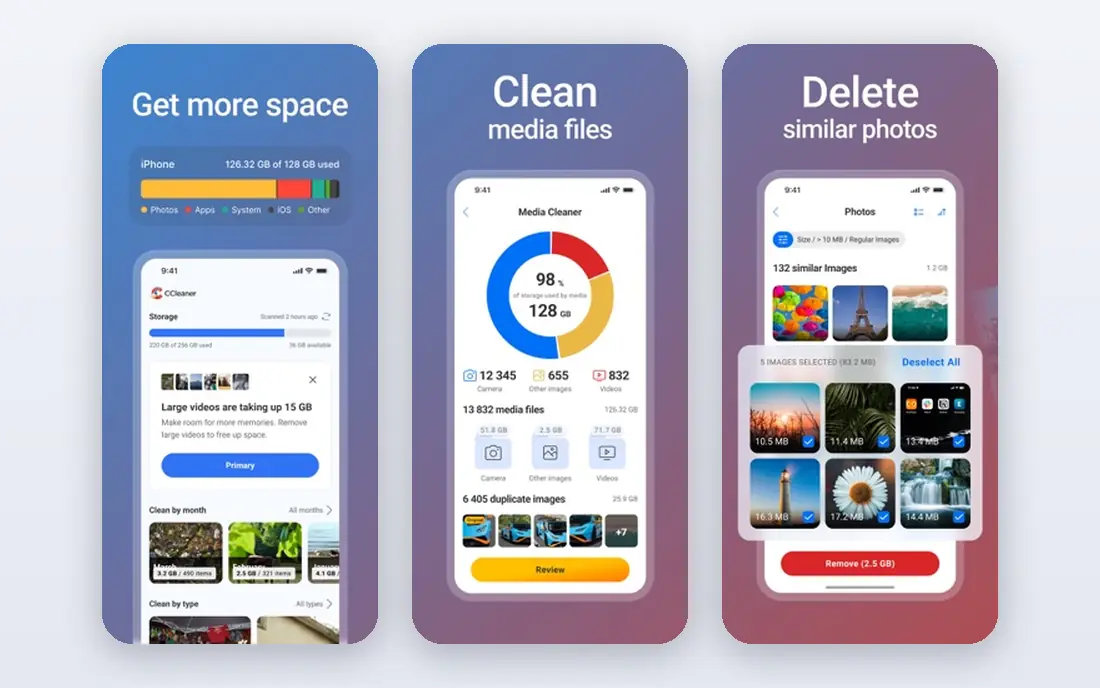
CCleaner remains the best known PC cleaner, and its core jobs still work well: junk file cleanup, browser data removal, startup management and scheduled automatic cleaning. The free edition covers manual cleanups, while Professional at $44.95 per year for one device adds automation, a performance tool that pauses background apps, and driver and software updaters. That combination suits users who want one familiar tool for routine care. The honest catches are upsells and registry risk. The free version promotes paid tiers, and prices can vary with offers, so check the checkout total before paying. Registry cleaning should also be used with care: back up before changes, and do not treat a long list of registry entries as proof of a serious problem. CCleaner is competent, but it is not a magic fix for hardware limits.
- Long track record
- Scheduled cleaning and startup control
- Driver and software updaters on paid plans
- Free version includes ads and upsell prompts
- Registry tool needs careful use
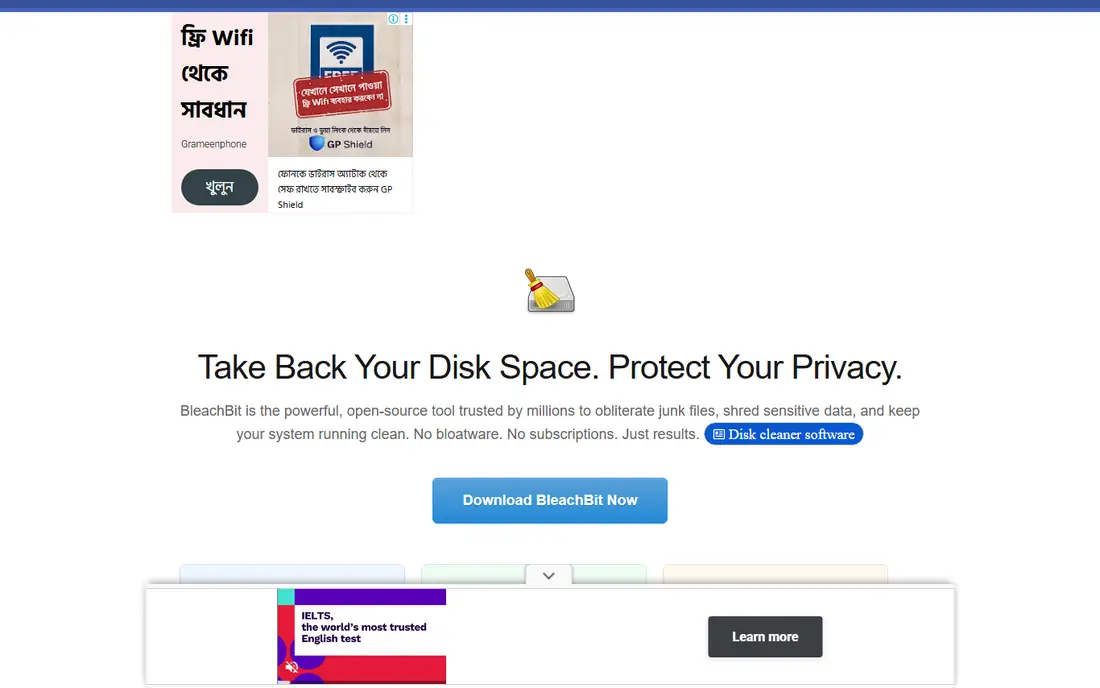
BleachBit is the pick for users who want cleanup without subscriptions, ads or accounts. It removes temporary files, browser traces, logs and other junk, with secure deletion options for files that should not be recovered. Because it is open source, its behaviour can be inspected, and there is no paid tier pushing upgrades. For privacy minded users and older PCs, that simplicity is a strength. The trade is scope. BleachBit does not manage startup apps, update drivers or offer the automated suites found in paid tools, so it works best beside Windows settings rather than as a full replacement. Its plain interface also assumes the user knows what to clean. Used carefully, with a check of what will be deleted first, BleachBit is a clean and honest free option.
- Completely free and open source
- No ads or account needed
- Secure deletion options
- No startup manager or driver tools
- Interface is plain and less guided
Glary Utilities bundles a large set of maintenance tools, from junk cleanup and startup control to duplicate finding, uninstall help and disk checks. The free tier covers many of those jobs, while Pro at $39.95 per year adds automation and wider features. For a user who likes to manage a PC in detail, that breadth offers good value, since separate tools for each job would cost more and add more background apps. The risk is overuse. A busy toolkit makes it easy to run every tool at once, including registry and disk options that a healthy PC does not need. Use the tools you understand, skip aggressive options, and keep a restore point before major changes. Glary Utilities rewards careful users, but it is not a one click cure for every slowdown.
- More than 20 utilities in one suite
- Free tier covers many jobs
- Duplicate and startup tools included
- Busy interface can tempt overuse
- Some tools need care on a healthy PC
Advanced SystemCare from IObit is aimed at users who want a single button for routine maintenance. It scans for junk files, startup items, privacy traces and system issues, then offers fixes in one pass. The free tier covers basic cleanup, while Pro at $29.99 per year adds deeper automation, real time monitoring and wider tools. For a beginner who would otherwise ignore maintenance, that guided flow can help. The catch is duplication and promotion. Many of its jobs overlap with Windows settings, and the free version nudges toward paid tiers. Users should also read what each fix will change before accepting it, especially for registry and startup items. Advanced SystemCare is convenient, but convenience should not replace a basic understanding of what is being changed.
- Simple one click scan
- Startup and junk tools in one place
- Free tier for basic care
- Free version promotes paid upgrades
- Some features duplicate Windows settings
Wise Care 365 suits users who want automatic cleanup without a heavy background app. It covers junk files, privacy traces, startup items and disk defragmentation, with scheduling so maintenance runs without daily attention. The free tier handles basic jobs, while Pro at $29.95 per year adds wider automation and support. Its light footprint is a real advantage on older machines that cannot spare resources for a bulky suite. The limit is polish and uniqueness. The interface feels dated beside CCleaner or Glary Utilities, and several paid features duplicate Windows tools. Registry options should still be used with a backup, even though Wise Care offers restore options. For a user who values quiet, light maintenance over a large feature list, Wise Care 365 is a solid choice.
- Light on system resources
- Scheduled cleanup
- Disk and registry tools with backups
- Interface is less polished than rivals
- Paid features overlap with free Windows tools
AVG TuneUp focuses on automatic upkeep, including a sleep feature that pauses resource heavy background apps until they are needed. That can help a PC crowded with apps that launch at startup or run in the background. It also covers junk cleanup, duplicate files, browser traces and scheduled maintenance, with a trial available before paying. Users who trust antivirus brands for system care may find the familiar interface reassuring. The honest catch is price clarity. AVG TuneUp pricing varies by offer and device count, so the checkout page, not an old guide, should decide the budget. Trial terms, renewal price and device limits also deserve a read before installing. Like every tool here, it cannot promise a set speed gain, since background apps are only one cause of slowdowns.
- Puts unused apps to sleep to free resources
- Scheduled maintenance
- Duplicate and junk cleanup
- Pricing varies by offer
- Trial terms should be read before installing
Ashampoo WinOptimizer appeals to users who dislike subscriptions. A one-time licence around $30 covers the current version, with cleanup, startup, privacy and drive tools included. That model suits a household that wants to pay once and maintain a PC without a yearly renewal. A trial lets buyers test the interface and tools before committing. The trade is upgrade scope. A one-time licence usually covers the purchased version, not every future major release, so long term cost depends on upgrade policy. Disk tools also need care: defragmentation habits for old hard drives do not apply the same way to SSDs, and Windows already handles SSD optimisation. Use WinOptimizer for cleanup and startup control, and let Windows manage SSD care.
- One-time purchase option
- Broad cleanup and tuning tools
- Drive and privacy modules
- Major upgrades may cost extra
- Some tools need care on modern SSD systems
Iolo System Mechanic targets users who want maintenance to happen without manual scans. It automates junk cleanup, startup control, registry care and system checks, with plans that cover several PCs in a household. The base price sits around $54.95 per year, with a trial available. For a family with several Windows machines, a multi-device plan can be simpler than installing a different free tool on each PC. The downside is price and overlap. At that yearly rate, buyers should check whether they actually use the automation and repair tools, or whether free tools plus Windows settings would cover the same jobs. Registry and repair features also need a backup before use, since automated fixes can change settings a user did not intend. System Mechanic is capable, but it is not essential for every PC.
- Automated maintenance and repair tools
- Startup and junk management
- Multi-device plans
- Higher yearly price
- Trial is time limited
- Some features duplicate Windows care
Auslogics BoostSpeed is the specialist pick for users who want detailed disk and system tools in one suite. It covers junk cleanup, startup management, disk defragmentation, registry care and system reports, with options that respect SSD storage. Paid pricing sits around $59.95 per year for three PCs, with a trial for testing. For a user comfortable with system settings, that depth can be useful. The catch is risk and price. Deep tools should not be run aggressively on a healthy PC, and a backup or restore point is wise before registry or disk changes. BoostSpeed also costs more than simpler cleaners, so its value depends on using the deeper tools, not just basic cleanup. If basic cleanup is all you need, a free tool will do the same job for less.
- Deep disk, registry and startup tools
- Detailed reports
- SSD aware options
- Higher price
- Deep tools carry risk if used aggressively
- Trial limits some features
How we picked these
We compared official product pages, pricing pages and public documentation for PC optimisation tools that exist and work in October 2026. We favoured legitimate tools with clear cleanup, startup and storage features, and we excluded tools that promise guaranteed speed gains or use scare tactics to sell. Free tier honesty, pricing clarity and safety warnings weighed heavily, since registry and disk tools can harm a PC if misused. We did not claim hands-on testing that did not happen. Our view comes from vendor pages and published plan details, and prices should be confirmed at checkout, since offers and renewal rates change. A PC that is slow because of failing hardware, low memory or a full drive will not be fixed by any cleaner alone.
Choosing the right optimizer without harming your PC
Start with the free and built-in steps. Check storage in Windows Settings, remove apps you no longer use, turn off unnecessary startup apps, and run Windows storage cleanup. Those steps solve many slowdowns without installing anything, and they carry far less risk than registry tools. If the PC still feels cluttered, add one cleaner, not three, since multiple background optimizers can slow the very machine they claim to help. Be wary of registry cleaner claims. The Windows registry is a large database, and removing unused entries rarely produces a noticeable speed gain on a modern PC. If you use a registry tool at all, back up first, use its undo option, and skip aggressive cleanups on a system that already runs well. Also be wary of scan results that report thousands of errors to push a purchase, since that count alone does not prove a problem. Finally, check hardware before blaming software. A PC with a nearly full drive, very little free memory or an ageing hard drive will stay slow after cleanup. Freeing storage, adding memory where possible, or moving to an SSD often helps more than any optimizer. If a PC shows signs of failing hardware, such as crashes, disk errors or overheating, seek repair help rather than running deeper optimisation tools.
Frequently asked questions
Does PC optimization software really make a PC faster?
It can help when junk files, startup apps or low storage slow daily use, but it cannot promise a specific gain. Results depend on hardware, disk type, installed software and system health. A cleaner that frees storage and trims startup apps may make boot and app launch feel quicker, while a PC limited by old hardware will see little change.
Are registry cleaners safe?
They carry risk, especially when used aggressively. The registry holds system settings, and deleting the wrong entries can cause errors. If you use one, back up first, use the undo option, and avoid tools that promise large speed gains from registry cleaning alone. Most users do not need registry cleaning at all.
Should I use a free or paid optimizer?
Start free. Microsoft PC Manager, BleachBit and free tiers of paid tools cover basic cleanup for most users. Pay only if you need automation, multi-device cover or a specific tool such as duplicate finding. A paid suite is not automatically safer or faster than a careful free tool.
How often should I run PC cleanup?
Monthly cleanup suits most users, with startup checks when new apps are installed. Daily aggressive cleaning is unnecessary and can remove useful caches, which may slow apps at first. Set a schedule that fits your use, and review what will be deleted before each major cleanup.
What if my PC stays slow after cleanup?
Check storage space, memory use and drive health in Windows settings, and look for apps that use heavy resources in Task Manager. A nearly full drive, low memory or failing hardware needs a hardware fix, not another cleaner. If crashes or disk errors appear, back up important files and seek repair help promptly.
Sources
See where you really rank - block by block
ProMapRanker scans Google Maps across a grid of your service area. Simple monthly plans from $19, white-label on every plan.
Start freeKeep reading
 what’s the best risk software for enterprises
What Is the Best Risk Software for Enterprises in 2026
We compared what’s the best risk software for enterprises on risk registers, controls, third-party risk, and reporting, with pricing notes for large teams.
Read → what's the best pam software for enterprises
What is the Best PAM Software for Enterprises in 2026
Find what's the best pam software for enterprises, with vaulting, session recording, just in time access and pricing compared for large enterprise IT teams.
Read → what’s the best grc software
What Is the Best GRC Software in 2026
We compared what’s the best grc software on risk, compliance, audit and vendor risk, so teams can pick a platform that fits their frameworks and budget.
Read →