 ProMapRanker
Best Online Backup Companies in 2026

Key takeaways
- Dedicated backup is not the same as file sync, because backup keeps versions and a restore path when a device is lost, stolen or hit by ransomware.
- Backblaze suits single-computer unlimited backup, while IDrive suits households and small teams with many devices sharing one storage pool.
- Carbonite and CrashPlan suit set-and-forget and small-business endpoint backup, while Acronis adds security tools alongside backup.
- Test a restore before you rely on any service, since a backup that has never been restored is only a promise.
Quick comparison
| Pick | Great for | Pricing starts at | Free tier | |
|---|---|---|---|---|
 Backblaze | Single-computer unlimited backup | $9 per month | No | Visit |
 IDrive | Multi-device households and teams | See website | Yes | Visit |
 Carbonite | Set-and-forget simplicity | See website | No | Visit |
 Acronis Cyber Protect Home Office | Backup plus security tools | $49.99 per year | Yes | Visit |
 CrashPlan | Small-business endpoints | $10 per month | Free trial | Visit |
 SpiderOak One | Privacy-focused backup | See website | Free trial | Visit |
 Zoolz | Large cold-storage archives | See website | Free trial | Visit |
 Druva | Business data protection | See website | Free trial | Visit |
 pCloud | Storage with backup features | See website | Yes | Visit |
The best online backup companies
Online backup copies files from a computer to a remote server in the background, keeps earlier versions, and lets the owner restore files after a failure, theft or ransomware attack. We compared official feature and pricing pages, storage models, encryption claims and restore options for the services below, and we distinguished dedicated backup from sync-only storage where that distinction matters.
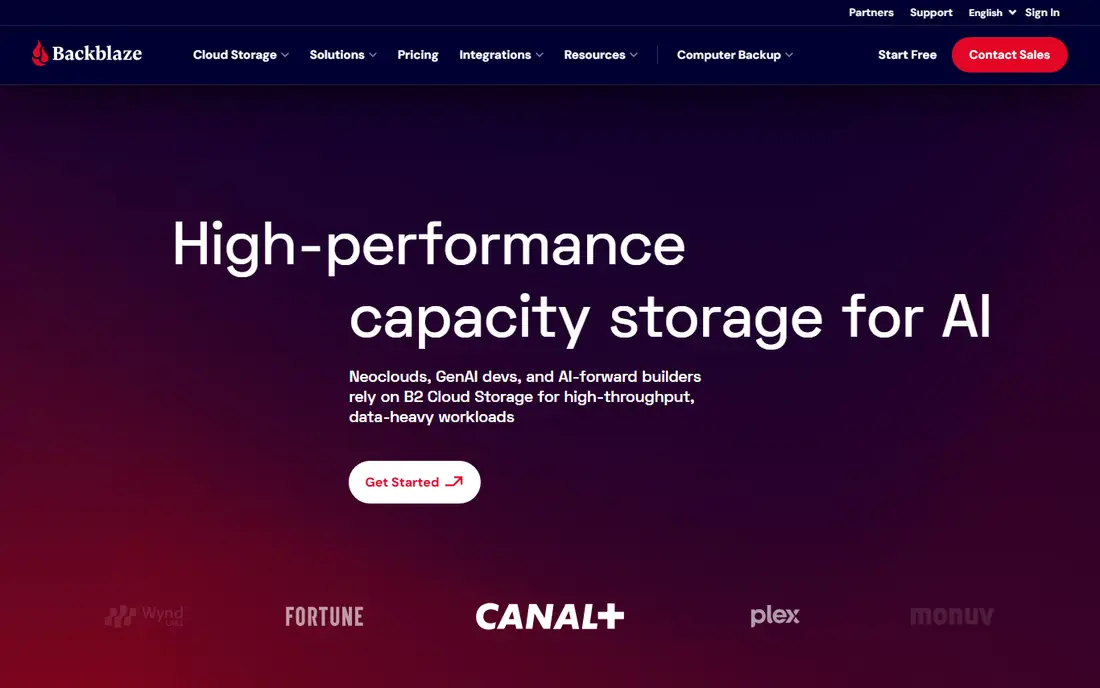
Backblaze is the easiest backup to recommend for one computer. Once installed, it backs up user files continuously with unlimited storage, and the owner does not have to choose folders or manage a storage quota. That simplicity is why it suits people who want backup to run without thinking about it.
The per-computer model is the main limit. A household with three computers pays three times, while IDrive pools storage across devices. Backblaze still wins for a single laptop or desktop, especially when the owner has a large photo or video library that would exceed a fixed storage tier elsewhere.
- Unlimited storage for one computer
- Simple setup
- Version history and restore options including mailed drives
- Price is per computer, so multi-computer homes pay more
- No pooled multi-device plan on the personal tier
- Initial backup can take a long time on slow connections
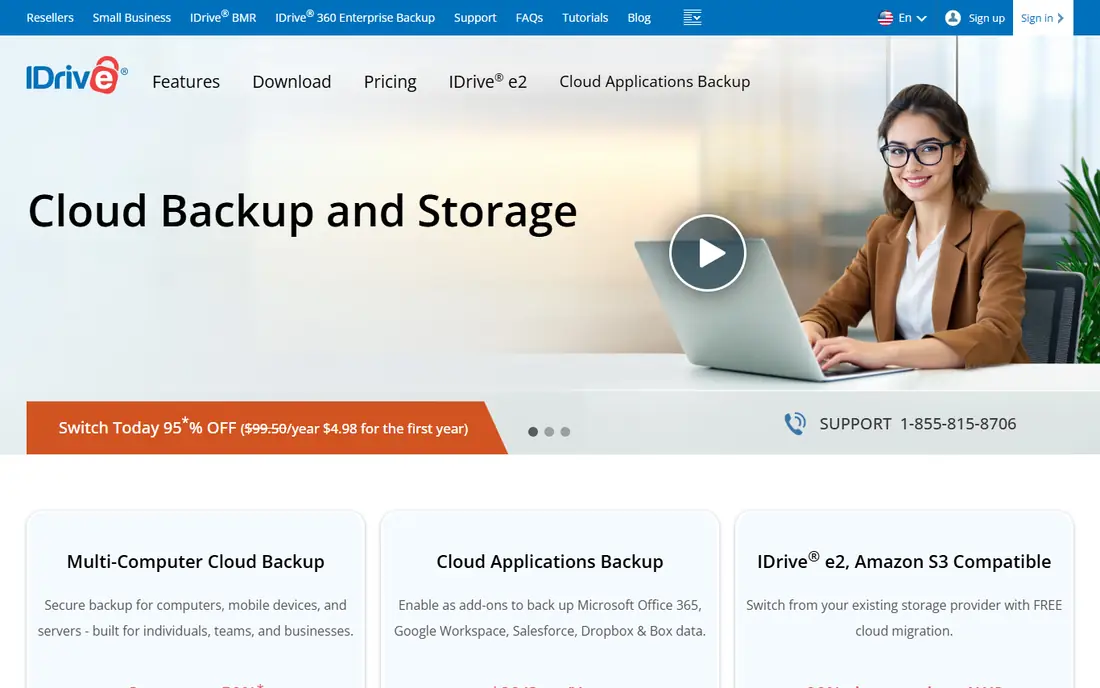
IDrive suits a household or small team with several computers, phones and tablets, because one plan covers many devices up to its storage limit. That pooled model is cheaper than paying per computer when device count is high and total data is moderate. The free 10 GB tier also lets a buyer test uploads and restores before paying.
The cap is the trade-off. A user with several terabytes of video will need a larger tier, and first-year promotional prices should not be treated as the renewal price. IDrive is best for buyers who know their total data size and want one plan for every device.
- One storage pool across many devices
- Free 10 GB tier to test
- Server and NAS backup on business plans
- Storage is capped by plan, unlike unlimited rivals
- Renewal pricing can differ from first-year offers
- Interface has more options than Backblaze
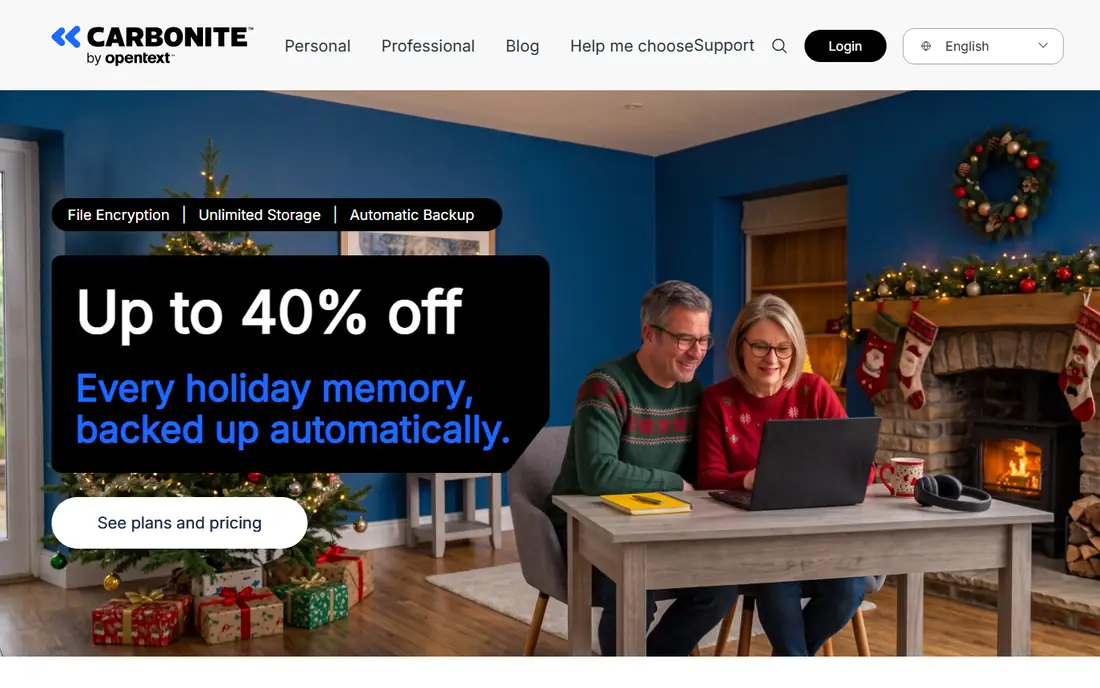
Carbonite is built for buyers who want backup to disappear into the background. After setup, it backs up files automatically, and personal plans offer unlimited storage without a quota to watch. That approach suits non-technical users who would otherwise keep putting backup off.
Higher-tier features, including external drive backup and courier recovery, cost more, and annual billing is the norm. Carbonite also faces stronger competition on price from Backblaze for single computers and from IDrive for multi-device homes. It remains a solid pick for simplicity, provided the buyer checks which tier holds the features they need.
- Unlimited storage on personal plans
- Automatic backup after setup
- Long history in consumer backup
- Pricing is mainly annual
- External drive backup sits on higher tiers
- Restore speed depends on connection and data size
Acronis suits buyers who want backup and endpoint protection in one product rather than two separate tools. Disk imaging lets a user restore a whole system, not just individual files, and the security tools add a layer against malware and ransomware. That combination appeals to households and small offices that manage their own machines.
Complexity is the cost. Acronis has more settings than Backblaze or Carbonite, and cloud storage limits mean heavy users need a larger tier. Buyers who only need file backup may find Acronis more than they need, while buyers who value imaging and security will find the extra depth useful.
- Backup plus anti-malware and security tools in one agent
- Disk imaging and cloning options
- Cloud and local backup choices
- More complex than a pure backup tool
- Cloud storage is tiered, not unlimited
- Higher tiers cost more for extra storage
CrashPlan is now a business endpoint backup product, and it suits small firms that need to protect staff laptops without managing storage quotas. Unlimited storage per endpoint removes the quota maths that IDrive requires, and admins get central controls for deployment and restores. That focus makes it a practical pick for firms with a fleet of laptops.
Consumer buyers should look elsewhere, since CrashPlan no longer targets home users in the same way. Per-device pricing also means a firm with many endpoints should compare the total against a pooled plan. CrashPlan wins for small businesses that want unlimited endpoint backup with central management.
- Unlimited storage for business endpoints
- Continuous backup
- Admin controls for small teams
- No longer a consumer-first product
- Per-device pricing adds up at scale
- Interface is business-focused
SpiderOak One suits buyers who treat encryption and privacy as the deciding factor, not just a checkbox. Its zero-knowledge design means the provider cannot read stored files in the usual way, which matters for sensitive documents and for users who distrust broad cloud access. Backup, sync and sharing sit in one client, so files can move between devices as well as being protected.
The price per gigabyte is higher than Backblaze or Carbonite, and storage tiers cap how much can be backed up. SpiderOak is a specialist pick for privacy-first users with moderate data volumes, not a bulk storage bargain.
- Zero-knowledge encryption approach
- Backup plus sync and sharing tools
- Clear privacy positioning
- Storage tiers are smaller than unlimited rivals
- Pricing is higher per gigabyte
- Fewer mass-market integrations
Zoolz suits buyers with large archives that need to be kept safely but are rarely opened, such as old project files, media archives and compliance data. Its cold-storage approach keeps the cost down for bulk data that does not need instant restore. That model is different from a daily laptop backup tool, and it works best alongside one.
Buyers should not treat Zoolz as a drop-in replacement for continuous laptop backup without checking restore speed and frequency limits. For archives, it is a strong value pick. For a single laptop that needs fast, frequent restores, Backblaze or IDrive will feel more direct.
- Cold storage tier for large archives
- Good for data that is rarely restored
- Business and home plans available
- Cold restores can be slower than hot backup restores
- Pricing structure needs careful reading
- Less suited to daily laptop backup alone
Druva suits businesses that need to protect endpoints, cloud apps and servers from one cloud platform, with compliance reporting and ransomware recovery as core features. Its cloud-native design avoids on-premises backup servers, which helps firms that have already moved most work to SaaS tools. Admin controls and audit trails matter here more than a simple consumer interface.
Home users should skip Druva, since pricing is quote-based and the product assumes an IT owner. Small businesses without IT staff may also find it heavy. Druva earns its place for firms that need business-grade protection across many endpoints and apps.
- Cloud-native data protection for endpoints and SaaS apps
- Central admin and compliance features
- Ransomware recovery focus
- Business-only focus and quote-based pricing
- Overkill for a single home computer
- Setup needs IT ownership
pCloud is included with a clear note: it is primarily cloud storage with backup features, not a dedicated backup service in the Backblaze sense. It suits buyers who want accessible storage, sharing and a backup copy of selected folders in one place, with a free tier to start and lifetime options for long-term users. That combination appeals to people who live in their cloud drive.
Buyers who need full-system, continuous backup with unlimited version history should choose a dedicated tool instead. pCloud works best as accessible storage plus a backup layer for important folders, ideally alongside a dedicated backup for the whole machine.
- Free tier to start
- Lifetime plan options advertised
- File backup and versioning features alongside storage
- Primarily a storage and sync service, not a dedicated backup tool
- Encryption add-on costs extra on some plans
- Backup depth is less than Backblaze
How we picked these
We compared official feature and pricing pages, storage models, encryption descriptions, restore options and public reviews, and we favoured services that are live and clearly described in October 2026. Where a vendor prices by quote or tier, we wrote See website rather than inventing a figure. Backup and sync were treated as different jobs, and that distinction is stated in each write-up where it matters.
How to set up online backup so a restore actually works
Start by listing what must survive a lost laptop: documents, photos, work files and any local-only data that does not live in a cloud app. Choose a service that covers those folders by default, or add them explicitly, and check that external drives and phone photos are covered when they matter. Turn on version history, and note how long versions are kept.
Then test a restore. Restore a few files to a different folder, open them, and check that they are complete. Repeat the test after a major change, such as a new computer or a large file move. A backup that has never been tested is a hope, not a plan, and a short test takes far less time than rebuilding lost work.
The 3-2-1 habit in plain terms
Keep three copies of important data, on two different kinds of storage, with one copy offsite. Online backup provides the offsite copy, while a local external drive provides fast restores. That habit protects against a failed drive, a stolen laptop and a ransomware attack at the same time.
Frequently asked questions
What is the difference between online backup and cloud storage?
Online backup copies files automatically, keeps versions, and is designed for restore after loss or ransomware. Cloud storage syncs selected folders for access and sharing, and a deleted or encrypted file can sync that change everywhere. Many people need both, with backup for protection and storage for access.
How much storage do I need for online backup?
Add up documents, photos and videos on the main computer, then allow room for growth and version history. A documents-only user may fit in a small tier, while a photo or video library can need terabytes. Unlimited plans remove that maths, while capped plans need a realistic size check first.
Is Backblaze or IDrive better?
Backblaze suits one computer with unlimited storage, while IDrive suits many devices sharing one storage pool. A single-computer user with a large library will usually prefer Backblaze, and a multi-device household will usually prefer IDrive. Check total data size and device count before choosing on price alone.
Does online backup protect against ransomware?
Backup helps, because earlier file versions can be restored after an attack, but it is not a guarantee on its own. Keep version history turned on, use strong account security, and keep a local copy as well. If ransomware encrypts files and those changes are backed up, older versions are the recovery path.
How long does an initial backup take?
Initial backup time depends on total data size and upload speed, and a large library can take days or weeks on a slow connection. Most services back up in the background, so daily use can continue. Prioritise the most important folders first when a service allows that choice.
Can I restore files to a new computer?
Yes, most services allow a full restore or a selective restore to a new machine, and some offer a mailed drive for large restores. Check whether the plan includes that drive option and what it costs. Test a small restore first, so a full restore under pressure is not the first attempt.
Sources
See where you really rank - block by block
ProMapRanker scans Google Maps across a grid of your service area. Simple monthly plans from $19, white-label on every plan.
Start freeKeep reading
 worlds best local seo company
8 Worlds Best Local SEO Companies for Map Pack Growth in 2026
Compare the worlds best local seo company options for Google Business Profile work, citations, reviews, and multi-location rankings and reporting in 2026.
Read → world's best web hosting company
World's Best Web Hosting Company in 2026
Searching for the world's best web hosting company? We compared 10 hosts on price, renewal rates, speed, and support to help you choose well today in 2026.
Read → who's got the best nanny tax services
Who's Got the Best Nanny Tax Services in 2026
We answer who's got the best nanny tax services, comparing full filing, back taxes, software, and pricing so families can handle nanny taxes correctly.
Read →