 ProMapRanker
Best OCR Software Free in 2026

Key takeaways
- The best free OCR tool depends on your device and your privacy needs, not on a single accuracy score, because clean printed text is easy for most tools.
- Tesseract is the best fully free desktop option for privacy and bulk work, while Adobe Scan and Microsoft Lens are the best free mobile options.
- Do not upload invoices, ID photos, or contracts to a free web OCR service, because that upload sends a sensitive document to a third party.
- Free tools handle printed text well, but they struggle with handwriting, complex tables, and poor quality scans, so plan to check the output.
- Google Docs OCR is the easiest free option for a one off document, because it needs no extra software beyond a Google account.
Quick comparison
| Pick | Great for | Pricing starts at | Free tier | |
|---|---|---|---|---|
 Tesseract | Private offline OCR on desktop | Free | Yes | Visit |
 Google Docs OCR | Easy one off documents in Drive | Free | Yes | Visit |
 Adobe Scan | Mobile scanning with searchable PDFs | Free | Yes | Visit |
 Microsoft Lens | Office users scanning on mobile | Free | Yes | Visit |
 Microsoft OneNote | Extracting text from images in notes | Free | Yes | Visit |
 Apple Live Text | Instant text capture on Apple devices | Free | Yes | Visit |
 OCR.space | Quick web OCR without installing software | Free | Yes | Visit |
 PDF24 Tools | Free desktop OCR with a graphical interface | Free | Yes | Visit |
 PowerToys Text Extractor | Quick text capture on Windows | Free | Yes | Visit |
 CamScanner | Mobile scanning with a free tier | Free | Yes | Visit |
The best OCR software free
We included only tools with a real free tier or a fully free edition, and we note the main limit for each. The list moves from desktop privacy tools to mobile scanners, then to web and quick capture tools.
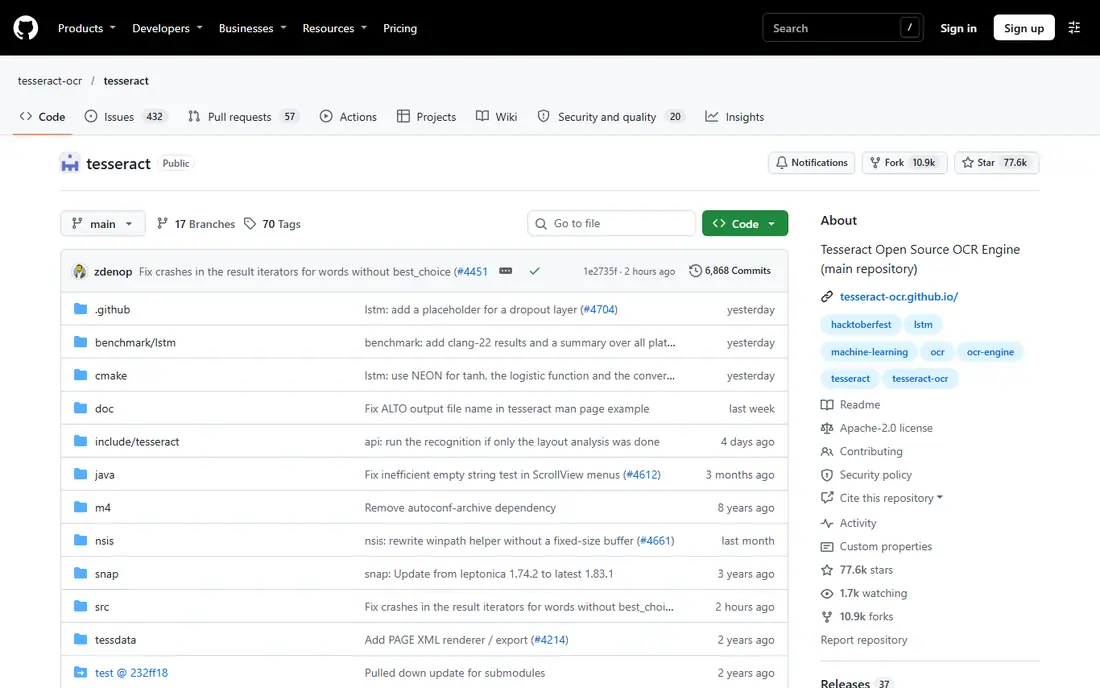
Tesseract is the best fully free OCR engine for users who care about privacy and bulk work. It runs on your own computer, with no upload, no account, and no page limit, and it supports more than 100 languages. That makes it a strong choice for converting a folder of scans, for building a local workflow, or for handling documents you do not want to send to a cloud service.
The trade off is the interface. Tesseract is a command line tool in its core form, though graphical front ends exist, and it works best on clean printed text. Tables, columns, and complex layouts often need manual fixing after extraction. If you are comfortable with a technical setup, Tesseract is unmatched for free. If you need a simple button to press, start with Google Docs OCR or PDF24 instead.
- Completely free and open source
- Works offline on Windows, Mac, and Linux
- Supports more than 100 languages
- No graphical interface in the core tool
- Setup needs some technical skill
- Layout and tables need extra work
Google Docs OCR is the easiest free option for a single document. You upload a PDF or image to Google Drive, open it with Google Docs, and Google converts the scanned text into an editable document. There is no page limit beyond your Drive storage, and the accuracy for clean printed text is high, which makes it ideal for notes, handouts, and short articles.
The limits are privacy and layout. Your document is processed in the cloud, so it is not the right choice for sensitive contracts, ID photos, or financial records. Tables, columns, footnotes, and complex formatting are often lost or rearranged, so you should expect to rebuild structure after conversion. For a quick, free conversion of a clean document, Google Docs OCR is hard to beat.
- Free with a Google account
- No extra software to install
- Good accuracy for clean printed text
- Cloud processing only
- Layout, tables, and columns are often lost
- Needs a Google account and Drive storage
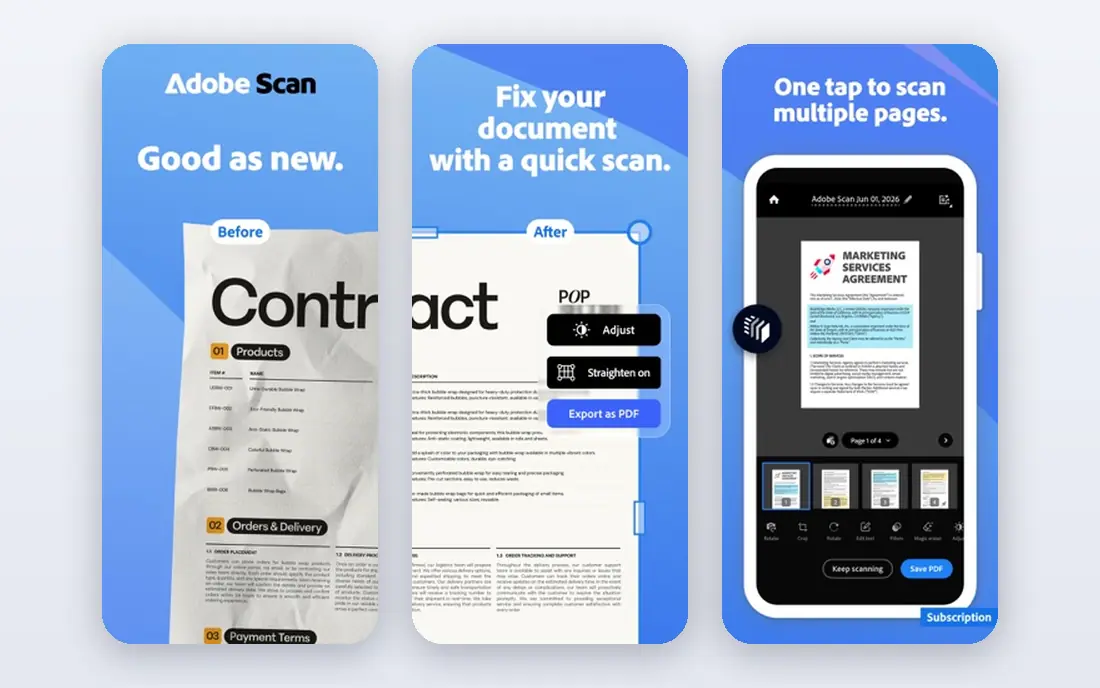
Adobe Scan is the best free mobile scanner for most users. It photographs a document, enhances the image, crops the page, and creates a searchable PDF that you can share or store in Adobe cloud. The image quality is consistently good, and the app handles multi page documents well, which makes it useful for receipts, contracts, and classroom handouts.
Adobe Scan is cloud based and needs an Adobe account, so it is not the right choice for highly sensitive documents that must stay on the device. Advanced features, such as full Acrobat editing and larger cloud storage, require a paid plan, but basic scanning and OCR remain free. For everyday mobile scanning, Adobe Scan is a strong, low friction choice.
- Free mobile scanning with image enhancement
- Automatic cropping and cleanup
- Searchable PDFs and Adobe account sync
- Cloud based processing
- Adobe account required
- Advanced editing needs a paid Acrobat plan
Microsoft Lens is the best free scanner for users inside the Microsoft 365 ecosystem. It is completely free, with no paid tier blocking core scanning, and it exports cleanly to Word, PowerPoint, OneNote, and OneDrive. That integration matters for work documents, because a scanned page can become an editable Word file or a OneNote page without extra steps.
Lens supports many languages and handles tables better than some free rivals, though it still struggles with handwriting and very complex layouts. It is mobile only, so desktop users will need another tool for bulk scanning. For a Microsoft user who scans on a phone, Lens is the obvious free pick.
- Completely free with no paid tier for core scanning
- Strong Office integration
- Exports to Word, PowerPoint, and OneDrive
- Mobile only
- Cloud features depend on a Microsoft account
- Handwriting and complex layouts remain imperfect
Microsoft OneNote includes OCR that can copy text from an image inside a note, which is useful for screenshots, whiteboard photos, and scanned pages you already store in a notebook. You insert the image, right click, and copy the text, then paste it where you need it. That workflow suits students and office users who already use OneNote for notes.
OneNote OCR is not a bulk converter. Layout retention is inconsistent, and it works best on clean, high contrast images rather than on long, complex documents. It also performs slightly better on some handwriting than many free tools, though it is still far from perfect for cursive. Use OneNote when the text lives in your notes, and use a dedicated tool for bulk document conversion.
- Free with a Microsoft account
- OCR built into notes
- Good for screenshots and scanned pages in a notebook
- Layout retention is inconsistent
- OCR can be slow on large images
- Best inside OneNote, not as a standalone converter
Apple Live Text is built into iPhone, iPad, and Mac, and it lets you copy text from a photo, a screenshot, or the live camera view with a tap. That instant capture is ideal for a sign, a business card, a page from a book, or a short note, and it works on device, which is good for privacy. There is no extra app to install and no account to create beyond your Apple device setup.
Live Text is not a document converter. It excels at short text, but it will not turn a 40 page scan into a clean Word document, and it is limited to Apple devices. For Apple users who need quick text capture many times a day, Live Text is the fastest free tool. For bulk work, pair it with Tesseract or Google Docs OCR.
- Built into iPhone, iPad, and Mac at no extra cost
- Works offline on device
- Instant copy from photos and camera
- Apple devices only
- Best for short text, not long documents
- No bulk batch conversion
OCR.space is a useful web tool for a quick, one off conversion when you do not want to install software. You upload an image or a short PDF, and the service returns extracted text in the browser, with a free tier that allows many requests per month. Developers can also use its API for small projects, which adds flexibility beyond a simple web page.
The free limits matter. Files are capped in size, and multi page PDFs are limited to a few pages per request on the free tier, so a long document will need splitting. Cloud processing also means you should not upload sensitive documents. For a quick, non sensitive image, OCR.space is a practical free choice.
- Free web OCR with no install
- Generous free request allowance
- API available for developers
- Free tier limits file size and pages per PDF
- Cloud processing
- Ads and limits on the free tier
PDF24 Tools is the best middle ground between Tesseract and a cloud tool. The desktop app offers a graphical interface, so you do not need to use a command line, and it has no page limit for desktop OCR in the way a web service does. It also includes a full set of PDF tools, such as merging, splitting, and compressing, which makes it useful beyond a single OCR job.
Accuracy is good for clean printed documents, but it will not match paid tools for complex layouts or poor scans. The web version is convenient, but it has limits and cloud processing, so use the desktop app for sensitive or bulk work. For a Windows or Mac user who wants a free, visual OCR tool, PDF24 is a strong pick.
- Free desktop app with a graphical interface
- No page limit in the desktop version
- PDF tools beyond OCR included
- Web version has limits
- Accuracy depends on scan quality
- Interface is functional rather than polished
PowerToys Text Extractor is a free Windows utility that copies text from any part of your screen. You press a shortcut, select an area, and the text is copied to the clipboard, ready to paste into a document or a note. It runs locally, with no upload and no limit, which makes it ideal for screenshots, error messages, and text inside an image on screen.
Text Extractor is not a file converter. It cannot process a folder of PDFs or a long scan in one step, and it only works on Windows with PowerToys installed. For bulk document work, use Tesseract or PDF24 instead.
- Free and local on Windows
- Unlimited use
- Quick shortcut to copy text from any screen area
- Windows only
- Captures screen text, not bulk files
- Needs PowerToys installed
CamScanner is a long running mobile scanner with a free tier that covers basic scanning and OCR. It handles batch scanning well, organizes documents into folders, and syncs across devices, which suits users who scan many pages on a phone. The app also offers ID card scanning and document management tools that go beyond a simple camera app.
The free tier includes ads and limits, and advanced OCR, larger cloud storage, and some export options require a paid plan. Cloud processing also means sensitive documents need care. For a mobile user who wants batch scanning and document organization for free, CamScanner is a workable option, though Adobe Scan and Microsoft Lens offer cleaner free experiences for most users.
- Free tier for mobile scanning and OCR
- Batch scanning and document management
- Cloud sync across devices
- Free tier has ads and limits
- Some features need a paid plan
- Cloud processing for OCR
How we picked these
We compared official vendor pages, free tier terms, and public documentation, requiring a real free OCR option, not just a trial that blocks output. We favored tools that still work in October 2026, that handle clean printed text well, and that state their limits clearly. We did not claim hands-on testing, and we wrote Free where the core OCR function costs nothing, rather than inventing a paid price.
How to get better OCR results for free
Start with a good scan. Use good light, hold the phone steady, keep the page flat, and avoid shadows across the text. A clean, high contrast image will improve accuracy more than any setting change, especially for free tools that lack advanced correction. Use Tesseract, PowerToys, or Apple Live Text for sensitive or private text, because they process on your device. After extraction, proofread the output, especially numbers, names, and dates, because even a good OCR result can swap similar characters.
Finally, plan for layout. Free tools often lose tables, columns, and formatting, so do not expect a perfect Word document from a complex scan. If you need a table, use a tool with a layout model or rebuild the table after extraction, and keep the original scan alongside the text. That habit saves time when you need to check a number or a name later.
Frequently asked questions
What is the best free OCR software?
For desktop privacy and bulk work, Tesseract is the best completely free OCR software, because it is open source, offline, and has no page limit. For non technical users, Google Docs OCR is the easiest free option, and PDF24 is the best middle ground with a graphical interface. For mobile scanning, Adobe Scan and Microsoft Lens are the best free choices.
What are the best free OCR tools for a phone?
Adobe Scan is the best free mobile scanner for most users, with good image enhancement and searchable PDFs. Microsoft Lens is best for Microsoft 365 users, because it exports cleanly to Word, PowerPoint, and OneNote. Apple Live Text is best for instant text capture on iPhone, iPad, and Mac, while CamScanner suits users who need batch scanning and document folders.
Is free OCR software accurate?
Free OCR is accurate for clean, printed text in a good scan, and most tools on this list handle that case well. Accuracy drops for handwriting, low contrast scans, complex tables, and damaged pages, and paid tools with advanced layout models do better in those cases. Always proofread numbers, names, and dates, because a small character error can change a result.
Is it safe to use free online OCR for invoices or ID documents?
No, not for sensitive documents. A free web OCR service processes your file on a third party server, which means you have sent that document to another company. Invoices, payslips, contracts, and ID photos are poor choices for a free web service. Use a local tool such as Tesseract, PowerToys Text Extractor, or Apple Live Text for sensitive files, so the document never leaves your device.
What is the difference between OCR and document extraction?
OCR converts an image of text into editable text, while document extraction goes further and identifies fields, such as invoice number, total, or date, and outputs structured data. Scanning apps such as Adobe Scan and CamScanner create a searchable PDF, which is useful for reading and searching. Extraction tools that output spreadsheet data are usually paid, though some free tools can help with simple tables after manual cleanup.
Sources
- https://github.com/tesseract-ocr/tesseract
- https://docs.google.com
- https://www.adobe.com/acrobat/mobile/scanner-app.html
- https://www.microsoft.com/en-us/microsoft-365/lens
- https://www.onenote.com
- https://support.apple.com/guide/iphone/iph9c3fa8f74/ios
- https://ocr.space
- https://tools.pdf24.org
- https://learn.microsoft.com/en-us/windows/powertoys/text-extractor
- https://www.camscanner.com
See where you really rank - block by block
ProMapRanker scans Google Maps across a grid of your service area. Simple monthly plans from $19, white-label on every plan.
Start freeKeep reading
 zscaler alternatives
Best Zscaler Alternatives in 2026
Looking for zscaler alternatives? We compare 9 SASE and zero trust platforms on architecture, data protection, pricing, and fit for your network and team.
Read → zapier alternatives free
Best Zapier Alternatives Free in 2026
Nine automation tools for zapier alternatives free in 2026, all with genuinely free tiers, plus free plan limits, starting prices and upgrade paths explained.
Read → which platform is best for online reputation
Which Platform Is Best for Online Reputation in 2026
Wondering which platform is best for online reputation? We compare 8 review, listing, and response tools for small and multi-location businesses and agencies.
Read →