 ProMapRanker
Best Multi-Purpose App for Digital Media Work in 2026

Key takeaways
- Canva is our pick for most small teams because it covers design, video, presentations and social posts in one workspace.
- Adobe Express suits users already in the Adobe ecosystem, with Firefly image tools and fast branded content.
- Kapwing and VEED suit browser-based video and social work, while Photopea and Pixlr suit fast photo editing without a large install.
- No single app replaces a professional photo, video and audio suite, so judge each tool by the media type you use most.
- Free plans cover a surprising amount of everyday media work, so pay only when you need brand kits, premium assets or higher exports.
Quick comparison
| Pick | Great for | Pricing starts at | Free tier | |
|---|---|---|---|---|
 Canva | Most teams and all-round media | See website | Yes | Visit |
 Adobe Express | Adobe users and branded content | See website | Yes | Visit |
 VistaCreate | Templates and social graphics | See website | Yes | Visit |
 Kapwing | Browser video and social media | See website | Yes | Visit |
 VEED | Browser video and captions | See website | Yes | Visit |
 Photopea | Free browser photo editing | Free | Yes | Visit |
 Pixlr | Fast online photo editing | Free | Yes | Visit |
 Fotor | Photo editing and design templates | See website | Yes | Visit |
 Clipchamp | Windows video and social clips | Free | Yes | Visit |
The best multi-purpose apps for digital media work
Digital media work rarely stays in one format. A single project can need a social graphic, a short video, a photo edit and a presentation slide, and switching apps for each step wastes time. We compared official feature pages and pricing pages for tools that cover at least two media types well, and we kept only tools that are live in October 2026 and that suit ordinary creators and small teams, not just professional studios.
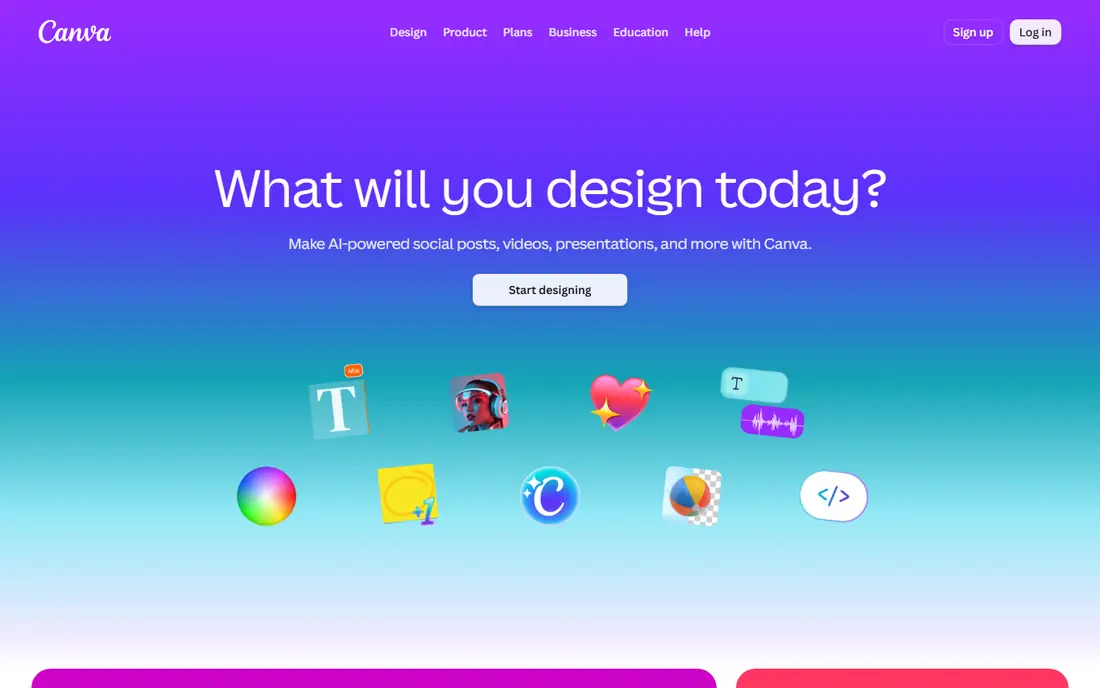
Canva is the closest thing to a single workspace for everyday media work. You can design a social post, cut a short video, build a presentation and resize the result for several platforms without leaving the app. Templates cover most common formats, Magic Studio tools help with writing, image edits and resizing, and collaboration lets a team comment and edit together in real time.
The limits are depth and paywalls. Photo editing is good for social work but not a replacement for a professional editor, and the most useful brand and AI features sit on Pro. Free storage and premium assets also limit heavy use. For a small team that needs many formats fast, Canva is the best default. For deep photo or film work, pair it with a specialist tool.
- Huge template library for design, video and presentations
- Magic Studio AI tools
- Real-time collaboration and scheduling
- Premium templates, brand kits and advanced AI need a paid plan
- Photo editing depth is below Photoshop
- Free storage is limited
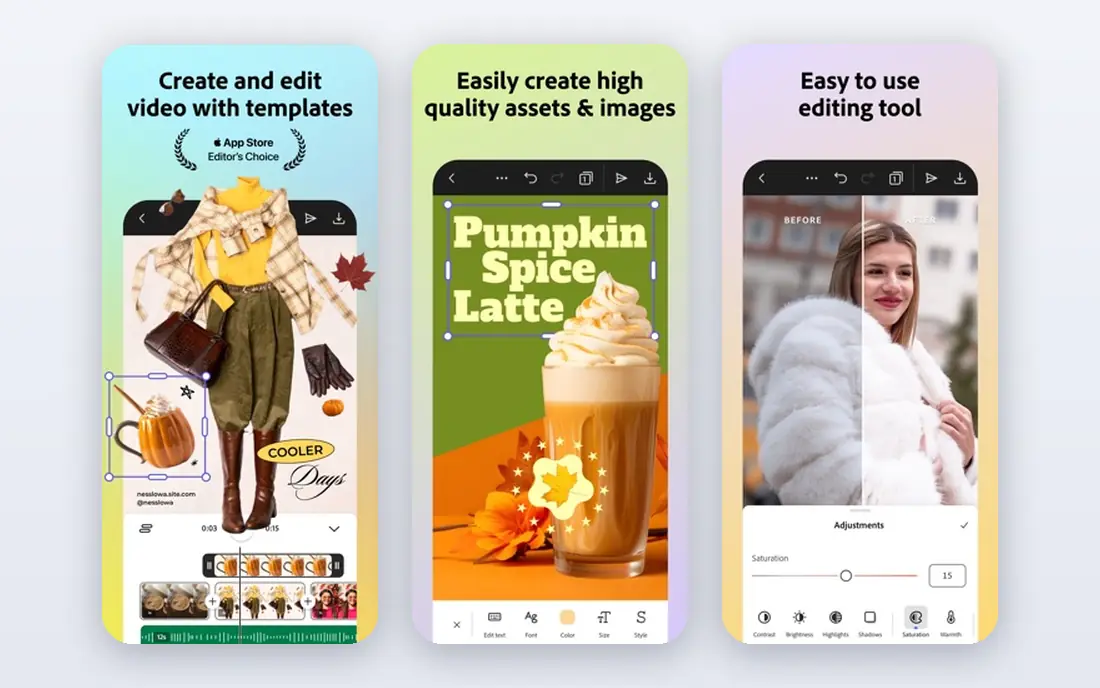
Adobe Express suits users who want fast, on-brand content with Adobe quality behind it. Firefly image generation, background removal and Adobe Fonts give social and marketing graphics a polished look, and Creative Cloud users may already have access through an existing plan. The editor is quick to learn, and templates cover social, web and print basics.
The trade-off is breadth. The template library is smaller than Canva, and key tools such as resize and full brand kits need Premium. Team collaboration is also simpler than Canva. If you already pay for Creative Cloud, Express is an easy win. If you start from scratch and need the largest template range, Canva may fit better.
- Firefly AI image tools
- Large font and Adobe Stock access
- Fast branded templates and background removal
- Template library is smaller than Canva
- Brand kits and resize tools need Premium
- Collaboration is simpler than Canva
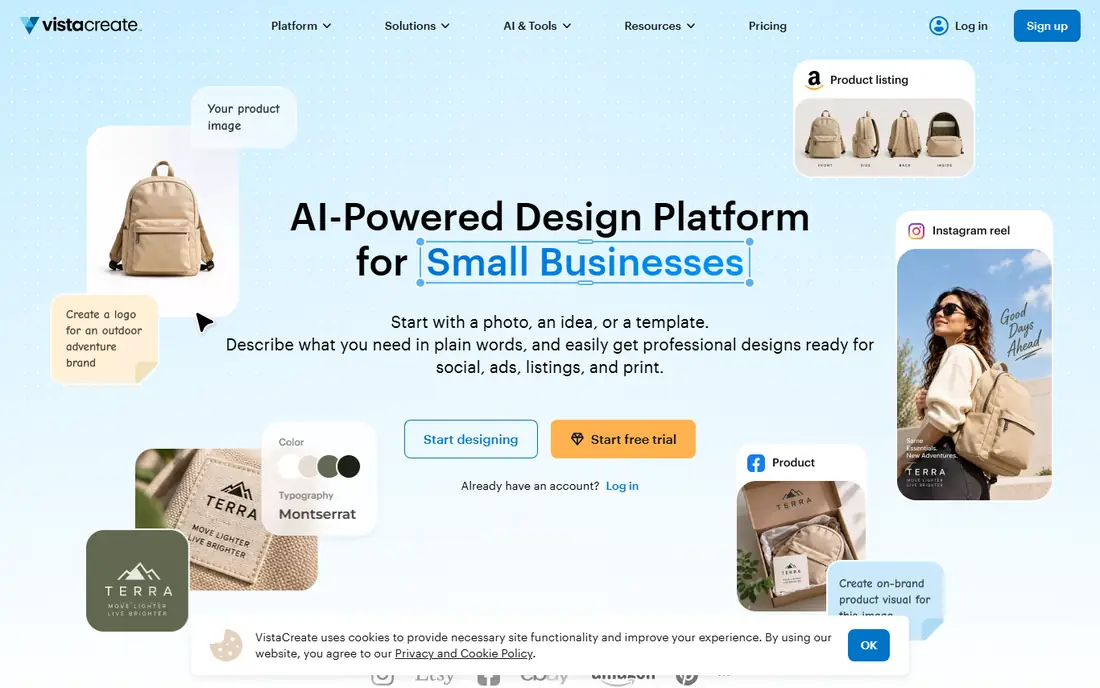
VistaCreate, formerly Crello, is a template-first tool for social graphics, ads and print materials. The editor is simple, animation templates help a static post become a short moving graphic, and the library covers many business formats. For a small business owner who needs a flyer, a social post and a simple video intro in one afternoon, VistaCreate covers the basics well.
The limits are ecosystem and depth. Integrations, collaboration and advanced video tools are thinner than Canva, and premium assets sit behind a paid plan. VistaCreate is a good value alternative for template-driven work, and a weaker choice for a team that needs deep collaboration or complex video editing.
- Large template library for social and print
- Animation and video templates
- Simple editor for non-designers
- Smaller ecosystem than Canva
- Advanced video editing is limited
- Premium assets need a paid plan
Kapwing covers video, image and subtitle work in a browser, which makes it useful for social teams that edit together. You can trim a video, add captions, resize for several platforms and create a simple graphic in the same workspace. AI rough cuts and caption tools speed up the first pass on a long recording, and sharing a link for review is simple.
Free limits are the main friction, since export length, storage and AI credits all cap unpaid use. Design tools are also lighter than Canva, so Kapwing works best as a video-first multi-purpose tool rather than a full design studio. Pair it with Canva when a project needs both deep design and browser video editing.
- Browser editor for video, images and subtitles
- AI rough cuts and captions
- Easy sharing and team review
- Free plan limits export length and storage
- Photo and design tools are lighter than Canva
- Desktop depth is limited
VEED is a browser tool that covers video, captions, audio cleanup and simple graphics in one place. Auto subtitles in many languages, translation options and screen recording suit training, marketing and social video, while text and image overlays handle basic design needs. No install means a team can start on any computer.
The limits are export and design depth. Free exports carry a watermark, and photo editing is basic compared with Canva or Photopea. VEED is best as a video-led multi-purpose tool for teams that publish talking-head, training or social video often. For print design or deep photo work, add a design specialist.
- Browser video editing with subtitles and translation
- Audio cleanup and screen recording
- Simple image and text overlays
- Free exports carry a watermark
- Photo design tools are basic
- Heavy projects need a desktop editor
Photopea is the free browser editor that surprises most first-time users. It opens PSD, XCF and common image formats, supports layers, masks and adjustments, and runs entirely in a browser with no install. For photo retouching, web graphics and social images, it offers depth that template tools cannot match, at no cost beyond ads.
The trade-off is focus. Photopea is a photo and graphics editor, not a video suite, so multi-purpose work that includes video needs a second tool. The interface is dense for beginners, and the free version shows ads. For a creator who needs real photo control without a subscription, Photopea is an excellent companion to Canva or Kapwing.
- Free browser editor with layers, masks and PSD support
- No install needed
- Strong for photo retouching and web graphics
- Ad-supported free version
- No native video timeline depth
- Interface can feel dense for beginners
Pixlr suits quick photo work. The browser editor offers a simple mode for fast edits and an advanced mode for layers and adjustments, plus AI tools for background removal and image tweaks. That range makes it useful for social images, product photos and quick design fixes without opening a heavy desktop app.
The limits are ads, feature gates and video. Free use includes ads and limits on some tools, and Pixlr does not offer a video timeline to match Kapwing or VEED. Use Pixlr for fast photo edits and social graphics, and pair it with a video tool when a project includes moving images.
- Fast browser photo editor with AI tools
- Simple and advanced modes for different skill levels
- Good for quick social images
- Free version shows ads and limits some features
- No deep video editing
- Batch and team tools need a paid plan
Fotor bridges photo editing and design templates. You can retouch a photo, apply filters and adjustments, then place it into a social template, collage or marketing graphic without switching apps. Batch editing helps when a set of product photos needs the same treatment, and mobile apps keep that workflow portable.
Video is the weak spot, since Fotor does not offer a video editor to match Kapwing or VEED. Premium assets and advanced tools also need a paid plan, and upgrade prompts appear often in free use. For photo-led media work with template needs, Fotor is a solid all-rounder. For video-led work, choose a video-first tool instead.
- Photo editing plus design templates in one app
- Batch editing and collage tools
- Apps for web, desktop and mobile
- Advanced features and premium assets need a paid plan
- Video tools are limited
- Interface has frequent upgrade prompts
Clipchamp, from Microsoft, is the most accessible video starting point for Windows users. It is built into Windows, offers a simple timeline, templates, auto captions and stock media, and exports social and work video without a separate install. For a small business owner on Windows who needs a quick promo, tutorial or social clip, Clipchamp removes setup friction.
The limits are platform and scope. The best experience is on Windows, advanced features need a paid plan, and design tools are limited to video overlays rather than full graphic design. Pair Clipchamp with Canva or Photopea when a project needs both video and standalone graphics, and use Clipchamp alone for simple video tasks.
- Free video editor built into Windows
- Templates, captions and stock media
- Simple timeline for social and work video
- Best experience is on Windows
- Advanced features need a paid plan
- Photo design tools are limited to video overlays
How we picked these
We compared official feature pages and pricing pages for tools that cover at least two media types and are live in October 2026. We favored template range, video and photo depth, collaboration and free access, and we left out single-purpose photo editors and professional film suites that do not cover everyday multi-format work. We did not claim hands-on lab testing, and where a paid price varied by region or billing period, we wrote See website rather than guessing a figure.
What to check before you choose
Start with the media type you use most, since no tool leads in every format. If video dominates, start with Kapwing, VEED or Clipchamp. If design dominates, start with Canva or Adobe Express. If photo editing dominates, start with Photopea or Pixlr and add a template tool for layouts. Test a real project end to end, including export, rather than judging by templates alone.
Then check export and licence details. Note resolution, watermark rules, commercial terms for templates and stock, and whether brand kits or premium assets need a paid plan. A free plan that exports with a watermark is a testing plan, not a publishing plan. Finally, check collaboration and storage: team review, shared brand assets and cloud storage matter more once more than one person touches a project.
Frequently asked questions
What is the best all-in-one media app for a small business?
Canva is the best all-round pick for most small businesses, since it covers design, video, presentations and social scheduling in one workspace. Adobe Express is a strong alternative for Adobe users, while Kapwing or VEED suit video-led teams better.
Can a free multi-purpose app replace Photoshop and Premiere Pro?
No, not for professional work. Free and template tools cover everyday social, marketing and training media well, but deep photo retouching, color grading and complex film editing still need specialist tools. Use a multi-purpose app for speed and a specialist app for depth.
Do I need to pay for brand kits?
In most tools, yes. Brand kits with saved colors, fonts and logos usually sit on a paid plan in Canva, Adobe Express and similar tools. Free plans let you design with manual colors and fonts, which works for occasional use but slows a team that publishes often.
Is browser editing good enough for video?
For short social, training and marketing video, yes. Browser editors handle trimming, captions, overlays and exports well on a steady connection. For long, effects-heavy or high-resolution projects, a desktop editor will feel faster and more stable.
Which tool is best for quick photo edits on any computer?
Photopea is the best free browser choice for deep photo edits, while Pixlr is faster for simple fixes. Both run in a browser with no install, which makes them useful on borrowed or shared computers.
Sources
See where you really rank - block by block
ProMapRanker scans Google Maps across a grid of your service area. Simple monthly plans from $19, white-label on every plan.
Start freeKeep reading
 worlds best local seo company
8 Worlds Best Local SEO Companies for Map Pack Growth in 2026
Compare the worlds best local seo company options for Google Business Profile work, citations, reviews, and multi-location rankings and reporting in 2026.
Read → world's best web hosting company
World's Best Web Hosting Company in 2026
Searching for the world's best web hosting company? We compared 10 hosts on price, renewal rates, speed, and support to help you choose well today in 2026.
Read → who's got the best nanny tax services
Who's Got the Best Nanny Tax Services in 2026
We answer who's got the best nanny tax services, comparing full filing, back taxes, software, and pricing so families can handle nanny taxes correctly.
Read →