 ProMapRanker
Best Image Upscaling App in 2026


Detailed desktop upscaling · Pricing starts at: $149 per year
Key takeaways
- Topaz Gigapixel suits photographers who need detailed desktop upscaling for print, while Upscayl suits free local upscaling.
- Let's Enhance and VanceAI suit cloud batch work, while Magnific suits creative upscaling of AI art.
- Free tiers help for occasional images, but batch work and large prints usually need a paid plan.
- Upscaling cannot invent true detail, so start from the best original you have and test at your target print size.
Quick comparison
| Pick | Great for | Pricing starts at | Free tier | |
|---|---|---|---|---|
| Topaz Gigapixel | Detailed desktop upscaling | $149 per year | Free trial | Visit |
 Upscayl | Free local upscaling | Free | Yes | Visit |
 Let's Enhance | Cloud batch upscaling | $9 per month | Yes | Visit |
 VanceAI Image Upscaler | Upscaling plus cleanup | $9 per month | Yes | Visit |
 Magnific | Creative AI art upscaling | $39 per month | Free trial | Visit |
 ON1 Resize AI | Print resizing for photographers | See website | Free trial | Visit |
 Bigjpg | Anime and illustration upscaling | Free | Yes | Visit |
 ImgUpscaler | Quick browser upscaling | Free | Yes | Visit |
 Remini | Face-focused photo enhancement | See website | Yes | Visit |
The best image upscaling app
We compared tools that enlarge images with AI, covering desktop apps, browser tools, and mobile options. The list focuses on legitimate creative tools for photos, art, and product images. Only use images you are authorised to use, and get consent before enhancing photos of other people, especially portraits.
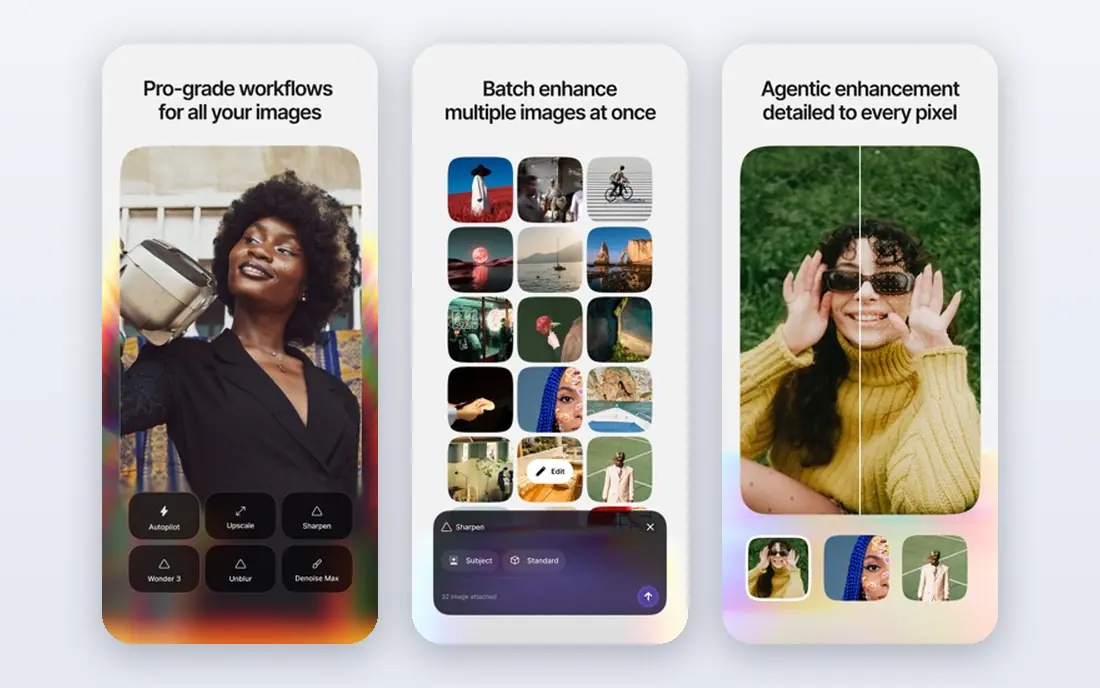
Topaz Gigapixel remains the reference point for photographers who need print-ready enlargements. It runs on your computer, which keeps photos private and avoids upload limits, and it offers batch processing for a set of images. Face recovery and detail models help on portraits and detailed scenes, though results still depend on the original file.
The cost and hardware needs are the catches. Large files need a decent graphics card, and pricing is subscription-based, so occasional users may prefer a browser tool. For regular print work, its control and output quality justify the price for many photographers.
- Strong detail recovery for photos
- Local desktop processing
- Batch processing and plugin support
- Needs a capable computer for large files
- Subscription pricing
- No ongoing free tier
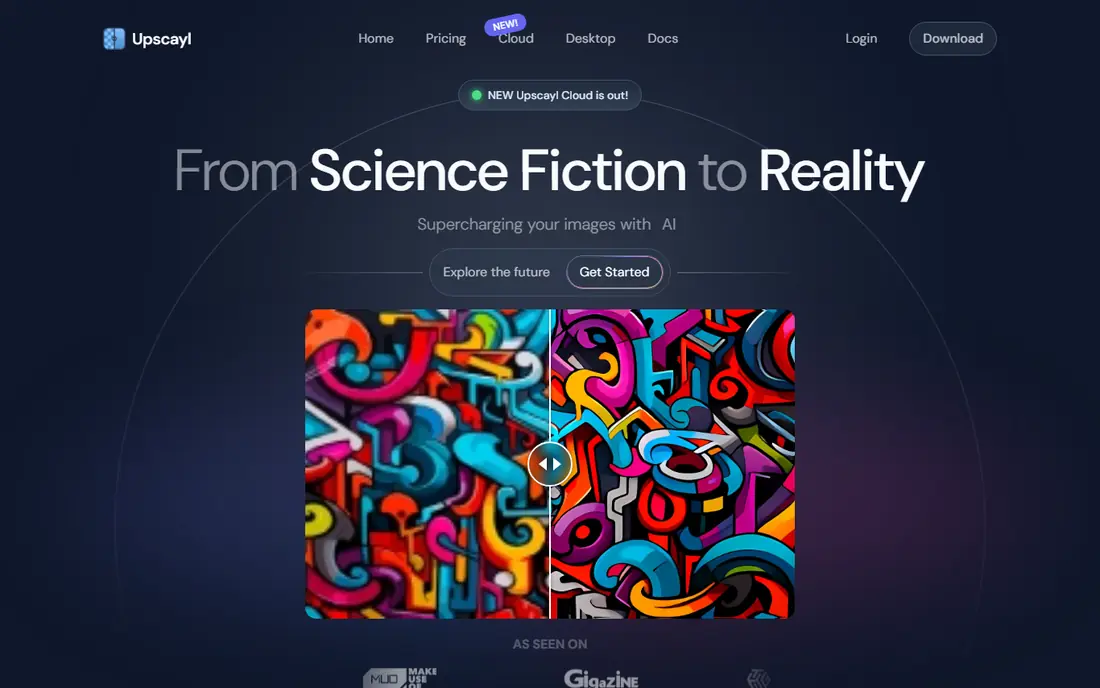
Upscayl is the best free desktop upscaler for most people. It runs locally, so photos stay on your machine, and it handles batch jobs without a subscription. That privacy plus cost combination is hard to match in a browser tool, especially for personal photos you do not want to upload.
Model choice takes a little learning, since different models suit photos, art, and anime. Try a model on a test image before running a full batch. For free, local upscaling with no account, Upscayl is the first tool to try.
- Free and open source desktop app
- Runs locally on Windows, macOS, and Linux
- Batch processing included
- Interface is simpler than paid rivals
- Model choice needs some learning
- Large jobs depend on your computer
Let's Enhance suits teams that need regular cloud upscaling without installing software. Upload images, choose a model, and download larger versions, with batch support for product catalogues and print prep. Credit rollover on personal plans helps when work is uneven month to month.
Credits are the main thing to watch. Heavy months can burn through an allowance faster than a flat subscription would, so compare your monthly image count with the plan credits. For steady catalogue work, its structured plans make budgeting easier than pay-per-image tools.
- Cloud upscaling with several models
- Batch processing
- Credit rollover on personal plans
- Credit-based pricing needs tracking
- Output limits vary by plan
- Cloud upload needed for every image
VanceAI pairs upscaling with cleanup tools, which helps when the original is noisy or soft as well as small. Denoising and sharpening before or beside enlargement can produce a cleaner result than enlargement alone. That bundle suits old scans, phone photos, and product images that need more than size alone.
Free credits cover only a few images a month, so treat the free tier as a test. Paid plans use credits too, so check how many images your typical month needs. For images that need cleanup plus size, VanceAI is a practical all-in-one browser choice.
- Upscaling plus denoising and sharpening tools
- 2x, 4x, and 8x options
- Batch support on paid plans
- Credit-based pricing
- Free credits are limited
- Results vary by image type
Magnific is built for AI art, illustrations, and creative images where detail can be reinterpreted, not just enlarged. It can push images to large sizes with added texture and detail that faithful photo tools would not invent. That makes it popular with digital artists and designers working from generated art.
For a straight photo enlargement, Magnific may change the image more than you want, and its price is high for that job. Use it when the goal is a striking large artwork, and use a faithful photo tool when accuracy matters most. Check the output at full size before printing.
- Strong creative upscaling for AI art and illustrations
- High enlargement factors
- Detailed control over style and detail
- Expensive for simple photo enlargement
- Trial only, no ongoing free tier
- Creative models can change an image more than a faithful tool would
ON1 Resize AI is a photographer-focused resizing tool inside the ON1 ecosystem. It suits people who already edit in ON1 or who need large print files from smaller originals. Its print-oriented controls help match enlargement to paper size and viewing distance, which matters more than a raw scale number.
It is not a quick browser fix. Installation and a trial are needed to judge it, and pricing should be confirmed on the vendor site before buying. For photographers preparing prints, it is a credible rival to Topaz, especially if ON1 is already part of the workflow.
- Built for photographers and print output
- Integrates with ON1 photo workflow
- Handles large print sizes
- Pricing needs checking on the vendor site
- Desktop software to install
- Less suited to quick browser jobs
Bigjpg is a long-running browser upscaler with models tuned for anime, illustrations, and line art. Those image types often upscale better with a specialised model than with a general photo model, since edges and flat colour need different handling. The browser workflow is simple: upload, choose a scale, and download.
Free use is slow and limited in file size, so it suits occasional art images rather than bulk work. Photos will look less convincing than they do in a photo-focused tool. For anime and illustration fans, Bigjpg remains a useful free starting point.
- Models tuned for anime and illustrations
- Free tier for testing
- Simple browser workflow
- Free tier is slow with upload limits
- Photo results are weaker than art results
- Paid plans use time-based pricing
ImgUpscaler is for the simplest job: enlarge one image quickly in a browser. No install, no model choice to learn, and a fast workflow for social posts or a single product image. Paid plans add batch processing for larger sets, while the free tier covers occasional use.
Control is thinner than in Topaz or Upscayl, and every image goes to the cloud, so avoid sensitive photos. For a quick enlargement where speed matters more than fine control, ImgUpscaler does the job with little friction.
- Simple browser upscaling with no install
- Batch support on paid plans
- Quick for single images
- Cloud upload required
- Free tier has limits
- Less control than desktop tools
Remini focuses on faces, which makes it popular for old family photos and low-quality portraits. It can sharpen facial detail and clean up a soft phone photo in a way that general upscalers sometimes miss. Mobile access makes it easy to use on photos already on a phone.
Pushing enhancement too far can produce a plastic or artificial look, so check results at full size and use a lower setting when needed. Pricing varies by app store and plan, so confirm the current price on the vendor site or store listing before subscribing. Only enhance portraits you are authorised to use, and get consent where the photo shows another person.
- Strong face enhancement for old and low-quality photos
- Mobile and web access
- Daily free credits in many cases
- Pricing varies by platform and plan
- Face-focused results can look artificial if pushed too far
- Subscription needed for full use
How we picked these
We compared official feature pages, pricing pages, and app store listings, and we favoured tools that are live, enlarge images with AI, and state their pricing or free tier in public. We kept a mix of desktop, browser, and mobile tools, and we excluded tools with no working product page. Where a price could not be confirmed from a vendor page in our checks, we wrote See website.
How to get a good enlargement instead of a bigger blur
Start from the largest, cleanest original you have. Upscaling works best on a sharp original that is simply too small, and worst on a heavily compressed or already upscaled file. If you have a RAW file or a high-quality JPEG, use that, not a social-media copy that has already been compressed.
Match scale to output
Do not default to the largest scale on offer. For a social post, 2x may be enough, while a large print needs a higher scale matched to viewing distance. Test at your target size, not just on screen at a small preview, since artefacts that look fine small can show in print.
Clean before you enlarge
Remove noise and fix exposure before enlarging when the tool allows it, since enlargement can amplify flaws. A tool with denoising, such as VanceAI, helps here, as does a clean original. Compare a cleaned enlargement with a direct enlargement on the same image to see which holds up better.
Check faces and text closely
Faces and text reveal upscaling problems fastest. Zoom to full size and check eyes, teeth, and letter edges for smearing or invented detail. If a face looks artificial, lower the scale or try a faithful photo model instead of a creative one. For product images, check edges and labels the same way.
Frequently asked questions
What is the best software for image upscaling?
Topaz Gigapixel is the strongest desktop pick for detailed photo work, while Upscayl is the best free desktop pick. Let's Enhance suits cloud batch work, and Magnific suits creative AI art. Choose based on whether you need faithful photos, free local work, batch cloud work, or creative art.
What are the best image upscaling tools for free use?
Upscayl is fully free and open source for desktop use, while Bigjpg and ImgUpscaler offer free browser tiers for occasional images. Let's Enhance and VanceAI also offer limited free credits for testing. For regular work, a paid plan will usually be needed.
What is the best image upscaling software for print?
Topaz Gigapixel and ON1 Resize AI are the strongest print-focused picks, since both handle large files and print workflows. Test at your actual print size, since a preview on screen can hide artefacts. Start from the cleanest original you have for the best print result.
Can upscaling restore a very blurry photo?
It can improve a soft or small photo, but it cannot recover true detail that was never captured. Face-focused tools such as Remini can help on portraits, but results can look artificial if pushed too far. Treat upscaling as enhancement, not as a perfect restoration.
Is image upscaling safe for photos of other people?
Only enhance portraits you are authorised to use, and get consent where the photo shows another person. Avoid uploading sensitive or private photos to cloud tools without reading their privacy terms. Local tools such as Upscayl keep photos on your own computer, which helps for private images.
Sources
See where you really rank - block by block
ProMapRanker scans Google Maps across a grid of your service area. Simple monthly plans from $19, white-label on every plan.
Start freeKeep reading
 zoho inventory alternatives
6 Alternatives to Zoho Inventory, Compared on Price and Fit
Zoho Inventory alternatives: 6 tools compared on price, free plans and fit. Katana leads the list for manufacturers. Fit and flaws are laid out for each entry.
Read → zoho crm alternatives
Best Zoho CRM Alternatives (2026)
Need Zoho CRM alternatives? We compare 7 tools on cost, free access and who each suits. Every pick gets a straight assessment. Built for quick decisions.
Read → zelle alternatives
Best Zelle Alternatives in 2026
Compare the best Zelle alternatives for sending money to friends, paying sellers and moving funds abroad, with honest notes on fees, speed and safety in 2026.
Read →