 ProMapRanker
Best Illustration Software in 2026


Professional vector illustration · Pricing starts at: $22.99 per month
Key takeaways
- Adobe Illustrator remains the standard for professional vector work, while Affinity by Canva now offers a strong free vector option.
- Procreate is the best value for iPad illustrators, with a one-time purchase and no subscription.
- Krita and Inkscape are fully free and cover most painting and vector needs for hobbyists and many freelancers.
- Comic and manga artists should start with Clip Studio Paint or MediBang Paint, since both were built around panels and inking.
Quick comparison
| Pick | Great for | Pricing starts at | Free tier | |
|---|---|---|---|---|
| Adobe Illustrator | Professional vector illustration | $22.99 per month | Free trial | Visit |
 Affinity by Canva | Free professional vector design | Free | Yes | Visit |
 Procreate | iPad drawing and painting | $12.99 one-time | No | Visit |
 Clip Studio Paint | Manga, comics, and detailed illustration | See website | Free trial | Visit |
 Krita | Free digital painting | Free | Yes | Visit |
 Inkscape | Free vector graphics editing | Free | Yes | Visit |
 CorelDRAW | Vector design for print and production | See website | Free trial | Visit |
 MediBang Paint | Free comics and cross-device drawing | Free | Yes | Visit |
The best illustration software
Illustration software splits into two jobs: vector drawing, where shapes stay sharp at any size, and raster painting, where brushwork and texture matter most. The eight tools below cover both, plus comics, so match the tool to your style before you match it to a price.
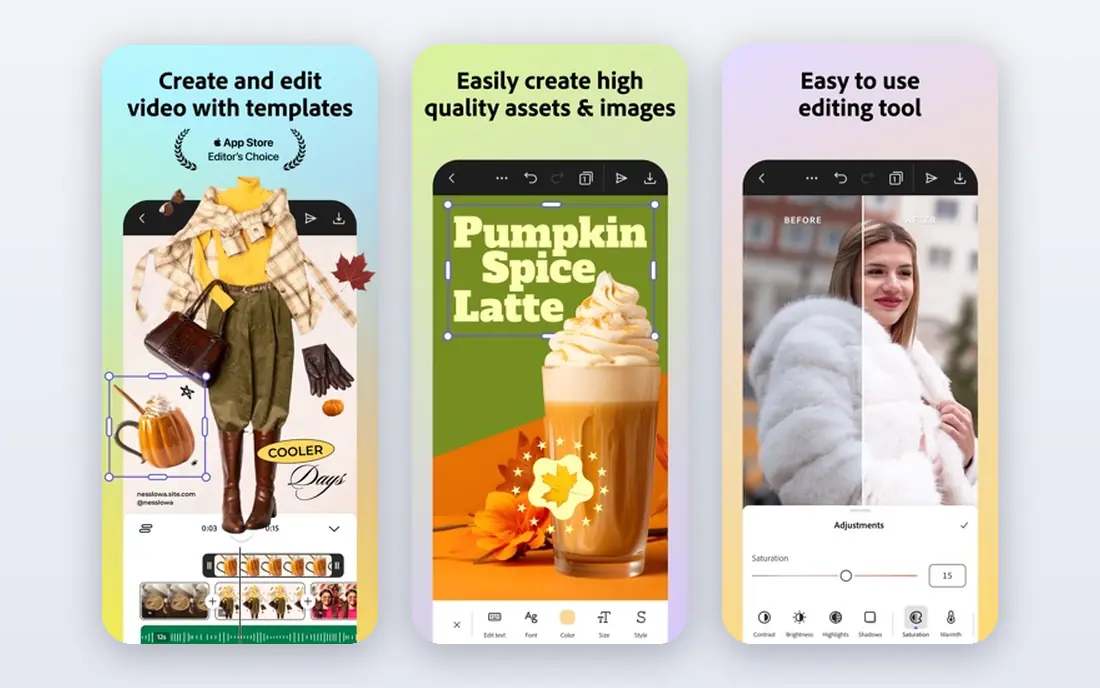
Adobe Illustrator is the tool most studios expect on a resume for vector illustration, logo work, and editorial art. Pen tools, shape building, and path editing are precise, typography controls are deep, and files move cleanly into print and other Adobe apps. For client work where files must open correctly at a print shop or agency, Illustrator removes doubt.
The cost is the catch. At $22.99 per month on an annual plan billed monthly, occasional illustrators pay a lot for a tool they open a few times a month. Beginners also face a dense interface and many panels to learn. Illustrator is worth it for professionals who bill vector work regularly, while hobbyists should try Affinity or Inkscape first and upgrade only when client files demand it.
- Industry-standard vector tools
- Strong typography and print output
- Large plugin and asset ecosystem
- Subscription cost adds up
- Learning curve is steep for beginners
- Full value needs regular use
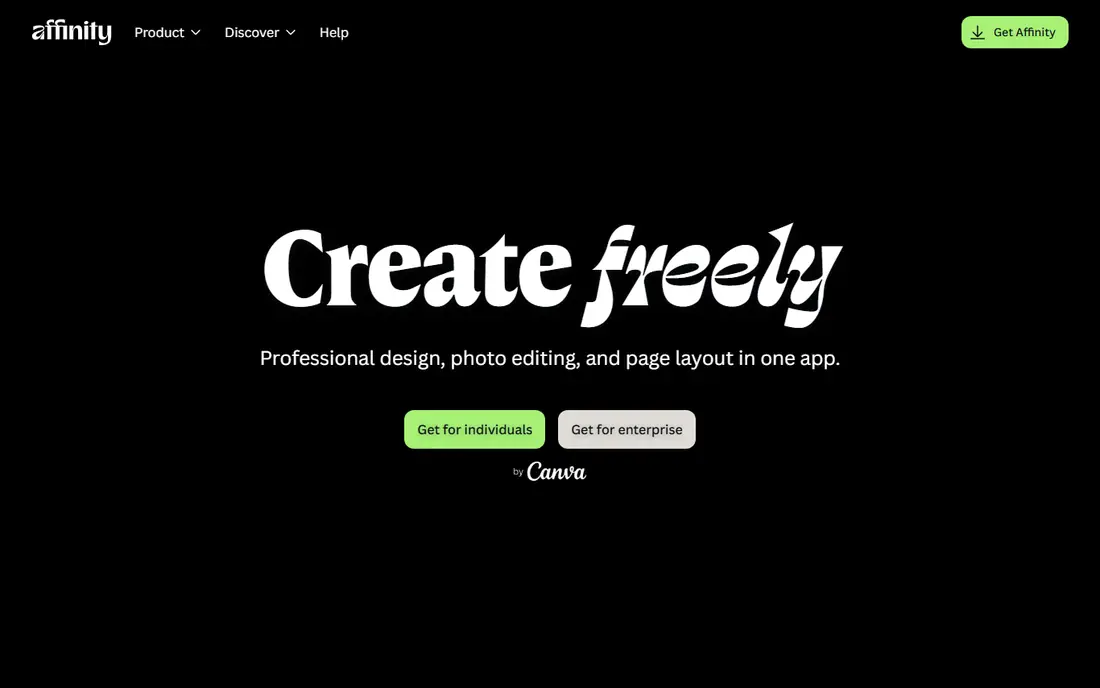
Affinity changed the value calculation for illustrators when Canva made the suite free. Designer covers vector illustration with pen tools, brushes, and layout controls, while Photo and Publisher sit alongside it for editing and page work. For freelancers and students, getting pro-grade vector tools without a subscription is a major saving.
The trade-offs are smaller. Fewer third-party plugins exist than for Illustrator, and studios built around Adobe files may still need Illustrator for final delivery. Learning Affinity also means relearning shortcuts and panel habits. For new illustrators, or anyone building a portfolio without client file constraints, Affinity is now the first tool we suggest trying.
- Full vector and raster tools at no cost
- One-time purchase history replaced by a free suite
- Works on desktop and iPad
- Smaller plugin ecosystem than Illustrator
- Some print workflows need checking
- Interface differs from Adobe habits
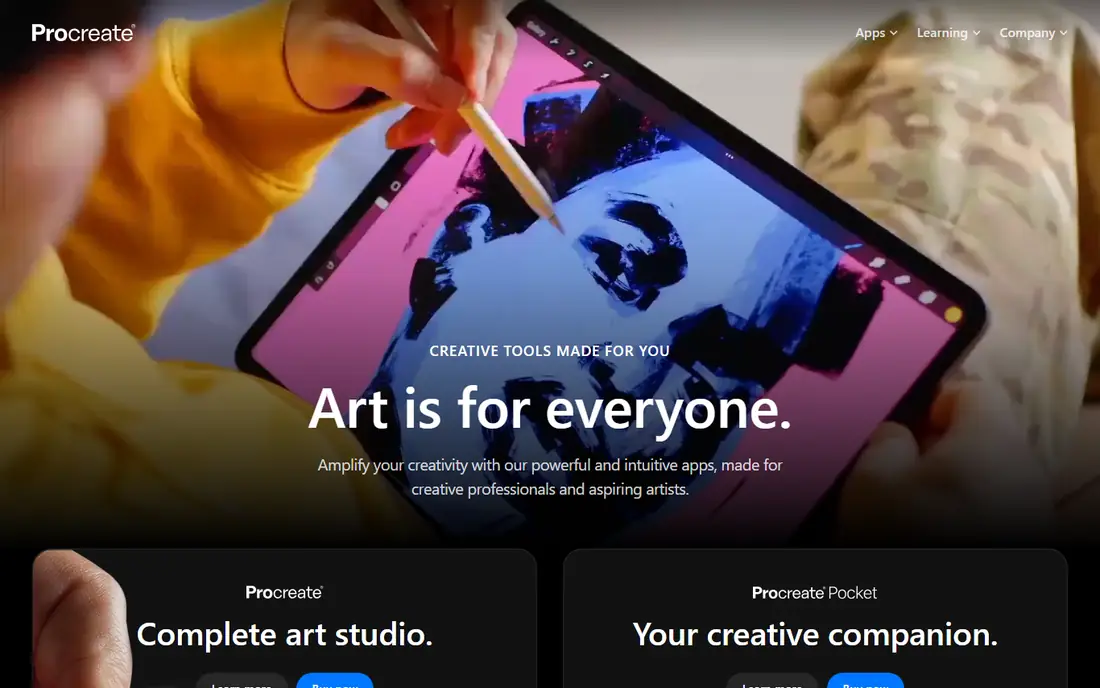
Procreate is the reason many illustrators buy an iPad. The interface stays out of the way, brushes feel responsive with an Apple Pencil, and the one-time $12.99 purchase covers the app without a monthly bill. Animation assist, layer tools, and a large community brush library make it useful for illustration, concept art, and short animations.
The limits are clear. Procreate is iPad only, so Windows and Android users cannot use it, and its raster canvas does not replace a vector tool for logos and scalable print art. File handoff to a desktop workflow needs export steps. For iPad owners who paint and draw, Procreate offers the best value in this list by a wide margin.
- One-time purchase with no subscription
- Huge brush library and community brushes
- Fast, touch-first interface
- IPad only
- Raster focus means vector work is limited
- No desktop version for file handoff
Clip Studio Paint is built for comics first and illustration second, which shows in every workflow. Panel creation, perspective rulers, 3D pose models, and screen tones speed up manga pages, while the brush engine handles inking and painting for standalone illustration too. Multi-page projects stay organized in one file structure instead of scattered pages.
Pricing is the part to check carefully, since desktop perpetual licenses and device subscriptions differ, and iPad pricing follows a subscription model. The interface also packs in many tools, so beginners should expect a learning period. Comic artists, webtoon creators, and illustrators who ink heavily will get the most from Clip Studio Paint.
- Panel, speech, and screen tone tools built in
- Strong brush engine
- Animation and multi-page support
- Pricing varies by device and license type
- Interface is dense
- IPad use needs an ongoing plan
Krita is a free painting tool that competes with paid apps on brush quality alone. It offers stabilizers for smooth lines, a wide brush set, layer and mask controls, and animation tools for frame-by-frame work. Illustrators who paint in a traditional style, work on concept art, or create textures will find most of what they need without paying.
Vector support exists but is not the focus, so logo and scalable print work belongs in Inkscape or Affinity instead. The interface carries many panels, and help comes from docs and community forums rather than a paid support team. For painters on a budget, Krita is the strongest free option and a genuine professional tool, not a trial version.
- Fully free and open source
- Strong brush engines and animation tools
- Works on Windows, Mac, Linux, and Android
- Vector tools are basic
- Interface can feel busy
- Community support rather than a vendor help desk
Inkscape is the free answer to vector illustration. Node editing, path operations, clones, and text-on-path tools cover logo design, icons, diagrams, and editorial illustration. SVG is its native format, which makes it a natural fit for web graphics, cutting machines, and open workflows.
Print work needs care. Some professional print shops expect CMYK files and Adobe formats, so Inkscape users should confirm export requirements before delivery. Very complex files can also slow down, and the interface lacks the polish of paid rivals. For web illustrators, students, and anyone learning vector drawing, Inkscape teaches the real skills at no cost.
- Fully free and open source
- Precise path and node editing
- Good SVG support
- No native CMYK workflow for some print jobs
- Performance can lag on very complex files
- Interface feels dated
CorelDRAW has served print shops, sign makers, and packaging designers for decades, and that production focus still shapes it. Vector drawing, page layout, and typography sit in one suite, which suits shops that design and output work in-house. Users who produce signage, vehicle graphics, and large-format print will find tools tuned to that work.
The downside is ecosystem fit. Many agencies and clients work in Adobe formats, so CorelDRAW users should test file exchange early in a project. Pricing also varies by edition and region, so check the current Corel site before budgeting. CorelDRAW fits production and print businesses more than it fits illustrators who only deliver web files.
- Long history in print, signage, and packaging
- Strong vector and layout tools
- Perpetual and subscription options in many markets
- Less common in agency Adobe workflows
- Price is higher than free rivals
- File exchange with Illustrator needs checking
MediBang Paint is the easiest free route into comics across devices. It runs on Windows, Mac, iOS, and Android, syncs work through the cloud, and includes panel tools, fonts, and tones for manga pages. A beginner can start a comic on a phone and finish it on a desktop without buying software.
Advanced painters will notice thinner brush and layer controls than Krita or Procreate offer, and some premium materials sit behind paid options. Cloud sync also requires a MediBang account. For students, hobby comic artists, and teams sharing pages across devices, MediBang Paint is a practical free starting point.
- Free on desktop and mobile
- Cloud sync across devices
- Comic panels and tones included
- Fewer advanced painting features than Krita or Procreate
- Cloud features need an account
- Some extras are paid
How we picked these
We compared official pricing pages, app store listings, and published feature pages for illustration tools that are actively offered in October 2026. We favored tools that cover distinct styles, including vector, raster painting, and comics, and we included both free and paid options so budget does not decide the shortlist alone. Where a price varied by device or region, or was not verified on the vendor site, we wrote See website rather than picking one figure.
How to choose by style and output
Start with output. If your work must scale to a billboard or print cleanly at any size, choose a vector tool such as Illustrator, Affinity, Inkscape, or CorelDRAW. If your work is painterly, textured, or brush-led, choose a raster tool such as Procreate, Krita, or Clip Studio Paint. Comic artists should weigh panel and tone tools above general brush counts.
Then check hardware and handoff. iPad-only tools suit tablet artists but complicate desktop delivery, while desktop tools suit print and studio workflows. Test the trial or free version with a real project, including export to the format your client or printer needs, before paying for a subscription.
Frequently asked questions
What is the best illustration software for beginners?
Affinity by Canva and Krita are strong free starting points, since both cover professional basics without a subscription. Procreate is the best beginner pick for iPad owners who want a simple, fast painting app.
What is the best digital drawing software for professionals?
Adobe Illustrator remains the professional standard for vector work, while Procreate and Clip Studio Paint lead for raster and comic illustration. Many professionals use one vector tool and one painting tool together.
What is the best software for digital art on a budget?
Krita for painting, Inkscape for vector work, and MediBang Paint for comics all cost nothing and handle serious projects. Affinity by Canva adds a free pro-grade vector suite for desktop and iPad.
Is Procreate good for professional illustration?
Yes, for raster illustration, concept art, and publishing work that starts on iPad. It is less suited to logo design and scalable print art, where a vector tool is the better choice.
What is the best painting software for comics?
Clip Studio Paint leads for manga and comics because of its panel, tone, and multi-page tools. MediBang Paint is the best free alternative for comic artists working across devices.
Do I need a subscription for good illustration software?
No. Krita, Inkscape, MediBang Paint, and Affinity are free, and Procreate is a one-time purchase. Subscriptions make sense mainly for Illustrator and for ongoing device plans on some other tools.
Sources
See where you really rank - block by block
ProMapRanker scans Google Maps across a grid of your service area. Simple monthly plans from $19, white-label on every plan.
Start freeKeep reading
 zscaler alternatives
Best Zscaler Alternatives in 2026
Looking for zscaler alternatives? We compare 9 SASE and zero trust platforms on architecture, data protection, pricing, and fit for your network and team.
Read → zapier alternatives free
Best Zapier Alternatives Free in 2026
Nine automation tools for zapier alternatives free in 2026, all with genuinely free tiers, plus free plan limits, starting prices and upgrade paths explained.
Read → which platform is best for online reputation
Which Platform Is Best for Online Reputation in 2026
Wondering which platform is best for online reputation? We compare 8 review, listing, and response tools for small and multi-location businesses and agencies.
Read →