 ProMapRanker
Best Homelab Platforms in 2026

Key takeaways
- Proxmox VE is our pick for most people who want virtual machines and containers on one free, open source base.
- TrueNAS Community Edition is the strongest choice when protecting stored files matters more than running many apps.
- Unraid suits mixed drives and simple app installs, and its $49 starting license is the clearest paid option here.
- CasaOS and Ubuntu Server cover opposite ends of the skill range, with CasaOS favoring beginners and Ubuntu favoring control.
- Start with one job, such as file storage or media, before adding services that need regular care and updates.
Quick comparison
| Pick | Great for | Pricing starts at | Free tier | |
|---|---|---|---|---|
 Proxmox VE | Virtual machines and containers | Free | Yes | Visit |
 TrueNAS Community Edition | Protected file storage | Free | Yes | Visit |
 Unraid | Mixed drives and easy apps | $49 one-time | Free trial (30 days) | Visit |
 Synology DSM | Simple appliance setup | See website | No | Visit |
 CasaOS | Beginner self-hosting | Free | Yes | Visit |
 Ubuntu Server | Flexible Linux base | Free | Yes | Visit |
 OpenMediaVault | Lightweight network storage | Free | Yes | Visit |
 XCP-ng | Open source virtualization | Free | Yes | Visit |
 DietPi | Small, low-power devices | Free | Yes | Visit |
The best homelab platforms
A homelab platform is the base you install first, and it shapes everything that follows. Some platforms focus on virtual machines, some focus on storage, and some focus on making a handful of apps easy to run. We compared official feature pages, pricing pages, documentation, and community guides, and we left out any platform that no longer works or no longer fits a home setup.
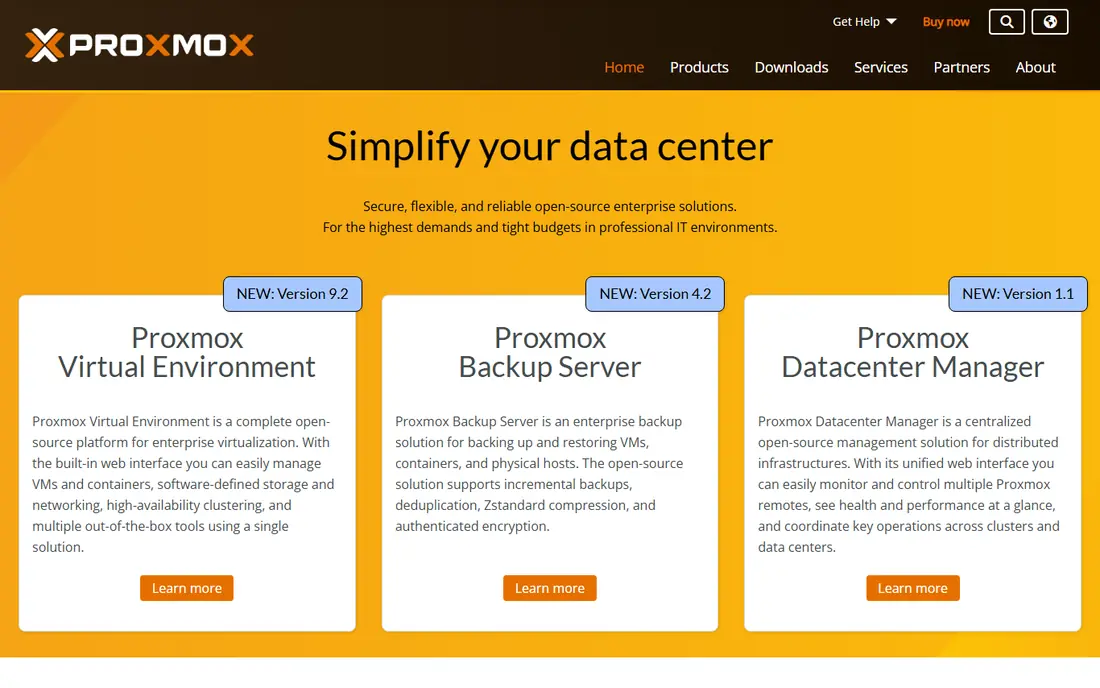
Proxmox VE gives a home lab a professional core without a license fee for the software itself. You can run a Windows or Linux virtual machine beside lightweight containers, take snapshots before an upgrade, and schedule backups to local or network storage. The web interface covers most daily work, so you do not need to live in a terminal once the system is running. That mix is why it appears in so many starter guides, and why it works well as a first serious platform.
The catch is that power brings complexity. Networking, storage pools, and GPU pass-through take reading and testing, and mistakes can affect every virtual machine on the host. Paid support exists for people who want help, and the enterprise repository is a separate subscription, but home users can use the free repository and community help. If you enjoy learning how servers work, this is the platform to build around. If you only want file sharing, a storage-first option below will feel simpler.
- Free and open source
- Runs KVM virtual machines and LXC containers
- Strong backup and clustering tools
- Learning curve for new users
- Enterprise support and update repository access are paid extras
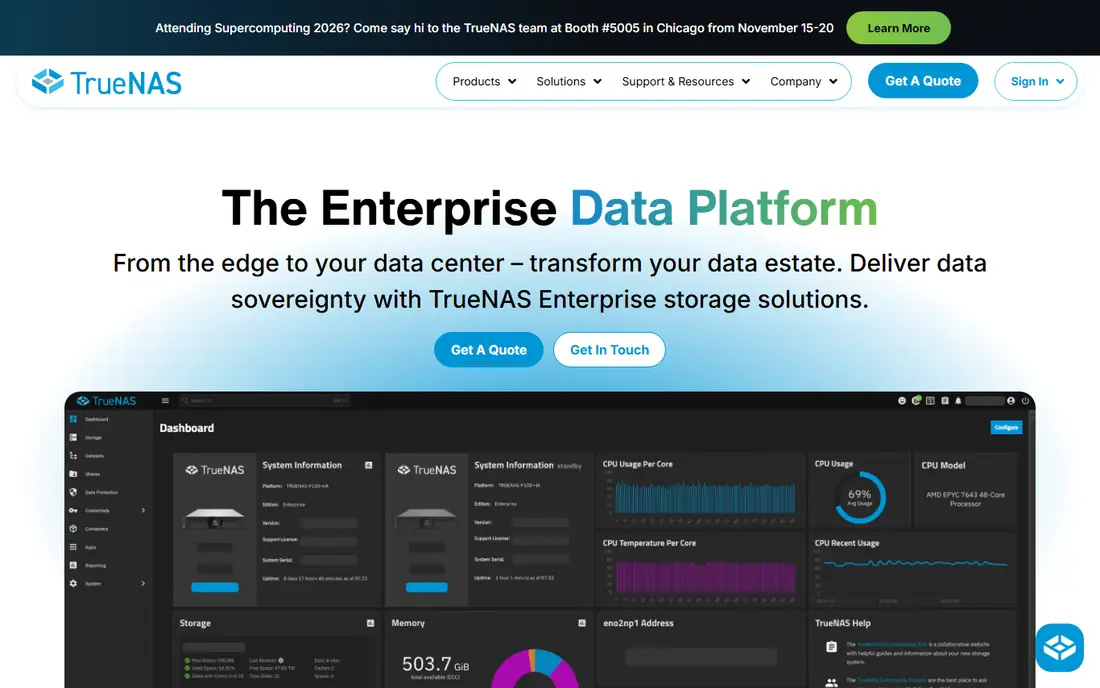
TrueNAS Community Edition is built around one promise: your files should stay intact, even when a drive fails or data quietly corrupts. OpenZFS checks data as it is read and can repair it from parity or mirrored copies, which matters for photos, documents, and backups that you cannot recreate. The web interface handles pools, shares, snapshots, and user permissions, and newer releases also support containers and virtual machines for common home apps. For a box whose main job is storage, this is a strong and honest foundation.
The trade-off is planning. ZFS pools grow in groups of drives rather than one drive at a time, so you should plan capacity before you build. RAM also matters more here than on a simple file server, especially as pools grow. People who want to add one old drive at a time, in any size, will find Unraid easier. People who want the strongest data protection on a free platform will find TrueNAS hard to beat.
- OpenZFS checksums and self-healing storage
- Free community edition
- Apps and virtualization included
- ZFS expansion is less flexible than Unraid
- Needs enough RAM for larger pools
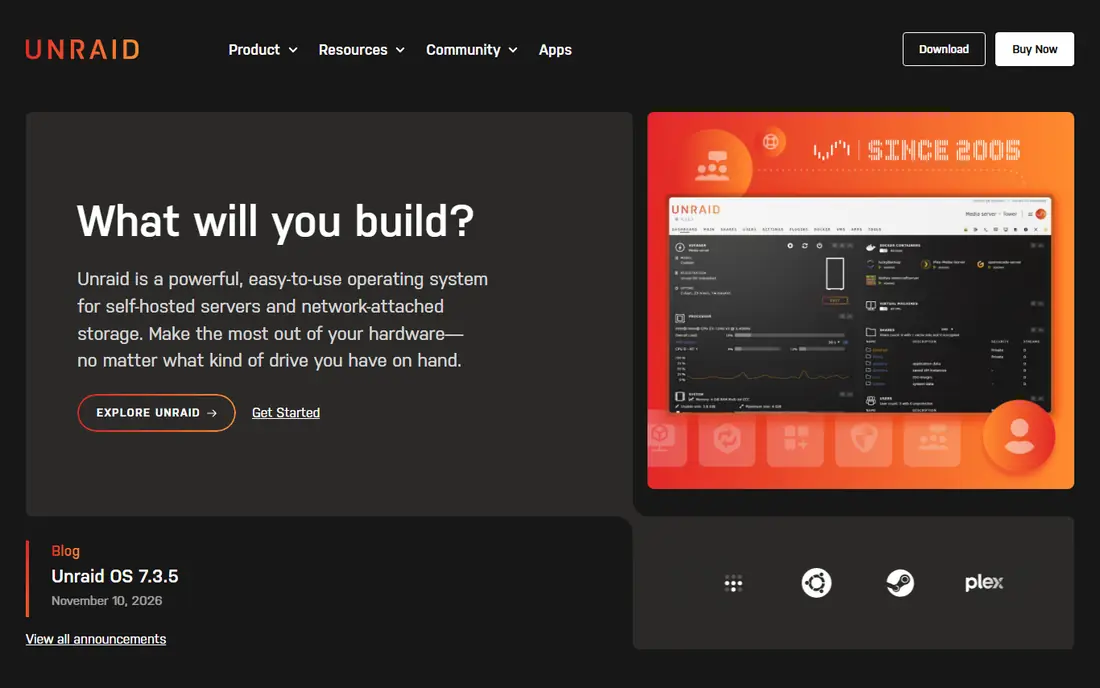
Unraid is the friendly middle ground between a simple NAS and a full virtualization host. You can start with drives you already own, in different sizes, and add another drive later without rebuilding the whole array. Community Apps make it easy to install media servers, home automation tools, ad blockers, and backup tools with a few clicks. Docker containers and virtual machines run on the same box, so one machine can cover storage, media, and small services.
The cost is clear and modest for what it does, with licenses starting at $49, though higher tiers cover more storage devices and longer update periods. Check the current license page before buying, since device counts and update terms matter. Unraid does not offer the same built-in checksum repair as ZFS, so backups still matter. For many home users, though, the ease of expansion and the app catalog outweigh that difference.
- Mix drive sizes in one array
- Large catalog of community apps
- Drives can spin down to save power
- Paid license after the trial
- Parity protection differs from ZFS checksumming
Synology DSM is the software that runs on Synology NAS hardware, and it is the easiest path in this list for someone who does not want to build a PC. Setup is guided, updates are managed through one interface, and first-party apps cover file sharing, photos, backups, surveillance, and media. The system feels like an appliance, which is the point: you plug it in, follow the steps, and start using it. For a household that wants storage without a hobby project, that polish has real value.
The price is the honest downside. You pay for hardware plus the Synology system, so the cost per terabyte is higher than a DIY build with TrueNAS or Unraid. You also accept Synology hardware limits on CPU, RAM, and expansion, though many models do allow RAM and drive upgrades. If you like tinkering, a DIY platform will give you more for less money. If you want the shortest path to a working NAS, DSM is still a sensible pick.
- Polished interface and apps
- Hardware and software sold together
- Good support and documentation
- Higher cost per terabyte than DIY
- Hardware choice limits upgrades
CasaOS turns a spare mini PC or single-board computer into a home server dashboard that anyone in the house can understand. Apps install from a store-like view, files are easy to browse, and system stats sit on one screen. It is a good first step for people who want to try self-hosting without learning virtualization, storage pools, or command-line tools first. You can run a media server, a notes app, or a photo tool and see quickly whether self-hosting fits your routine.
CasaOS is not a replacement for Proxmox or TrueNAS when you need many virtual machines or strict storage protection. It works best as a light app layer on top of a Linux system you already trust. Think of it as training wheels that stay useful: it lowers the first barrier, and you can move to a heavier platform later if your needs grow. For a first homelab on a low-power device, it is an appealing start.
- Very simple dashboard and app store
- Runs on common Linux systems and small devices
- Free and open source
- Less suited to complex virtualization
- App catalog is smaller than larger ecosystems
Ubuntu Server is not a turnkey NAS or a guided dashboard. It is a clean, well-supported Linux base that lets you build exactly the homelab you want. You can add Docker for containers, KVM for virtual machines, ZFS or another filesystem for storage, and any monitoring or backup tool you prefer. Long-term support releases give years of security updates, and the documentation and forum answers for common problems are extensive. Experienced users like that freedom, and it runs well on old PCs, mini PCs, and servers.
The cost of that freedom is work. There is no single web panel that ties storage, apps, and virtual machines together unless you add one yourself. Backups, user accounts, firewall rules, and update schedules are your responsibility. If you want to learn Linux properly, that is a feature. If you want a working NAS this weekend with little reading, pick TrueNAS, Unraid, or Synology DSM instead.
- Huge documentation and package library
- Long-term support releases
- Runs Docker, KVM, and ZFS
- Command-line setup
- You build storage, backups, and dashboards yourself
OpenMediaVault is a Debian-based NAS system with a clear job: share files over your home network with a web interface, without demanding powerful hardware. It handles SMB, NFS, and other common sharing protocols, user permissions, scheduled jobs, and plugins for extras such as media and backup tools. It runs well on older hardware and small devices, which makes it a good use for a machine that would otherwise sit unused. The interface is plain and practical, and that suits a storage box that should stay out of the way.
It is not the best choice if virtual machines are your main goal, and its app catalog is smaller than the community catalog on Unraid. Docker support exists through plugins, so you can still run common services, but the system stays storage-first. For a second NAS, a backup target, or a low-power file server, OpenMediaVault offers a lot for no license cost.
- Free and open source
- Light on resources
- Web interface for shares, users, and plugins
- Smaller app ecosystem than Unraid
- Virtualization is not its focus
XCP-ng is a Xen-based virtualization platform that appeals to people who want an open source alternative to commercial hypervisors. It supports virtual machine pooling, live migration, backups, and centralized management through Xen Orchestra, which has both community and paid editions. For a lab focused on learning enterprise-style virtualization, or for a user who prefers the Xen approach over KVM, it is a serious and capable base. The core platform is free, which keeps the entry cost low.
The home community is smaller than the Proxmox community, so guides and forum answers can take more searching. Some advanced management features sit behind paid Xen Orchestra tiers, though the community edition covers common home needs. If you already know Proxmox, there is little reason to switch unless you have a specific reason to use Xen. If you are starting fresh and like the Xen model, XCP-ng deserves a test install.
- Fully open source Xen-based hypervisor
- Live migration and pooling features
- No license fee for the core
- Smaller home community than Proxmox
- Some management tools have paid tiers
DietPi is a lightweight Debian-based system made for small devices that cannot run a heavy platform well. The image is small, the installer offers a curated list of software, and the system stays lean enough for a single-board computer to run a media server, DNS filter, or home automation tool without strain. It is a practical way to start a homelab on hardware you already own, and it teaches Linux basics without hiding everything behind a dashboard.
DietPi will not replace a storage platform or a hypervisor. It is a base for a few services, not a system for managing many virtual machines or large storage pools. Used within that limit, it is excellent: low power use, low cost, and easy to rebuild if you make a mistake. Pair it with a separate NAS for important files, and keep backups of anything you would miss.
- Very light image for single-board computers and mini PCs
- Simple software installer
- Free and open source
- Not a full NAS or hypervisor
- Best as a base for a few services
How we picked these
We compared official feature pages, pricing pages, and documentation for platforms that are still maintained in October 2026, and we favored platforms with a clear job: virtualization, storage, appliance ease, or lightweight hosting. We left out Flowise, which reached end of life on 31 August 2026, and we left out platforms that are mainly single apps rather than a base system. We did not claim hands-on testing for every install, and we focused on facts a buyer can check: license cost, hardware needs, storage model, and app support.
What to decide before you install
Start with the job, not the hardware. If the job is protecting family photos and documents, pick a storage-first platform and set up backups before you add fun apps. If the job is learning virtualization, pick Proxmox VE or XCP-ng and give yourself room for snapshots and mistakes. If the job is simply trying self-hosting, CasaOS or DietPi on a spare device will teach you the basics with little risk.
Check three practical limits before you commit. First, count your drives and plan how you will grow, since ZFS, Unraid, and classic RAID expand in different ways. Second, check RAM and CPU needs, since storage platforms and virtual machines punish a weak machine faster than a simple app server will. Third, decide how you will back up anything important, because a homelab is not a backup until a second copy exists somewhere else. A short test install on a spare drive will answer more questions than a week of reading, and it costs nothing on the free platforms here.
Frequently asked questions
What is the best homelab app for beginners?
CasaOS is the easiest starting point in this list, since it offers a simple dashboard and an app store on a standard Linux base. If your first job is file storage rather than apps, TrueNAS Community Edition or Unraid will be easier to live with long term. Start with one service, learn its backup and update routine, and add more only when the first one runs without fuss.
What are the best homelab apps for a media server?
For media, the platform matters less than the app you run on it, but Unraid and Proxmox VE both make media servers easy to add. Unraid offers one-click community apps, while Proxmox VE lets you isolate a media server in its own virtual machine or container. Pair either with a separate backup of your media library, since a media collection takes time to rebuild.
Should I choose Proxmox, TrueNAS, or Unraid?
Choose Proxmox VE if virtual machines and learning are the main goal. Choose TrueNAS Community Edition if data protection is the main goal and you can plan drive groups in advance. Choose Unraid if you have mixed drives and want the simplest expansion path plus easy apps. Many homes end up with two of these in different roles, such as Proxmox for services and TrueNAS for storage.
Is a homelab platform free?
Several strong platforms are free, including Proxmox VE, TrueNAS Community Edition, Ubuntu Server, OpenMediaVault, CasaOS, XCP-ng, and DietPi. Unraid charges a one-time license after a 30-day trial, and Synology DSM comes with Synology hardware, so its cost sits in the hardware price. Free software still costs time, power, and backup storage, so budget for those too.
Do I need server hardware for a homelab?
No, you do not need enterprise server hardware to start. An old PC, a mini PC, or a single-board computer can run a first homelab, though larger storage pools and many virtual machines benefit from more RAM and a wired network connection. Start small, measure what you actually use, and upgrade only when a limit affects a service you care about.
Sources
See where you really rank - block by block
ProMapRanker scans Google Maps across a grid of your service area. Simple monthly plans from $19, white-label on every plan.
Start freeKeep reading
 who has the best home internet service
Who Has the Best Home Internet Service in 2026
Who has the best home internet service in 2026? Compare fiber, cable, and 5G providers on speed, price, data caps, and availability at your address today.
Read → visio alternatives
Best Visio Alternatives in 2026
Compare 9 Visio alternatives for flowcharts, org charts, and network diagrams, with free plans, pricing, and the best pick for teams and solo users in 2026.
Read → top 10 logistics software
Top 10 Logistics Software in 2026
We compared the top 10 logistics software tools for transport, warehousing, visibility and shipping, for shippers, carriers and 3PL teams in 2026 today.
Read →