 ProMapRanker
Best Hard Recovery Software in 2026

Key takeaways
- Stop using the affected drive at once and recover to a different drive, because new writes can overwrite deleted files.
- Disk Drill is the easiest all-round pick, while R-Studio suits RAID, NAS and complex partition work.
- Free tools such as PhotoRec and TestDisk can recover a lot, but they need more technical skill and patience.
- No software can guarantee recovery from a physically failed drive, so clicking, grinding or dead drives need a lab, not an app.
- Preview before you pay, because a preview that shows your files intact is the best proof a tool can help your case.
Quick comparison
| Pick | Great for | Pricing starts at | Free tier | |
|---|---|---|---|---|
 Disk Drill | Most users and all-round recovery | $89 | Yes | Visit |
 EaseUS Data Recovery Wizard | Beginners wanting a large free tier | $69.95 per month | Yes | Visit |
 Stellar Data Recovery | Photo and video repair | $59.99 per year | Yes | Visit |
 R-Studio | Technicians, RAID and NAS | $49.99 | Free trial | Visit |
 Recuva | Quick free Windows recovery | Free | Yes | Visit |
 PhotoRec | Free open-source file carving | Free | Yes | Visit |
 TestDisk | Lost partition recovery | Free | Yes | Visit |
 Wondershare Recoverit | Corrupted video and camera media | $59.95 per year | Yes | Visit |
 DMDE | Budget professional-grade recovery | $20 | Yes | Visit |
The best hard recovery software
Hard recovery here means data recovery software for hard drives, SSDs, USB drives and memory cards after deletion, formatting or partition loss. The tools below range from beginner-friendly scanners to technician tools for RAID and damaged file systems. None of them can fix a physically broken drive.
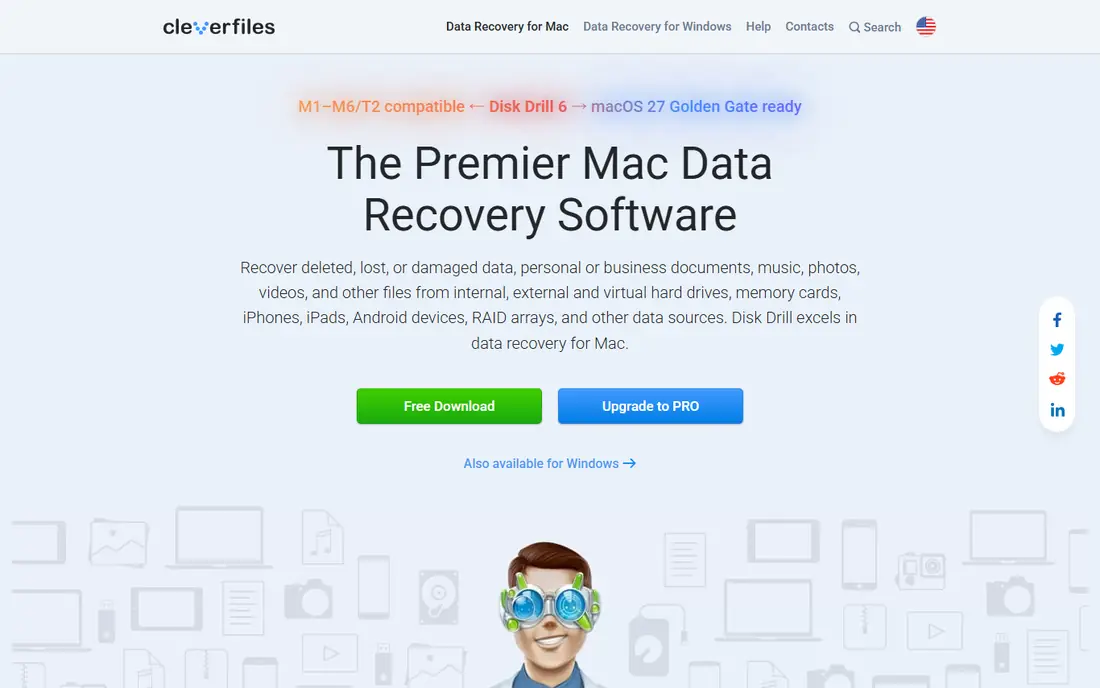
Disk Drill is our pick for most people because it balances power with a calm interface. You pick the drive, scan, preview photos and documents in a normal folder view, and recover what you need to a different drive. It handles deleted files, formatted drives and RAW drives, and it supports common file systems including NTFS, FAT32, exFAT, HFS+, APFS and EXT4.
The extras are genuinely useful in a crisis. Byte-to-byte imaging lets you copy a failing drive and scan the copy instead of stressing the original, and Recovery Vault adds protection for folders you choose. The free Windows tier is small, at 100 MB in published reports, so a large photo recovery will need the $89 Pro licence. For a first recovery attempt on a healthy drive, Disk Drill is the least stressful place to start.
- Clear visual interface
- Preview and recover during a scan
- Disk imaging and S.M.A.R.T. monitoring included
- Free Windows recovery limited to 100 MB in published reports
- Deep scans on large drives take time
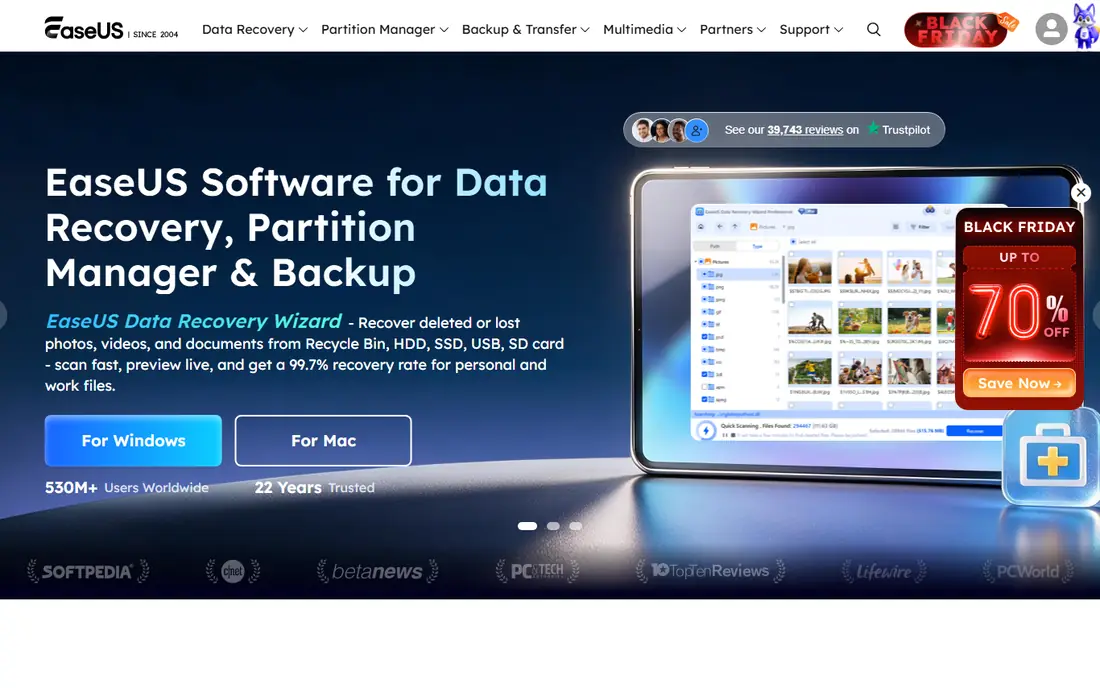
EaseUS follows the same guided idea as Disk Drill, with a simple scan, preview and recover flow that a first-time user can follow without a manual. Its headline advantage is the free tier: up to 2 GB of free recovery in published reports, starting at 500 MB and expandable to 2 GB, which often covers a folder of documents or a batch of photos without paying anything. It handles deleted files, formatted drives, lost partitions and RAW drives on Windows and Mac.
The pricing trap is the monthly plan. At $69.95 per month, a single recovery can cost more than a yearly plan elsewhere if you forget to cancel, so compare the $99.95 per year option before buying. EaseUS also lacks RAID depth and Linux support, so technicians should look at R-Studio instead. For a beginner with a small recovery, the free tier makes EaseUS a sensible first try.
- Guided three-step workflow
- Free recovery up to 2 GB in published reports
- Handles formatted and lost-partition cases
- Monthly pricing is poor value for a one-time job
- Separate licences for Windows and Mac

Stellar Data Recovery is a good pick when the lost files are photos and video, not just documents. The guided interface walks you through file type selection and a deep scan, and higher tiers add photo and video repair for files that recover but will not open cleanly. That repair step matters for camera cards, where a recovered video can be present but damaged.
The free tier recovers 1 GB in published reports, which suits a small photo set but not a full card. RAID and NAS recovery sit on higher tiers, so check the tier before buying for a server case. At $59.99 per year for the entry paid tier, Stellar is priced in line with EaseUS and Disk Drill, with a clearer strength in media repair.
- 1 GB free recovery in published reports
- Photo and video repair features
- Guided interface with deep scan option
- Higher tiers needed for RAID and advanced features
- Yearly subscription rather than one-time purchase
R-Studio is the technician tool in this list, and it earns that label. It reconstructs RAID arrays, recovers from NAS devices, works over a network for machines that will not boot, and covers a very wide set of file systems including NTFS, ReFS, APFS, HFS+ and UFS. A hex editor and detailed disk view give advanced users control that beginner tools do not offer.
That power comes with a learning curve and tiered pricing. The $49.99 FAT edition covers FAT and exFAT drives, while NTFS needs a higher tier and the full licence is $79.99 in published reports, so pick the tier by file system, not by price alone. The free demo recovers files under 256 KB, which is enough to preview and confirm a recovery is possible. For a single deleted document, R-Studio is overkill. For RAID or serious partition damage, it is the best value here.
- RAID reconstruction and network recovery
- Broad file system coverage
- Cross-platform for Windows, Mac and Linux
- Technical interface that intimidates beginners
- Cheapest tier does not cover NTFS
Recuva is the quick free answer for Windows users who just deleted a file or emptied the Recycle Bin. The wizard asks where the file was, what type it was, and whether to run a deep scan, then shows recoverable files with a health estimate. The free version offers unlimited recovery in published reports, and a Pro version at $24.95 adds automatic updates and virtual hard drive support.
Recuva is not a technician tool. It lacks RAID reconstruction, NAS depth and Linux or Mac support, and it will struggle with badly damaged file systems where PhotoRec or R-Studio do better. For a recent deletion on a healthy Windows drive, though, Recuva is the fastest free first attempt, and it costs nothing to try before paying for another tool.
- Free version with unlimited recovery in published reports
- Simple wizard for deleted files
- Portable and light
- Windows only
- Less depth for RAID, NAS or badly damaged drives
PhotoRec is the free tool that professionals keep in their kit for a reason. It ignores the file system and carves files by signature, so it can recover photos, documents and video even when partition data is gone or the file system is badly damaged. It runs on Windows, Mac and Linux, costs nothing, and has no recovery limit, which makes it ideal when budget is zero and the data matters.
The interface is the price. PhotoRec is text based, and recovered files often lose original names and folder structure, so you face a sorting job after recovery. It also works best on unfragmented files. For a user comfortable with a technical tool, PhotoRec can rescue files that simpler tools miss. For a beginner, try Recuva or Disk Drill first, then PhotoRec if those fail.
- Completely free and open source
- Works on Windows, Mac and Linux
- Recovers files even when the file system is damaged
- Command-line style interface
- Does not restore original filenames or folder structure in most cases
TestDisk pairs with PhotoRec, from the same developer, but it solves a different problem: lost partitions. If a drive shows as unallocated, a partition table is damaged, or a boot sector is corrupt, TestDisk can rebuild the partition structure and restore access to files that are still intact. That makes it the first tool to try when the drive itself has vanished from normal use, rather than when single files are deleted.
TestDisk is not a general file recovery tool, so use PhotoRec after TestDisk if files are still missing once the partition is back. The text interface needs care, because writing a wrong partition table can make things worse, so read the guide and work on a copy where possible. For partition loss, though, no paid tool in this list does the core job better for free.
- Completely free and open source
- Rebuilds partition tables and boot sectors
- Cross-platform
- Text-based interface
- Focused on partitions, not general file recovery
Recoverit is a strong media pick, especially for camera cards and corrupted video. The guided workflow scans, previews and recovers in clear steps, and the video repair feature helps with files that recover but will not play cleanly, a common problem with fragmented camera video. That focus suits photographers and video creators more than office document recovery.
The limit is the free tier. Scan and preview are free, but free recovery is limited, so a large card recovery needs the paid plan at $59.95 per year in published reports. Recoverit also lacks the RAID and network depth of R-Studio. For a media recovery where video repair matters, it is worth the preview step. For a document recovery, Disk Drill or EaseUS may be simpler.
- Free scan and preview
- Video repair for corrupted camera files
- Guided workflow for beginners
- Free recovery is limited
- Yearly pricing for a tool many people need once
DMDE is the budget technician pick. It offers disk editing, partition recovery and RAID reconstruction at a starting price of $20 in published reports, far below R-Studio, with a free edition that recovers up to 4,000 files per folder. That makes it a practical tool for IT support staff and advanced users who need professional features without an enterprise budget.
The interface is technical, and the documentation assumes you already understand file systems and partitions, so beginners should not start here. For a technician who can read a disk layout, DMDE delivers a large share of R-Studio capability at a fraction of the price. For a home user with one deleted folder, a guided tool will be faster and less risky.
- Very low entry price from $20
- Professional disk editing and RAID support
- Free edition recovers many files per folder
- Technical interface
- Documentation assumes prior knowledge
How we picked these
We compared official vendor pages and published 2026 data recovery comparisons, and we kept only tools that are currently available for Windows, Mac or Linux with a clear free or paid path. We weighted ease of use, file system coverage, RAID and partition support, free tier limits and price, and we checked that each tool can preview before payment where a paid licence is needed. We did not claim hands-on testing. Always recover to a different drive than the source drive.
What to do before you run any recovery tool
Stop writing to the affected drive at once. Do not install recovery software onto that drive, do not save recovered files back to it, and do not run a format or repair tool that writes new data. If the drive is making clicking or grinding sounds, is not detected at all, or smells of burning, stop and contact a professional lab, because software cannot fix physical failure and continued power can cause more damage.
If the drive is detected and sounds normal, make a disk image first when the tool offers it, then scan the image rather than the original. Preview files before paying, and recover the most important files first to a different drive with enough free space. If a scan finds nothing, try a second tool before assuming the data is gone, but avoid repeated deep scans on a drive that is clearly failing.
Frequently asked questions
Can data recovery software recover files from a physically failed drive?
No, not reliably. Software can recover deleted, formatted or logically damaged files from a drive that still works. A drive with a failed motor, damaged heads or dead electronics needs a professional lab with cleanroom tools, and running software on it can make recovery harder. Stop using the drive and seek lab advice if it clicks, grinds or is not detected.
Should I install recovery software on the drive I am recovering from?
No. Install the software on a different drive, and recover files to a different drive as well. Installing or saving onto the source drive can overwrite the deleted files you are trying to recover, especially on SSDs where TRIM can clear deleted data quickly. Use a USB drive or a second internal drive for both steps.
How long does a deep scan take?
It depends on drive size, speed and damage. A small USB stick may scan in minutes, while a large hard drive can take several hours on a deep scan. Let the scan finish where possible, and use preview during the scan to check whether your key files appear, rather than stopping early and starting again.
Is free data recovery software safe to use?
Reputable free tools such as PhotoRec, TestDisk and Recuva are widely used and safe when downloaded from the official developer site. Avoid download sites that bundle extra software, and always download from the vendor link in this article. Free tools still need care: read the guide before writing any partition change.
Can I recover files from an SSD after deletion?
Sometimes, but SSD recovery is harder than hard drive recovery. TRIM, a feature that clears deleted blocks, can make deleted SSD files unrecoverable after a short time, especially if the drive stays powered on. Act quickly, avoid writing to the SSD, and do not expect the same success rate as a traditional hard drive.
What should I do if recovery software finds nothing?
Try a second tool with a different scan method, such as PhotoRec file carving after a guided tool fails, and check whether the drive is detected in disk management. If the drive is not detected, makes unusual sounds, or holds irreplaceable data, stop and contact a professional recovery lab for an assessment before further attempts.
Sources
- https://www.fdaytalk.com/best-data-recovery-software/
- https://ratings.7datarecovery.com/easeus-alternatives/
- https://www.cleverfiles.com
- https://www.easeus.com
- https://www.stellarinfo.com
- https://www.r-studio.com
- https://www.ccleaner.com
- https://www.cgsecurity.org
- https://recoverit.wondershare.com
- https://dmde.com
See where you really rank - block by block
ProMapRanker scans Google Maps across a grid of your service area. Simple monthly plans from $19, white-label on every plan.
Start freeKeep reading
 zscaler alternatives
Best Zscaler Alternatives in 2026
Looking for zscaler alternatives? We compare 9 SASE and zero trust platforms on architecture, data protection, pricing, and fit for your network and team.
Read → zapier alternatives free
Best Zapier Alternatives Free in 2026
Nine automation tools for zapier alternatives free in 2026, all with genuinely free tiers, plus free plan limits, starting prices and upgrade paths explained.
Read → which platform is best for online reputation
Which Platform Is Best for Online Reputation in 2026
Wondering which platform is best for online reputation? We compare 8 review, listing, and response tools for small and multi-location businesses and agencies.
Read →