 ProMapRanker
Best Green Screen App in 2026

Key takeaways
- DaVinci Resolve is our pick for most serious creators, with a strong free version and precise keying tools in the Studio version.
- OBS Studio is best for live green screen work at no cost, while iMovie is best for simple Mac and iPhone projects.
- Adobe Premiere Pro offers the most control for complex studio work, but it is a subscription and takes time to learn.
- Good lighting matters more than the app, so test your setup with a free tool before paying for a pro editor.
Quick comparison
| Pick | Great for | Pricing starts at | Free tier | |
|---|---|---|---|---|
 OBS Studio | Live green screen streaming | Free | Yes | Visit |
 DaVinci Resolve | Serious editing with precise keying | Free | Yes | Visit |
 Adobe Premiere Pro | Professional studio control | $22.99 per month | Free trial | Visit |
 Final Cut Pro | Fast Mac editing, buy once | $299.99 one time | Free trial | Visit |
 Filmora | Easy editing for creators | Free | Yes | Visit |
 CapCut | Fast social video | Free | Yes | Visit |
 PowerDirector | Guided editing for enthusiasts | Free | Yes | Visit |
 KineMaster | Mobile green screen editing | Free | Yes | Visit |
 iMovie | Simple Apple projects | Free | Yes | Visit |
The best green screen app
We compared official pricing pages, product pages, and feature lists for green screen apps and editors live in October 2026. We kept tools with real chroma key features, not just background blur, and we mixed free, mobile, and pro desktop options.
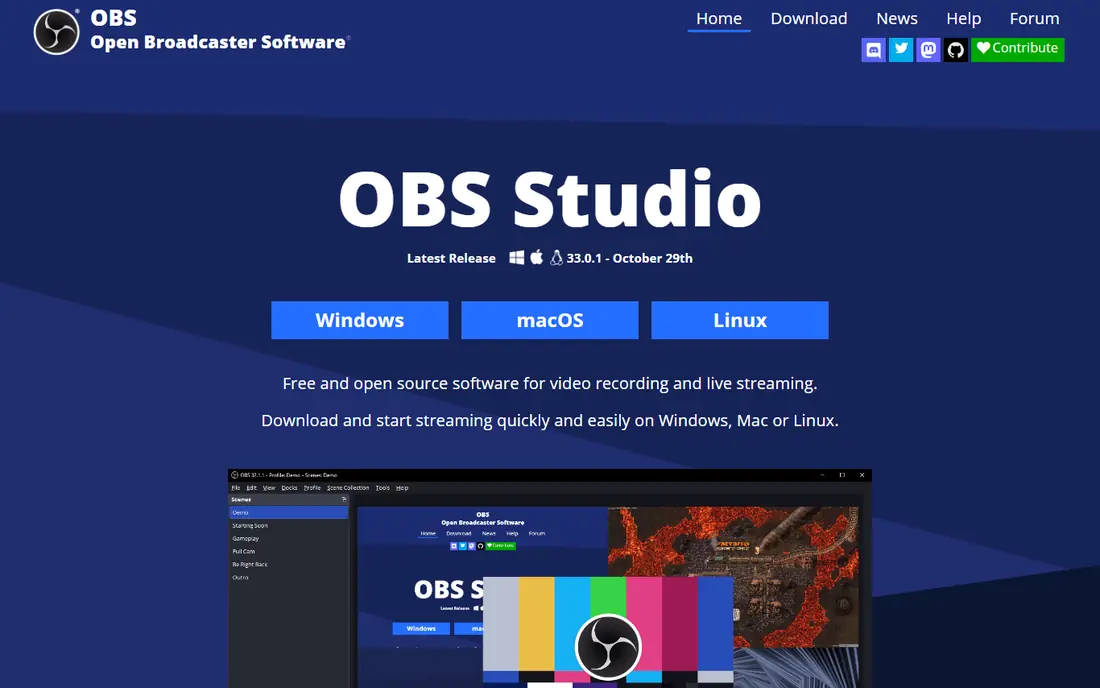
OBS Studio is the live pick. It is free, open source, and widely used for streaming and recording, with a chroma key filter you can apply to a webcam source in real time. You can tune similarity, smoothness, and spill settings, then place yourself over slides, gameplay, or a virtual set while you record or stream.
OBS is not a video editor, so you will still need an editor for polished cuts, titles, and exports. For live classes, streams, webinars, and quick recordings, though, no paid app beats OBS on value. Start here if your green screen work is live first and edited second.
- Free and open source
- Live chroma key filter
- Works on Windows, Mac, and Linux
- No full video editing timeline
- Keying controls take practice to tune
DaVinci Resolve gives you a professional editor, color tools, visual effects, and audio in one free download, with 4K UHD export in the free version. For green screen work, the Fusion page offers detailed keyers, spill control, and edge refinement that handle hair and uneven lighting better than simple one click tools.
The Studio version, at $295 one time, adds AI tools, higher resolutions, and advanced noise reduction. The free version already covers most creator projects, but it does demand a stronger computer and some patience. If you want to grow into pro work without a subscription, Resolve is our pick.
- Strong free version
- Precise keyers in Fusion
- Pro color and audio tools included
- Needs a capable computer
- Learning curve is steep for beginners

Premiere Pro remains the studio standard for many agencies and freelancers. Its Ultra Key effect offers detailed control over key color, matte cleanup, spill suppression, and edge softening, which matters for tricky footage with shadows or fine hair. Links to After Effects and Photoshop help when a key needs extra cleanup.
The single app plan starts at $22.99 per month on an annual plan, and there is no buy once option. That cost adds up, and the app rewards editors who already know timelines and effects. For complex client work and team workflows, Premiere Pro is worth it. For casual green screen clips, a cheaper tool will do.
- Ultra Key effect with deep controls
- Strong Adobe ecosystem links
- Handles large projects well
- Subscription only
- Steep learning curve
- Stops working if you stop paying
Final Cut Pro suits Mac editors who want speed and a one time price. It costs $299.99 on macOS, with a 90 day trial, and its keyer gives clean results quickly on well lit footage. The magnetic timeline, fast rendering on Apple silicon, and strong color tools make short turnaround projects easier.
Windows users should skip it, since there is no Windows version, and editors who need the deepest keying controls may prefer Resolve. For Mac creators who publish often and want to avoid a subscription, Final Cut Pro is a strong buy once choice.
- One time Mac purchase
- Fast on Apple silicon
- Automatic keyer with good defaults
- Mac only
- No Windows version
- Advanced keying is less deep than Resolve Fusion
Filmora balances ease and control better than most creator editors. The chroma key tool offers a one click start plus a color picker and fine tuning for spill and edge softness, so beginners can get a clean key without learning a pro compositor. Templates, titles, and effects help finish a video fast.
Paid plans start at $49.99 per year for the basic plan, with a perpetual option at $79.99 that covers the current version only. Free exports are watermarked, so budget for a paid plan if you publish. For teachers, YouTubers, and small teams, Filmora is the friendliest path to a good key.
- One click chroma key plus manual controls
- Templates and effects library
- Easy for beginners
- Free exports carry a watermark
- Perpetual license does not include future versions
CapCut is the fastest route to a short social video with a replaced background. The free version includes timeline editing, background removal, and chroma key tools on mobile, desktop, and web, with templates that speed up Reels, Shorts, and TikTok posts. Auto captions and beat sync help finish a clip in minutes.
Pro now starts at $19.99 per month, or $179.99 per year in recent listings, and some exports and AI features need that plan. Businesses should also read the commercial use terms before client work. For casual and social creators, the free tier is still useful, with Pro worth it only if you publish often.
- Fast background removal and chroma key on mobile and desktop
- Templates and auto captions
- Direct social publishing
- Pro price rose in 2026
- Some exports and AI tools need Pro
- Check commercial use terms
PowerDirector suits enthusiasts who want guidance without giving up control. Chroma key tools cover color selection, spill, and edge tuning, and guided modes help new editors learn the workflow. The effects library, titles, and templates make it easy to finish a polished video on Windows.
The free version is limited, and the full 365 subscription is the realistic route for regular use, with recent listings around $74.99 per year. For Windows creators who want a middle ground between CapCut simplicity and Premiere Pro depth, PowerDirector is a good fit.
- Chroma key with guided modes
- Large effects library
- Fast rendering on Windows
- Full features need a subscription
- Interface can feel crowded
KineMaster is the strongest mobile first green screen editor here. It offers chroma key on iOS and Android, a multi layer timeline, blending modes, and an asset store, so you can shoot, key, and publish from a phone. That portability matters for creators who film on location.
Long projects are harder on a small screen, and the full export and asset experience needs a paid plan, listed at $8.99 per month or $59.99 per year in recent comparisons. For short mobile videos, reaction clips, and classroom projects, KineMaster is the practical pick.
- Chroma key on phone and tablet
- Multi layer timeline
- Asset store and community projects
- Small screen editing is fiddly for long projects
- Exports and assets need a subscription for full use
iMovie is the simplest start for Apple users. It is free on macOS, iOS, and iPadOS, and its green screen effect lets you drop a clip over a background with a few taps. Templates, titles, and music help finish a school project or family video quickly.
The keying controls are basic, so uneven lighting, shadows, or fine hair will show edges that a pro tool could clean up. If your footage is well lit and your project is short, iMovie is enough. If you need precise keys, move to Resolve or Final Cut Pro.
- Free on Mac, iPhone, and iPad
- Simple green screen effect
- Easy sharing to Apple devices
- Basic keying controls only
- No pro spill or edge tools
- Apple devices only
How we picked these
We compared official pricing pages, product pages, and feature lists for apps live in October 2026. We kept only tools with a real chroma key feature, and we mixed live, mobile, free, and pro desktop options so readers can match the tool to the project. We did not claim hands on testing, and prices can vary by platform and offer, so check the vendor page before buying.
How to get a clean green screen key
Lighting matters more than the app you pick. Light the green screen evenly first, with no hot spots or dark corners, then light yourself separately so you do not cast shadows on the backdrop. Stand a few feet from the screen when you can, since distance reduces green spill on hair and clothes.
Next, avoid green in your clothing and props, since the keyer cannot tell your shirt from the backdrop. Film at the highest quality your device allows, and avoid heavy compression before editing, since compression creates noisy edges. In the editor, pick the key color with the eyedropper, then adjust spill and edge softness slowly, checking hair and movement frame by frame.
Finally, match your new background to the original shot. Check light direction, shadows, and color temperature, and add a slight edge blur if the cut looks too sharp. A clean key with a mismatched background still looks fake, while a modest key with matched light often looks convincing.
Frequently asked questions
What is the best free green screen app?
OBS Studio is best for live work, DaVinci Resolve is best for free edited projects, and iMovie is best for simple Apple projects. All three are free, so pick based on whether your work is live, edited, or mobile.
What is the best green screen app for beginners?
Filmora is the friendliest paid leaning option, with one click keying plus manual controls. CapCut is fastest for social clips, and iMovie is simplest for Apple users who want no learning curve.
Do I need a physical green screen?
A physical green or blue backdrop gives the cleanest key, especially for hair and movement. AI background removal in CapCut and similar tools can work without one, but results vary with lighting and busy backgrounds.
Why does my green screen look patchy?
Uneven lighting is the usual cause, followed by shadows, wrinkles in the backdrop, and low quality compressed footage. Light the screen evenly, smooth the fabric, stand away from it, and film at higher quality.
Can I use a green screen app on my phone?
Yes. KineMaster and CapCut both offer chroma key on mobile, and iMovie offers a simple green screen effect on iPhone and iPad. For longer or more precise projects, move the footage to a desktop editor.
Is Premiere Pro worth it just for green screen?
Only if you also need its full editing, effects, and team workflow. For green screen alone, DaVinci Resolve free, Filmora, or Final Cut Pro will cover most projects for less money.
Sources
- https://obsproject.com
- https://www.blackmagicdesign.com/products/davinciresolve
- https://www.adobe.com/products/premiere.html
- https://www.apple.com/final-cut-pro
- https://filmora.wondershare.com
- https://www.capcut.com
- https://www.cyberlink.com/products/powerdirector-ultra
- https://www.kinemaster.com
- https://www.apple.com/imovie
See where you really rank - block by block
ProMapRanker scans Google Maps across a grid of your service area. Simple monthly plans from $19, white-label on every plan.
Start freeKeep reading
 zscaler alternatives
Best Zscaler Alternatives in 2026
Looking for zscaler alternatives? We compare 9 SASE and zero trust platforms on architecture, data protection, pricing, and fit for your network and team.
Read → zapier alternatives free
Best Zapier Alternatives Free in 2026
Nine automation tools for zapier alternatives free in 2026, all with genuinely free tiers, plus free plan limits, starting prices and upgrade paths explained.
Read → which platform is best for online reputation
Which Platform Is Best for Online Reputation in 2026
Wondering which platform is best for online reputation? We compare 8 review, listing, and response tools for small and multi-location businesses and agencies.
Read →