 ProMapRanker
Best Graphic Design Tools for Beginners in 2026

Key takeaways
- Canva is our pick for most beginners because its free tier covers templates, social graphics, and simple layouts with very little learning time.
- Affinity, now free from Canva, is the strongest free route to professional vector, photo, and layout work on desktop.
- GIMP and Inkscape remain the best free open-source picks for photo editing and vector logos, though both need more patience to learn.
- Figma and Penpot suit beginners who want to design web pages and app screens, while Krita suits beginners who want to paint and illustrate.
- Every tool on this list offers a genuinely free tier or edition, so you can start without paying, but check asset licenses before commercial use.
Quick comparison
| Pick | Great for | Pricing starts at | Free tier | |
|---|---|---|---|---|
 Canva | Templates and social graphics | Free | Yes | Visit |
 Adobe Express | Quick branded marketing assets | Free | Yes | Visit |
 Affinity | Professional design on desktop | Free | Yes | Visit |
 GIMP | Photo editing and composites | Free | Yes | Visit |
 Photopea | Browser-based PSD editing | Free | Yes | Visit |
 Inkscape | Vector logos and SVG graphics | Free | Yes | Visit |
 Krita | Digital painting and illustration | Free | Yes | Visit |
 Figma | UI design and collaboration | Free | Yes | Visit |
 VistaCreate | Animated social content | Free | Yes | Visit |
 Penpot | Open-source UI design | Free | Yes | Visit |
The best graphic design tools for beginners
We compared design tools on free tier honesty, learning curve, template quality, and the kind of work each tool handles best. Every tool below offers a genuinely free tier or a free edition, not just a short trial, and we note where premium assets or features sit behind a paid plan.
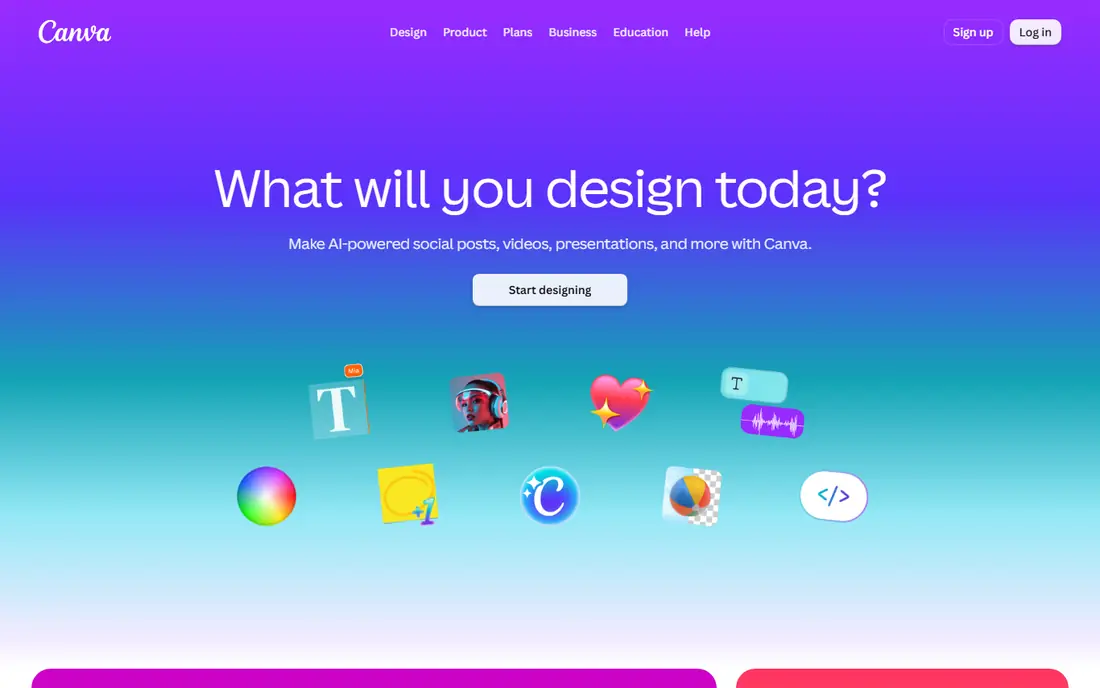
Canva is the easiest place for a beginner to make something that looks good on day one. Pick a template for a social post, a flyer, or a presentation, swap in your own text and photos, and export, all in a browser with no software to install. The free tier includes a large template set and 5 GB of cloud storage, which is enough for regular social work.
The limits are the premium assets and the brand controls. Some templates, photos, and AI tools need a Pro plan, and the free brand kit allows only a few colors, so brand consistency takes more manual care. For a beginner who needs fast, good-looking social graphics, Canva is still the clearest starting point.
- Huge template library
- Drag-and-drop editor
- Free tier covers social posts, presentations, and flyers
- Premium elements and some AI tools need Pro
- Brand kit is limited on free
- Web-first, less depth for print
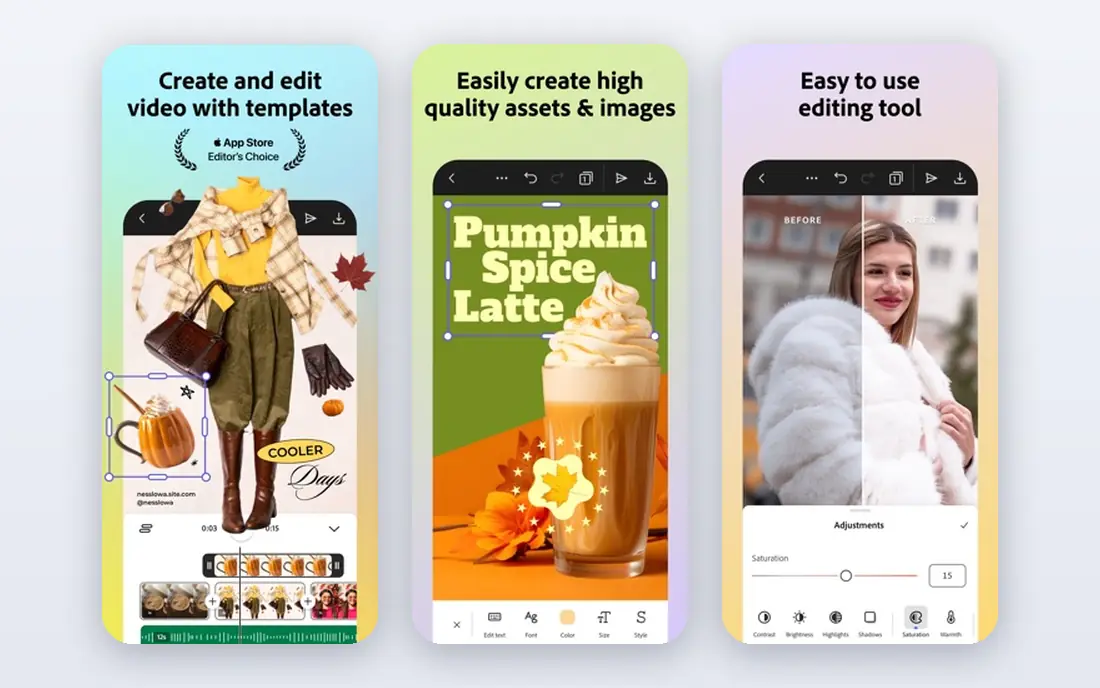
Adobe Express is a strong free alternative to Canva for quick marketing work. It offers templates, stock photos, and AI image tools in a browser or mobile app, and its free tier includes background removal, which is a handy feature for product photos and social graphics. For a small business owner who needs a flyer or a social post in minutes, it is a practical tool.
The free tier draws on a monthly AI credit pool, so heavy AI use will run out before the month ends, and premium assets and larger storage need a paid plan. Express also lacks the depth of a desktop editor for print or complex layouts. Use it for fast marketing assets, and pair it with Affinity or GIMP when a project needs more control.
- Free tier with templates and AI image tools
- Background removal on free
- Good for quick marketing graphics
- Premium assets and larger storage need a paid plan
- AI credits are limited on free
- Less depth than desktop editors
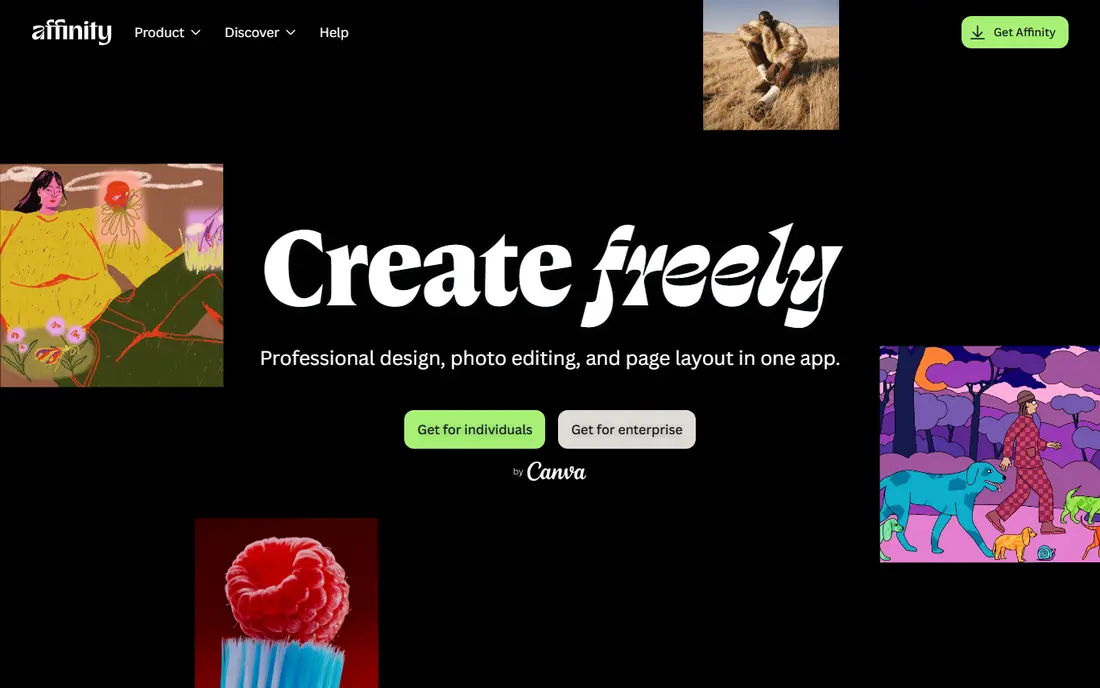
Affinity, now free from Canva, is the most exciting free option for beginners who want to grow into professional work. The free core tools cover vector design, photo editing, and page layout on Windows and Mac, which previously required paid software. A beginner can start with simple layouts and learn deeper tools in the same programs over time.
The trade-off is learning time. Affinity has no large template library like Canva, and its interface assumes more design knowledge, so first projects will take longer. Some newer Canva AI tools sit outside the free Affinity core. For a beginner who is willing to learn and wants desktop power for free, Affinity is the best long-term pick here.
- Free core tools for vector, photo, and layout work
- Desktop power without a subscription
- Good for growing skills
- Learning curve is steeper than Canva
- Some Canva AI tools are separate
- Fewer templates than Canva
GIMP is the long-standing free alternative to Photoshop, and its 3.0 release brought a more modern interface and stronger tools. It handles photo retouching, compositing, and graphic creation in depth, and it costs nothing, with no subscription or asset paywall. A large tutorial community helps beginners learn layer masks, selections, and color work.
The learning curve is real. GIMP interface and workflow take patience, and it is not a template tool for quick social posts. Beginners who only need fast graphics should start with Canva, but beginners who want to learn photo editing properly will find GIMP rewards the effort and never charges for it.
- Fully free and open source
- Deep photo editing and compositing
- Large plugin and tutorial community
- Steep learning curve
- Interface feels less polished than paid editors
- Not built for templates or layouts
Photopea is the fastest way to edit a Photoshop file without Photoshop. It runs entirely in a browser, opens PSD and other common design files, and offers layer editing, masks, and adjustments for free, supported by ads. For a beginner who receives a PSD from a client or a collaborator, that compatibility alone makes it worth bookmarking.
The free version shows ads beside the canvas, which eats screen space, and very large files can feel slow in a browser. A paid plan at $5 per month removes ads, but the free version is fully usable for regular edits. Keep Photopea for file compatibility and quick edits, and use GIMP or Affinity for larger, long-term projects.
- Free, ad-supported, in the browser
- Opens PSD, AI, and Sketch files
- Layer editing without installing software
- Ads take screen space on free
- Needs a good internet connection
- Complex files can run slowly
Inkscape is the best free vector tool for beginners who want to design logos, icons, and scalable graphics. Because it works natively in SVG, a logo made in Inkscape scales cleanly from a business card to a banner without losing quality. It is fully free and open source, with no asset paywall or subscription.
Vector drawing takes practice, and Inkscape path and node tools will feel unfamiliar at first. It is also not a photo editor, so raster work belongs in GIMP or Photopea. For a beginner who wants a logo that lasts, the time spent learning Inkscape pays off in a file you can reuse at any size.
- Fully free and open source
- Native SVG support
- Strong for logos, icons, and illustrations
- Steep learning curve for vector tools
- Raster photo editing is limited
- Interface is less polished than paid rivals
Krita is the free pick for beginners who want to draw, paint, and illustrate. Its brush engine is strong, with a wide range of brushes for sketching, painting, and comic work, and it costs nothing, with no subscription. For a beginner artist, a comic creator, or a designer who needs custom illustrations, Krita is a better fit than a template tool.
Krita is not a layout or template program, so social posts and flyers are faster in Canva, and photo editing is better in GIMP. Its interface also assumes a painter workflow, which can confuse a beginner who only wants a logo. Use Krita for art, and pair it with Canva or Inkscape for layout and vector work.
- Fully free and open source
- Strong brushes for painting and illustration
- Good for comics and concept art
- Not built for templates or page layouts
- Interface is geared to painters
- Photo editing is secondary
Figma is the best free starting point for beginners who want to design websites and app screens. The free Starter plan covers core design and prototyping tools, and real-time collaboration lets a beginner work with a developer or a client in the same file. Templates and community files also help new designers learn layout patterns quickly.
The free plan limits the number of shared team files, so a growing team will need to archive or upgrade, and Figma is not a print layout tool. For a beginner focused on screens rather than print, those limits rarely block early work. Start with a single project, learn frames and components, and expand from there.
- Free Starter plan for individuals
- Strong for web and app layouts
- Real-time collaboration and prototyping
- Free plan limits team files
- Web-first, less suited to print
- Learning curve for layout and prototyping tools
VistaCreate suits beginners who want animated social posts without learning a video editor. The free Starter plan includes templates for social graphics and short animated posts, and the editor is simple enough for a first project in minutes. For a small business that posts often on social media, that animation edge helps posts stand out.
The free tier limits advanced AI features and full brand controls, and the template community is smaller than Canva. Print work and vector logos are also better handled elsewhere. Pick VistaCreate when animated social content is your main need, and keep Canva or Affinity for the rest.
- Free Starter plan with templates
- Animated posts and video templates
- Easy for social marketers
- Advanced AI and brand features need a paid plan
- Smaller community than Canva
- Print and vector depth is limited
Penpot is the open-source alternative to Figma for beginners who want to design screens without a commercial account. It runs in a browser, works natively with SVG, and offers a free cloud plan plus a self-hosting option for teams that want control over their files. For a beginner learning UI design on open tools, Penpot is a principled and practical choice.
The community and template library are smaller than Figma, so finding ready-made files takes more searching, and cloud team limits apply on the free plan. If you value open formats and self-hosting, those limits are easy to accept. If you need the largest community and the most templates, Figma remains the easier start.
- Free and open source
- Web-based UI design with SVG output
- Self-hosting option for teams
- Smaller community than Figma
- Cloud team and storage limits apply
- Fewer templates than larger rivals
How we picked these
We compared official pricing pages, free tier terms, and feature lists for design tools live in October 2026. We included only tools with a genuinely free tier or a free edition, not trials, and we favored tools with a clear beginner path, whether that path is templates, a simple interface, or a strong tutorial community.
How to choose your first design tool
Start with the work you do most. Social posts and flyers belong in Canva or Adobe Express, logos belong in Inkscape or Affinity, photos belong in GIMP or Photopea, and screens belong in Figma or Penpot. A tool that matches the job will teach you faster than a powerful tool used for the wrong task.
Check the free tier before you invest hours. Note which templates, assets, and exports are free, and whether your files stay editable if you never pay. A free tier that locks your own work behind a paywall is not really free, so test an export early and confirm the license on any stock photo or font you use for commercial work.
Finally, learn one tool well before adding a second. A beginner who masters Canva for social work, then adds Affinity for print or Inkscape for logos, will progress faster than a beginner who opens five tools a week. Pick a starter, finish five real projects in it, and only then add a second tool for a job the first one cannot do well.
Frequently asked questions
What is the best graphic design software for beginners?
Canva is the best overall pick for beginners because its free tier, templates, and drag-and-drop editor make good social graphics fast. Affinity is the best free desktop pick for beginners who want to grow into professional work.
What is the best free graphic design software for beginners?
Canva, Adobe Express, Affinity, GIMP, Photopea, Inkscape, Krita, Figma, VistaCreate, and Penpot all offer genuinely free tiers or editions. Pick by job: Canva for social, GIMP for photos, Inkscape for logos, and Figma for screens.
What is the best graphic design software for beginners on a budget?
A free stack of Canva for templates, Affinity for desktop design, GIMP for photos, and Inkscape for vectors covers most beginner needs at no cost. Add Figma for screens and Krita for illustration only when those jobs come up.
What is the best graphic design app for beginners on a phone?
Canva and Adobe Express both offer strong mobile apps for social graphics, with templates and simple editing on iOS and Android. Photopea also works in a mobile browser for quick file edits, though a larger screen helps for detailed work.
Can I use free graphic design software for commercial projects?
Often yes, but check the license for each asset you use. Open-source tools such as GIMP, Inkscape, and Krita allow commercial use of designs you create, while free tiers of template platforms may limit commercial use of some stock assets. Read the terms before selling work made with a free asset.
Sources
- https://www.aiarty.com/knowledge-base/graphic-design-software-free.htm
- https://www.shopify.com/ae/blog/free-graphic-design-software
- https://toolradar.com/blog/best-free-graphic-design-software
- https://www.canva.com
- https://www.adobe.com/express/
- https://affinity.serif.com
- https://www.gimp.org
- https://www.photopea.com
- https://inkscape.org
- https://krita.org
- https://www.figma.com
- https://create.vista.com
- https://penpot.app
See where you really rank - block by block
ProMapRanker scans Google Maps across a grid of your service area. Simple monthly plans from $19, white-label on every plan.
Start freeKeep reading
 zoro.to alternatives
Best Zoro.to Alternatives in 2026
We compare the best zoro.to alternatives in 2026, listing only legal licensed anime streaming services, from Crunchyroll to free options for fans today.
Read → zip alternatives
Best Zip Alternatives in 2026
We compare the best zip alternatives for buy now, pay later in 2026, covering pay-in-4 plans, fees, spending limits, and credit reporting options today.
Read → yesware alternatives
Best Yesware Alternatives in 2026
Compare the best yesware alternatives for sales email tracking, templates, and sequences, with current pricing and honest tradeoffs for small sales teams.
Read →