 ProMapRanker
Best graphic design software in 2026


Photo editing and raster design · Pricing starts at: $22.99 per month
Key takeaways
- Adobe Photoshop and Illustrator remain the professional standards for raster and vector work, but both require a subscription at $22.99 per month for a single app.
- Affinity is now free with a Canva account for its core vector, raster, and layout tools, which makes it the strongest no-subscription professional option.
- Canva is the fastest pick for marketing graphics and social posts, while Figma and Sketch are the better picks for interface and product design.
- Beginners should start with a free tool or a free tier, then pay only when a specific feature, file format, or team workflow makes the upgrade necessary.
Quick comparison
| Pick | Great for | Pricing starts at | Free tier | |
|---|---|---|---|---|
| Adobe Photoshop | Photo editing and raster design | $22.99 per month | Free trial | Visit |
 Adobe Illustrator Adobe Illustrator | Vector logos and illustration | $22.99 per month | Free trial | Visit |
 Canva Canva | Fast marketing graphics | Free | Yes | Visit |
 Affinity Affinity | Free professional design suite | Free | Yes | Visit |
 Figma Figma | Interface and product design | Free | Yes | Visit |
 CorelDRAW CorelDRAW | Print and sign design | See website | Free trial | Visit |
 GIMP GIMP | Free photo editing | Free | Yes | Visit |
 Inkscape Inkscape | Free vector drawing | Free | Yes | Visit |
 Procreate Procreate | iPad illustration | See website | No | Visit |
 Sketch Sketch | Mac interface design | See website | Free trial | Visit |
The best graphic design software
We compared tools on the work they actually do, from photo retouching and vector illustration to layout, interface design, and quick social graphics. Prices and free tiers come from vendor pages and app store listings, and we favoured tools that are actively maintained and that export common formats such as PNG, JPG, SVG, and PDF.
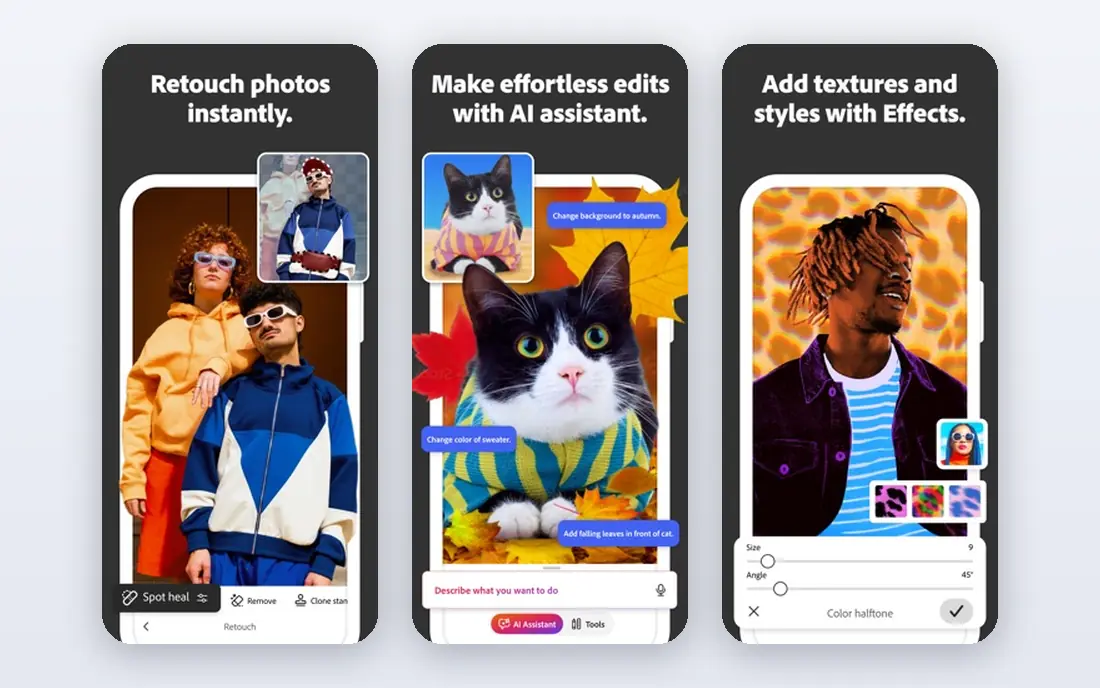
Photoshop remains the reference point for raster design. Its layer system, selection tools, and retouching controls handle everything from product photos to complex composites, and its generative fill tools can speed up background work and object removal. If clients or employers expect PSD files, Photoshop removes friction from handoffs and revisions.
The catch is price and weight. At $22.99 per month for a single app, it is a poor value if you only crop, resize, and add text, and its interface can overwhelm a beginner. Photoshop is the right pick when photo work is central to your income or portfolio, and when you need the exact file compatibility that agencies and print shops still expect.
- Industry standard for photo editing
- Deep layer, mask, and retouching tools
- Strong generative fill features
- Subscription only
- Can feel heavy for simple edits
- Full power takes time to learn
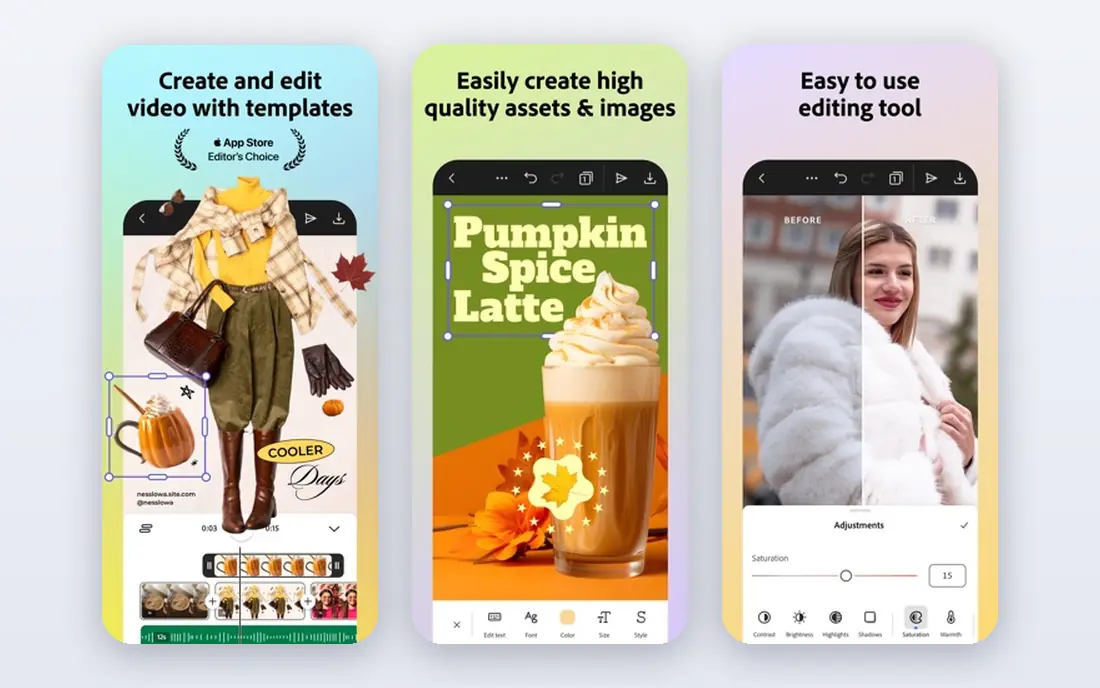
Illustrator is the companion pick for vector work. Logos, icons, type-led posters, and illustrations stay sharp at any size, because vector paths scale without pixelation. Its pen tool, anchor point controls, and typography options give designers the precision that template tools cannot match, and its AI format remains the expected deliverable in many studios.
The catch mirrors Photoshop. A $22.99 per month subscription is a lot for occasional logo work, and the tool rewards practice, so a first project can feel slow. Illustrator is worth the cost when vector files are your main output, when you work with print shops, or when you need full control over type and colour for brand work.
- Industry standard for vector work
- Precise pen, type, and path tools
- Scalable output for print and web
- Subscription only
- Steep learning curve for beginners
- Overkill for simple social graphics
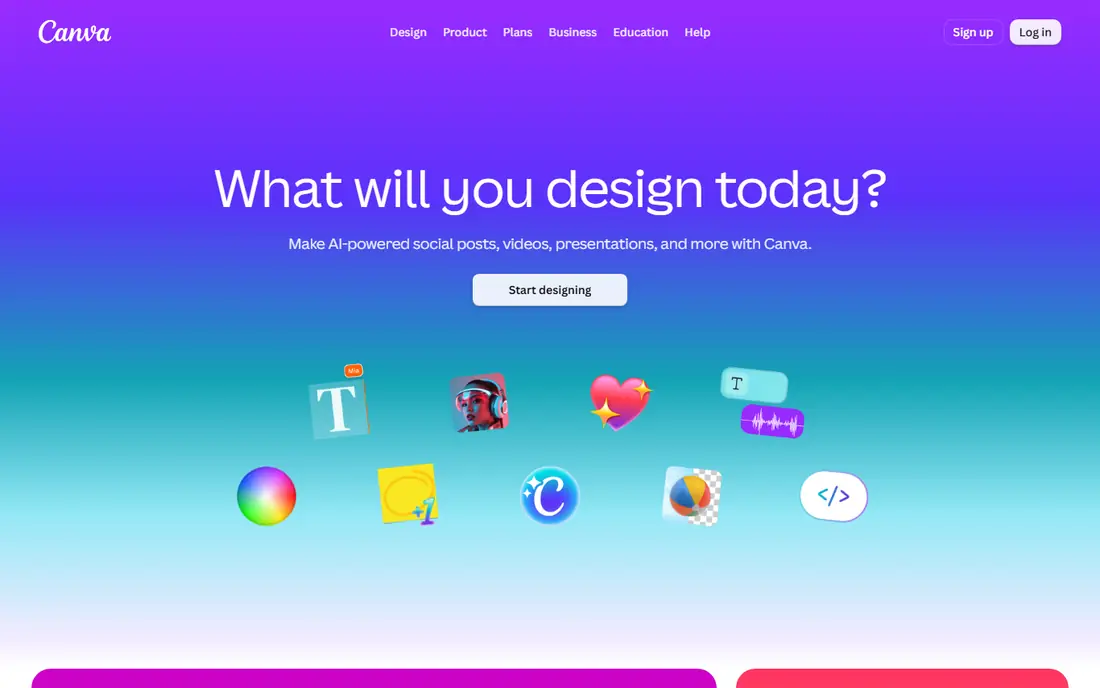
Canva is the fastest route from an idea to a finished social post, flyer, or presentation. Its drag-and-drop editor, template library, and brand kit let a small team produce consistent marketing graphics without design training, and its Pro plan, at around $15 per month when billed monthly, adds background removal, Magic Resize, and premium stock. That speed is why so many small businesses start here.
The catch is control. Canva is not a replacement for Illustrator for precise vector work or for CMYK print preparation, and heavy template use can make designs look generic. It is the best graphic design software for beginners who need marketing output quickly, and it pairs well with a professional tool for logo and print work.
- Huge template library
- Very easy for non-designers
- Brand kit, background remover, and resize tools on Pro
- Limited precision for professional print work
- Template-led designs can look similar
- Free tier limits premium assets
Affinity is the most important free option on this list. After Canva acquired Affinity, its core photo, vector, and layout tools became free with a Canva account, covering much of what Photoshop, Illustrator, and InDesign do for everyday professional work. Performance is brisk, the interface is cleaner than many free tools, and it handles PSD and common export formats well enough for most freelance work.
The catch is ecosystem. Affinity has fewer plugins, templates, and third-party integrations than Adobe, and some newer AI features sit behind a paid Canva plan. For designers who want professional tools without a monthly bill, Affinity is the strongest starting point, and it is a credible full replacement for many solo designers and small studios.
- Professional vector, raster, and layout tools without a subscription
- Fast performance
- Good file compatibility
- Smaller plugin and template ecosystem than Adobe
- Advanced AI features may require a paid Canva plan
Figma is the standard for interface and product design teams. Multiple designers can edit the same file at once, components and variables keep a design system consistent, and prototypes can be shared with a link for stakeholder feedback. Its free Starter tier is genuinely useful for individuals and small projects, while paid plans add more projects and team controls.
The catch is scope. Figma is not a photo editor or a print layout tool, so it should sit alongside Photoshop, Affinity, or Canva rather than replace them. It is the best design software for websites, apps, and product interfaces, especially when developers need specs and assets from the same file.
- Real-time multiplayer editing
- Strong components and prototyping
- Browser-based with a generous free tier
- Less suited to print layout or heavy photo editing
- Paid plans charge per editor
CorelDRAW has served print, signage, and apparel designers for decades, and it still shines for large-format and production work. Its vector tools, page layout controls, and included photo editing app cover a full print workflow, and its support for DXF and other production formats helps sign and engraving shops. A one-time purchase option remains available in some regions, which appeals to buyers who dislike subscriptions.
The catch is price complexity. Subscription and perpetual prices differ by region and billing choice, and some AI and cloud features are subscription-only. CorelDRAW is best for production designers who already work in its workflow, or for shops that need its print and signage strengths more than Adobe compatibility.
- Strong vector and print tools
- One-time purchase option in some regions
- Good for signage and apparel
- Higher price than many rivals
- Subscription terms and AI extras vary by plan and region
GIMP is the classic free alternative to Photoshop for raster work. It offers layers, masks, selection tools, and colour controls that cover most photo editing tasks, and its plugin community extends it for tasks such as batch processing and advanced retouching. Because it is open source, there is no subscription, no account lock-in, and no cost barrier for students.
The catch is polish. Its interface is less refined than Photoshop or Affinity, and layered PSD files do not always transfer perfectly. GIMP is the best free design software for photo editing when budget is zero and you are willing to learn its layout, and it pairs well with Inkscape for vector work.
- Free and open source
- Deep photo editing, layers, and masks
- Large plugin community
- Interface feels dated
- PSD compatibility is imperfect
- Learning curve for beginners
Inkscape is the free vector counterpart to GIMP. It handles paths, shapes, text on paths, gradients, and node editing with enough depth for logos, icons, diagrams, and illustrations, and its native SVG format makes it a natural fit for web graphics. For students, hobbyists, and small businesses, it removes the cost barrier to proper vector design.
The catch is performance and polish. Very complex files with many nodes can feel slow, and the interface takes adjustment if you arrive from Illustrator. Inkscape is still the best free tool for graphic design when vector output matters, and it is a strong companion to GIMP and Affinity for a zero-cost workflow.
- Free and open source
- Full vector drawing tools
- Native SVG support
- Performance can lag on very complex files
- Interface is less polished than Illustrator
Procreate is the illustrator pick on this list. Its brush engine, layer system, and Apple Pencil support make drawing on an iPad feel natural, and its one-time purchase, listed at $12.99 in app store listings, avoids a subscription entirely. Concept artists, comic artists, and illustrators use it for sketches, paintings, and finished artwork that starts life as a drawing.
The catch is platform and scope. Procreate runs on iPad only, it has no vector tools, and it works in RGB, so it is not the right tool for print-accurate CMYK work or scalable logos. If your work starts with a stylus and ends as raster art, Procreate is an easy recommendation. If you need vectors or print layout, pair it with Affinity or Illustrator.
- Excellent brush engine
- Apple Pencil support
- One-time purchase with no subscription
- IPad only
- No vector tools
- No CMYK support for print-accurate colour
Sketch remains a respected choice for Mac-based product designers. Its vector tools, symbols, and libraries suit interface work, and its plugin ecosystem extends it for prototyping, handoff, and design system tasks. For solo Mac designers or small Mac teams who prefer a native app over a browser tool, Sketch feels fast and focused.
The catch is platform. Sketch is Mac only, so mixed-platform teams will hit friction, and its real-time collaboration is less central than Figma multiplayer editing. Sketch is best for Mac designers who already work in its ecosystem, while Figma is the safer pick for cross-platform teams.
- Focused interface design tools
- Strong symbols and libraries
- Large plugin ecosystem on Mac
- Mac only
- Collaboration is less fluid than Figma for large teams
- Paid plan required for full use
How we picked these
We compared official feature pages, pricing pages, app store listings, privacy policies, and public reviews for tools that are actively maintained and that cover raster editing, vector drawing, layout, interface design, or fast marketing graphics. We favoured tools with clear export formats, a usable free tier or trial where offered, and a real user base, rather than niche tools with thin support. We did not claim hands-on testing, and prices cited are starting prices that vary by region, billing period, and plan.
What to look for in graphic design software
Start with the output you need most. A logo designer needs vector tools and SVG or AI export, a photo editor needs layers, masks, and non-destructive editing, and a social media manager needs templates, brand controls, and fast resizing. Matching the tool to the output avoids paying for a professional suite when a simpler tool would do, and it avoids fighting a template tool when precision matters.
Budget, file formats, and learning time
Check the total cost over a year, not just the monthly headline, because annual billing, per-editor pricing, and one-time purchases change the math. Confirm that the tool exports the formats your clients, printer, or developers need, and that it can open files you already own. Finally, weigh learning time honestly. A powerful tool that you avoid using is worse than a simpler tool you use every day, so use free tiers and trials to test the interface on a real project before you pay.
Frequently asked questions
What is the best graphic design software for beginners?
The best graphic design software for beginners is Canva for marketing graphics, Affinity for a free professional suite, and Figma for interface design, depending on the work you want to do. Canva is easiest to learn, Affinity gives you professional depth without a subscription, and Figma teaches interface workflows used by product teams. Start with the free tier of one tool, finish a real project, and only then decide whether a paid plan adds value.
What is the best free design software?
The best free design software is Affinity for professional vector, raster, and layout work, with GIMP for photo editing and Inkscape for vector drawing as strong open source companions. Canva and Figma also offer generous free tiers for marketing graphics and interface design. The right free pick depends on output, so choose Affinity for print and brand work, GIMP for photos, and Inkscape for scalable logos and icons.
What is the best tool for graphic design on iPad?
The best tool for graphic design on iPad is Procreate for illustration and drawing, with Affinity and Figma as strong companions for vector work and interface design. Procreate wins on brush feel and Apple Pencil support, while Affinity covers layout and vector tasks that Procreate cannot. If you only buy one iPad app for drawing, Procreate is the clear pick, but pair it with a vector tool for logos.
Is Canva or Adobe better for graphic design?
Canva is better for fast marketing graphics and for teams without design training, while Adobe Photoshop and Illustrator are better for professional photo editing, vector illustration, and print work. The choice is not about quality in general, but about control, file formats, and output. Many small teams use both, with Canva for social posts and Adobe or Affinity for logos and print assets.
What is the best software for graphic design for logos?
The best software for graphic design for logos is Adobe Illustrator for professional studios, Affinity for a free professional alternative, and Inkscape for a free open source option. Vector tools matter for logos because they scale cleanly from a business card to a billboard without losing sharpness. Avoid building a final logo in a raster-only tool, because resizing it later will reduce quality.
Do I need Photoshop and Illustrator, or is one enough?
You may need only one if your work is mostly photos or mostly vectors, but many designers use both because Photoshop handles raster images and Illustrator handles scalable vector art. Affinity covers both kinds of work in one suite, which makes it a useful single purchase or free alternative. Start with the type of work you do most, and add the second tool only when a project actually requires it.
Sources
See where you really rank - block by block
ProMapRanker scans Google Maps across a grid of your service area. Simple monthly plans from $19, white-label on every plan.
Start freeKeep reading
 youtube alternatives
Best YouTube Alternatives in 2026
Looking for youtube alternatives in 2026? We compare Vimeo, Dailymotion, Twitch, Rumble, and more on price, audience, monetization, control and privacy.
Read → what's the best ai tool for photo editing
What Is the Best AI Tool for Photo Editing in 2026
What is the best AI tool for photo editing? We compare ten tools for 2026, from Photoshop and Lightroom to Luminar, Topaz, Canva and mobile editors today.
Read → twitter alternatives
Best Twitter Alternatives in 2026
Compare the best twitter alternatives for 2026, from Bluesky, Threads, and Mastodon to Reddit, Tumblr, and Micro.blog, with free plans and audience notes.
Read →