 ProMapRanker
Best GIF Maker App Free in 2026

Key takeaways
- Ezgif is our first pick for quick, no-account GIF work, since it converts, crops, resizes, and optimises files in a browser.
- ScreenToGif and Gifski suit people who record or convert on a computer and want frame control without a subscription.
- VEED and Imgflip are fastest for shareable reaction GIFs and captioned loops, though both are more social than precise.
- Canva, Adobe Express, and Kapwing fit branded or social content, but free exports can carry limits or watermarks on some plans.
- Every tool below has a real free plan or free edition, so check export size, watermark rules, and length limits before you start a project.
Quick comparison
| Pick | Great for | Pricing starts at | Free tier | |
|---|---|---|---|---|
 Ezgif | Browser GIF editing and conversion | Free | Yes | Visit |
 ScreenToGif | Windows screen recording to GIF | Free | Yes | Visit |
 VEED | Video to GIF with captions | Free | Yes | Visit |
 Canva | Designed GIFs and social templates | Free | Yes | Visit |
 Adobe Express | Branded animated graphics | Free | Yes | Visit |
 Kapwing | Video to GIF in a full editor | Free | Yes | Visit |
 Imgflip | Captioned GIFs and memes | Free | Yes | Visit |
 MakeAGIF | Quick web GIFs from video or images | Free | Yes | Visit |
 Gifski | High-quality video to GIF on Mac | Free | Yes | Visit |
The best gif maker apps free
Here are nine tools with a real free plan, from browser editors to desktop recorders.
We focused on tools that let you make and export a GIF without paying first. The list mixes browser tools, desktop apps, and design editors, so pick by your starting material: a video clip, a set of photos, a screen recording, or a design you want to animate.
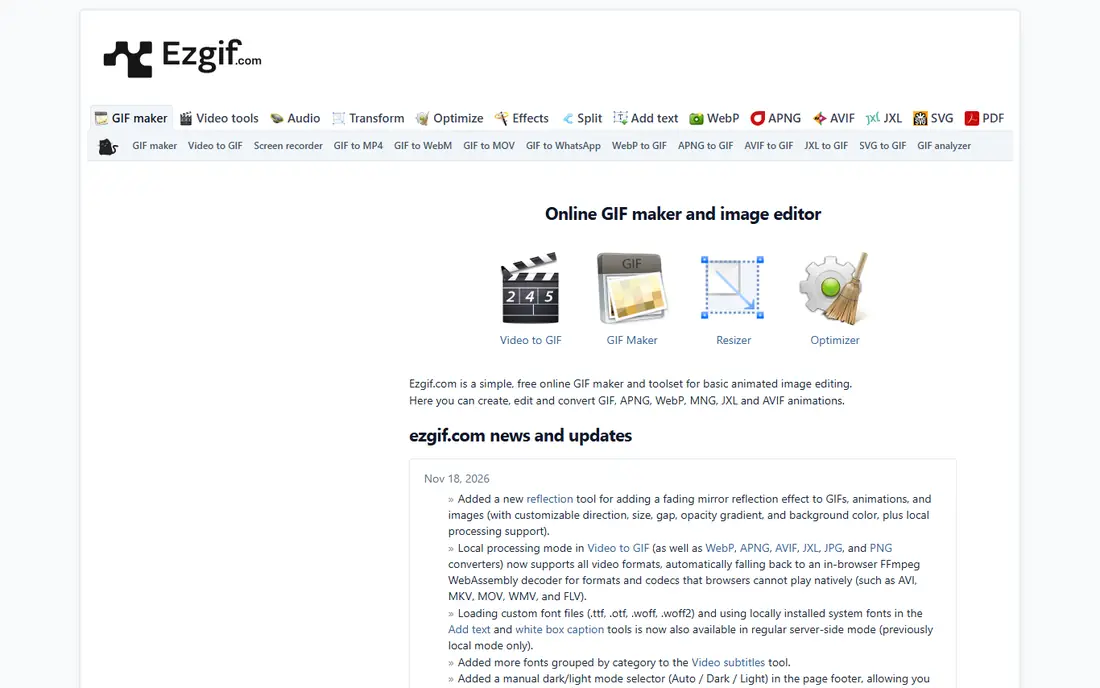
Ezgif is a browser toolkit rather than a single maker. You can turn video into GIF, build a GIF from images, crop, resize, reverse, change speed, add text, split frames, and shrink the file size for web use. That range makes it useful after you have made a GIF elsewhere too, since the optimiser alone can fix a file that is too large to post.
The site is ad-supported and the design is plain, which will not bother most people who want a fast result. File size limits apply, so very long or high-resolution clips may need trimming first. For everyday GIF work with no install and no account, it is hard to beat.
- No account needed for core tools
- Strong optimiser
- Video, image, and GIF tools in one place
- Interface looks dated
- Ads support the free service
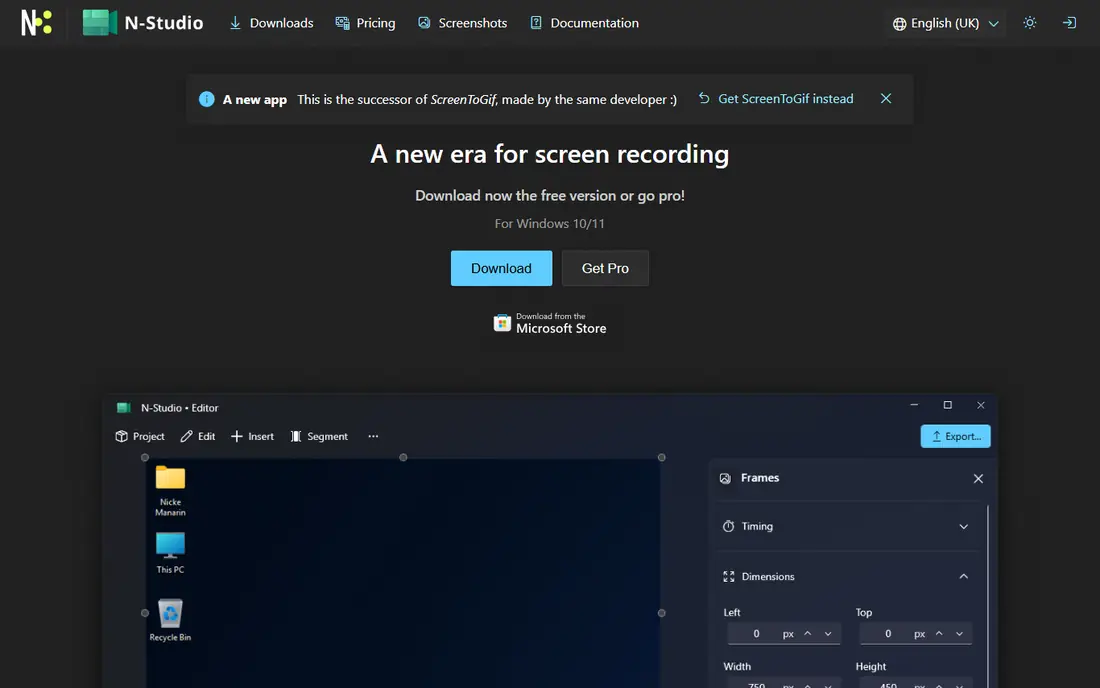
ScreenToGif is the best free choice for how-to GIFs on Windows. Record a region of your screen, then edit frame by frame: delete stray frames, adjust delays, add captions, crop, and preview before export. That control matters for tutorials, since a clean pause on the key step is often more useful than a longer, messier clip.
It is open source and free, with no subscription gate for the core recorder and editor. The main limit is platform, since it does not run on Mac in the same form. Windows users who make demos, bug reports, or short guides should start here.
- Records screen, webcam, and sketchboard
- Full frame editor
- Exports GIF, video, and other formats
- Windows only
- Interface takes a short learning curve
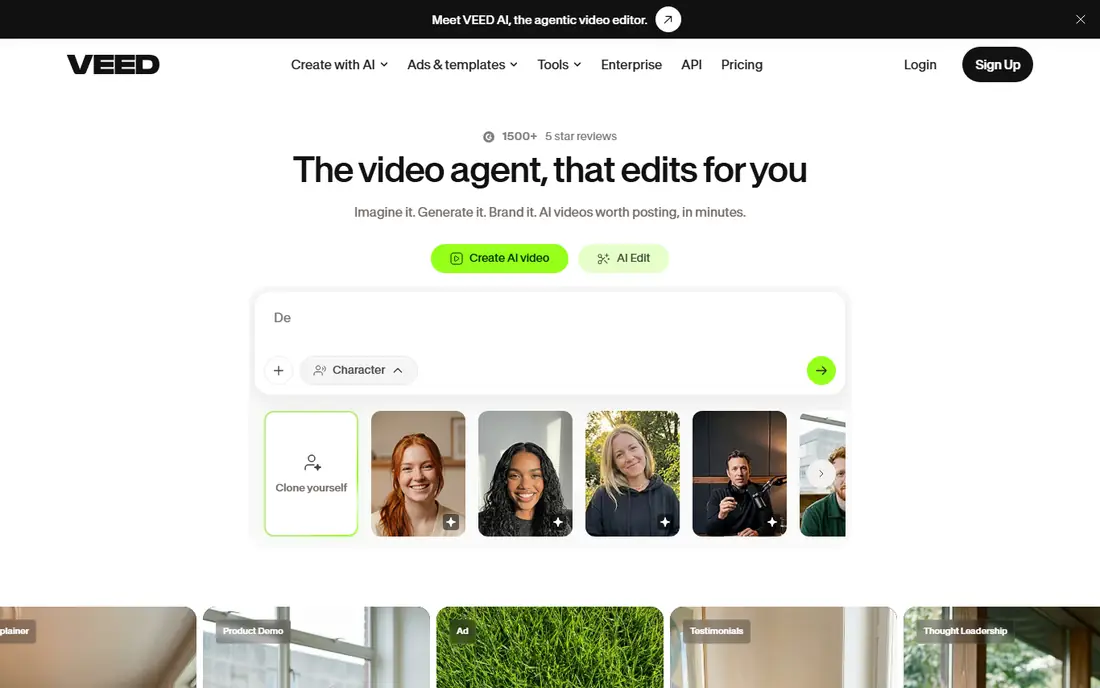
VEED turns a video clip into a GIF inside a browser video editor. Upload a clip, trim it, add captions or text, resize for a platform, and export. That workflow suits social teams who already edit short videos and want a GIF version for chat, email, or a post without switching tools.
Free plan limits are the catch, since exports may carry a watermark or face size limits. Test a short export before building a full set, and use Ezgif to resize or optimise the result if needed. For quick, captioned GIFs from video, VEED is a practical free starting point.
- Timeline video editing
- Captions and subtitles
- Preset social sizes
- Free exports can carry a watermark
- Some features need a paid plan
Canva suits GIFs that start as designs, not clips. Build a social post, ad, or announcement with templates, text, and graphics, add simple animation, and export as a GIF. Teams that already use Canva for social content gain a consistent look without learning a separate animation tool.
Free users should check which templates, stock items, and brand tools are included, since some are paid. Frame timing is also less precise than a dedicated GIF editor. For polished, template-led GIFs, though, Canva is one of the easiest free starting points.
- Large template library
- Easy text and brand elements
- Exports GIF from animated designs
- Less exact GIF frame control
- Some assets and features need a paid plan
Adobe Express is a design tool with animation and GIF export, aimed at people who want clean social graphics without a full design suite. You can start from a template, change text and colours, animate elements, and export a short loop. The result tends to look tidy, which helps for brand posts and announcements.
It is not the best choice for turning a long video into a GIF or for frame-by-frame work. Paid features also sit behind some templates and assets, so check the free plan before building a large set. For short branded loops, the free plan is a practical fit.
- Clean templates
- Easy text animation
- Useful for social and brand posts
- Some premium assets need a paid plan
- Less suited to long video-to-GIF conversion
Kapwing treats GIF making as part of video editing. Upload a clip, trim it, add captions or overlays, resize for a platform, and export as a GIF. That timeline view helps when the clip needs more than a simple conversion, such as cutting a pause or adding text at a precise moment.
Free plan limits are the catch. Exports may carry a watermark and face size or length limits, so test a short export before building a long project. If you need clean, watermark-free GIFs often, pair Kapwing with Ezgif or pay for a plan. For occasional social GIFs inside a larger video workflow, the free plan works well.
- Timeline video editing
- Captions, trimming, and resizing
- Preset social sizes
- Free exports can carry a watermark
- Some exports need an account
Imgflip is best for captioned GIFs and memes made from video or images. The maker keeps the steps short: upload, add text, crop if needed, and generate. That simplicity suits quick jokes, reactions, and community posts where speed matters more than polish.
Advanced users will miss frame editing, colour control, and deep optimisation. A watermark can also appear on free exports, so check the result before posting it in a professional setting. For casual, funny GIFs, Imgflip remains one of the fastest free options.
- Very simple GIF maker
- Text and crop tools
- No complex editor to learn
- Free exports may carry a watermark
- Limited advanced editing
MakeAGIF covers the basics in a browser: make a GIF from a video, a set of pictures, or a webcam clip, then share the result. The steps are short, and the tool is useful when you do not want to install software for a one-off GIF. It also works as a quick way to test an idea before rebuilding it in a stronger editor.
Free accounts face limits on quality, length, and branding, so read the export options before you rely on it for client work. For personal GIFs and fast tests, those limits are easy to accept. For polished output, move the clip to Ezgif or a desktop editor.
- Simple web workflow
- Video, image, and webcam options
- Fast sharing
- Free version has limits and branding
- Less editing depth than desktop tools
Gifski focuses on one job and does it well: turning video into a high-quality GIF on Mac. It uses efficient encoding to keep motion smooth while holding file size in check, which helps for product demos and short clips where quality matters. The workflow is simple, with drag-and-drop input and clear export settings.
It is not a full editor, so you will still need another tool for captions, frame edits, or complex animation. Mac users who care about clean motion should start with Gifski for conversion, then use Ezgif or Canva for text and resizing if needed.
- High-quality conversion
- Open source
- Simple drag-and-drop workflow
- Mac-focused
- Conversion only, not a full frame editor
How we picked these
We checked official product pages, app listings, and pricing pages for free plans, export rules, and current availability in October 2026. We kept only tools with a real free plan or free edition, and we excluded tools that only offer a short trial with no free export. Where a free export carries a watermark or limit, we said so rather than calling the tool fully free.
How to choose a free GIF maker
Start with your source material. For screen demos, use ScreenToGif on Windows. For a video clip you want to share fast, use VEED, Imgflip, or MakeAGIF. For a design-led post, use Canva or Adobe Express. For quality conversion, use Gifski on Mac or Ezgif in a browser. Matching the tool to the source saves more time than learning every feature of one large editor.
Next, check the export rules that affect your post. Look at maximum length, file size, resolution, and whether a watermark appears on free exports. A GIF that looks fine in the editor can fail on a platform with a strict size limit, so run one test export early. Ezgif is useful at this stage, since its optimiser can shrink a file without a new edit.
Finally, think about reuse. If you make GIFs often, a tool with templates, saved projects, or a frame editor will save time over a one-off maker. If you make GIFs rarely, a fast browser tool with no account is the better choice. Keep the free plan limits in mind, and only pay when a watermark, size cap, or missing feature actually blocks your work.
Frequently asked questions
What is the best free GIF maker app?
Ezgif is the best all-round free choice for browser work, while ScreenToGif is best for Windows screen recordings. For social GIFs, VEED and Imgflip are faster, and Canva is better for designed posts.
What are the best free GIF maker tools with no watermark?
Ezgif and ScreenToGif offer free exports without a watermark for core use, and Gifski is free for conversion. Kapwing, VEED, Imgflip, and MakeAGIF may add a watermark or branding on free exports, so check each export before posting.
Can I make a GIF for free from a video?
Yes. Ezgif, VEED, Kapwing, Imgflip, MakeAGIF, and Gifski all convert video to GIF on a free plan. Trim the clip first, since shorter clips export faster and stay under platform size limits.
Is there a free GIF maker for iPhone or Android?
Most tools above work in a mobile browser, and Canva and VEED have mobile-friendly editors with GIF creation. For precise frame work, a desktop tool such as ScreenToGif or Gifski is usually easier than a phone editor.
Do free GIF makers reduce quality?
Some do, especially when they compress for a small file size. Gifski and Ezgif give you more control over quality and size, so test a short export and compare it with the source clip before making a full set.
Sources
See where you really rank - block by block
ProMapRanker scans Google Maps across a grid of your service area. Simple monthly plans from $19, white-label on every plan.
Start freeKeep reading
 zscaler alternatives
Best Zscaler Alternatives in 2026
Looking for zscaler alternatives? We compare 9 SASE and zero trust platforms on architecture, data protection, pricing, and fit for your network and team.
Read → zapier alternatives free
Best Zapier Alternatives Free in 2026
Nine automation tools for zapier alternatives free in 2026, all with genuinely free tiers, plus free plan limits, starting prices and upgrade paths explained.
Read → which platform is best for online reputation
Which Platform Is Best for Online Reputation in 2026
Wondering which platform is best for online reputation? We compare 8 review, listing, and response tools for small and multi-location businesses and agencies.
Read →