 ProMapRanker
Best GIF Editor App in 2026: 9 Apps Compared

Key takeaways
- Ezgif is our pick for quick, free browser edits with no account and no watermark on basic tools.
- GIPHY is the fastest route from a short clip to a shareable GIF with captions and stickers.
- ScreenToGif is the strongest free choice on Windows for screen recordings edited frame by frame.
- Kapwing and Canva suit GIFs that sit inside a larger design or video project, while Gifski suits clean video to GIF conversion on Mac.
Quick comparison
| Pick | Great for | Pricing starts at | Free tier | |
|---|---|---|---|---|
 GIPHY | Turning short clips into shareable GIFs | Free | Yes | Visit |
 Ezgif | Free browser editing, conversion, and optimization | Free | Yes | Visit |
 ScreenToGif | Windows screen recording edited frame by frame | Free | Yes | Visit |
 Kapwing | GIFs made as part of a video project | $16 per month | Yes | Visit |
 Canva | Designed GIFs with templates, text, and branding | Free | Yes | Visit |
 Adobe Express | Branded GIFs inside Adobe tools | Free | Yes | Visit |
 Imgflip | Fast meme style GIFs with captions | Free | Yes | Visit |
 VEED | Captioned video clips exported as GIFs | Free | Yes | Visit |
 Gifski | High quality video to GIF conversion on Mac | Free | Yes | Visit |
The best gif editor apps
A good GIF tool should get a clip trimmed, sized, and exported without a long learning curve. The nine tools below cover phone, browser, and desktop work, and they range from completely free utilities to fuller design editors.
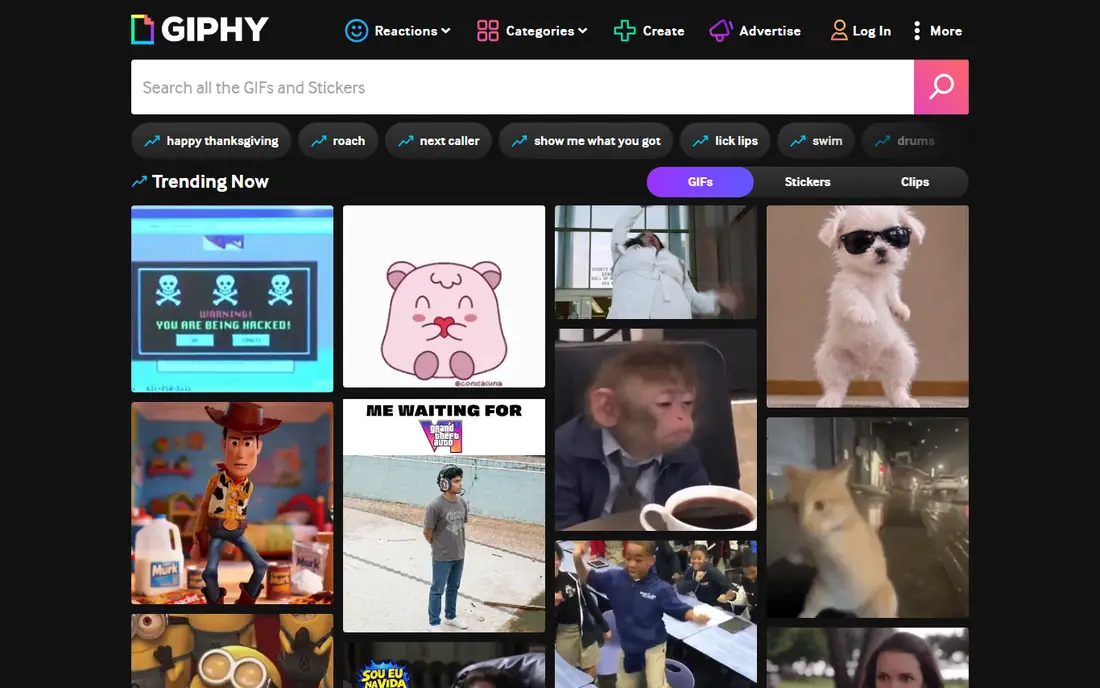
GIPHY works best when speed matters more than fine control. Upload a clip, trim it, add a caption or a sticker, and share the result. That short path is why it remains a common first stop for the best app to make gifs on a phone. The library also helps when you want a reaction GIF rather than a new one from scratch.
The trade off is precision. If you need to delete single frames, set exact frame timing, or shrink a file to a strict size limit, a dedicated editor such as Ezgif or ScreenToGif will serve you better. GIPHY is for quick, social GIFs, not for technical file work.
- Large library for inspiration
- Simple caption and sticker tools
- Easy sharing to messaging apps and social platforms
- Limited frame by frame control
- Export options are built for sharing rather than precise file work
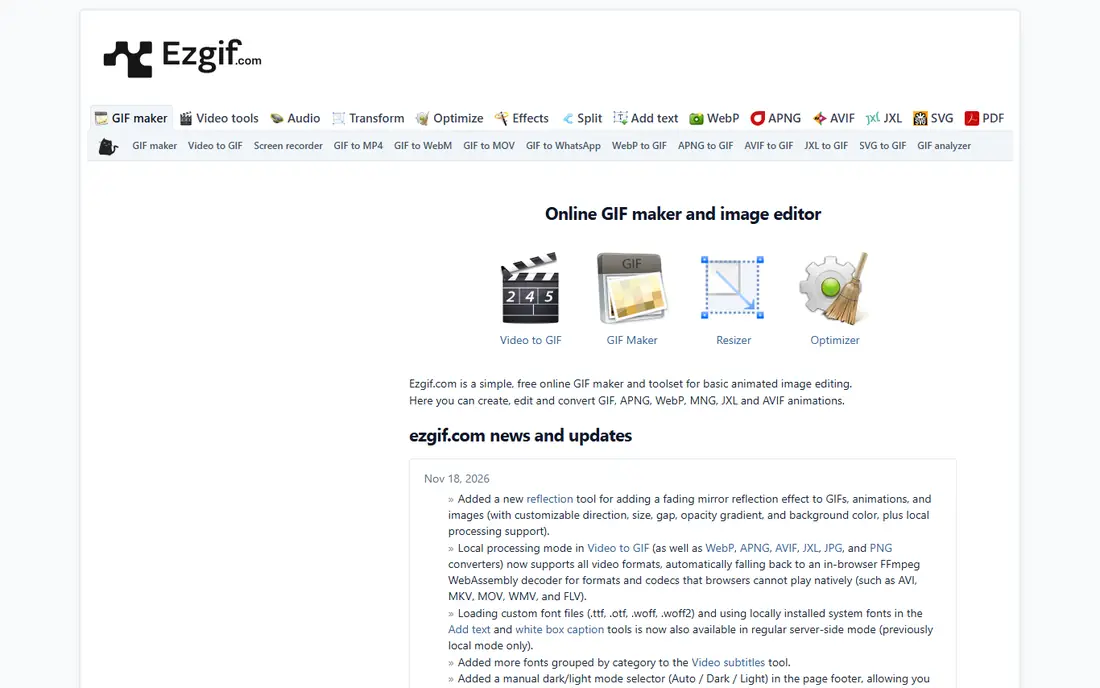
Ezgif is the best gif maker app for people who want to fix a GIF without installing anything. Its maker turns video or images into a GIF, and its editing tools handle crop, resize, rotation, speed, text, and frame splitting. The optimizer is a genuine highlight, since it can cut file size for forums, email, and chat apps that cap uploads.
We also like that basic use does not push a paid plan, because there is no paid plan for the core tools. The plain design is the price of that simplicity, and you will not find timeline video editing here. For a single GIF that needs a trim, a resize, or a smaller file, Ezgif is hard to beat.
- No account needed for basic tools
- Crop, resize, speed, and optimization in one place
- Local processing option keeps some files in the browser
- Interface looks plain and dated
- Large projects can feel slower than a desktop editor
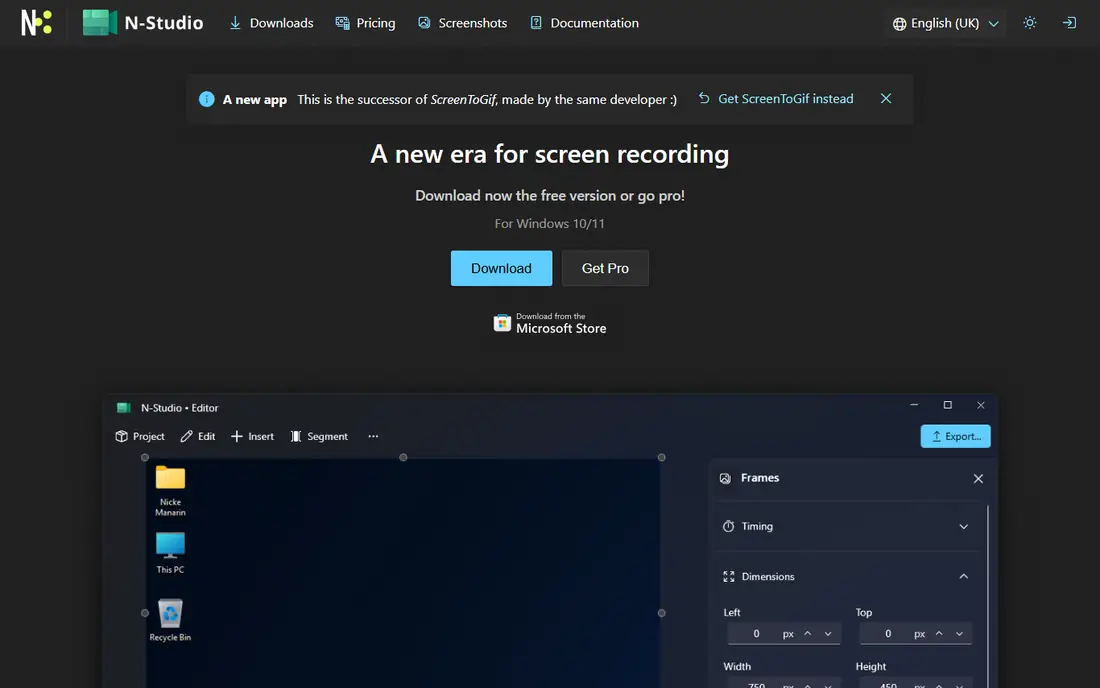
ScreenToGif is the best gif editor app for tutorials, bug reports, and how to clips on Windows. Record a region of the screen, then open the frame editor to remove stray frames, adjust delays, add text, and preview the result before export. That control matters for instructional GIFs, where a pause on one step helps the viewer follow along.
It is open source and free, which makes it an easy recommendation for teams that make many short demos. The main limits are platform and polish. Mac users need another tool, and the interface is functional rather than pretty. If you record your screen often, those limits are easy to accept.
- Records screen, webcam, or sketchboard
- Full frame editor with timing control
- Exports to GIF, video, and other formats
- Windows only
- Interface takes a little time to learn
Kapwing suits creators who make GIFs from longer videos rather than from single photos. Trim a clip on a timeline, add text or subtitles, resize for a platform, and export a GIF or a video. That workflow fits social teams that reuse one recording across several formats.
The free plan is a fair way to test the editor, but the watermark on free exports is a real limit for anything public. Paid pricing starts at 16 dollars per month for the Pro plan, based on published pricing checked for this roundup. If you only need one quick GIF, Ezgif is cheaper and faster. If GIFs are one output among many videos, Kapwing earns its place.
- Timeline editing with text, subtitles, and templates
- Works in the browser on any computer
- Useful for social clips
- Free exports carry a watermark
- Paid plan needed for full quality and longer projects
Canva is the best app for making gifs that need to look designed rather than recorded. Start from a template, set animation timing, add your text and colors, and export as a GIF. Small businesses use it for product announcements, sale graphics, and social posts because the same design can feed several channels.
It is not the right pick for frame level editing or for shrinking a large GIF to a tiny file. Canva also works best when you are happy inside its template system. For a polished, branded animation made in minutes, though, it is one of the most approachable tools on this list.
- Large template library
- Easy text, sticker, and brand controls
- Strong sharing and download options
- Animation control is simpler than a frame editor
- Some assets and features sit behind the Pro plan
Adobe Express is a sensible pick if your team already uses Adobe products or wants consistent brand assets. You can build a short animated design, apply brand colors and fonts, and export it for social use. The free plan covers a useful set of templates and editing tools, which is enough for many occasional GIFs.
The catch is depth. You will not get the frame by frame control of ScreenToGif or the optimization tools of Ezgif. Paid features also add up if several team members need them. Choose Adobe Express for brand consistency and speed, and pair it with Ezgif when a file needs technical cleanup.
- Templates and brand controls
- Photo and video editing in one place
- Ties into Adobe fonts and stock content
- Deeper features need a paid plan
- Animation options are less detailed than a dedicated GIF editor
Imgflip is built for humor and speed. Upload a video or an existing GIF, add top and bottom text, trim the clip, and share it. That makes it a strong choice for the best gif making app when the goal is a joke or a reaction rather than a polished brand asset.
Serious editing is outside its scope. You cannot build a multi scene animation here, and free exports may include a watermark depending on the tool you use. A paid Pro plan removes that limit for regular users. For a quick caption GIF, Imgflip is one of the fastest options we found.
- Very fast video to GIF and GIF caption tools
- Large meme template base
- No install needed
- Free outputs can carry a watermark on some tools
- Editing is basic compared with timeline editors
VEED fits creators who start with a talking clip and want a GIF with readable captions. Add subtitles, trim the moment that matters, resize for the platform, and export. The caption tools are the reason to pick VEED over a simpler GIF maker, especially for clips shared without sound.
As with Kapwing, the free plan is best for testing. Watermarks and export limits push regular users toward a paid plan, and the price should be checked on the vendor site because plans change. If captions are not part of your GIF, a lighter tool will be quicker.
- Subtitle and caption tools
- Trimming, cropping, and resizing in the browser
- Video editing features beyond GIFs
- Free plan has limits and watermark on exports
- GIF work is one feature inside a larger video editor
Gifski does one job well: it turns a video into a GIF that looks better than most converters manage. Colors hold up, motion stays smooth, and the result suits portfolios, documentation, and social posts where quality matters. The app is free and open source, and the workflow is as simple as dropping in a video and choosing settings.
It is not a full editor. Trimming is basic, and there is no timeline, text, or sticker system. Mac users who want quality first can pair Gifski with Ezgif for resizing or optimization. Windows users should look at ScreenToGif instead.
- Clean, high quality conversion with good color handling
- Simple drag and drop workflow
- Open source
- Mac only for the app
- Trimming and editing features are limited
How we picked these
We compared official feature pages, pricing pages, and app store listings for tools that create or edit GIFs, and we kept only tools that exist and work in October 2026. We favored tools with a clear free route, a distinct strength, and an honest weakness, and we mixed well known names with smaller utilities that do one job well. We did not claim hands on testing, and we did not list tools that only host GIFs without editing them.
How to choose the right GIF editor
Start with where the GIF comes from. A screen recording points to ScreenToGif on Windows, a phone clip points to GIPHY or Canva, and an existing file that needs a fix points to Ezgif. Next, decide how much design the GIF needs. Templates, brand colors, and text favor Canva or Adobe Express, while captions favor VEED or Kapwing.
Then check export limits before you commit. Free plans often add watermarks, cap length, or limit resolution, and those limits matter more than a long feature list. Finally, watch file size. A GIF that looks great but will not upload to your chat app or forum is not finished, so keep Ezgif or a similar optimizer in your workflow for a final pass.
What about file size and quality
GIF files grow fast with length, size, and color range. Shorten the clip first, then reduce dimensions, then lower the frame rate if the motion still reads well. That order keeps quality higher than compressing a long, large GIF as a last resort.
Phone, browser, or desktop
Phone apps suit quick social GIFs. Browser tools suit one off edits on any computer. Desktop apps suit repeated work, screen recording, and large files. Many people end up with two tools, one for making and one for fixing, and that is a normal, practical setup.
Frequently asked questions
What is the best gif editor app for beginners?
GIPHY is the easiest start for a quick social GIF, and Ezgif is the easiest start for fixing a file in a browser. Both are free and need little setup, so try a short clip in each and keep the one that matches how you work.
What is the best gif maker app for phone clips?
GIPHY and Canva are strong phone choices. GIPHY is faster for a simple clip with a caption, while Canva is better when you want a designed frame, brand colors, or a template.
What are the best gif editor apps for free use?
Ezgif, ScreenToGif, and Gifski offer genuinely free core tools, and GIPHY, Canva, and Adobe Express offer useful free plans. Check watermark and export limits on free plans, since those limits differ by tool.
What is the best app for making gifs from screen recordings?
ScreenToGif on Windows is our pick, because it records and then lets you edit frame by frame. Mac users can record with system tools and convert with Gifski, then clean up the file in Ezgif.
What is the best gif creator app for branded social posts?
Canva and Adobe Express lead here, thanks to templates and brand controls. Kapwing is a good alternative when the same project also needs video edits and subtitles.
Can I make a GIF without installing software?
Yes. Ezgif, Imgflip, Kapwing, Canva, Adobe Express, and VEED all run in a browser. Upload a clip or images, edit, and download the GIF, with free plan limits noted in the comparison table.
Sources
See where you really rank - block by block
ProMapRanker scans Google Maps across a grid of your service area. Simple monthly plans from $19, white-label on every plan.
Start freeKeep reading
 zscaler alternatives
Best Zscaler Alternatives in 2026
Looking for zscaler alternatives? We compare 9 SASE and zero trust platforms on architecture, data protection, pricing, and fit for your network and team.
Read → zapier alternatives free
Best Zapier Alternatives Free in 2026
Nine automation tools for zapier alternatives free in 2026, all with genuinely free tiers, plus free plan limits, starting prices and upgrade paths explained.
Read → which platform is best for online reputation
Which Platform Is Best for Online Reputation in 2026
Wondering which platform is best for online reputation? We compare 8 review, listing, and response tools for small and multi-location businesses and agencies.
Read →