 ProMapRanker
Best Free Video Editing Software With AI Features in 2026

Key takeaways
- Only tools with a real free tier are listed here, and free does not always mean watermark-free or full resolution.
- Clipchamp and Canva offer the cleanest free exports for simple projects, while CapCut offers the widest free AI toolkit for short-form video.
- Kapwing and VEED are useful for testing AI captions and repurposing, but free exports carry watermarks and resolution limits.
- Check credit and minute limits before starting a project, because AI features are often metered even on a free plan.
Quick comparison
| Pick | Great for | Pricing starts at | Free tier | |
|---|---|---|---|---|
 CapCut | Short-form AI editing | Free | Yes | Visit |
 Clipchamp | Free Windows and web editing | Free | Yes | Visit |
 Canva | Design-led video creation | Free | Yes | Visit |
 Kapwing | Browser repurposing | Free | Yes | Visit |
 VEED | Captions and subtitles | Free | Yes | Visit |
 Descript | Edit video by transcript | Free | Yes | Visit |
 Adobe Express | Quick branded videos | Free | Yes | Visit |
 Filmora | Desktop AI editing trial | Free | Yes | Visit |
The best free video editing software with ai features
Free video editors with AI features promise captions, cleanup, background removal and smart cuts without a subscription. The reality varies, because some AI tools are free with limits, some are paid-only, and some free exports carry watermarks. We compared official pricing pages and feature descriptions, and we list only tools with a genuine free tier that includes AI features. Trial-only tools, one-time-credit offers and tools that are not live are not presented as free options here.
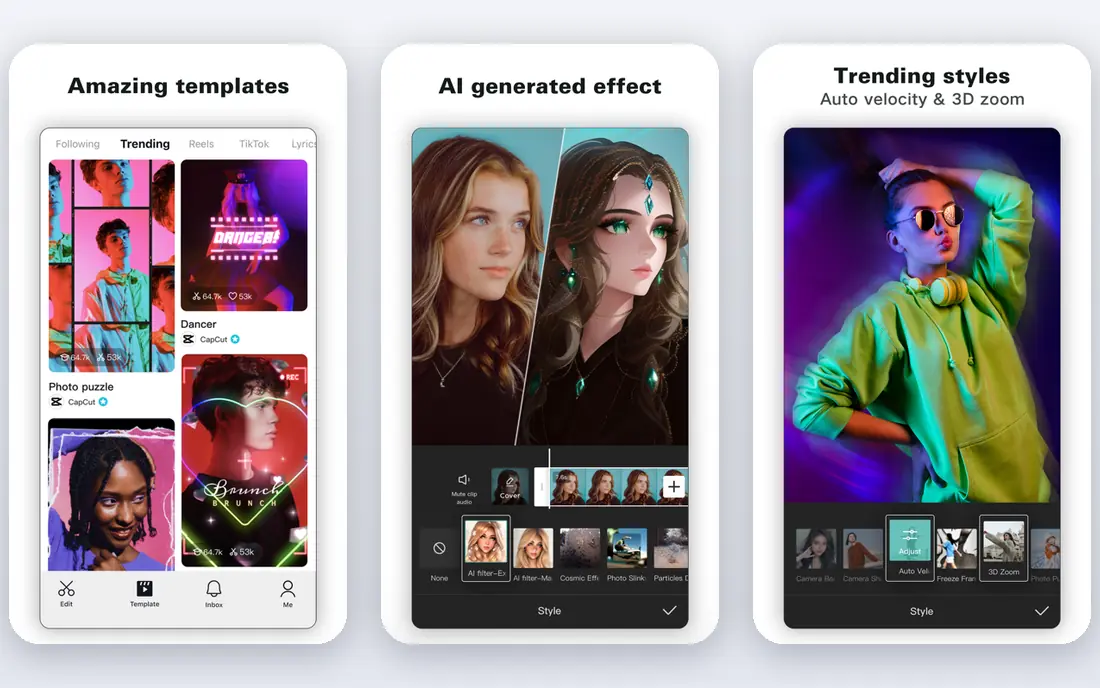
CapCut is the best free starting point for short-form creators, because its free plan includes a full timeline editor, auto-captions, background removal and basic voice tools, with exports up to 1080p. Templates, trending effects and a large music library make it fast to turn phone footage into a finished short, and projects can move between mobile, desktop and web.
The free tier is not unlimited AI. Heavier generation, avatars, voice cloning and 4K export sit in Pro, reported at $19.99 per month or $179.99 per year, and AI usage on the free tier is capped. Some exports or assets may also carry a watermark depending on the template used, so check the export before publishing. For a creator making regular short videos at no cost, CapCut still offers more free AI capability than most rivals.
- Generous free editor
- Auto-captions and background removal
- Cross-platform
- Heavier AI generation is paid
- AI usage is metered on free tier
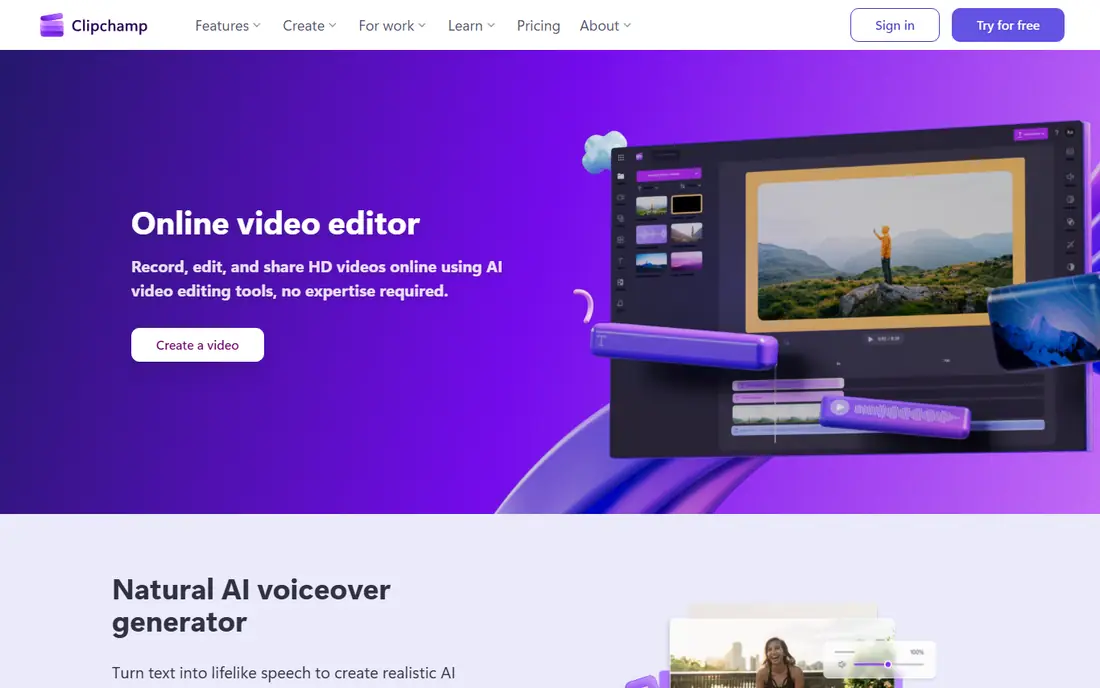
Clipchamp, from Microsoft, is the cleanest free option for a simple finished video. Its free plan includes unlimited exports at up to 1080p without a watermark, plus AI subtitles, text-to-speech voiceovers, silence removal and noise removal, along with screen, camera and voice recording. That combination is unusually generous, because many free editors charge for watermark removal or limit exports.
The limits are platform and resolution. Clipchamp works best on Windows and in Chrome or Edge, with no current mobile app, and 4K export, premium stock and a brand kit require a Microsoft 365 subscription. For a Windows user making tutorials, training clips or social videos, the free tier is hard to beat. For a phone-only creator, CapCut or Canva will be more practical.
- Watermark-free 1080p exports
- AI subtitles and voiceovers
- Silence removal included
- No mobile app now
- Browser support is limited
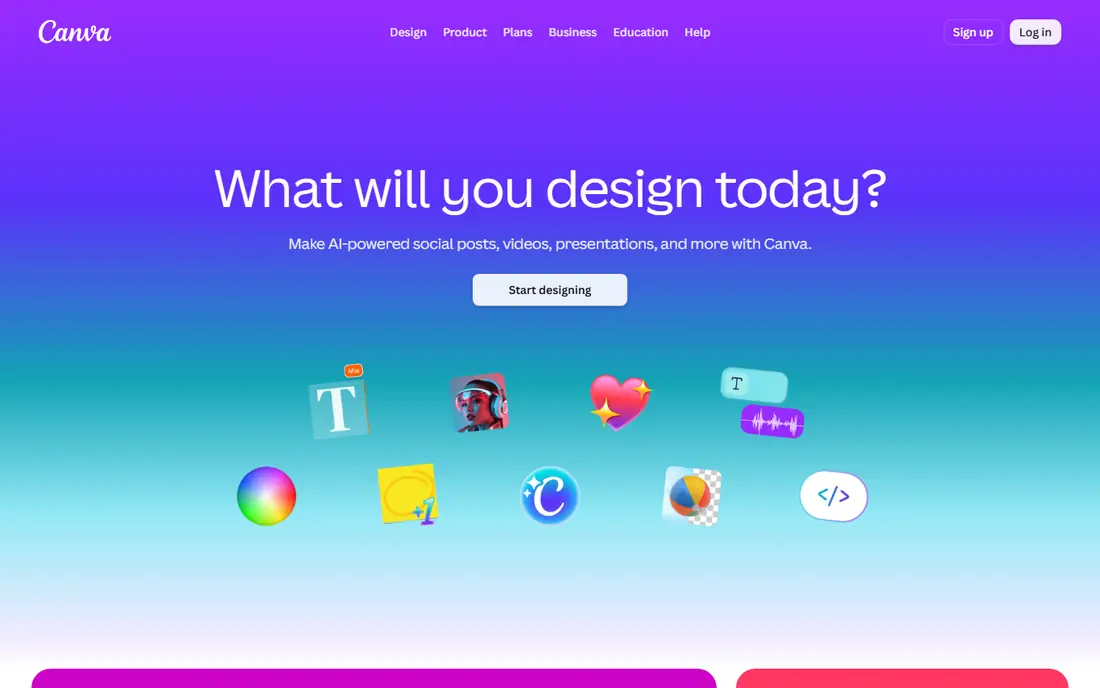
Canva suits a creator whose videos live alongside social graphics, presentations and brand assets. Its free plan includes video editing, templates, auto-generated captions and basic AI tools, while Pro adds one-click background removal, Beat Sync, AI Highlights that pull short clips from long videos, Enhance Voice and a larger stock library. That design-first workflow makes it easy to keep a consistent look across formats.
Canva is not a deep timeline editor for long or complex footage. Cutting a long interview, tightening speech and managing many tracks will feel easier in Clipchamp, Descript or Filmora. For short branded videos, announcements and social clips made from existing brand assets, Canva's free tier is a practical and attractive choice.
- Free design and video tools
- AI captions and highlights
- Huge template library
- Not a deep timeline editor
- Best AI video features are paid
Kapwing runs entirely in the browser and is built for repurposing: auto-subtitles, Smart Cut silence removal, dubbing, background removal and clip creation from longer videos. Its free plan includes 10 credits per month, 10 minutes of auto-subtitles and text-to-speech, which is enough to test the AI workflow and make short drafts without installing software.
The free export limits are strict. Free exports are watermarked, capped at 720p and around one minute in many reports, with a monthly export limit, so free output is not publish-ready for most creators. Pro, reported at $16 per month billed annually, removes the watermark and raises limits to 4K and longer exports. Kapwing is best used free for testing and drafting, with a paid plan needed for regular publishing.
- Strong AI repurposing tools
- Auto-subtitles and Smart Cut
- No install needed
- Free exports are watermarked
- Free tier is capped at 720p and short exports
VEED began as a subtitle tool and remains excellent for captions. Its free plan includes basic editing, limited auto-subtitles and 720p exports with a VEED watermark, plus a trial of some premium AI features. Magic Cut, audio cleanup, filler removal and translation tools help turn a rough recording into a watchable video, and the browser editor needs no install.
Free limits matter for regular use. Subtitle minutes are limited, storage is limited, and the watermark means free exports are best for drafts or internal review. Paid plans start with Lite, reported around $19 per month billed monthly, which removes the watermark and raises limits. VEED is a strong free choice for testing caption quality and cleanup, especially for educators and marketers who publish captioned video often.
- Accurate auto-subtitles
- Magic Cut and cleanup tools
- Browser-based editing
- Free exports are watermarked
- Free AI minutes are limited
Descript changes video editing by letting users edit the transcript and having the video follow. Delete a sentence from the transcript and the video cuts itself, remove filler words with one action, and clean audio with Studio Sound tools. That workflow is transformative for podcasts, interviews, tutorials and talking-head videos, where the words matter more than complex visual effects.
The free plan is a genuine way to try that workflow, but it is limited in transcription hours, AI credits and export options, with paid plans reported from $16 per month for Hobbyist and $24 per month for Creator on annual billing. Descript is not the best choice for effects-heavy short-form video. For spoken-word video, its free tier is the clearest way to learn whether transcript editing fits the creator's style.
- Transcript-based editing
- Filler word removal
- AI voice and studio sound tools
- Free plan is limited
- Heavy AI use is metered
Adobe Express is a free design and video tool for quick branded content. Its free plan includes templates, video editing, social formats and a selection of AI tools for generating and editing images and video elements, plus access to free Adobe stock assets. For a small business that needs a polished announcement, product clip or social video in an hour, Express is faster than learning a full desktop editor.
The trade-off is depth. Express is not Premiere, and complex timeline editing, advanced colour work and long-form projects belong elsewhere. Some AI features and premium assets require a paid plan, so check the feature list before planning a project around a specific AI tool. For fast, on-brand short videos at no cost, Adobe Express is a sensible free option.
- Free templates and design tools
- AI video and image tools
- Adobe stock on free tier
- Video editing is simpler than Premiere
- Best AI features need paid plans
Filmora offers a free desktop editor with AI features including auto-captions, audio denoise, background tools and effects, which makes it a good way to learn desktop editing without paying first. The timeline, transitions and colour tools are more capable than most browser editors, and the upgrade path to paid plans is clear for creators who later need watermark-free exports and full AI credits.
The free limit is the watermark on exports, which means free output is for learning and drafts, not publishing. Paid plans are reported from around $49.99 per year for Basic, with higher tiers adding more AI credits. Filmora suits a creator who wants a desktop editor, likes AI assistance, and is willing to pay later for clean exports. For watermark-free publishing at no cost, Clipchamp or Canva are better first choices.
- Full desktop editor free to try
- AI captions, denoise and effects
- Clear upgrade path
- Free exports carry a watermark
- Full AI toolkit needs a paid plan
How we picked these
We compared official pricing pages and feature descriptions, and we included only tools with a genuine free tier that includes AI features in October 2026. We excluded tools whose free access is trial-only, limited to one-time credits, or not yet live, because presenting those as free would mislead readers. Where a free tier is watermarked, capped or metered, we say so plainly, because those limits decide whether a tool is useful for publishing or only for testing.
How to choose a free AI video editor
Start with the video type. Short-form social video favours CapCut, captioned talking-head video favours Descript or VEED, and simple watermark-free publishing favours Clipchamp. Then check the free limits that matter: watermark, resolution, export length, subtitle minutes and AI credits. A tool that looks free but watermarks every export is not free for publishing.
Finally, test one real video end to end, including export and upload. Check caption accuracy, audio quality and whether the final file looks right on the platform where it will be watched. A free tool that produces a clean, watchable result on the first try is worth more than a feature list full of AI tools that sit behind a paywall.
Frequently asked questions
What is the best truly free video editor with AI features?
Clipchamp is the strongest truly free option for watermark-free 1080p publishing, with AI subtitles, voiceovers and silence removal included. CapCut offers a wider free AI toolkit for short-form video, but heavier AI generation is paid.
Do free AI video editors add watermarks?
Some do and some do not. Clipchamp free exports are watermark-free at 1080p, while Kapwing, VEED and Filmora free exports carry watermarks. Always check the export before publishing, because watermark rules can vary by template or asset used.
Can I use free AI video tools for commercial videos?
It depends on the tool and the plan, including asset licences and export terms. Check the terms for stock assets, AI-generated content and commercial use before using free output in paid advertising or client work.
What AI features are usually free?
Auto-captions, silence removal, basic background removal and text-to-speech are commonly included on free tiers, often with minute or credit limits. Video generation, avatars, voice cloning and 4K export are more often paid features.
Is a free plan enough for regular publishing?
It can be for simple projects, especially with Clipchamp or Canva. For frequent publishing, longer videos or heavy AI use, a paid plan usually becomes necessary once credit, minute or export limits are reached.
Sources
See where you really rank - block by block
ProMapRanker scans Google Maps across a grid of your service area. Simple monthly plans from $19, white-label on every plan.
Start freeKeep reading
 what’s the best risk software for enterprises
What Is the Best Risk Software for Enterprises in 2026
We compared what’s the best risk software for enterprises on risk registers, controls, third-party risk, and reporting, with pricing notes for large teams.
Read → what's the best pam software for enterprises
What is the Best PAM Software for Enterprises in 2026
Find what's the best pam software for enterprises, with vaulting, session recording, just in time access and pricing compared for large enterprise IT teams.
Read → what’s the best grc software
What Is the Best GRC Software in 2026
We compared what’s the best grc software on risk, compliance, audit and vendor risk, so teams can pick a platform that fits their frameworks and budget.
Read →