 ProMapRanker
Best Free Tools to Turn Photo Into Video in 2026

Key takeaways
- Kling, Runway, Pika, Hailuo, PixVerse and Vidu animate a still photo with AI motion on a free tier.
- Canva, CapCut and VEED suit slideshow-style videos where you add music, text and cuts yourself.
- Free plans usually mean short clips, credits, watermarks or limits on commercial use, so read the plan terms.
- Only animate photos you own or have permission to use, and never animate a real person without consent.
- Start with a sharp, well-lit photo, since motion tools keep the flaws of the source image.
Quick comparison
| Pick | Great for | Pricing starts at | Free tier | |
|---|---|---|---|---|
 Kling | Cinematic photo motion | Free | Yes | Visit |
 Runway | Creative control and editing | Free | Yes | Visit |
 Pika | Fun effects and short clips | Free | Yes | Visit |
 Hailuo | Natural human motion | Free | Yes | Visit |
 PixVerse | Quick free photo clips | Free | Yes | Visit |
 Vidu | Fast reference animation | Free | Yes | Visit |
 Canva | Slideshows and social videos | Free | Yes | Visit |
 CapCut | Mobile photo slideshows | Free | Yes | Visit |
 VEED | Photo clips with captions | Free | Yes | Visit |
The best free tools to turn photo into video
These tools fall into two groups. AI motion tools turn one photo into a moving clip from a text prompt. Slideshow editors join photos with music, text and transitions. Both count here, because readers search for both jobs under the same phrase.
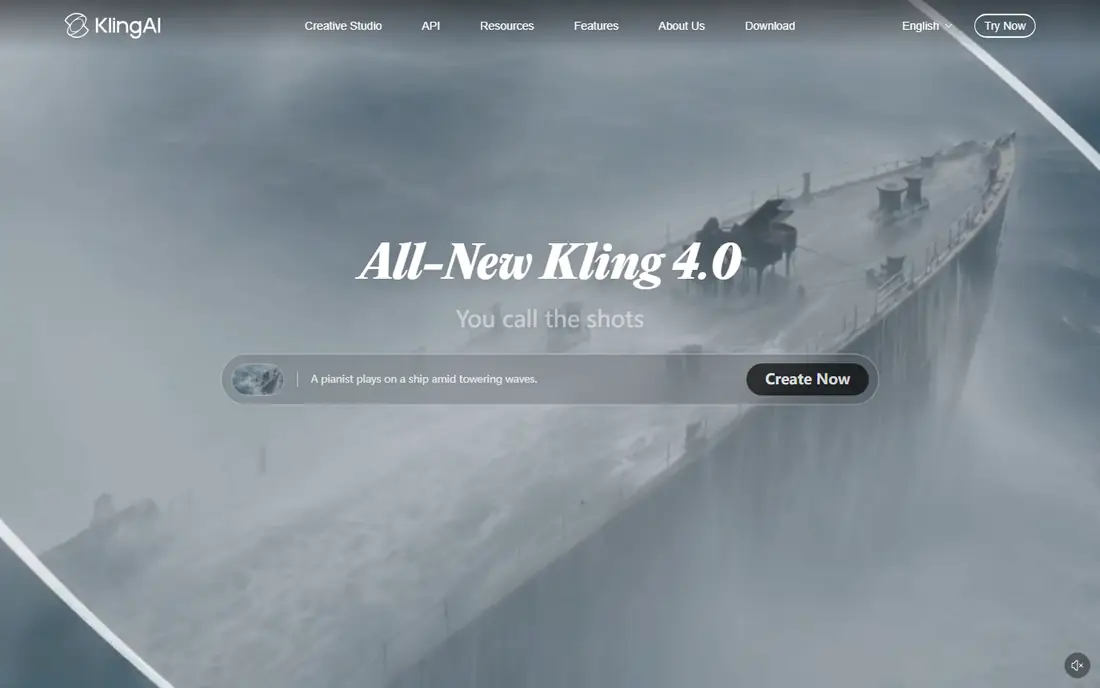
Kling is our first pick for AI photo motion because its clips tend to hold the subject steady while the camera or scene moves. Upload a portrait, a product shot or a street scene, describe the motion in plain words, and Kling returns a short clip you can extend or re-roll. That control makes it useful for social posts and product teasers.
The free tier is a test drive, not a production plan. Standard is listed at $10 per month with 660 credits in recent comparisons, which gives a clearer path when you need regular clips. Check the current Kling pricing page, since credit amounts change. For a first test, Kling shows what AI photo motion can do at its best.
- Strong motion and camera moves
- Good scene continuity
- Free entry tier
- Free exports may carry a watermark
- Commercial use needs a paid plan
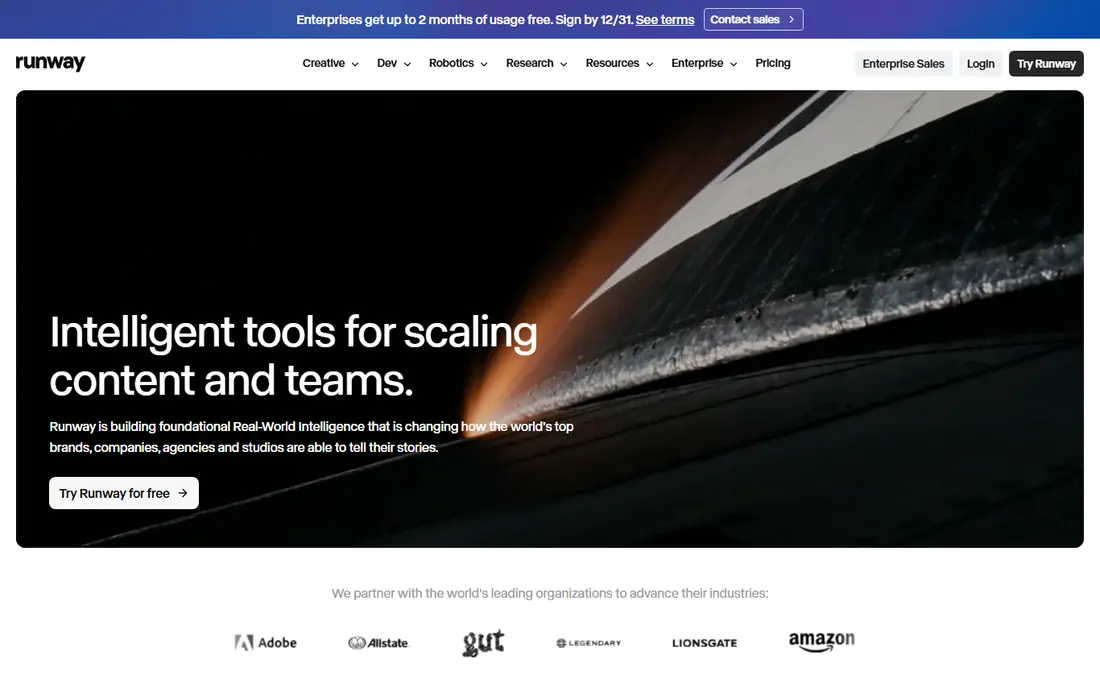
Runway suits people who want more than a single clip. Its image-to-video tool sits inside a broader editor, so you can generate motion, cut clips, add text and refine a sequence without moving files between apps. That matters when a photo clip is one part of a larger video, not the whole job.
The free allowance is small, with 125 starter credits reported in recent pricing comparisons, and Standard is listed at $12 per month billed yearly. Treat the free tier as a way to learn the workflow. If you plan weekly videos, budget for a paid plan from the start.
- Strong editing suite around generation
- Keyframe control
- Useful for longer projects
- Free credits are limited at 125 credits
- Paid plan starts at $12 per month
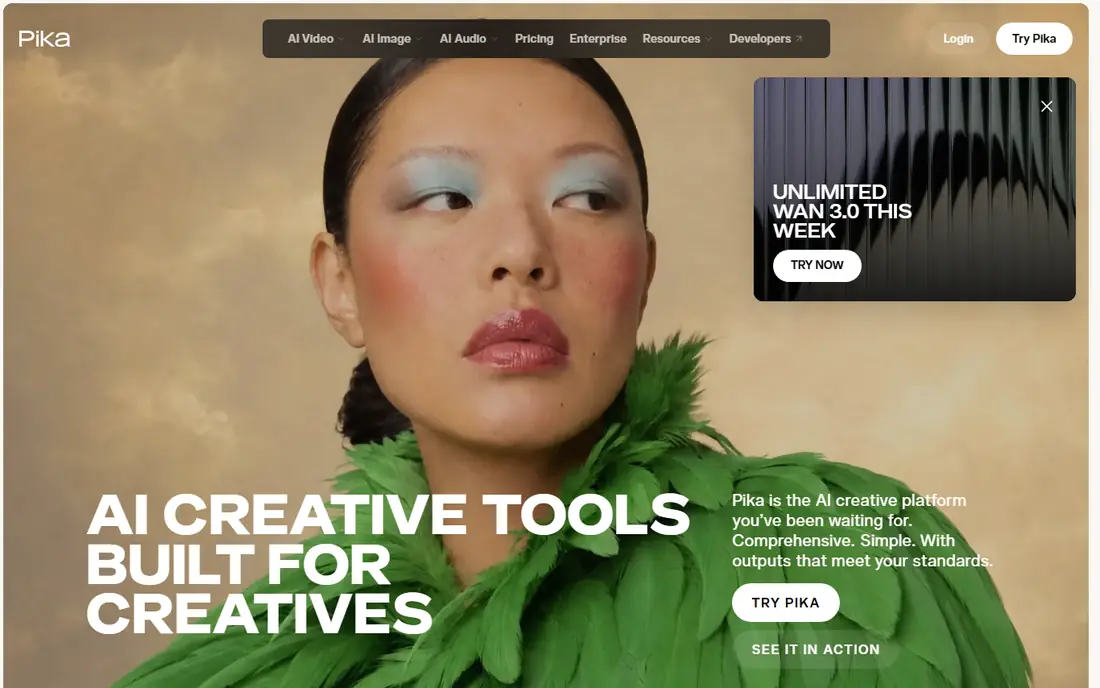
Pika is the fun option in this list. It turns a photo into a short, stylised clip with effects that suit TikTok, Reels and Shorts. If your goal is a quick visual hook rather than a realistic scene, Pika gets there faster than the more cinematic tools. The interface stays simple, which helps new users.
Starter is listed at $10 per month in recent comparisons, with credit packs also available on the free tier. Commercial use starts on higher plans, so check the terms before using a free clip in an ad. For personal and social experiments, Pika is an easy first download.
- Playful effects and transformations
- Fast results
- Low-cost Starter plan
- Short clips by design
- Free use may not allow commercial use
Hailuo, from MiniMax, is known for motion that looks natural on people, animals and everyday scenes. That makes it a good test for portraits and lifestyle photos, where stiff or warped movement ruins the result. Upload a clear photo, keep the prompt short and specific, and judge the hands and face before you share the clip.
Paid plans are listed from $9.99 per month, and free access sits behind sign-in with limits that can change. The honest catch is that you may need several tries to get a clean result, which eats credits fast. Use Hailuo for scenes where natural movement matters most.
- Good motion for people and scenes
- Free access behind sign-in
- Simple prompt workflow
- Free limits are not always published in full
- Paid plans start from $9.99 per month
PixVerse is a practical free starting point because it lets you test photo-to-video without paying first. It offers effects, templates and prompt-based motion, and it works well for social clips where speed matters more than film-level polish. New users can learn what prompts work in a single session.
The free tier has limits on volume and features, so it is not a plan for daily publishing. Paid plans remove some of those limits, and prices should be checked on the PixVerse site before you commit. For a first free experiment, PixVerse is low risk and quick to judge.
- Free tier for testing
- Fast generation
- Good range of effects and templates
- Free limits are limited
- Quality varies by source photo and prompt
Vidu is built for speed. It takes a reference photo and a prompt and returns a moving clip quickly, which helps when you are testing several ideas in one sitting. The results suit short social clips, product shots and concept tests rather than long narrative scenes.
Free access is limited, and higher resolutions sit on paid plans, with Standard listed at $8 per month billed yearly in recent comparisons. Free exports may carry a watermark, so check the export before you publish. If turnaround time matters, Vidu deserves a place in your test set.
- Fast generation
- Good reference handling
- Standard listed at $8 per month billed yearly
- Free tier limits resolution options
- Commercial use needs a paid plan
Canva is the best choice when you want a slideshow video, not AI motion. Drop in several photos, pick a template, add music and text, and export a clean social video in minutes. It is also the easiest tool here for a team, since designs, brand colours and folders live in one place.
The free plan covers many slideshow jobs, while Canva Pro at $15 per month adds more assets, brand tools and AI features. Canva will not match Kling or Runway for realistic motion from a single photo. For a photo montage with captions and music, it is faster and more predictable.
- Huge template library
- Easy text, music and transitions
- Good for teams
- AI motion is less advanced than specialist tools
- Pro features need a paid plan
CapCut is the mobile-first pick. It turns phone photos into slideshow videos with transitions, music, text and trending templates, and it exports in formats ready for TikTok, Reels and Shorts. If most of your photos live on your phone, CapCut removes the transfer step that slows desktop tools down.
The free plan is generous for casual use, while Pro adds more effects, cloud storage and higher-quality exports. Check the current CapCut pricing page, since Pro pricing varies by region and billing. For quick phone videos, CapCut is hard to beat on speed.
- Strong mobile editor
- Templates and music built in
- Quick social exports
- Some effects and exports sit behind Pro
- Free exports may include limits
VEED suits people who want to turn a photo into a finished clip with words on screen. You can animate or assemble images, add captions, narration, music and subtitles, and export for social or web use. That makes it useful for explainers, listings and short lessons built around a photo.
Free access covers basic editing and limited AI use, while paid plans add more AI credits and cleaner exports. Check the VEED pricing page for the current free limits, since they change. If captions and polish matter as much as motion, VEED is a strong final pick.
- Strong browser editor
- Captions, text and audio in one place
- Good for tutorials
- Free AI allowance is limited
- Free exports may carry limits or watermarking
How we picked these
We compared official product pages, pricing pages and recent pricing comparisons in October 2026, and we kept only tools with a live free tier, trial credits or free plan. We favoured tools that accept a photo as the starting point and return a video you can download, whether by AI motion or by slideshow editing. We left out discontinued tools, including Sora, whose API shut down on 24 September 2026, and tools with no documented free entry. Prices change, so the vendor page is the final check.
How to choose the right photo-to-video tool
First, decide what kind of video you want. For realistic motion from one photo, test Kling, Runway and Hailuo. For fun social effects, test Pika and PixVerse. For a montage of many photos with music and text, use Canva, CapCut or VEED. Mixing the two jobs in one tool usually gives a weaker result than using the right tool for each job.
Second, check the free limits before you build a habit. Look at clip length, credits, watermark rules and commercial use, since those four terms decide if a free clip is usable for your purpose. Third, use a high-resolution source photo with good light and a clear subject. Motion tools cannot fix a blurry photo, and they often make blur and distortion more visible.
A plain consent warning matters here. Only animate photos you own or have permission to use, and never animate a real person without that person's consent. Do not use these tools to create misleading videos of real people, and do not upload photos of other people, children or private events. If you are unsure about permission, use a photo you took yourself or a licensed stock image.
Frequently asked questions
What is the best free app to turn photos into videos?
For AI motion, Kling and Pika are strong free starting points. For slideshows, Canva and CapCut are easier and more predictable. The best choice depends on whether you want one photo to move on its own or many photos joined with music and text.
Can I turn a photo into a video for free without a watermark?
Some free plans allow clean exports, but many add a watermark or limit commercial use. Read the plan terms for the tool you pick, and test one export before you build a project around it. A paid plan is usually the only clear route to watermark-free commercial clips.
How long are AI photo-to-video clips?
Most free AI clips run about 5 to 10 seconds, with extend options on some tools to chain clips into a longer sequence. Slideshow tools have no such limit, since you control the length by adding photos, music and cuts. Plan short AI clips as hooks, not as full videos.
Do I need editing skills to use these tools?
No. AI tools need only a photo and a short prompt describing the motion. Slideshow tools use templates and drag-and-drop editing. Prompt skill helps, but a clear photo and a simple prompt such as a slow camera move or gentle head turn will give a usable first result.
Is it safe to animate a photo of a real person?
Only with that person's clear permission, and only for a purpose they agree to. Never animate photos of other people, children or strangers for social posts, ads or jokes. Use your own photos or licensed images when you are unsure, and keep the result honest about what it is.
Sources
See where you really rank - block by block
ProMapRanker scans Google Maps across a grid of your service area. Simple monthly plans from $19, white-label on every plan.
Start freeKeep reading
 zscaler alternatives
Best Zscaler Alternatives in 2026
Looking for zscaler alternatives? We compare 9 SASE and zero trust platforms on architecture, data protection, pricing, and fit for your network and team.
Read → zapier alternatives free
Best Zapier Alternatives Free in 2026
Nine automation tools for zapier alternatives free in 2026, all with genuinely free tiers, plus free plan limits, starting prices and upgrade paths explained.
Read → which platform is best for online reputation
Which Platform Is Best for Online Reputation in 2026
Wondering which platform is best for online reputation? We compare 8 review, listing, and response tools for small and multi-location businesses and agencies.
Read →