 ProMapRanker
Best Free Tools to Make Videos in 2026


Serious editing, colour and audio · Pricing starts at: Free
Key takeaways
- DaVinci Resolve is the best free editor for serious work, because its free version has pro editing, colour and audio tools with no watermark.
- CapCut and Clipchamp are the fastest free picks for short social videos, with captions and templates built in.
- Shotcut, Kdenlive and OpenShot are fully free desktop editors with no subscription, though they need more learning time.
- Canva and Adobe Express suit template-led videos, but premium assets and some exports sit behind paid plans.
Quick comparison
| Pick | Great for | Pricing starts at | Free tier | |
|---|---|---|---|---|
| DaVinci Resolve | Serious editing, colour and audio | Free | Yes | Visit |
 CapCut | Fast social videos with captions | Free | Yes | Visit |
 Clipchamp | Browser editing on Windows | Free | Yes | Visit |
 Canva | Template-led marketing videos | Free | Yes | Visit |
 Shotcut | Fully free desktop editing | Free | Yes | Visit |
 Kdenlive | Free editing with strong effects | Free | Yes | Visit |
 OpenShot | Beginner-friendly free editing | Free | Yes | Visit |
 iMovie | Free editing on Apple devices | Free | Yes | Visit |
 Adobe Express | Quick template videos and social posts | Free | Yes | Visit |
The best free tools to make videos
Every tool below has a genuine free tier you can use to make and export a video. We note where a free tier limits resolution, assets or features, so you can pick by the video you need to make, not just the headline claim.
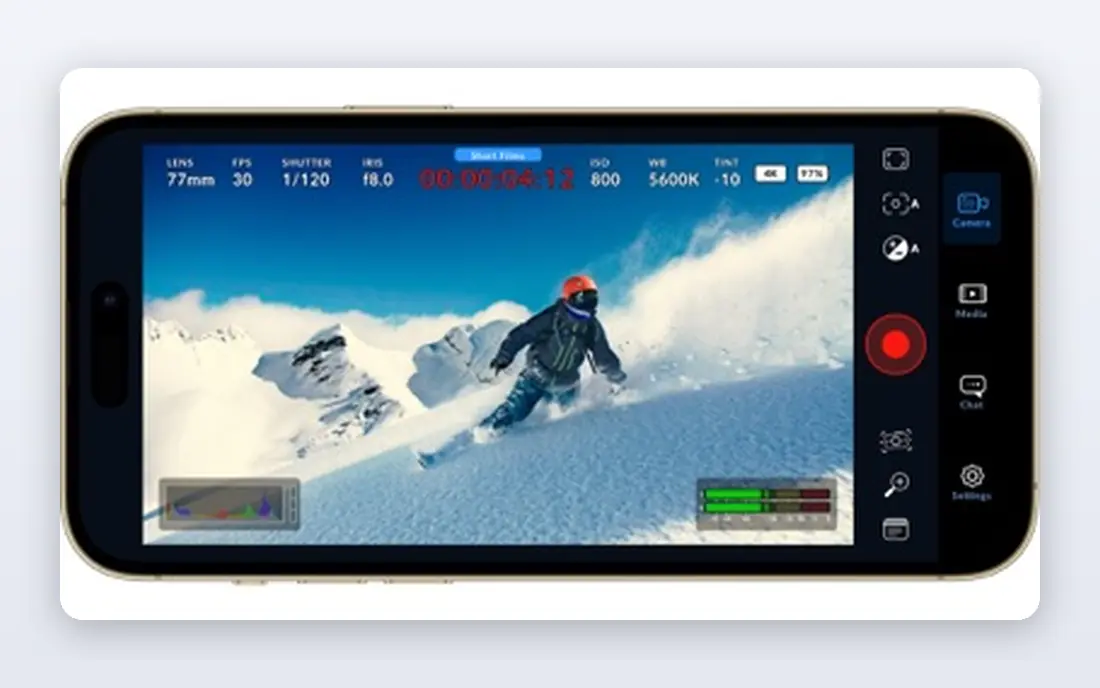
DaVinci Resolve is the free editor that professionals actually use. Its free version covers editing, colour grading, visual effects and audio post-production in one app, with no watermark and no time limit. For YouTube, short films or client work on a budget, it is the closest free match to paid pro software.
The cost is hardware and learning time. Resolve needs a stronger computer with a capable graphics card, and its interface takes longer to learn than a social editor. Paid Studio, at $295 as a one-time purchase, adds advanced AI tools and higher resolutions, but most creators never need it.
- Pro timeline, colour and audio tools free
- No watermark
- No time limit
- Needs a strong computer
- Learning curve is steep

CapCut is the fastest way to make a short social video. Auto captions, transitions, effects and templates cover the routine work, and the same project can move between phone, desktop and web. For TikTok, Reels and Shorts, its speed beats a full desktop editor.
Some templates, effects and assets need CapCut Pro, listed at $19.99 per month in recent listings. Free exports do not add a watermark, but check the timeline for a default outro clip and delete it before export. For long or complex projects, a desktop editor gives more control.
- Auto captions
- Trending effects
- Mobile, desktop and web versions
- Some templates and effects need Pro
- Default outro must be removed
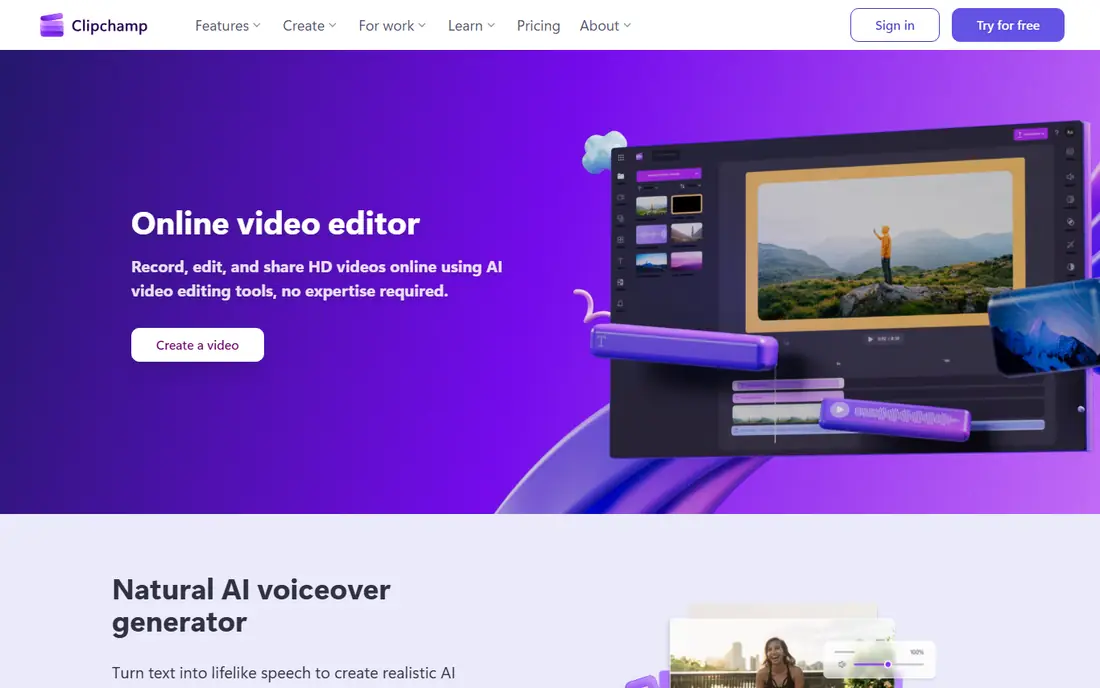
Clipchamp, from Microsoft, runs in the browser and on Windows, which makes it easy to start without a heavy install. Its free plan exports up to 1080p without a watermark, and includes captions, text to speech, screen recording and templates. That mix suits business videos, tutorials and quick social clips.
The free limits are clear. 4K export needs Microsoft 365 or a Clipchamp Premium plan, and some stock assets and effects are paid. For most web and social videos, 1080p is enough. Test captions and stock use before a large project, so a paid asset does not block export.
- Free 1080p exports without watermark
- Captions and text to speech
- Screen recording
- 4K export needs a paid plan
- Some premium assets are paid
Canva suits template-led videos: product promos, social posts, slideshows and short ads. Its video editor adds captions, Beat Sync, transitions and a huge template and stock library, all in a drag-and-drop workspace. Small teams can make a consistent set of videos fast.
Depth is thinner than a full timeline editor, and assets marked Pro need Canva Pro to export without a watermark. The free plan still exports cleanly when you use only free elements and your own footage. Use Canva for marketing volume, and Resolve for longer edited work.
- Huge template library
- Beat Sync and captions
- Easy brand assets
- Pro assets need Pro
- Video depth is thinner than a timeline editor
Shotcut is a fully free, open source desktop editor for Windows, Mac and Linux. It covers multi-track editing, filters, transitions and 4K export with no watermark and no subscription. It runs better on modest hardware than Resolve, which makes it a practical free choice for older machines.
Its interface is plain and it offers fewer templates and guided effects than social editors, so beginners need more patience at first. There is no paid tier at all, which is a strength for long-term use. For straightforward YouTube and family videos, it does the job well.
- Free and open source
- No watermark
- Runs on modest hardware
- Interface is plain
- Fewer templates and guided effects than CapCut
Kdenlive is another fully free, open source editor, with multi-track timelines, effects, transitions and titling. It suits creators who want more control than a social app, without paying for a pro suite. Its open source community keeps it updated across Windows, Mac and Linux.
Beginners face a learning curve, and performance varies with hardware and project size. It has no templates or caption automation to match CapCut, so short social work takes longer. For free desktop editing with room to grow, it remains a strong pick.
- Free and open source
- Multi-track editing
- Effects and titling
- Learning curve for beginners
- Performance varies by system
OpenShot is the gentlest free desktop editor here. Its drag-and-drop timeline, simple transitions and titles make it easy for a first project, and it exports without a watermark. It runs on Windows, Mac and Linux, and it costs nothing at any stage.
It can feel slow on large or complex projects, and its colour and audio tools are thinner than Resolve. That trade suits beginners and simple videos, not long multi-track work. Start here if a full editor feels daunting, then move up when a project demands more.
- Simple drag-and-drop timeline
- Free and open source
- No watermark
- Can feel slow on large projects
- Fewer pro colour and audio tools
iMovie is free on iPhone, iPad and Mac, and it is the easiest editor for Apple users. Magic Movies, storyboards and trailer templates turn clips into a finished video fast, and projects can move from phone to Mac for finishing. Exports carry no watermark.
It only runs on Apple devices, and its controls are simpler than a pro editor, with less colour and audio depth. That simplicity is the point for family videos, school projects and quick social clips. Apple users who need more should look at DaVinci Resolve for Mac.
- Free on iPhone, iPad and Mac
- Trailers and storyboards
- No watermark
- Apple devices only
- Fewer pro controls than Resolve
Adobe Express is a free template tool for quick social videos, promos and posts. It offers templates, automatic captions, reframing for different social sizes, and a library of free assets. It suits small businesses that need a polished clip fast, without learning a timeline editor.
Its timeline depth is limited compared with Resolve or Shotcut, and some premium templates and assets need a paid plan. The free tier still covers a useful range of templates and exports. Use it for short branded videos, and a desktop editor for longer stories.
- Templates and auto captions
- Reframing for social channels
- Adobe stock on free tier
- Some premium assets need Premium
- Timeline depth is limited
How we picked these
We compared vendor pages, free plan terms and public free editor comparisons, checking whether each tool exports without a watermark on its free tier, which platforms it runs on, and where paid features begin. We only listed tools with a real free tier, not trials that block export. We left out editors whose free tier only previews a video or stamps a watermark on every export. Prices below are free tier terms, with paid starting prices noted where they matter.
How to pick a free video tool
Start with the video you make most. Short social clips need captions, templates and fast export. YouTube videos need a full timeline, clean audio and colour control. Marketing videos need templates and brand assets. One tool rarely does all three best.
Test an export before a big project
Edit a short test clip and export it first. Check resolution, watermark, captions and file size on the free tier. A tool that looks free in the editor can still gate 4K export, premium assets or caption styles at export time.
Match the tool to your computer
DaVinci Resolve needs a stronger computer, while Shotcut, OpenShot and browser tools run on modest hardware. If your machine struggles, pick a lighter editor or use proxy editing. A tool you can run smoothly beats a powerful tool that stutters.
Frequently asked questions
What is the best free tool to make a video?
DaVinci Resolve is the best free tool for serious editing, because its free version has pro timeline, colour and audio tools with no watermark. CapCut is best for fast social videos, Clipchamp is best for browser editing on Windows, and Canva is best for template-led marketing videos.
Are there free apps to make videos without a watermark?
Yes. DaVinci Resolve, Shotcut, Kdenlive, OpenShot and iMovie export without a watermark on their free tiers. CapCut, Clipchamp and Canva can also export without a watermark on free plans, as long as you avoid premium templates and assets that carry a paid mark.
Can I make YouTube videos with free tools?
Yes. DaVinci Resolve and Shotcut handle full YouTube editing, including multi-track timelines and colour work. CapCut and Clipchamp suit shorter YouTube videos and Shorts. Export a test clip first to check resolution and quality on your computer.
Is CapCut really free?
CapCut has a genuine free tier on mobile, desktop and web, with editing, captions and effects included. Some templates, effects and assets need CapCut Pro, listed at $19.99 per month in recent store listings. Free exports do not add a watermark, though a default outro clip should be removed from the timeline.
Do free video editors work on a low-end laptop?
Lighter editors such as Shotcut, OpenShot and Clipchamp run better on modest hardware than DaVinci Resolve. Use proxy editing, lower preview resolution and shorter projects if playback stutters. Browser tools also shift some work off your machine, but they need a stable connection.
Sources
See where you really rank - block by block
ProMapRanker scans Google Maps across a grid of your service area. Simple monthly plans from $19, white-label on every plan.
Start freeKeep reading
 zscaler alternatives
Best Zscaler Alternatives in 2026
Looking for zscaler alternatives? We compare 9 SASE and zero trust platforms on architecture, data protection, pricing, and fit for your network and team.
Read → zapier alternatives free
Best Zapier Alternatives Free in 2026
Nine automation tools for zapier alternatives free in 2026, all with genuinely free tiers, plus free plan limits, starting prices and upgrade paths explained.
Read → which platform is best for online reputation
Which Platform Is Best for Online Reputation in 2026
Wondering which platform is best for online reputation? We compare 8 review, listing, and response tools for small and multi-location businesses and agencies.
Read →