 ProMapRanker
Best Free Tools to Make Video From Photos in 2026

Key takeaways
- Canva and Adobe Express are the easiest free browser tools for quick photo videos with music and text.
- iMovie is the best fully free option for Apple users, with no watermark on exports.
- Icecream Slideshow Maker and PhotoStage are the simplest free desktop tools for Windows and Mac users who prefer offline work.
- Animoto and InShot suit social video, but check free export limits and watermarks before you share a finished video.
- Free plans vary on export quality, music rights, and watermark rules, so test one short video before you build a long project.
Quick comparison
| Pick | Great for | Pricing starts at | Free tier | |
|---|---|---|---|---|
 Canva | Quick browser slideshows | Free | Yes | Visit |
 Adobe Express | Free watermark-free exports | Free | Yes | Visit |
 iMovie | Apple users | Free | Yes | Visit |
 Icecream Slideshow Maker | Simple desktop slideshows | Free | Yes | Visit |
 PhotoStage Slideshow Producer | Free offline slideshow maker | Free | Yes | Visit |
 Animoto | Fast social videos | Free | Yes | Visit |
 InShot | Mobile photo videos | Free | Yes | Visit |
 Clideo | Browser merging and editing | Free | Yes | Visit |
 CapCut | Mobile templates and effects | Free | Yes | Visit |
The best free tools to make video from photos
We compared tools on free export rules, templates, music, ease of use, and if they work in a browser, on desktop, or on a phone. Here are the free options that are most useful for turning photos into video.
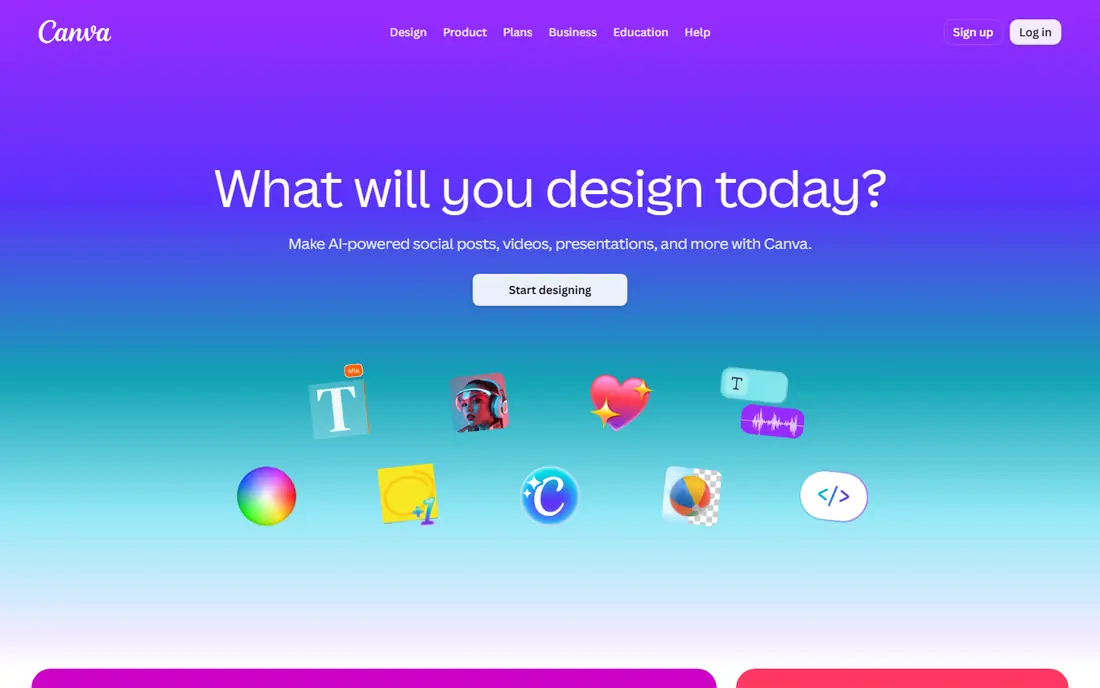
Canva is the easiest place to start if you want a photo video today without installing software. Pick a video template, drop in your photos, add text and music, adjust timing, and export. The drag-and-drop editor is forgiving for beginners, and because it runs in a browser, you can start on a laptop and finish on a phone. For birthdays, school projects, and social posts, that speed matters more than deep editing control.
The free plan is generous, but not everything is free. Some templates, stock photos, and music tracks need a paid plan, so check the small crown or Pro label on each element before you build around it. If you keep to free elements, you can make a clean, shareable video without paying. Paid Canva adds more stock and brand tools, but most home users will not need them for a single slideshow.
- Large template library
- Drag-and-drop editing
- Works in a browser and on mobile
- Some templates and stock assets need a paid plan
- Free exports can feel template-led
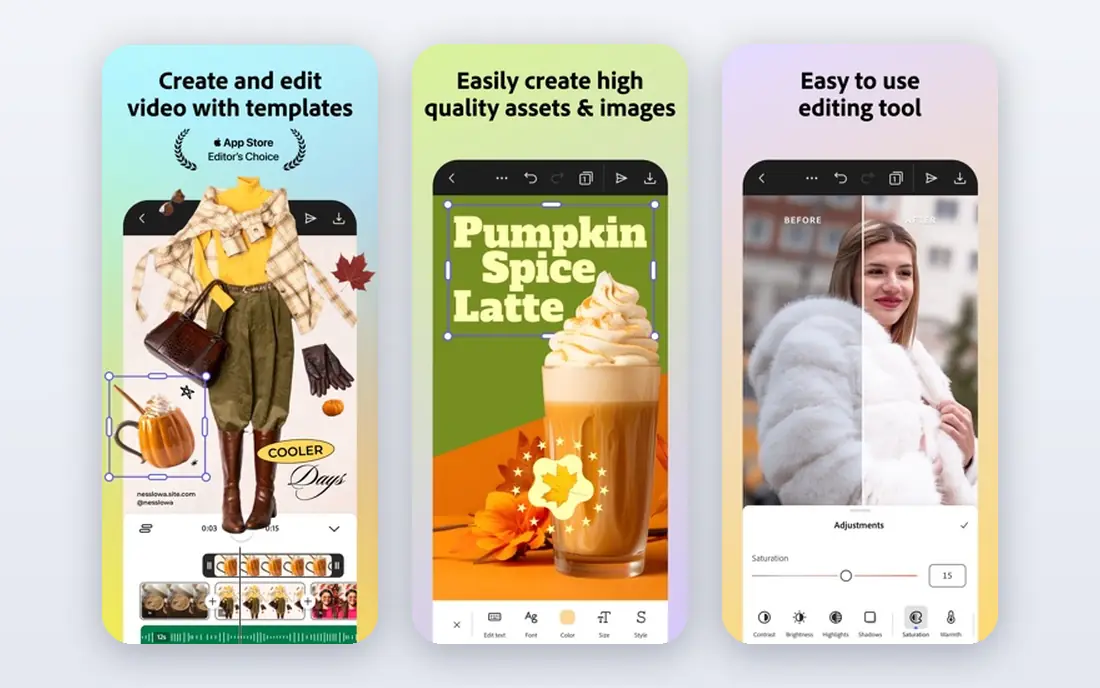
Adobe Express is a strong free choice because its free tier offers watermark-free downloads, which is rare among free browser tools. You get drag-and-drop editing, animation for text and stickers, rights-cleared stock assets, and royalty-free soundtracks, plus templates in vertical formats for social video. Real-time collaboration and link sharing also help if a family member or colleague needs to review a draft.
The workflow is browser-led, so very long projects with many high-resolution photos can feel slower than a desktop editor. You also need an Adobe account, and some premium templates and features sit behind a paid plan. For a short, polished photo video that you plan to share widely, Adobe Express is hard to beat on free value.
- Watermark-free downloads on the free tier
- Stock assets and music
- Vertical video templates
- Adobe account needed
- Some advanced features need a paid plan
- Browser-led workflow
iMovie is the best fully free option if you use a Mac, iPhone, or iPad. It is free, it adds no watermark, and it gives you a real timeline where you can control photo duration, transitions, titles, and music with precision. You can also add video clips, voiceover, and simple effects, which makes it more flexible than a template-only slideshow app. For a family holiday video or a school project, iMovie often produces the most natural result.
The limits are platform and templates. There is no Windows or Android version, and its built-in themes are fewer and plainer than Canva or Adobe Express. If you want fast, flashy social templates, a mobile app such as CapCut or InShot may suit you better. If you want a free, clean, watermark-free edit on Apple hardware, start with iMovie.
- Completely free on Apple devices
- No watermark
- Simple timeline editing
- Apple only
- Fewer templates than Canva
- Limited advanced effects
Icecream Slideshow Maker is built for one job: turning photos into a slideshow video with music and transitions, without a learning curve. Add photos, set the order, pick transitions, add a soundtrack, and export. The desktop app works offline, which helps if your internet is slow or if you are working with large photo folders on a Windows PC. Casual users who want a decent result in an afternoon will find it much less intimidating than a full video editor.
The free version is usable, but it has limits compared with the paid version, and its design options are plainer than Canva. It is also primarily a Windows tool, so Mac users should look at PhotoStage or iMovie instead. For a simple home slideshow, though, Icecream is a dependable free start.
- Very simple to learn
- Offline desktop use
- Music and transition controls
- Free version has limits
- Fewer design templates than browser tools
- Windows focus
PhotoStage is a desktop slideshow producer for Windows and Mac that offers a free version for home, non-commercial use. It lets you add photos, transitions, effects, music, and narration, and export as video. That combination suits users who want more control than a phone app, but who do not want to learn a full video editor. The ability to work offline and to narrate over photos also helps for family histories and school projects.
Check the licence before you use it for business. The free version is for non-commercial use, so a shop, charity fundraiser, or client project needs a paid licence. The interface also feels dated next to Canva and Adobe Express. If you only need a home slideshow, those limits rarely matter.
- Free version for non-commercial use
- Photo effects and narration
- DVD and video export options
- Free version is non-commercial only
- Interface feels dated
- Paid upgrade for full features
Animoto turns photos into social videos fast. Pick a style, add photos and text, choose music, and let Animoto set the pacing. That template-led speed is ideal for marketers, small businesses, and creators who need a short promo video in under an hour. Social formats and a built-in music library remove two common sticking points for beginners.
Free exports carry limits and branding, so test the free output before you promise a client or a page a finished video. Paid plans remove those limits and add more styles and stock. For personal use, the free plan is a good way to learn the workflow, but for a polished public video, budget for a paid month or pick Adobe Express for watermark-free free exports.
- Fast template workflow
- Music library
- Social video formats
- Free exports carry branding or limits
- Deeper control needs a paid plan
- Browser-led
InShot is one of the most capable mobile editors for turning photos into video. On Android and iOS, you can arrange photos, add music, text, transitions, and effects, and export in high quality, including 4K options on supported devices. It suits vertical social video, travel recaps, and quick birthday videos made entirely on a phone. The editor is fast once you learn where its tools sit.
Free use has trade-offs. Watermark removal can require a paid plan or watching an ad, depending on the version, and the built-in music library is smaller than a browser stock library. Long projects are also harder to manage on a phone screen than on a desktop timeline. For short mobile videos, InShot is still one of the best free starting points.
- Strong mobile editor
- 4K export options
- Music, text, and transitions on a phone
- Watermark removal may need a paid plan or ad view
- Small built-in music library
- Phone screen limits long edits
Clideo is a browser tool for fast jobs: merge photos and clips, make a slideshow, add music, and export without installing anything. That no-install approach helps on a shared computer, a Chromebook, or a work machine where you cannot add software. The tools are simple, which is a benefit when you only need to combine a set of photos into one video file.
The main catch is the watermark on free exports. If the video is for personal viewing, that may not matter, but for public sharing, you will either need a paid export or a different free tool such as Adobe Express or iMovie. Use Clideo for quick merges and drafts, and switch tools for a final public version.
- No install needed
- Merges photos and clips in a browser
- Simple tools for quick jobs
- Free exports carry a watermark
- Large uploads depend on internet speed
- Limited design templates
CapCut is a popular mobile and desktop editor for photo videos with a social feel. Templates, effects, transitions, and auto-captions help you turn a set of photos into a short, punchy video for TikTok, Instagram, or YouTube Shorts. The free tier covers a lot of everyday editing, and the app is easy to learn if you already watch short-form video.
Some templates, effects, and stock assets need a paid plan, and the style can feel template-led if you use the most popular templates unchanged. Review the app permissions and export settings before you publish, and check music rights if you plan to use a video commercially. For fun, fast social videos from photos, CapCut is a strong free pick.
- Large template library
- Effects and auto-captions
- Strong social video support
- Some effects and stock need a paid plan
- Account and app permissions to review
- Template-led style
How we picked these
We compared free plans, export rules, templates, music, and platform support for tools that turn photos into video in 2026. We favoured tools with a usable free tier, not just a short trial, and we checked if free exports carry a watermark. We left out desktop video editors with no free tier, and tools that only make still slideshows with no video export. Prices marked See website in other guides were avoided here by using the free tier as the starting point, since every tool on this list can be used without paying.
How to choose the right free photo video tool
Start with where you will watch the video
A vertical video for social media needs different templates and framing than a horizontal video for a TV or a family gathering. Canva, Adobe Express, CapCut, and InShot all offer vertical formats, while iMovie, PhotoStage, and Icecream suit horizontal home videos. Pick the format first, then the tool, or you will spend time rebuilding a project in the wrong shape.
Check the watermark before you build
Free tools differ most on export rules. Adobe Express and iMovie offer watermark-free free exports, while Animoto and Clideo add branding or limits on free exports. Build a one-minute test video, export it, and watch it on the screen where your audience will see it. That five-minute test saves you from rebuilding a long project later.
Mind music rights
Built-in music libraries are convenient, but rights vary by tool and by use. A track that is fine for a personal birthday video may not be cleared for a business page or a paid ad. If your video is commercial, use music you own, music with a clear commercial licence, or a tool whose licence terms you have read. When in doubt, use your own audio or a royalty-free track with written terms.
Keep the photo order simple
A good photo video tells a short story: a beginning, a middle, and an end. Pick fewer photos than you think you need, cut weak or duplicate shots, and keep each photo on screen long enough to enjoy. Add text only where it helps, such as names, dates, or places, and let the photos do most of the work.
Frequently asked questions
What are the best free tools to make video from photos?
Canva and Adobe Express are the best free browser tools for most people, while iMovie is the best free option for Apple users. Icecream Slideshow Maker and PhotoStage suit desktop users who prefer offline editing. Try a short test video in two tools and keep the one whose export and templates you prefer.
Can I make a video from photos for free without a watermark?
Yes, in some tools. Adobe Express offers watermark-free downloads on its free tier, and iMovie adds no watermark. Other free tools, such as Animoto and Clideo, add branding or limits on free exports, so check the export result before you share a video publicly.
What is the best free app to make video from photos on a phone?
InShot and CapCut are the strongest free mobile picks, with templates, music, and transitions built for phones. InShot suits more manual editing, while CapCut suits template-led social videos. Both offer free tiers, with some features and watermark removal behind paid plans.
How do I make a video from a single photo?
Most tools on this list let you add one photo, set a long duration, and add music, text, or a zoom effect to create movement. InShot, CapCut, Canva, and Adobe Express all handle this well. A Ken Burns style pan or zoom, plus music, stops a single-photo video from feeling static.
How long should a photo slideshow video be?
For social sharing, aim for under one minute, with each photo on screen for two to four seconds. For family events, two to five minutes works well if you cut weak photos and vary the pacing. Longer videos lose viewers fast, so a tight edit beats a complete photo dump.
Do I need to install software to make a photo video?
No. Canva, Adobe Express, Animoto, and Clideo all run in a browser with no install. Desktop tools such as iMovie, Icecream, and PhotoStage need an install but work offline and give you more control over long projects.
Sources
- https://rankite.com/blog/best-professional-slideshow-software
- https://www.heygen.com/tool/video-slideshow-maker
- https://www.canva.com
- https://www.adobe.com/express/
- https://www.apple.com/imovie/
- https://icecreamapps.com/Slideshow-Maker/
- https://www.nchsoftware.com/slideshow/
- https://www.animoto.com
- https://www.inshot.com
- https://www.clideo.com
- https://www.capcut.com
See where you really rank - block by block
ProMapRanker scans Google Maps across a grid of your service area. Simple monthly plans from $19, white-label on every plan.
Start freeKeep reading
 zscaler alternatives
Best Zscaler Alternatives in 2026
Looking for zscaler alternatives? We compare 9 SASE and zero trust platforms on architecture, data protection, pricing, and fit for your network and team.
Read → zapier alternatives free
Best Zapier Alternatives Free in 2026
Nine automation tools for zapier alternatives free in 2026, all with genuinely free tiers, plus free plan limits, starting prices and upgrade paths explained.
Read → which platform is best for online reputation
Which Platform Is Best for Online Reputation in 2026
Wondering which platform is best for online reputation? We compare 8 review, listing, and response tools for small and multi-location businesses and agencies.
Read →