 ProMapRanker
Best Free Tools to Create Videos in 2026

Key takeaways
- Free does not mean the same thing everywhere, since some tools limit resolution, add a watermark, or keep stock media behind a paid plan.
- CapCut, Clipchamp, and Canva are the easiest starting points for short social videos, while DaVinci Resolve suits longer, more detailed edits.
- OpenShot and Shotcut cost nothing and work on Windows, Mac, and Linux, which makes them good picks for a desktop-only workflow.
- Check the export settings before you build a project, because a watermark or a resolution cap is much harder to fix at the end.
Quick comparison
| Pick | Great for | Pricing starts at | Free tier | |
|---|---|---|---|---|
 CapCut | Short social videos | Free | Yes | Visit |
 Canva | Branded social videos | Free | Yes | Visit |
 Clipchamp | Windows and browser editing | Free | Yes | Visit |
 DaVinci Resolve | Detailed desktop editing | Free | Yes | Visit |
 iMovie | Simple Apple device edits | Free | Yes | Visit |
 OpenShot | Simple cross-platform edits | Free | Yes | Visit |
 Shotcut | Format-flexible desktop edits | Free | Yes | Visit |
 Adobe Express | Quick templated videos | Free | Yes | Visit |
 Kapwing | Browser edits with subtitles | Free | Yes | Visit |
The best free tools to create videos
These nine tools all let you start without paying, but they serve different kinds of projects. We compared their free plans, export rules, and learning curves so you can pick one that fits the video you actually plan to make.

CapCut is our pick for most people who make short videos for TikTok, Reels, or Shorts. The timeline is easy to learn, captions can be generated with little effort, and templates help a first video look finished rather than rough. It runs on phones, desktop, and the web, so you can start on one device and finish on another.
The catch is that the free plan is generous for everyday clips but not complete. Some exports and assets carry limits, and the fuller AI toolkit sits on paid plans that start at $9.99 per month for Standard in recent published pricing. If you only need clean 1080p social clips, the free tier is usually enough. If you need 4K or heavy AI generation, check the current paid price before you commit.
- Fast timeline editing
- Auto captions
- Large template library
- Paid tiers gate 4K export and some AI tools
- Cloud storage on new free spaces is limited

Canva suits small business owners who already make graphics and want video in the same place. You can drop clips into a template, add text and music, and export a finished post without learning a full editor. The free plan includes many templates and a modest amount of storage, which covers occasional posts well.
The limit to watch is premium content. Paid elements can carry a watermark on the free plan, and background removal, larger storage, and higher AI allowances sit on Pro, listed at $18 per month or $144 per year in recent US pricing. For a weekly posting routine, Pro often pays for itself in saved time. For a few videos a month, free Canva is a sensible place to start.
- Huge template library
- Brand-friendly design tools
- Easy sharing
- Premium stock and some video tools need Pro
- AI use is metered on all plans
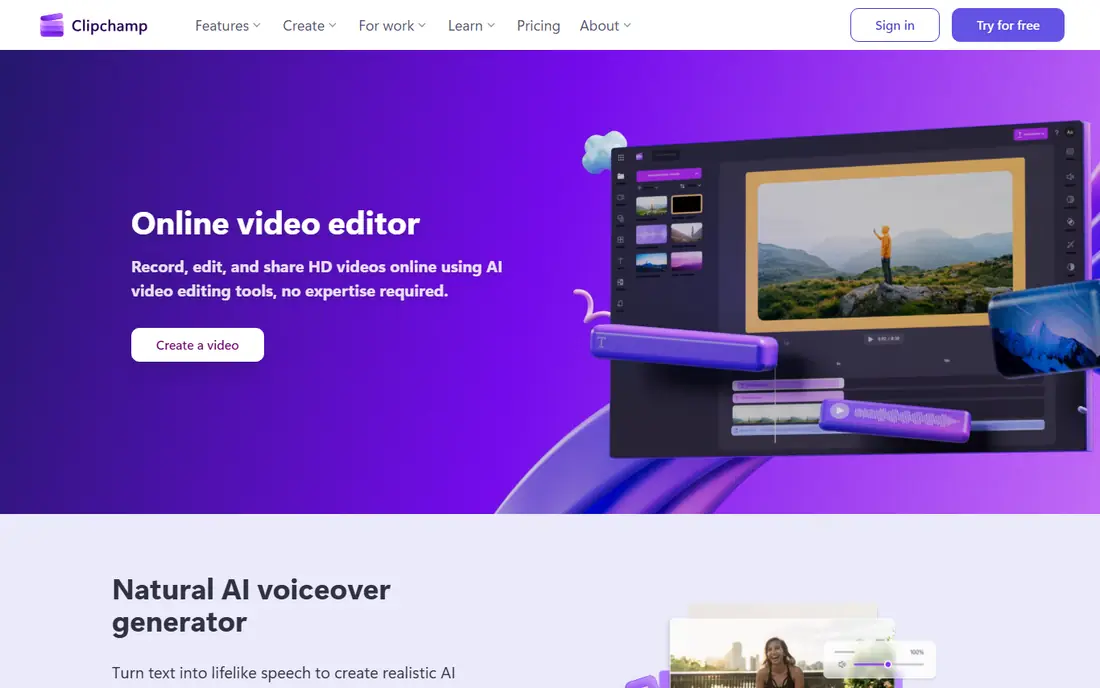
Clipchamp is the strongest free browser option for Windows users, and it also runs on Mac through Chrome or Edge. The free plan allows unlimited exports at up to 1080p without a watermark, which is rare and genuinely useful. Screen recording, trimming, text, and auto captions cover tutorials, explainers, and simple marketing videos.
Premium features such as 4K export, premium stock, and a brand kit come through Microsoft 365 Personal or Family rather than a standalone Clipchamp subscription in most cases. That is good news if you already pay for Microsoft 365, and a reason to pause if you do not. For simple projects on a Windows PC, start free and only upgrade when a specific premium item blocks you.
- Watermark-free 1080p exports on free plan
- Screen recording built in
- Auto captions
- Best in Chrome or Edge
- Premium stock and 4K need Microsoft 365
DaVinci Resolve is the free tool we point serious editors toward. The free version includes editing, color grading, visual effects, and audio mixing in one program, and it exports up to 4K without a watermark. That combination is unusual, and it means a free download can carry a project from rough cut to a polished final video.
The trade-off is complexity. The interface has many panels, and the learning curve is longer than CapCut or Clipchamp. A modest laptop can also struggle with heavy footage. If you plan to edit often and want room to grow, that effort is worth it. If you need one quick clip today, pick a simpler tool from this list instead.
- Professional editing, color, and audio in one app
- No watermark on free exports
- No time limit
- Steep learning curve
- Needs a capable computer for larger projects
iMovie is the obvious free choice if you own an iPhone, iPad, or Mac. It comes free on Apple devices, opens quickly, and handles trimming, titles, transitions, music, and simple trailers with little fuss. You can start a cut on a phone and finish it on a Mac, which suits family videos, vlogs, and school projects.
Its limits show up when a project gets more ambitious. You will not find the deep color tools, layered effects, or audio control that DaVinci Resolve offers. That is a fair trade for most casual editors, since the app stays fast and approachable. For a straightforward video that needs to look tidy, iMovie is hard to beat on Apple hardware.
- Free on Apple devices
- Very easy to learn
- Clean 4K exports
- Apple devices only
- Limited advanced controls
OpenShot is a free, open-source editor that keeps things simple. You get unlimited tracks, title templates, transitions, and basic animation tools without paying or signing up for a subscription. It runs on Windows, Mac, and Linux, so it is a good fallback when you move between computers or use Linux as your main system.
The honest weakness is performance and polish. The interface feels older than its rivals, and exports can be slower on modest hardware. It also lacks the AI captions and template depth of CapCut or Canva. If you want a no-cost desktop editor for straightforward cuts, OpenShot does the job. If you want speed and modern helpers, look higher on this list.
- Free and open source
- Unlimited tracks
- Works on Windows, Mac, and Linux
- Interface looks dated
- Performance can lag on weaker machines
Shotcut is another free, open-source desktop editor, and it stands out for format support. It handles many audio and video formats, supports multi-format timelines, and allows native editing without converting files first. Filters, audio mixing, and 4K support cover a wide range of hobby and semi-professional projects.
The interface is functional rather than friendly, with many dockable panels that can feel busy at first. There is no large template library to lean on, so you build more from scratch. That suits editors who know what they want and prefer control over hand-holding. For a free desktop tool that rarely complains about a file type, Shotcut is a solid pick.
- Free and open source
- Wide format support
- No import step needed for many files
- Interface takes time to learn
- Fewer templates than Canva or CapCut
Adobe Express is built for fast, good-looking social videos rather than long edits. Templates, stock assets, text styles, and simple animation help a small business turn a photo set or short clip into a finished post in minutes. The free plan covers the basics, and the browser editor means you do not need a powerful computer.
The catch is depth. Complex timelines, detailed color work, and advanced audio editing belong in Premiere Pro, not Express. Premium templates and assets also sit behind a paid plan. Use Express when speed and a consistent look matter more than fine control, and move to a full editor when a project outgrows templates.
- Polished templates
- Brand tools
- Works in browser and on mobile
- Premium assets and features need a paid plan
- Less depth than Premiere Pro
Kapwing is a browser editor that works well for teams and for creators who subtitle a lot of content. You can trim clips, add captions, resize a video for different social formats, and share a link for feedback without installing software. That makes it handy for a small team that reviews drafts together.
Free use has limits on exports and quality, and the watermark and resolution rules can change, so read the current free plan page before you start a client project. For quick captioned clips and collaborative drafts, the free tier is useful. For frequent high-resolution publishing, a paid plan or a desktop editor will be less frustrating.
- Browser-based teamwork
- Subtitle and caption tools
- Simple resizing for social formats
- Free exports carry limits
- Heavier projects need a paid plan for full quality
How we picked these
We compared official feature pages, pricing pages, and app store listings for tools that offer a usable free tier in October 2026. We favored tools that let you export a finished video without paying, and we noted where a watermark, resolution cap, or premium asset changes that picture. We did not claim hands-on testing, and we left out tools whose free tier is only a short trial or a watermarked preview.
What to check before you choose a free video tool
Start with the export, not the feature list. Confirm the highest resolution on the free plan, whether a watermark appears, and whether the file format you need is included. A tool that looks generous in the editor can disappoint at export, and that is the moment when switching costs the most time.
Next, match the tool to your device and your footage. A phone editor is best for vertical clips shot that day, while a desktop editor handles longer timelines and larger files with more comfort. Check the supported browsers too, since some browser editors work best in Chrome or Edge and struggle elsewhere. Finally, think about how often you will edit. Occasional creators should favor simplicity and a true free tier, while weekly creators should weigh whether a paid plan saves enough time to justify its monthly cost.
A note on stock music and templates
Free templates and music libraries are convenient, but check the license for business use before you publish. Some free assets are fine for personal posts and need a paid plan for commercial work. When in doubt, use your own footage and music, or pick a plan whose license clearly covers your use.
Frequently asked questions
What is the best free tool to create a video?
CapCut is a good default for short social videos, Clipchamp is a good default for browser editing on Windows, and DaVinci Resolve is the best free choice for detailed desktop work. The right pick depends on your device, your video length, and how much control you want over the final cut.
Can I create a video for free without a watermark?
Yes, several tools on this list allow watermark-free exports on their free plans, including Clipchamp at up to 1080p and DaVinci Resolve. Other tools add a watermark on free exports or when you use premium assets, so check the export rules for the exact tool you plan to use.
What is the best free tool to create video on a phone?
CapCut and iMovie are the strongest phone options in this list. CapCut fits Android and iPhone users who make social clips, while iMovie fits Apple users who want a simple, clean editor. Both are free to start, and both export finished videos without a desktop computer.
Do free video tools work for business videos?
Yes, for short social posts, tutorials, and simple promos, free tools are often enough. For client work or frequent publishing, check the license for stock assets and music, and confirm that the free export quality meets your brand standard before you rely on it.
Is DaVinci Resolve really free?
Yes, the standard version of DaVinci Resolve is free to download and use, with no watermark and no time limit on the free tier. A paid Studio version adds extra tools, but most everyday edits do not need it.
Sources
See where you really rank - block by block
ProMapRanker scans Google Maps across a grid of your service area. Simple monthly plans from $19, white-label on every plan.
Start freeKeep reading
 zscaler alternatives
Best Zscaler Alternatives in 2026
Looking for zscaler alternatives? We compare 9 SASE and zero trust platforms on architecture, data protection, pricing, and fit for your network and team.
Read → zapier alternatives free
Best Zapier Alternatives Free in 2026
Nine automation tools for zapier alternatives free in 2026, all with genuinely free tiers, plus free plan limits, starting prices and upgrade paths explained.
Read → which platform is best for online reputation
Which Platform Is Best for Online Reputation in 2026
Wondering which platform is best for online reputation? We compare 8 review, listing, and response tools for small and multi-location businesses and agencies.
Read →