 ProMapRanker
Best Free Tools to Create Video From Images in 2026

Key takeaways
- Every tool in this list has a genuinely free tier that lets you turn photos into a finished video, not only a short trial that expires.
- Canva and Adobe Express are the easiest starting points for photo slideshows with text, music, and simple transitions.
- CapCut and Clipchamp suit short social videos, with templates and captions that speed up reels and shorts.
- Kapwing, InVideo, VEED, FlexClip, and Animaker cover browser-based editing when you do not want to install software.
- Consent rule: only use photos you own or have permission to use, and never use images of real people in a video without their consent, especially for ads or public posts.
Quick comparison
| Pick | Great for | Pricing starts at | Free tier | |
|---|---|---|---|---|
 Canva | Photo slideshows with design templates | Free | Yes | Visit |
 CapCut | Short social videos from photos | Free | Yes | Visit |
 Adobe Express | Quick photo videos with Adobe templates | Free | Yes | Visit |
 Clipchamp | Windows-friendly photo video editing | Free | Yes | Visit |
 Kapwing | Browser-based photo videos and captions | Free | Yes | Visit |
 InVideo | Template-driven photo videos | Free | Yes | Visit |
 FlexClip | Simple slideshow and storyboard videos | Free | Yes | Visit |
 VEED | Photo videos with subtitles and clean-up | Free | Yes | Visit |
 Animaker | Animated photo videos and characters | Free | Yes | Visit |
The best free tools to create video from images
We compared official feature pages, pricing pages, and public documentation for tools with a genuinely free tier that turns still images into video. Trial-only tools are excluded, even when a trial looks generous, because a trial ends and a free tier does not. Each tool below lets you import your own photos, arrange them on a timeline or storyboard, add text and music where offered, and export a finished video without paying, subject to the free-tier limits noted for each tool. Use only photos you own or have permission to use, and get consent before you include images of real people in a public video, an ad, or any post that implies endorsement.
Canva is our pick for most people who want a photo video without learning a video editor. Choose a video template, drop in your photos, set how long each photo shows, add text and music, and export. The free plan costs nothing, includes more than 1.6 million templates and millions of free photos and graphics, and gives 5 GB of storage, which is enough for personal slideshows, school projects, and small business posts.
Free limits are worth knowing before you start a large project. Premium templates, photos, and music are watermarked or locked on the free plan, and AI uses are capped each month. Background removal, one-click resize, and larger storage sit on Pro, which costs $18 per month or $144 per year. For a simple photo story with your own images, the free plan is usually enough, and you can upgrade only when a premium asset or tool becomes essential.
- Very large template library
- Easy drag-and-drop timeline
- Free plan includes many photos and design types
- Free plan limits premium assets and AI uses
- Background remover and resize tools need a paid plan
CapCut suits creators who turn photos into short vertical videos for social feeds. The free tier includes the core timeline editor, multi-track editing, and 1080p export for most workflows, plus templates that turn a set of photos into a paced reel with transitions and music in minutes. Auto captions and text-to-speech help when a photo video needs narration or on-screen words.
The free tier is generous, but it is not unlimited. Some premium effects, templates, and assets need a paid plan, and Pro, at $19.99 per month or $179.99 per year on web checkout, adds 4K export and the full AI toolkit. App store prices can run higher than web prices, so check the price in the app before you subscribe. For free photo reels, start on the free tier and only pay when a specific Pro feature blocks a finished video.
- Full timeline editor on the free tier
- Strong templates and captions
- Works on mobile, desktop, and web
- Some exports and assets may carry a watermark on free
- 4K export and full AI tools need a paid plan
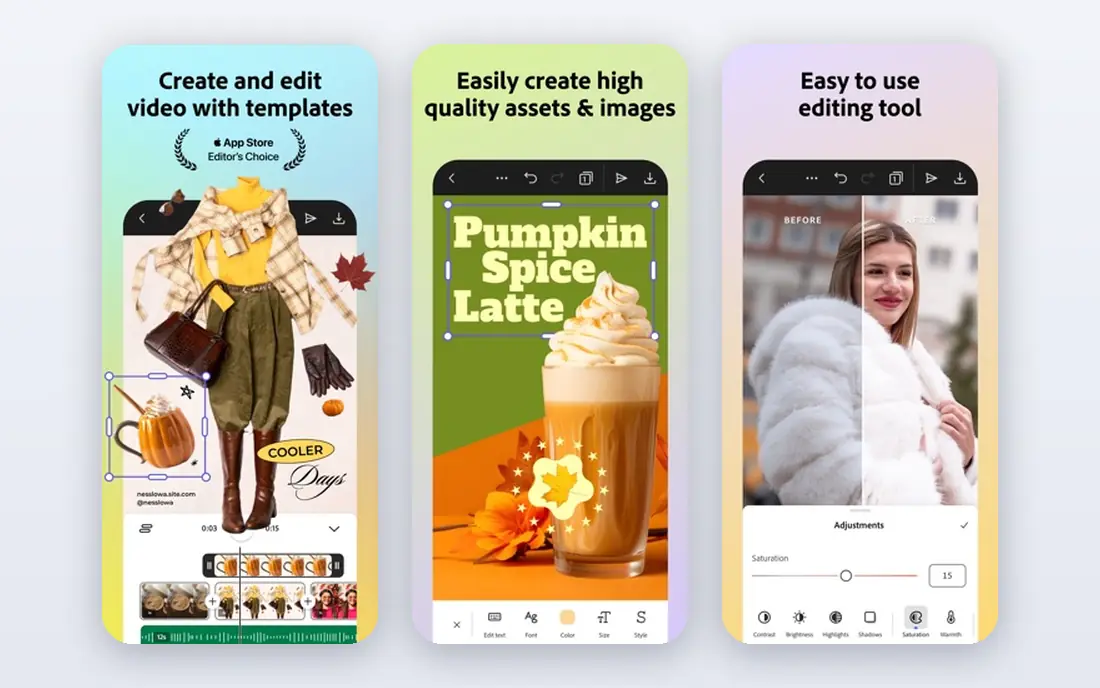
Adobe Express is a good choice when you want a polished photo video quickly and you already use Adobe tools or fonts. Pick a template, add photos, adjust text and timing, and export a video sized for social, web, or presentation use. The free plan covers basic video creation with Adobe templates and a set of free assets, which suits announcements, product photos, and event recaps.
Premium assets, advanced AI features, and larger credit allowances sit on paid plans, including Firefly Pro at $19.99 per month, which adds Photoshop web and mobile access and more credits. Adobe Express will not replace a full video editor for long or complex projects, but for short photo videos with a clean look, it is faster than learning Premiere. Start free, and upgrade only when a template or asset you need is locked.
- Clean templates and quick video creation
- Integrates with Adobe stock and fonts
- Easy for small business posts
- Free plan has limited premium assets and credits
- Deeper editing needs Premiere or a paid plan
Clipchamp is a browser-based editor from Microsoft that works well for Windows users who want a real timeline without installing heavy software. Import photos, drag them onto the timeline, add transitions, text, and music, and export a finished video from the browser. The free plan covers core editing, which makes it a practical choice for school, work, and small business photo videos.
Free limits include premium stock assets, filters, and some export options, which sit on paid plans. If your project uses only your own photos and basic transitions, the free plan will carry you through. If you need premium stock video to fill gaps between photos, check whether that stock is included before you build the whole timeline around it.
- Browser-based editor with a clear timeline
- Free plan covers core editing and export
- Works well on Windows
- Free plan limits premium stock and some effects
- Higher resolutions and premium features need a paid plan
Kapwing suits teams and creators who edit in a browser and share drafts by link. Upload photos, arrange them, add text, captions, and music, and export without installing software. Its subtitle tools are a particular strength for photo videos that need spoken narration turned into readable text, which helps viewers who watch without sound.
The free plan is real, but it has limits on export quality, video length, and watermarking, depending on the current plan details, so test a short export before you build a long project. Paid plans remove the watermark and raise limits. Kapwing is at its best for short, collaborative photo videos where a browser workflow matters more than advanced effects.
- No install needed
- Strong caption and subtitle tools
- Easy sharing and collaboration links
- Free exports may carry a watermark and have limits
- Longer videos and higher quality need a paid plan
InVideo is built around templates, which helps when you know the message but not the layout. Choose a template for a promo, a slideshow, or a social post, replace the placeholder images with your photos, edit the text, and export. The free plan lets you use that workflow and learn the editor before paying, which is useful for small businesses testing video content.
Free exports carry a watermark and have limits, and premium stock, higher export quality, and larger allowances sit on paid plans. That watermark matters if the video will run as an ad or on a business page, so budget for a paid month when a watermark-free export is required. For practice, drafts, and personal posts, the free plan is a fair way to learn whether template-driven editing suits you.
- Large template library for photo videos
- Text-to-video workflow for scripted posts
- Browser-based editing
- Free plan includes a watermark and limited exports
- Premium stock and features need a paid plan
FlexClip is one of the simplest browser tools for turning a set of photos into a video with a clear beginning, middle, and end. Its storyboard view lets you arrange photos, set durations, add text and music, and preview the flow without a complex timeline. That structure helps beginners who feel lost in a multi-track editor but still want control over order and pacing.
Free plan limits include export count, resolution, and stock usage, so check the current free allowances before you start a project you plan to publish widely. Paid plans raise those limits and add premium stock. FlexClip fits personal slideshows, classroom projects, and simple business promos, while creators who need detailed audio mixing or advanced effects should look at CapCut or Clipchamp instead.
- Simple storyboard workflow for photo videos
- Templates for slideshows and promos
- Browser-based
- Free plan limits exports, resolution, and stock use
- Advanced editing is lighter than desktop editors
VEED is a browser editor that shines when a photo video needs words as well as images. Add photos to a timeline, record or add narration, generate subtitles, and clean up audio, all in one workspace. That combination suits explainers built from product photos, photo stories with a voiceover, and social videos where captions carry much of the message.
The free plan lets you try that workflow, but free exports carry a watermark and have limits on length and quality, so a paid plan is needed for polished, watermark-free publishing. Test subtitles on a short draft first, because subtitle timing and styling affect how professional a photo video feels. For caption-led photo videos, VEED is a strong free starting point.
- Strong subtitle and transcription tools
- Clean browser editor
- Easy link sharing for review
- Free exports carry a watermark and have limits
- Higher quality and longer videos need a paid plan
Animaker adds movement to photo videos in a way the other tools here do not emphasise. Beyond slideshows, it offers animated characters, props, and scene templates that can turn photos into an explainer or a lesson, which suits teachers, trainers, and small businesses explaining a product with images. The browser editor keeps the workflow accessible without installing animation software.
Free plan limits include export quality, video length, and premium assets, and the free watermark and branding need checking before public use. Animaker animation style is playful, which fits education and social content better than a formal corporate video. If you want a photo video with character animation on a free tier, Animaker is the most distinctive option in this list.
- Animation templates and characters for lively photo videos
- Browser-based
- Useful for explainers and lessons
- Free plan limits exports, quality, and premium assets
- Animation style may not suit serious brand videos
How we picked these
We compared official feature pages, pricing pages, and public documentation, and we kept only tools with a genuinely free tier that produces a finished video from images. Trial-only tools were excluded, even when their trial period is generous, because a trial is not a free plan. We favoured tools that accept your own photos, offer templates or a timeline, and export without a forced upgrade for a basic project, and we noted watermark and resolution limits where they apply to free exports. We also required legitimate creative use: only use photos you own or have permission to use, and get consent for images of real people.
What to check before you start a project
Check the free export rules before you build. A watermark, a resolution cap, or a monthly export limit can change whether a free tool fits a public project, even when editing feels free. Make a short test video with three photos, add text and music, and export it.
Choose by video length and destination
Short social videos favour CapCut, Clipchamp, and VEED, where templates and captions speed up vertical formats. Longer slideshows for family, school, or events favour Canva, FlexClip, and Adobe Express, where storyboard and template workflows keep order clear. Animated explainers favour Animaker, while collaborative browser projects favour Kapwing. Match the tool to the destination first, because a tool that exports well for one platform may add extra steps for another.
Use your own photos and get consent for people
Photo videos often mix personal, client, and stock images, and rights matter for each set. Use photos you took yourself, stock with a licence that covers video use, or client photos with written permission for the intended video and channels. For images of real people, get consent before public posting, advertising, or any use that implies endorsement, and keep that consent on file. When a photo source is unclear, replace the image rather than risking a rights or consent problem in a published video.
Frequently asked questions
Can I really make a video from images for free?
Yes, with the tools in this list, because each one has a free tier that exports a finished video. Free limits usually involve watermarks, resolution, export counts, or premium assets, so a basic personal slideshow is free, while a polished business video may need a paid month for a watermark-free, high-quality export.
Which free tool is best for a photo slideshow?
Canva is the easiest choice for most slideshows, thanks to templates and a simple timeline. FlexClip is a close second for a storyboard approach, and Adobe Express suits a clean, branded look. Try Canva first, and switch only if you need a specific template style or editing feature it lacks on the free plan.
Which free tool is best for social media reels from photos?
CapCut is the strongest free option for short vertical reels, with templates, captions, and mobile editing. Clipchamp and VEED are good browser alternatives, especially when captions matter. Check watermark rules on the free tier before posting a reel for a business account.
Do free photo video tools add a watermark?
Some do, and some do not, and the answer can depend on which assets you use. InVideo, Kapwing, VEED, and Animaker free exports commonly carry a watermark or branding, while Canva and CapCut free exports are often watermark-free for basic projects using free assets. Always run a test export before you publish.
Can I add music to a free photo video?
Most tools here offer free music tracks on the free tier, plus the option to upload your own audio where licensing allows. Check whether a free music track is cleared for commercial use before you use it in a business video, because personal-use music and commercial-use music are licensed differently. When in doubt, use music you own or a track with a clear commercial licence.
How many photos do I need for a good photo video?
A short social video works well with 8 to 15 photos, each shown for 2 to 4 seconds, while a longer slideshow can use 30 or more photos with varied pacing. Keep the total length under 60 seconds for social feeds unless the story needs more time, and cut photos that repeat the same scene. Pacing, music, and text matter more than photo count.
Sources
See where you really rank - block by block
ProMapRanker scans Google Maps across a grid of your service area. Simple monthly plans from $19, white-label on every plan.
Start freeKeep reading
 zoro.to alternatives
Best Zoro.to Alternatives in 2026
We compare the best zoro.to alternatives in 2026, listing only legal licensed anime streaming services, from Crunchyroll to free options for fans today.
Read → zip alternatives
Best Zip Alternatives in 2026
We compare the best zip alternatives for buy now, pay later in 2026, covering pay-in-4 plans, fees, spending limits, and credit reporting options today.
Read → yesware alternatives
Best Yesware Alternatives in 2026
Compare the best yesware alternatives for sales email tracking, templates, and sequences, with current pricing and honest tradeoffs for small sales teams.
Read →