 ProMapRanker
Best Free Tools to Convert Image to Video in 2026

Key takeaways
- Canva and Adobe Express are the easiest starts if you already design social graphics.
- CapCut and Kapwing suit short social clips with music, captions, and quick edits.
- FlexClip and InVideo offer more templates for product and business videos.
- Free exports often carry a watermark or a quality cap, so check export terms first.
Quick comparison
| Pick | Great for | Pricing starts at | Free tier | |
|---|---|---|---|---|
 Canva | Beginners who want templates and easy animation | Free | Yes | Visit |
 CapCut | Creators who want short social clips | Free | Yes | Visit |
 InVideo | Marketers who want template product videos | Free | Yes | Visit |
 FlexClip | Small teams who want templated business videos | Free | Yes | Visit |
 Adobe Express | Designers who want Adobe templates and assets | Free | Yes | Visit |
 Kapwing | Creators who want captions and quick social edits | Free | Yes | Visit |
 VEED | Creators who want subtitles and repurposed clips | Free | Yes | Visit |
 Animaker | Beginners who want animated photo videos | Free | Yes | Visit |
The best free tools to convert image to video
Image to video tools turn still photos into short clips with motion, music, and text. They suit social posts, product demos, slideshows, and simple ads, without a full video shoot. Free plans usually limit export quality, add a watermark, or cap monthly exports, so check those limits before you build a large project. The tools below all offer a free way to start, and we note where a paid plan is needed for clean, high-quality exports.
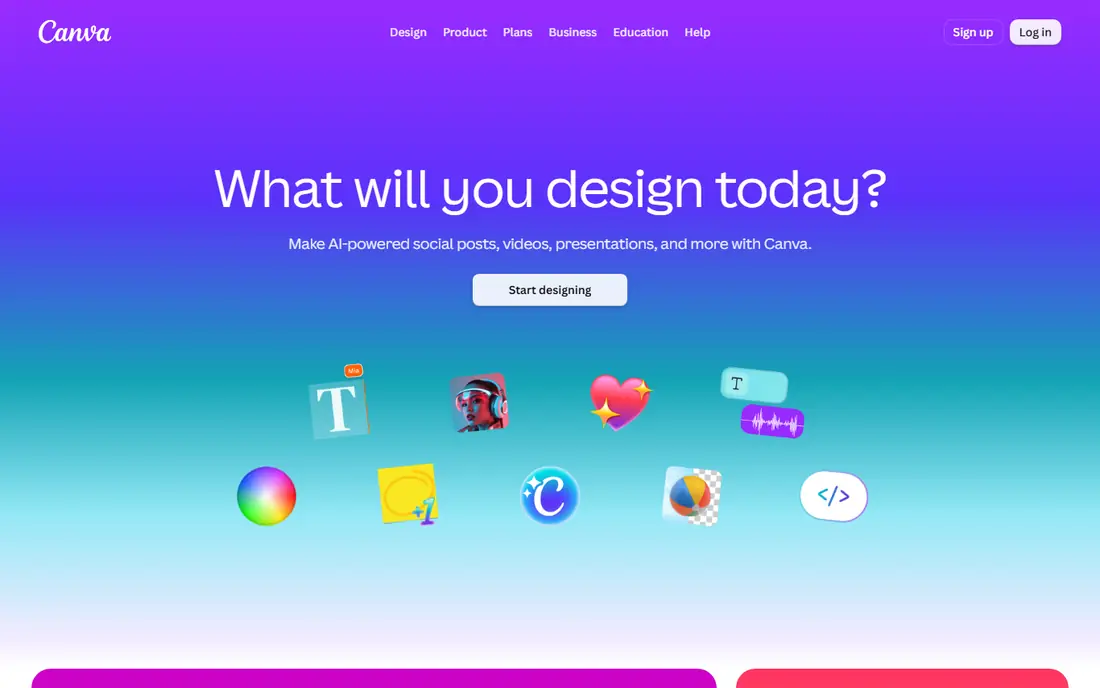
Canva lets you drop photos into video templates, add text, music, and simple animation, then export a short clip. It suits beginners and small business owners who already use Canva for graphics and want video without learning a new editor. The template library covers social posts, ads, and presentations in many sizes.
The limit is depth, since Canva is not a full timeline video editor for complex cuts and audio work. Premium assets and some AI tools need a Pro plan, and a template that looks free may include a premium element. Still, for quick photo to video posts, Canva is the easiest free start in this list.
- ['Huge template library for social video', 'Easy photo animation and text tools', 'Free projects with free assets can export cleanly']
- ['Premium assets and AI tools need a paid plan', 'Video editing is simpler than a full timeline editor', 'Some templates need a Pro licence for commercial use']
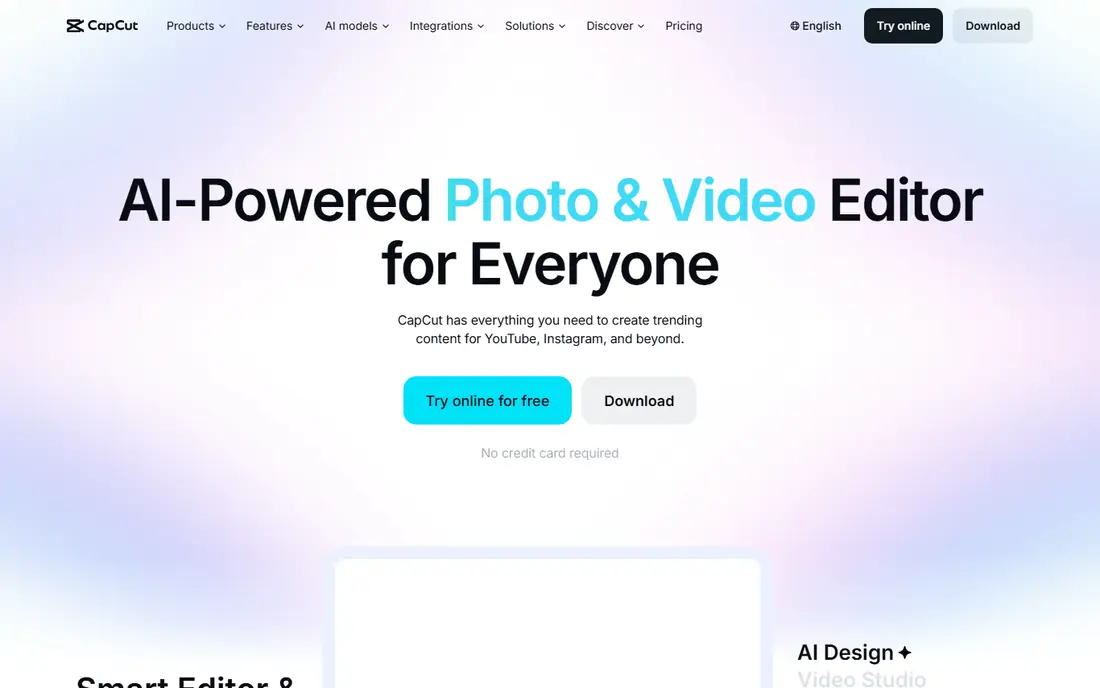
CapCut turns photos into short social clips with transitions, music, captions, and effects, and it is built for the fast pace of short-form video. It suits creators who post often and want a quick workflow from phone photos to a finished clip. The free tier covers a lot of basic editing, which is why it is so widely used.
Some templates, effects, and cloud features sit behind a paid plan, and export limits can change. The sheer number of templates also means quality varies, so preview before you publish. For free, fast social video from photos, CapCut remains a strong pick.
- ['Strong free editing for short video', 'Music, captions, and effects built in', 'Mobile and desktop versions available']
- ['Some effects and assets need a paid plan', 'Export and cloud limits vary by plan', 'Template quality varies a lot']
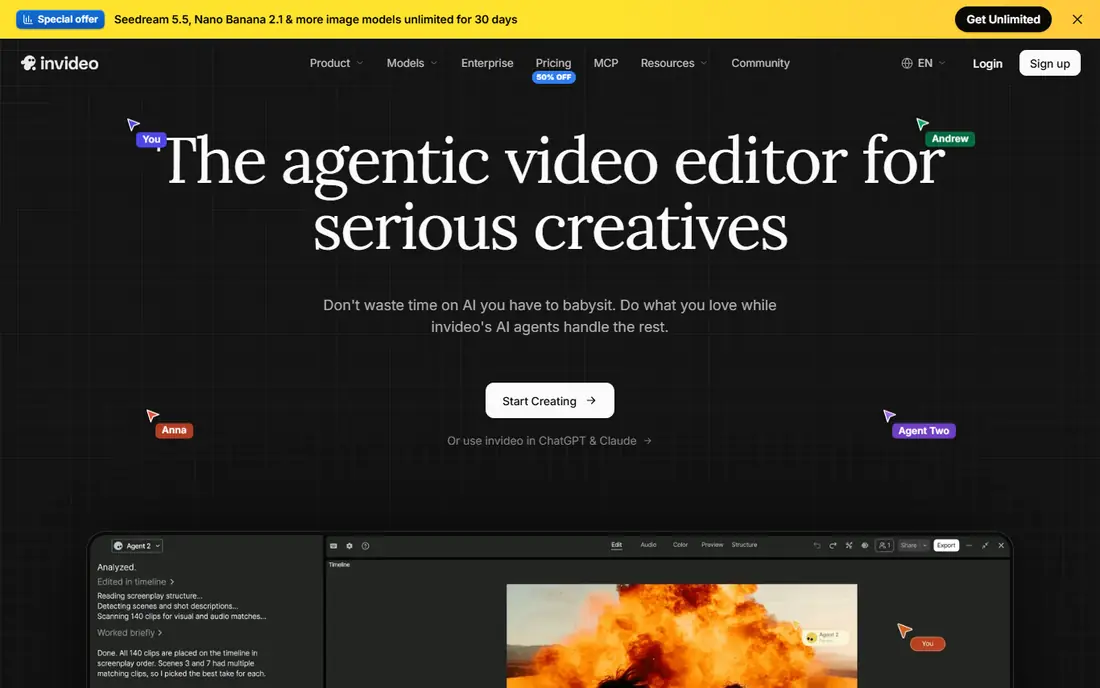
InVideo offers templates for ads, product demos, and social posts, plus a timeline editor for manual control. It suits marketers who want a more structured video than a simple slideshow, with text, voiceover, and stock footage alongside their own photos. The free tier lets you edit and export, which makes it easy to test before paying.
AI generation and some stock assets use credits or paid plans, so a free project may need manual editing to get the result you want. The editor also takes longer to learn than Canva, since it offers more controls. If you want a polished business video and can spend time on edits, InVideo is worth the extra effort.
- ['Large template library for business video', 'Timeline editor for manual edits', 'Free editing with watermark-free exports in some cases']
- ['AI generation uses credits on paid plans', 'Some stock assets need a paid plan', 'Learning curve is higher than Canva']
FlexClip is a browser editor with templates for business, social, and product videos, plus AI tools for subtitles, text to speech, and image to video. It suits small teams who need a steady flow of templated videos without installing software. The free plan lets you explore the editor and build a project before paying.
Free exports carry a watermark and are capped at 720p in the usual case, so clean high-quality exports need a paid plan. AI generated clips can also need manual editing to look right. For a free test, FlexClip is useful, but budget for a plan if you publish often.
- ['Many business and social templates', 'AI tools for subtitles and voice', 'Cloud editing with team sharing']
- ['Free exports are watermarked at 720p', 'Paid plans are needed for 1080p clean exports', 'AI video quality can need manual fixes']
Adobe Express turns photos into social videos with templates, animation, and text, backed by Adobe design assets. It suits designers and small businesses who already use Adobe tools or who want a polished look without a complex editor. The free plan covers many templates and basic video features, which is enough for regular social posts.
Premium assets, some AI features, and higher-quality exports need a paid plan. The editor is also template based, so it will not replace a full video editor for complex projects. For clean, brand-friendly social video from photos, Adobe Express is a reliable free start.
- ['Strong design templates and Adobe assets', 'Easy photo animation and text', 'Works well with other Adobe tools']
- ['Premium assets and features need a paid plan', 'Video editing is template based, not full timeline', 'Some features need an Adobe account and app setup']
Kapwing is a browser editor that turns photos into videos with text, captions, music, and simple transitions. It suits creators who want captions for social video and who like working in a browser without installing software. The timeline is clear, and sharing a project link makes team review easy.
Free exports may carry a watermark and some features need a paid plan, so check the export screen before you finish a project. Longer videos can also take time to process. For captioned social clips from photos, Kapwing is a practical free option, especially for teams.
- ['Browser editor with caption tools', 'Easy photo to video timelines', 'Collaboration and sharing tools']
- ['Free exports may carry a watermark', 'Some features need a paid plan', 'Longer videos can be slower to export']
VEED is a browser editor built around subtitles, repurposing, and social formats, and it handles photo to video projects well. It suits creators who want clear captions and a quick path from photos to a social clip, with templates for common sizes. The subtitle tools are a real advantage for videos watched without sound.
The free plan has limits on exports and may add a watermark, while AI features sit behind paid plans. Motion design is also more limited than in a dedicated animation tool. If captions and clean social formats matter most, VEED is a good free start, with a paid plan for regular publishing.
- ['Strong subtitle and caption tools', 'Browser editing for photo and video', 'Templates for social formats']
- ['Free plan has export and watermark limits', 'Some AI features need a paid plan', 'Advanced motion design is limited']
Animaker turns photos into animated videos with templates, text animation, and character options. It suits beginners who want a playful, animated style for explainers, social posts, and classroom videos. The browser editor needs no install, and the template library helps new users start fast.
Free exports carry a watermark, and higher quality exports need a paid plan, so a free Animaker video is best for drafts and internal use. Some templates also feel older than newer rivals. For a free animated photo video with a clear story, Animaker is still a useful option.
- ['Animation templates for photo videos', 'Character and text animation options', 'Browser based with no install needed']
- ['Free exports carry a watermark', 'Higher quality exports need a paid plan', 'Some templates feel dated next to newer tools']
How we picked these
We compared image to video tools that are live in October 2026, using their own homepages, pricing pages, and help pages. We kept only tools with a free plan or a free tier that lets you turn photos into a video and export it, and we left out tools that only generate video from text with no photo input. Prices change often, so we use See website where a paid price could not be confirmed from the vendor page at writing time.
How to turn photos into good videos for free
Start with the story, not the effects
Pick three to five photos that show a clear order, such as a problem, a product, and a result. Too many photos in a short clip makes it hard to follow, while too few makes it feel static. Write one short line of text per scene, and keep the total length under 60 seconds for social posts.
Match music and motion to the photo
Slow zooms suit portraits and product shots, while quicker cuts suit travel and food clips. Music should support the mood without drowning out any voiceover. If you use stock music from the tool, check the licence for commercial use, since free personal use and paid commercial use are not always the same.
Check exports before you publish
Free exports may be capped at 720p, may carry a watermark, or may limit how many videos you can export each month. Export a short test clip first and watch it on a phone, since small text can be hard to read on a small screen. If the watermark sits over your product, a paid plan or a different tool may be worth it.
Frequently asked questions
What is the best free tool to convert image to video?
Canva is a strong all-round free start, with templates, music, and easy photo animation. CapCut suits short social clips, while FlexClip and InVideo suit business and product videos. Try two tools with the same photos and compare the export quality before you commit to one.
Can I convert images to video for free without a watermark?
Some tools offer watermark-free exports on a free plan for projects using your own or free assets, while others add a watermark until you pay. Canva free projects using free assets can export without a watermark in many cases, while FlexClip free exports are watermarked. Check the export screen before you publish, since terms vary by asset type.
How many photos do I need for a good video?
Three to five strong photos are enough for a short social clip, while a product demo may need eight to twelve. Use one clear idea per photo, and keep each photo on screen long enough to read any text. A 30 to 60 second video usually works better than a long slideshow that loses viewers.
Do these tools work on a phone?
Yes, Canva, CapCut, and Adobe Express have mobile apps, while others work best in a browser. Phone apps suit quick social clips, while browser editors suit longer projects with more text and timing control. Check the app store listing for the features you need, since mobile and web versions can differ.
Can I use these videos for my business?
Yes, but check the licence for music, stock photos, and templates, since free personal use does not always cover commercial use. Use your own photos where possible, and keep a note of the licence for any stock asset. If a tool marks an asset as premium, you may need a paid plan for commercial use.
Sources
See where you really rank - block by block
ProMapRanker scans Google Maps across a grid of your service area. Simple monthly plans from $19, white-label on every plan.
Start freeKeep reading
 zoho inventory alternatives
6 Alternatives to Zoho Inventory, Compared on Price and Fit
Zoho Inventory alternatives: 6 tools compared on price, free plans and fit. Katana leads the list for manufacturers. Fit and flaws are laid out for each entry.
Read → zoho crm alternatives
Best Zoho CRM Alternatives (2026)
Need Zoho CRM alternatives? We compare 7 tools on cost, free access and who each suits. Every pick gets a straight assessment. Built for quick decisions.
Read → zelle alternatives
Best Zelle Alternatives in 2026
Compare the best Zelle alternatives for sending money to friends, paying sellers and moving funds abroad, with honest notes on fees, speed and safety in 2026.
Read →