 ProMapRanker
Best Free PDF Extract Tools in 2026

Key takeaways
- PDF24 Tools and PDFgear are the best fully free starting points, because PDF24 has no file or page cap on its free tools and PDFgear offers a free desktop editor.
- iLovePDF and Smallpdf are best for quick browser jobs, such as splitting out pages or converting a PDF to Word, but their free tiers have daily or size limits.
- Sejda is the best choice for sensitive files, because it deletes uploads after processing and offers clear limits for free use.
- Scanned PDFs need OCR before text can be extracted, so pick a tool with OCR if your file is a scan rather than a digital document.
Quick comparison
| Pick | Great for | Pricing starts at | Free tier | |
|---|---|---|---|---|
 PDF24 Tools PDF24 Tools | Fully free browser extraction | Free | Yes | Visit |
 iLovePDF iLovePDF | Splitting out pages fast | Free | Yes | Visit |
 Smallpdf Smallpdf | Converting and OCR in the browser | See website | Yes | Visit |
 Sejda Sejda | Privacy focused extraction | Free | Yes | Visit |
 PDF Candy PDF Candy | Simple single file jobs | Free | Yes | Visit |
 Adobe Acrobat Adobe Acrobat | Full PDF editing and extraction | See website | Free trial | Visit |
 PDFgear PDFgear | Free desktop editing | Free | Yes | Visit |
 UPDF UPDF | Desktop extraction with AI help | See website | Free trial | Visit |
 PDF2Go PDF2Go | Browser extraction with conversion | Free | Yes | Visit |
The best free PDF extract tools
We focused on tools that can actually pull something out of a PDF, whether that is pages, text or images, and that still offer a usable free tier in 2026, not just a trial that ends after one file.
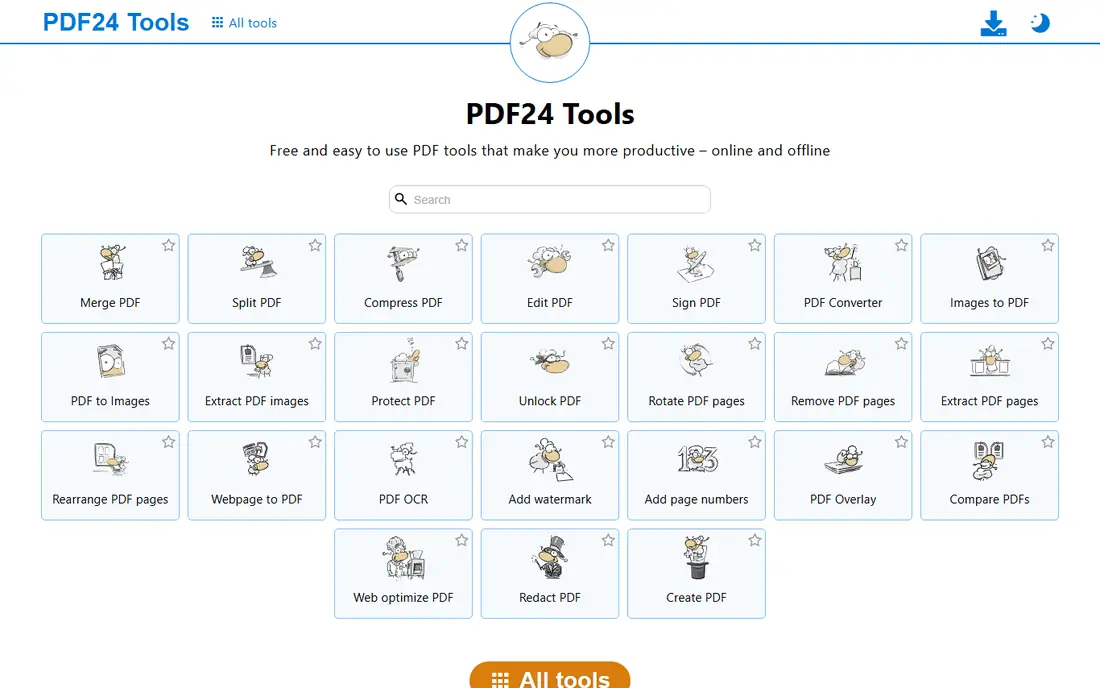
PDF24 Tools is our first pick for most free extraction jobs, because its browser tools are free without a file or page cap, which is unusual in this category. You can split a PDF to extract selected pages, convert pages to images, convert a PDF to Word or text, and pull out content without creating an account for most tasks. That makes it a good choice when you have several files to process and do not want to hit a daily limit halfway through.
The trade off is that PDF24 is online and ad supported, so you upload your file to its servers. For ordinary documents that is fine, but for sensitive records a desktop tool such as PDFgear is safer.
- No file or page cap on free tools
- Extracts pages, images and text through conversion
- Works in the browser with no install
- Ad supported
- Online only, so files are uploaded to a server
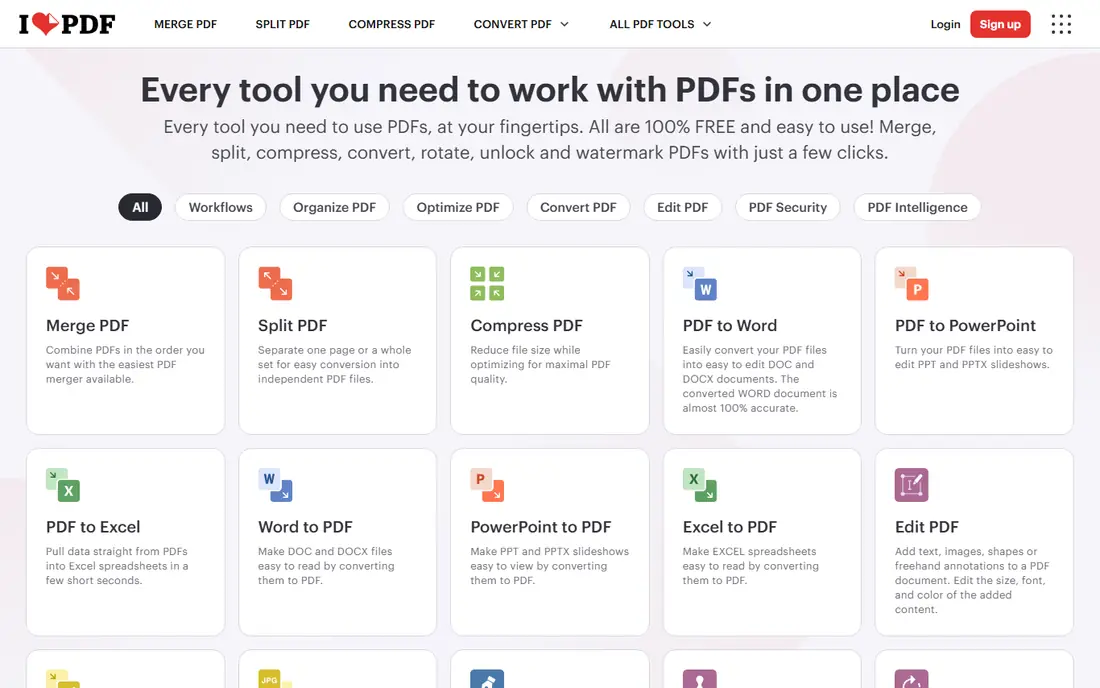
iLovePDF is the easiest tool in this list for extracting pages. Its Split PDF tool lets you select individual pages or a range, extract them as a new PDF, or split every page into separate files, all from thumbnails that make it easy to pick the right pages. The same site also offers PDF to Word, PDF to image and compression tools, so one visit can cover several steps in a document workflow.
The free tier is generous for occasional use, but it limits file size and task count, and heavier users will need a paid plan. It also requires uploading files, so it is not best for confidential documents.
- Clear page extraction and split options
- Fast browser workflow
- Connects to Google Drive and Dropbox
- Free tier has limits on file size and tasks
- Some advanced features need a paid plan
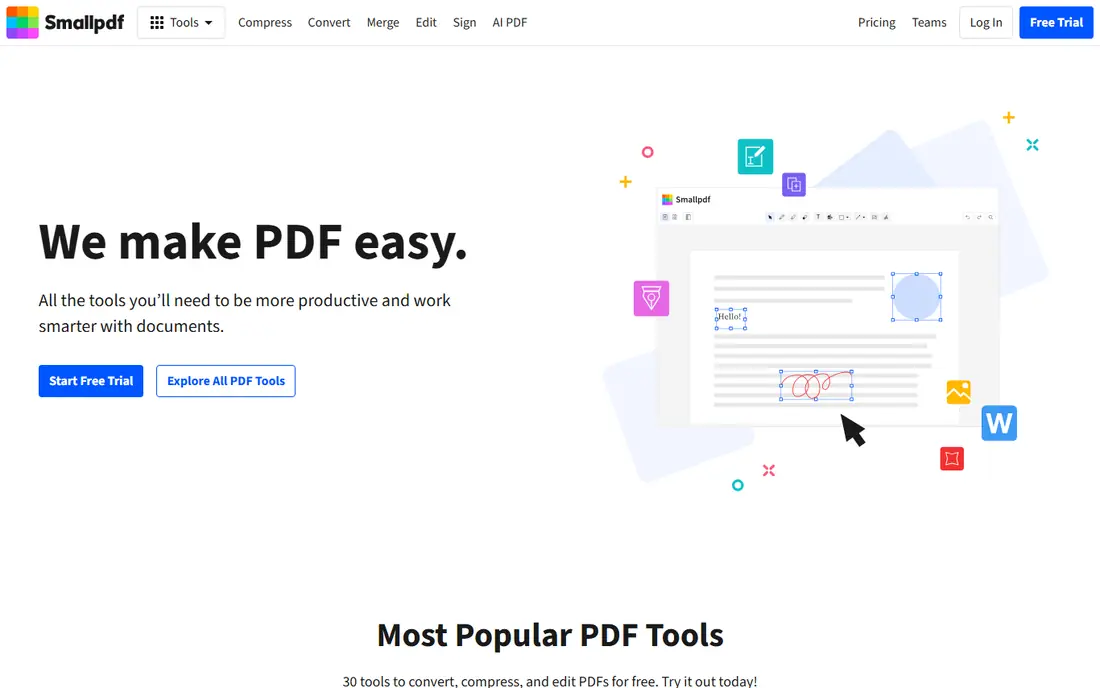
Smallpdf is a good browser choice when your goal is usable text rather than just pages. Its OCR tool can recognize text in a scanned or image based PDF and make it searchable and selectable, and you can then export the result as a Word document for editing. The interface is clean, the tools run in any modern browser, and you can pull files from Dropbox, Google Drive or OneDrive as well as from your computer.
The free tier is the limitation, because it allows only a limited number of tasks per day and caps file size, so it suits occasional jobs rather than bulk work. Some advanced OCR and conversion options also need a paid plan. If you have one scanned document and you need editable text today, Smallpdf is a strong pick, but for repeated use PDF24 or a desktop tool will be cheaper.
- Clean browser tools
- OCR for scanned PDFs
- Converts extracted text to Word
- Free tier is limited to a small number of tasks per day
- Some OCR and conversion features need a paid plan
Sejda is the tool we would choose for a document you would rather not leave on a server. It states that files are deleted after processing, and its tools cover splitting pages, extracting pages, converting PDF to text and working with images, all in a straightforward browser interface. The free tier is clearly defined, with a limit of 200 pages or 50 MB per file and three tasks per hour, so you know where you stand before you start.
Those limits mean Sejda is not best for a large batch in one sitting, because you will hit the hourly cap. For a single sensitive file, the privacy handling outweighs the slower pace.
- Deletes files after processing
- Clear free limits
- Split, extract and convert tools in one place
- Free tier allows only three tasks per hour
- File limit of 200 pages or 50 MB on free use
PDF Candy suits people who want a simple tool for one file at a time. Its split tool extracts selected pages, its image tools pull pictures, and it offers OCR for scanned pages, all through a clean browser interface.
The free tier is the constraint, because it processes one file at a time and applies hourly and page limits, with batch processing reserved for the paid plan. That makes PDF Candy a poor fit for a folder full of PDFs, but a fine choice for occasional use. If you extract from PDFs only a few times a month, its simplicity is a real advantage.
- Simple one file workflow
- Split and image extraction tools
- OCR for scanned pages
- Free tier processes one file at a time
- Batch work and higher limits need a paid plan
Adobe Acrobat is the full featured option in this list, and it is the one to choose if extraction is part of regular PDF work rather than a one off job. The desktop app lets you extract pages, copy and export text, extract images, edit content, run OCR on scans and reorganize a document, all with a level of control that free browser tools do not match. The online Acrobat tools also cover basic extraction and conversion for occasional use.
The full app needs a paid subscription after a trial, and the free online tools have limits. If you already pay for Acrobat, use it for extraction too, because it handles complex layouts and scans well. For occasional free extraction, start with PDF24 or iLovePDF.
- Most complete PDF toolset
- Reliable text, page and image extraction
- Strong OCR and editing
- Full features need a paid subscription
- Online free tools are limited compared with the desktop app
PDFgear is the best free desktop option, because it offers a full PDF editor without a subscription, including a text extraction tool that lets you select part of a page and pull the text into a usable form. Because it runs on your computer, your files do not need to be uploaded to a server, which makes it a better choice for private documents. It also merges, splits, converts and signs PDFs, so it can replace several browser tools at once.
The app is broader than a simple extractor, so the interface has more options to learn than a one page browser tool. Some AI features, such as summarizing a document, may need an account or an internet connection, but core editing and extraction work offline. For regular PDF work on a desktop, PDFgear gives you the most for free.
- Free desktop app with no subscription
- Extract text tool for selecting page content
- Works offline
- AI features may need an account or a connection
- Interface is busier than a single purpose browser tool
UPDF is a desktop and mobile PDF editor that covers extraction alongside editing, annotation and conversion. You can extract images from a PDF, copy and export text, and use its AI tools to summarize a document or ask questions about its content, which is useful when you need to pull key points from a long report. It runs on Windows, Mac, iOS and Android, so one license can cover several devices.
The free version is a trial in practice, because saving and exporting are limited, and the full feature set needs a paid plan, so check current pricing on its website before committing. UPDF is worth considering if you want a modern desktop editor with AI help and you already plan to pay for PDF software. For a single free extraction, the browser tools above are faster and cheaper.
- Desktop app for Windows, Mac, iOS and Android
- Extract images and text
- AI tools for summaries and questions
- Full features need a paid plan
- Free version has limits on saving and exporting
PDF2Go is a solid browser alternative when you need both extraction and conversion in one place. Its split tool extracts pages, its conversion tools turn PDFs into images, Word and other formats, and you can pull files from cloud storage or upload them directly. The workflow is simple, and the site does not require an install, which suits shared or borrowed computers.
The free tier works on a credit system, with credits refilling daily, and longer processing uses more credits, so a large file can use up your allowance faster than you expect. That makes PDF2Go better for occasional jobs than for bulk work. If you like its interface, try it for a small file first and see how many credits your typical job uses.
- Split, extract and convert tools in the browser
- Works with cloud storage
- No install needed
- Free tier runs on credits that refill daily
- Large or complex files can use credits quickly
How we picked these
We compared official feature pages, pricing pages and tool documentation for each product, and we favored tools that are still available in 2026 and that offer a usable free tier, not only a short trial. We checked what each tool can actually extract, whether it is pages, text or images, and whether it handles scanned files with OCR. We also read public reviews and guides to see where users report the same limits, such as daily task caps, credit systems or file size limits, and we left out tools that only convert whole files without any extraction option.
Choosing the right extract tool
Start with the file in front of you, because a clean digital PDF, a scanned PDF and a large catalog need different tools.
What do you need to extract
If you need pages, use a split tool such as iLovePDF, PDF24 or Sejda, and pick pages from thumbnails rather than guessing page numbers. If you need text, use a PDF to Word or PDF to text tool, and check the output for tables and columns, which often need cleanup. If you need images, use an extract images tool rather than converting whole pages to pictures, because page conversion includes text and margins while image extraction pulls the original embedded pictures.
Scanned or digital
A digital PDF already contains selectable text, so extraction is usually clean and fast. A scanned PDF is really a set of pictures, so you need OCR before the text becomes usable, and tools such as Smallpdf, PDF Candy and Adobe Acrobat are better here than a simple split tool. Check scan quality too, because low resolution, skew or faint print will reduce OCR accuracy no matter which tool you use.
Privacy and file size
For sensitive files, prefer a desktop tool such as PDFgear, or a browser tool with clear deletion terms such as Sejda. For large files, check free limits first, because a page cap or hourly limit can stop a job halfway through.
After extraction, check the output
Open the extracted pages, text or images before you send them on, and check for missing pages, garbled tables or low resolution images. Complex layouts and scanned pages can produce surprises, so a quick check saves a correction later.
Frequently asked questions
What is the best free PDF extract tool?
PDF24 Tools is the best free starting point for most people, because its browser tools are free without a file or page cap, and they cover pages, images and text conversion. iLovePDF is best for splitting out pages quickly, Sejda is best for sensitive files, and PDFgear is best if you want a free desktop app. The right choice depends on whether your file is digital or scanned, and whether privacy matters more than speed.
How do I extract pages from a PDF for free?
Use a split tool such as iLovePDF, PDF24 or Sejda, upload your PDF, and select the pages you want from thumbnails or by page number. You can extract selected pages into a new PDF, or split every page into separate files, depending on the tool. Most browser tools do this without an account, but check file size and task limits before you start a large job.
How do I extract text from a PDF?
For a digital PDF, use a PDF to Word or PDF to text tool, or simply select and copy the text if the layout is simple. For a scanned PDF, you need OCR first, using a tool such as Smallpdf, Adobe Acrobat or PDF Candy, which recognizes the text in the image and makes it selectable. After extraction, check tables, columns and special characters, because complex layouts often need a quick cleanup.
Can I extract images from a PDF for free?
Yes, tools such as PDF24, PDF Candy, Sejda and UPDF can extract embedded images from a PDF, usually as a zip file of image files. Use an extract images tool rather than converting pages to images if you want the original pictures without text and margins. Note that vector graphics, which are drawn shapes rather than pictures, cannot be extracted as image files in the same way.
Is it safe to upload a PDF to an online extract tool?
It depends on the file and the tool, because online tools process your file on their servers. For ordinary documents the risk is low, but for contracts, medical records or personal data, use a desktop tool such as PDFgear, or a service such as Sejda that states it deletes files after processing. Read the privacy terms before uploading anything sensitive, and avoid free tools that do not explain how they handle uploads.
Why does my extracted text look messy?
Messy text usually comes from a complex layout, a scanned original or a table that the tool could not parse cleanly. Columns, headers, footers and tables are the most common causes, and OCR errors add to the problem for scans. Try a different tool, check whether the original PDF has selectable text, and expect to clean up tables by hand, because no free extractor handles every layout perfectly.
Sources
- https://tools.pdf24.org
- https://www.ilovepdf.com
- https://smallpdf.com
- https://www.sejda.com
- https://pdfcandy.com
- https://www.adobe.com/acrobat.html
- https://www.pdfgear.com
- https://updf.com
- https://www.pdf2go.com
- https://www.wps.com/blog/top-free-tools-to-extract-images-from-pdf-without-losing-quality-updated/
- https://updf.com/edit-pdf/extract-image-from-pdf-online/?amp=1
See where you really rank - block by block
ProMapRanker scans Google Maps across a grid of your service area. Simple monthly plans from $19, white-label on every plan.
Start freeKeep reading
 zendesk alternatives
Best Zendesk Alternatives in 2026
Compare the best Zendesk alternatives in 2026, from budget help desks to AI-first support tools, with current pricing, free plans, and honest trade-offs.
Read → wordpress alternatives
Best WordPress Alternatives in 2026
Looking for the best WordPress alternatives? We compare 8 free and paid options for blogs, business sites, stores, and developer-led projects in 2026.
Read → which real estate company has the best training
Best Real Estate Company Training in 2026
Compare which real estate company has the best training, from Keller Williams and eXp to Compass and Coldwell Banker, by program, mentor, and fit in 2026.
Read →