 ProMapRanker
Best Free Online Image Merger Tools in 2026

Key takeaways
- Simple joiners such as PineTools and PhotoJoiner are best for quick side-by-side or stacked images without an account.
- Design tools such as Canva, Fotor, and Adobe Express suit polished collages with text, templates, and layouts.
- PNG export suits screenshots and text, while JPG suits photos where file size matters more than crisp edges.
- Free tiers often limit resolution, layouts, or watermark-free export, so test an export before a large project.
Quick comparison
| Pick | Great for | Pricing starts at | Free tier | |
|---|---|---|---|---|
 Canva | Collages and social posts | Free | Yes | Visit |
 Fotor | Photo collages and edits | Free | Yes | Visit |
 Adobe Express | Quick merges with templates | Free | Yes | Visit |
 Pixlr | Merging inside an editor | Free | Yes | Visit |
 BeFunky | Collages with filters | Free | Yes | Visit |
 PineTools | Simple no-signup merging | Free | Yes | Visit |
 PhotoJoiner | Joining photos online | Free | Yes | Visit |
 IMGonline | Simple JPG and PNG merging | Free | Yes | Visit |
 ILoveIMG | Batch image tools including merging | Free | Yes | Visit |
The best free online image merger tools
We focused on tools you can use free in a browser, without installing software, for joining two or more images into one file.

Canva is the best free starting point when the merged image needs to look polished. Templates for social posts, presentations, and print give you grids, frames, and text in minutes, and the drag-and-drop editor is easy for non-designers. The free plan covers a large share of everyday collage work.
The trade-off is account and scope. You need an account, and some premium templates, stock photos, and features sit behind a paid plan. For a simple side-by-side join, a no-signup tool will be faster. For a social post, invitation, or presentation graphic that needs text and layout, Canva is the clear pick.
- Huge template library
- Easy drag-and-drop layouts
- Free plan covers many collage jobs
- Account required
- Some templates and exports need a paid plan
- Overkill for a simple two-image join
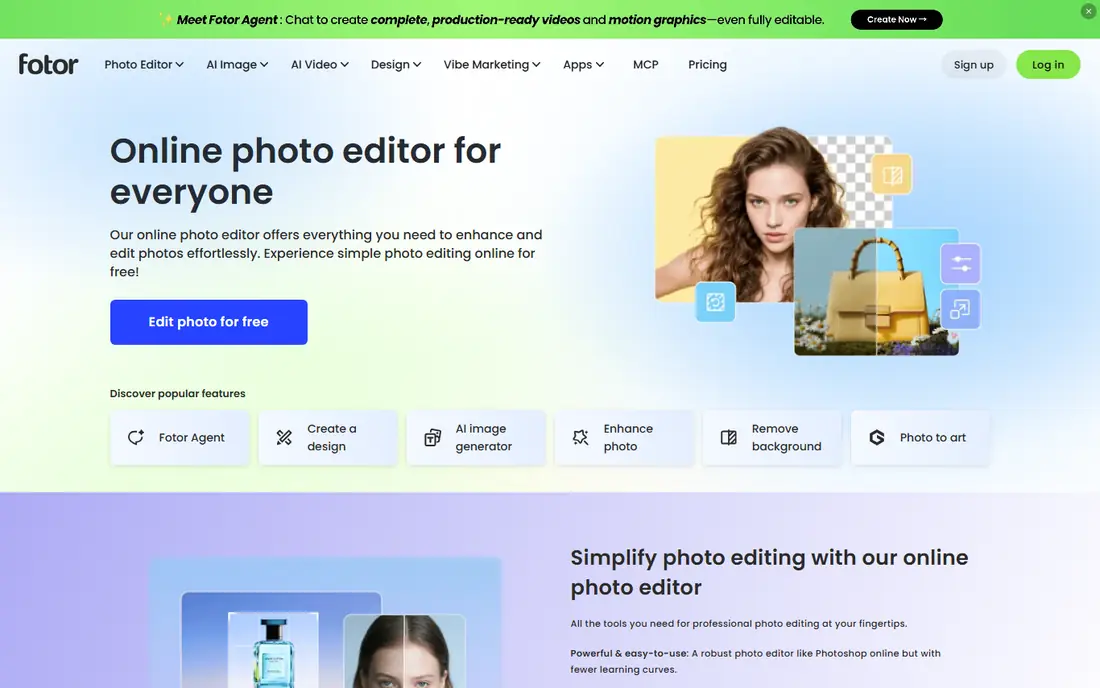
Fotor combines collage layouts with photo editing, so you can adjust brightness, crop, and filters before arranging images. That matters when source photos come from different phones or lighting conditions and need a quick clean-up first. Free collage tools cover grids, freestyle layouts, and common social sizes.
Advanced effects, batch work, and some export options require a paid plan, and free use includes prompts to upgrade. For a user who wants one browser tool for both editing and merging, Fotor is a strong free-first choice, especially for family, travel, and social collages.
- Collage layouts plus photo editing
- Free plan for basic use
- Templates for social and print
- Advanced tools and some exports need a paid plan
- Ads and prompts on free use
- Interface can feel busy
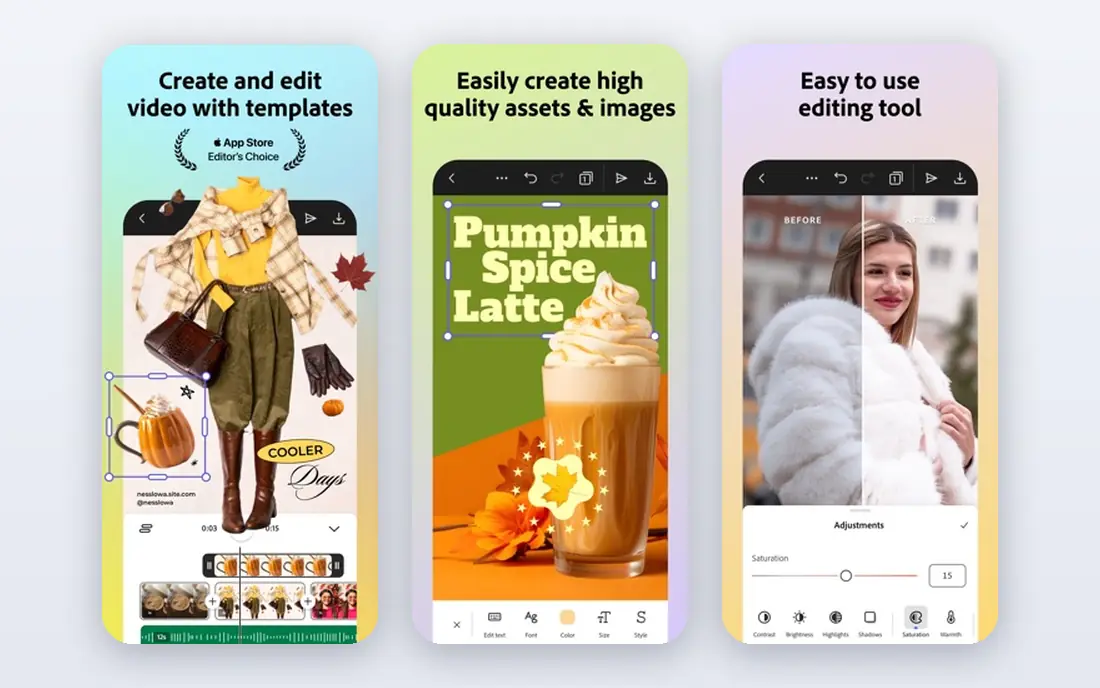
Adobe Express gives free users a polished, template-led way to merge images into social posts, flyers, and presentations. Adobe fonts and design assets help a merged image look consistent, and the workflow is faster than opening a full desktop editor for a simple job. The free plan covers core collage and design tasks.
Premium templates, stock assets, and brand controls sit behind a paid plan, and an Adobe account is required. For a business or creator already in the Adobe world, Express is a natural free tool. For a one-off join with no design needs, a simpler joiner will be quicker.
- Adobe templates and fonts
- Quick collage and design workflows
- Free plan for core use
- Account required
- Premium assets need a paid plan
- Less deep than full Photoshop for editing
Pixlr is a browser photo editor that also handles merging, which suits users who need more control than a grid template allows. Layers let you place images precisely, add text, and adjust each image separately before exporting one file. That control helps for before-and-after images, product comparisons, and annotated graphics.
Free use includes ads and limits, and the most useful advanced features need a paid plan. The editor also takes longer to learn than PineTools or PhotoJoiner. Pick Pixlr when placement, layers, or editing matter as much as the merge itself. Pick a simple joiner when speed matters more.
- Full browser editor plus collage options
- Layers for precise placement
- Free plan for basic use
- Ads on free use
- Advanced features need a paid plan
- Learning curve is higher than a simple joiner
BeFunky offers a friendly collage maker with filters, effects, and layout controls that suit social and personal projects. You can arrange photos in a grid, adjust spacing and borders, and apply a consistent look across the whole collage. The free plan covers the basic collage job well.
Premium filters, effects, and some export options require a paid plan, and free use includes upgrade prompts. BeFunky is less precise than Pixlr for layer-based work, but it is easier for a quick, attractive collage. For family photos, social posts, and simple creative projects, it is a good free pick.
- Collage maker with filters and effects
- Free plan for basic collages
- Easy layout controls
- Premium effects and exports need a paid plan
- Free use includes prompts to upgrade
- Less suited to precise layer work
PineTools is the tool to use when you just want two images joined and nothing else. Its merge tool lets you combine images vertically, horizontally, or in a grid, with controls for spacing and order, and no account is needed for basic use. That speed is valuable for screenshots, comparisons, and documentation.
There are no templates, filters, or design polish, and editing beyond the merge is limited. If you need text, branding, or a polished social layout, use Canva or Fotor instead. For a fast, private, no-signup join, PineTools is hard to beat, and browser-based processing helps keep screenshots off a server in many of its tools.
- No account needed for basic merging
- Vertical, horizontal, and grid options
- Images processed in the browser in many tools
- Plain interface
- No templates or design polish
- Limited editing beyond merging
PhotoJoiner does one job clearly: join photos into a single image online. Upload your images, choose a vertical or horizontal layout, adjust the result, and download it, without installing software or learning an editor. That focus makes it ideal for before-and-after photos, side-by-side comparisons, and quick documentation images.
Editing is limited, and the free site includes ads, so it is not the tool for a polished social design. For a straightforward join, though, PhotoJoiner is fast and easy to explain to anyone. It is a good bookmark for office, school, and support teams that merge screenshots regularly.
- Simple join workflow
- Vertical and horizontal layouts
- No install needed
- Plain design
- Limited editing
- Free site includes ads
IMGonline offers a set of simple image tools, including merging JPG and PNG files into one image. The workflow is direct: upload, choose settings, and download the result. For a user who only needs a basic merge and does not want an account or a design app, that simplicity is a strength.
The interface is plain and dated, and design options are limited compared with Canva or Fotor. Tool limits also vary, so check file size and format support before a large batch. For a quick, free, no-account merge of JPG or PNG images, IMGonline remains a useful option.
- Free and simple
- JPG and PNG merging
- No account needed for basic use
- Plain, dated interface
- Limited design options
- Processing and limits vary by tool
ILoveIMG, from the team behind iLovePDF, bundles image tools that often go together: merging is not the only job, because resizing, compressing, cropping, and converting usually follow it. That bundle helps when you merge photos for a website or document and then need them smaller or in a different format.
Free use has limits, and paid plans remove them and add desktop options, so check the current price before relying on it for daily batch work. Files are processed online, so avoid sensitive images unless you have checked the privacy terms. For regular, simple image jobs in a browser, ILoveIMG is a practical free-first hub.
- Batch image tools in one place
- Merge, resize, compress, and convert
- Free for basic use
- Advanced and unlimited use needs a paid plan
- Online processing only for web tools
- Ads on free use
How we picked these
We compared official product pages, free plans, and public use for browser image mergers live in October 2026. We favoured tools with a genuine free tier, a clear merge or collage workflow, and no install requirement, and we noted where paid plans remove limits or watermarks.
What to check before you merge
Choose your export format before you start. Use PNG for screenshots, diagrams, and text, because JPG compression can blur sharp edges. Use JPG for photos where file size matters, and keep a copy of the original images in case you need to redo the layout.
Also check privacy for sensitive screenshots. Browser tools that process images locally keep files on your device, while server-based tools upload them. For screenshots with private details, prefer a local-processing tool such as PineTools where available, or crop out sensitive details before uploading anywhere.
Frequently asked questions
What is the best free online image merger tool for a quick join?
PineTools and PhotoJoiner are best for a quick, no-signup join. Canva and Fotor are better when you need templates, text, or a polished collage layout.
Can I merge images online without signing up?
Yes. PineTools, PhotoJoiner, and IMGonline allow basic merging without an account. Canva, Adobe Express, and Fotor require an account for most collage work.
Should I export a merged image as JPG or PNG?
Use PNG for screenshots and text, because it keeps sharp edges clean. Use JPG for photos, because it gives smaller files with acceptable quality for most sharing and web use.
Do free image mergers add watermarks?
Some do on free tiers or for premium layouts, while simple joiners often do not. Always test an export before a large project, and check the paid plan if watermark-free export matters.
How many images can I merge for free?
It varies by tool. Simple joiners handle a handful of images easily, while design tools handle larger grids but may limit resolution or features on free plans. Check the tool before starting a large collage.
Sources
See where you really rank - block by block
ProMapRanker scans Google Maps across a grid of your service area. Simple monthly plans from $19, white-label on every plan.
Start freeKeep reading
 zscaler alternatives
Best Zscaler Alternatives in 2026
Looking for zscaler alternatives? We compare 9 SASE and zero trust platforms on architecture, data protection, pricing, and fit for your network and team.
Read → zapier alternatives free
Best Zapier Alternatives Free in 2026
Nine automation tools for zapier alternatives free in 2026, all with genuinely free tiers, plus free plan limits, starting prices and upgrade paths explained.
Read → which platform is best for online reputation
Which Platform Is Best for Online Reputation in 2026
Wondering which platform is best for online reputation? We compare 8 review, listing, and response tools for small and multi-location businesses and agencies.
Read →