 ProMapRanker
Best Free Hard Drive Cloning Software in 2026

Key takeaways
- Clonezilla and Rescuezilla are the only fully free, open source choices here with no paid gate on system cloning.
- Hasleo Disk Clone is the easiest free Windows-native option for a one-time drive upgrade.
- Free tiers from AOMEI and EaseUS help with data drives, but system disk cloning often needs a paid plan.
- Always test that the new drive boots before you wipe the old one, whatever tool you use.
Quick comparison
| Pick | Great for | Pricing starts at | Free tier | |
|---|---|---|---|---|
 Clonezilla | Free expert cloning | Free | Yes | Visit |
 Rescuezilla | Free graphical cloning | Free | Yes | Visit |
 Hasleo Disk Clone | Free Windows cloning | Free | Yes | Visit |
 AOMEI Backupper Standard | Free Windows imaging | Free | Yes | Visit |
 EaseUS Todo Backup Free | Friendly free backup | Free | Yes | Visit |
 Samsung Data Migration | Samsung SSD upgrades | Free | Yes | Visit |
 DiskGenius Free | Free cloning plus disk tools | Free | Yes | Visit |
 Paragon Backup and Recovery Community | Free personal imaging | Free | Yes | Visit |
 Veeam Agent for Windows Free | Free single PC backup | Free | Yes | Visit |
The best free hard drive cloning software
Cloning copies a whole drive so the new drive can boot and work just like the old one. That is different from copying files, and it is the right job when you move to a larger or faster SSD. These free tools cover that job, but their limits differ in important ways.
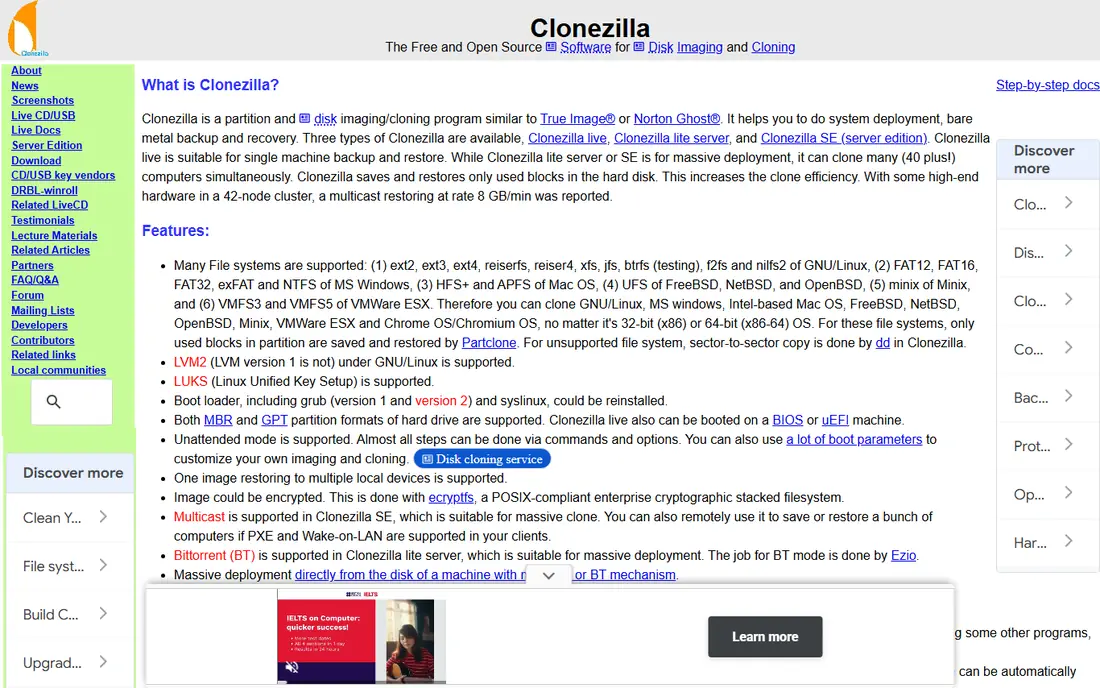
Clonezilla is the most capable free cloning tool, and it has earned that place over many years. It runs from a bootable USB drive, copies disks or partitions, and works with a wide range of file systems and operating systems. Technicians like it because it does the core job without a paywall, a trial clock, or a feature gate on system drives.
The cost is ease of use. Clonezilla uses text menus, and you need to read each screen with care, especially when choosing source and destination. It also has stricter rules about destination partition size than some graphical tools, so shrinking to a smaller SSD may need extra steps. If you are comfortable with bootable media, it is the free pick we would trust first.
- Fully free and open source
- Clones disks and partitions reliably
- Works across many file systems
- Text menus only, no polished interface
- Destination partition rules need care
- Steeper learning curve
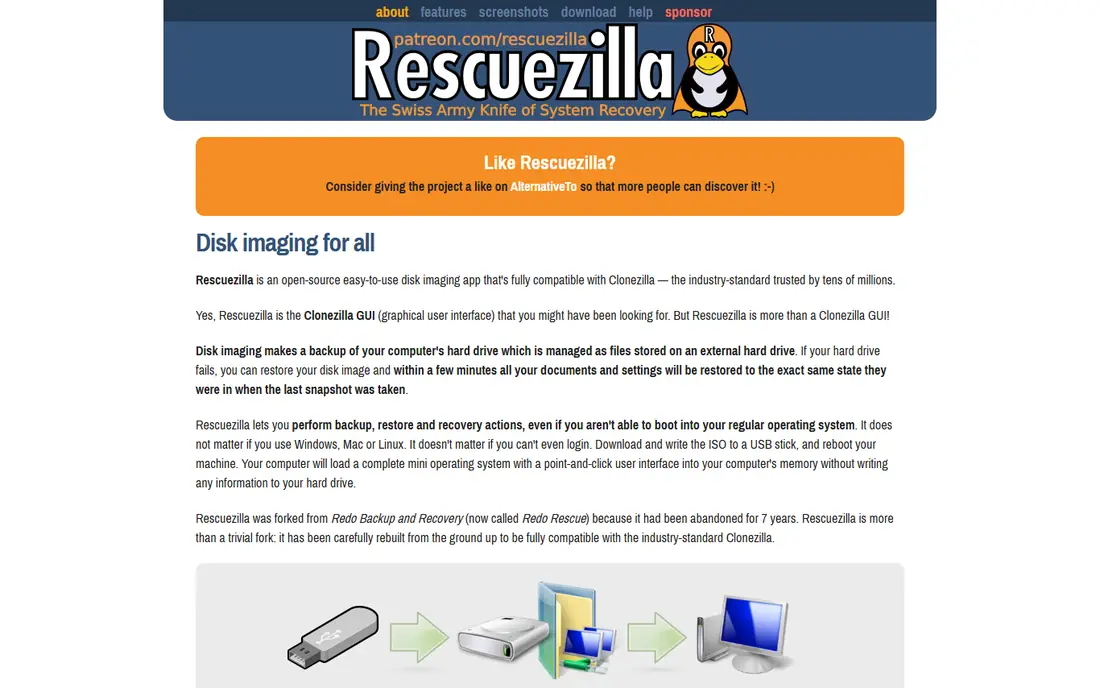
Rescuezilla gives you much of Clonezilla power with a graphical interface that feels far less intimidating. You boot from USB, pick source and destination in a wizard, and follow clear steps instead of text menus. It is free and open source, with no paid tier holding back system cloning, which makes it a strong first try for home users.
It still needs a bootable USB and a restart, so it is not as quick as a Windows program that clones while you work. It also focuses on cloning and imaging, not on ongoing scheduled backups with all the extras of a paid suite. For a one-time SSD upgrade, that focus is fine, and the clear interface lowers the risk of picking the wrong drive.
- Fully free and open source
- Point-and-click interface
- Bootable USB workflow
- Slower to learn than a Windows app
- Needs a USB boot step
- Fewer scheduling features
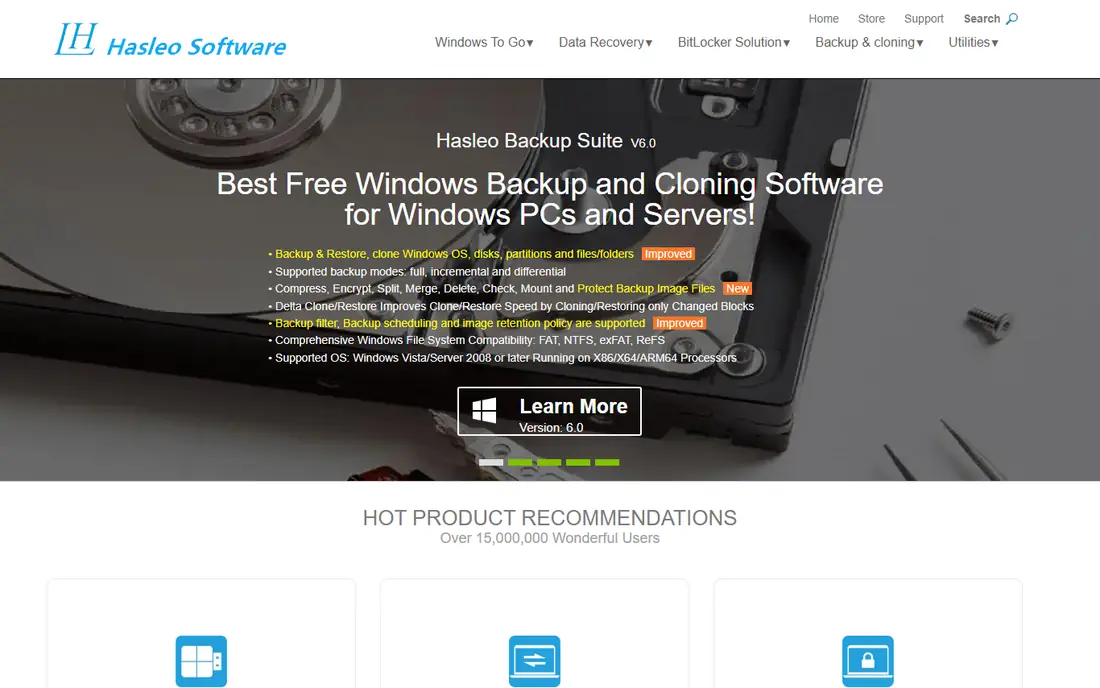
Hasleo Disk Clone stands out because it runs inside Windows and is free for personal use, including system cloning in its free edition as described on its site. That removes the bootable USB step for many users and makes a first clone feel like any other Windows task. The wizard walks you through disk, partition, and system migration choices in plain steps.
The main limits are platform and scope. It is a Windows tool, so Mac and Linux users should look at Clonezilla or Rescuezilla instead. Hasleo also sells a wider backup suite, so some advanced features sit outside the free clone tool. For a straightforward Windows SSD upgrade at no cost, it is hard to fault.
- Free for personal use
- Runs inside Windows
- Simple wizard for disk and system cloning
- Windows only
- Paid suite adds extra features
- Less known than larger brands
AOMEI Backupper Standard is a polished Windows backup program with a genuinely useful free tier. It handles disk imaging, file backup, and cloning of data drives, and its interface is clear enough for users who have never made an image before. Scheduled backups and rescue media add value beyond a single clone.
Read the free tier limit before you start. System disk cloning, the job most SSD upgraders need, is a paid feature in current AOMEI editions, so the free version may stop at that step. If you only need to clone a data drive or make images, the free tier serves well. If you need a boot drive clone for free, pick Clonezilla, Rescuezilla, or Hasleo instead.
- Polished Windows interface
- Free imaging and data disk cloning
- Scheduled backup options
- System cloning needs a paid edition
- Free tier limits some advanced tools
- Windows only
EaseUS Todo Backup Free is one of the friendliest Windows backup tools, and that matters when you are doing a job you may only do once every few years. It guides you through full, incremental, and scheduled image backups, and its restore screens are clear. For protecting files and making a disk image, the free edition is a practical starting point.
As with AOMEI, the free tier does not cover every cloning job. System disk migration to a new SSD is a paid feature in current versions, so users who download it for a boot drive upgrade may hit that limit late in the process. Use it free for imaging and data work, and choose a fully free cloner for a boot drive if you do not want to pay.
- Friendly interface for beginners
- Free imaging and file backup
- Clear restore options
- System cloning is paid in current editions
- Free tier has limits
- Windows focus
Samsung Data Migration is the simplest tool on this list, but only for a narrow job. If your new drive is a Samsung SSD, this free Windows tool clones your old drive to it with very few steps. It is made for that exact upgrade, so it avoids the extra choices and menus of a general cloning program.
The limit is obvious. It will not help if your new SSD is from another brand, and it is not a general backup tool for ongoing use. Samsung owners should use it first, because it is free, focused, and matched to the hardware. Everyone else should pick a general tool from this list instead of trying to force this one to fit.
- Free with a Samsung SSD
- Very simple migration wizard
- Made for Samsung drives
- Only works with Samsung SSDs as the target
- Windows only
- No general backup suite
DiskGenius Free is a useful dark horse because it combines cloning with partition management and data recovery tools in one program. The free edition can clone disks and help resize partitions, which is handy when moving to a smaller SSD, as long as the used data fits. Having partition tools beside cloning saves a second download in many upgrade jobs.
The interface is denser than EaseUS or AOMEI, and beginners may need time to find the right option. Some advanced features also sit in the paid Pro edition, so check the free edition limits for your exact job. For users who want cloning plus disk tools at no cost, it offers more breadth than a single-purpose cloner.
- Cloning plus partition and recovery tools
- Useful free edition
- Handles partition resizing
- Interface is dense for beginners
- Some advanced features are paid
- Windows focus
Paragon Backup and Recovery Community Edition gives home users free imaging without an account-heavy sales funnel. It creates disk images, supports restore from rescue media, and covers the core protection job for a single PC. Users who prefer a plain, no-nonsense backup tool often like its direct approach.
It is not the most feature-rich free cloner, and its interface looks older than newer rivals. Edition names and limits have also changed over time, so confirm the current Community Edition terms on the vendor site before you rely on it. As a free imaging option for personal use, it remains a solid, low-drama choice.
- Free Community Edition for personal use
- Straightforward imaging and restore
- Rescue media support
- Cloning focus is narrower than paid tools
- Interface feels dated
- Feature set changes by edition
Veeam Agent for Windows Free brings enterprise backup technology to a single PC at no license cost. It makes full system images, supports file-level restore, and handles bare-metal recovery from rescue media. That depth makes it a strong free safety net, even if it is not a one-click cloner in the usual sense.
The trade-off is workflow. Veeam works by image and restore, rather than a direct disk-to-disk clone in one step, and its screens assume more technical confidence than EaseUS or AOMEI. Setup also takes longer, with registration and configuration steps. If you want a free, dependable image backup for one Windows PC, it is excellent. If you want the fastest direct clone, start with Hasleo or Rescuezilla.
- Free for one machine
- Enterprise-grade backup engine
- Image and file level options
- Interface assumes more technical confidence
- Cloning is via image restore, not direct clone
- Setup takes longer
How we picked these
We compared official product pages, free edition descriptions, and public documentation for cloning and imaging tools available in October 2026. We kept only tools with a real free tier or free license, and we noted where system cloning sits behind a paid edition instead of hiding that limit. We did not claim hands-on testing. Tools whose free edition had ended, such as Macrium Reflect Free, were left out, since recommending an unpatched old installer would be poor advice.
What to check before you clone
Back up anything you cannot replace before you start, because cloning overwrites the destination drive completely. Check that the used space on the source fits on the target, and confirm the tool you picked supports your file system and boot mode. Make a bootable rescue USB where the tool offers one, and label your drives so you do not mix up source and destination.
After cloning, boot from the new drive alone before you wipe the old one. Check that your programs open, your files are present, and Windows or your operating system activates as expected. If the new drive does not boot, keep the old drive untouched and try the rescue media or a different tool, rather than formatting in haste.
Frequently asked questions
What is the best free ssd cloning software for a Windows boot drive?
Clonezilla, Rescuezilla, and Hasleo Disk Clone are the strongest fully free options for a Windows boot drive, since they do not gate system cloning behind a paid plan. Hasleo is easiest inside Windows, while Rescuezilla is easiest as a bootable graphical tool. Pick the workflow you are most comfortable with, and test the boot before wiping the old drive.
Is the best cloning software free in all cases?
No. Many tools advertise a free tier, then charge for system disk cloning, which is the job most upgraders need. AOMEI Backupper and EaseUS Todo Backup are good free imaging tools, but their free editions limit system cloning. Read the free edition page for your exact job, not just the word free on the homepage.
Can I clone a hard drive to a smaller SSD for free?
Yes, if the used data fits on the smaller drive and your tool supports resizing. Rescuezilla, Hasleo, and DiskGenius handle this well in most cases, while Clonezilla needs more care with partition sizes. Shrink the source partition in Windows Disk Management first if your tool asks for it, and leave spare space for system updates.
What is the best hard drive cloning software free option for Mac or Linux?
Clonezilla and Rescuezilla work across platforms from bootable USB, which makes them the most flexible free choices for Mac and Linux users. Windows-only tools on this list will not help there. Mac users who later want a paid, Mac-native tool should look beyond this free list and compare dedicated Mac backup software separately.
Do I still need a backup if I clone my drive?
Yes. A clone is a copy at one point in time, and it overwrites the destination, so a mistake can destroy data on both drives if you pick the wrong direction. Keep a separate image or file backup of anything irreplaceable before you clone. Think of cloning as a migration step, and backup as your safety net.
Sources
See where you really rank - block by block
ProMapRanker scans Google Maps across a grid of your service area. Simple monthly plans from $19, white-label on every plan.
Start freeKeep reading
 zscaler alternatives
Best Zscaler Alternatives in 2026
Looking for zscaler alternatives? We compare 9 SASE and zero trust platforms on architecture, data protection, pricing, and fit for your network and team.
Read → zapier alternatives free
Best Zapier Alternatives Free in 2026
Nine automation tools for zapier alternatives free in 2026, all with genuinely free tiers, plus free plan limits, starting prices and upgrade paths explained.
Read → which platform is best for online reputation
Which Platform Is Best for Online Reputation in 2026
Wondering which platform is best for online reputation? We compare 8 review, listing, and response tools for small and multi-location businesses and agencies.
Read →