 ProMapRanker
Best Free Editing Software in 2026


Professional editing and colour · Pricing starts at: Free
Key takeaways
- DaVinci Resolve is the only free editor that matches paid professional software for colour, audio and effects, with no watermark and no export limit.
- CapCut is the fastest path to a finished social video, with templates and auto captions that desktop editors do not match.
- Shotcut, Kdenlive and OpenShot are genuinely free and open source, with no watermark, and they suit users who want a real timeline editor without a subscription.
- Clipchamp and iMovie suit beginners on Windows and Apple devices, while Lightworks suits a beginner who wants to learn a professional workflow.
- The free tier always has a catch somewhere: Lightworks caps free exports at 720p, and several editors reserve their best effects for paid versions.
Quick comparison
| Pick | Great for | Pricing starts at | Free tier | |
|---|---|---|---|---|
| DaVinci Resolve | Professional editing and colour | Free | Yes | Visit |
 CapCut CapCut | Fast social and short form video | Free | Yes | Visit |
 Shotcut Shotcut | Open source editing on any platform | Free | Yes | Visit |
 OpenShot OpenShot | Absolute beginners | Free | Yes | Visit |
 Kdenlive Kdenlive | Advanced open source multi track editing | Free | Yes | Visit |
 Lightworks Lightworks | Learning a pro workflow | Free | Yes | Visit |
 Clipchamp Clipchamp | Simple browser editing on Windows | Free | Yes | Visit |
 iMovie iMovie | Mac and iPhone owners | Free | Yes | Visit |
 VSDC VSDC | Deep features on a Windows PC | Free | Yes | Visit |
 Adobe Express Adobe Express | Template video for non editors | Free | Yes | Visit |
The best free editing software
We compared export limits, watermarks, platform support, learning curve and the features that matter for real projects, and we kept only editors with a working free tier in October 2026. We left out HitFilm, which was discontinued in early 2025, and editors whose free exports carry a watermark.
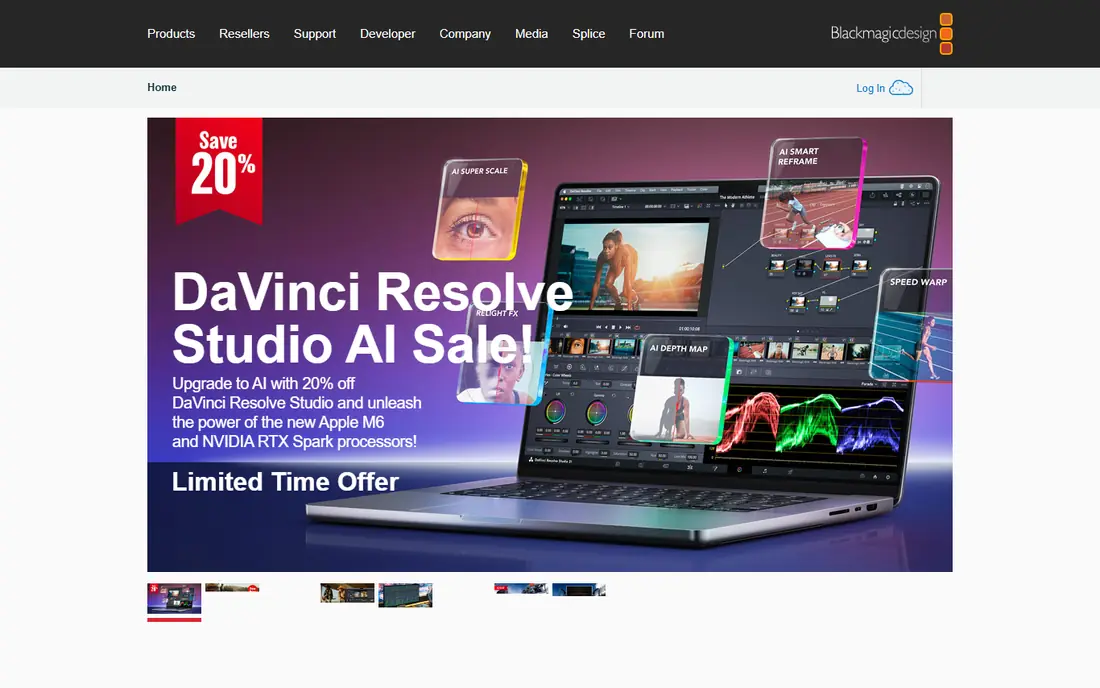
DaVinci Resolve is the free editor that professionals actually use for paid work. Its colour page, Fairlight audio tools and Fusion effects are the same tools found in high end suites, and the free version exports without a watermark and without a time limit. The price for that power is hardware and learning time. Resolve benefits from a discrete GPU, 16GB or more of RAM, and fast storage, especially for effects and noise reduction. A beginner will also need tutorials to learn the page based layout. If your computer can run it and you are willing to learn, no other free editor comes close.
- Professional colour grading and audio tools
- No watermark and no export limit
- Fusion effects included
- Needs a capable computer, ideally with a discrete GPU
- Learning curve is steep for a beginner
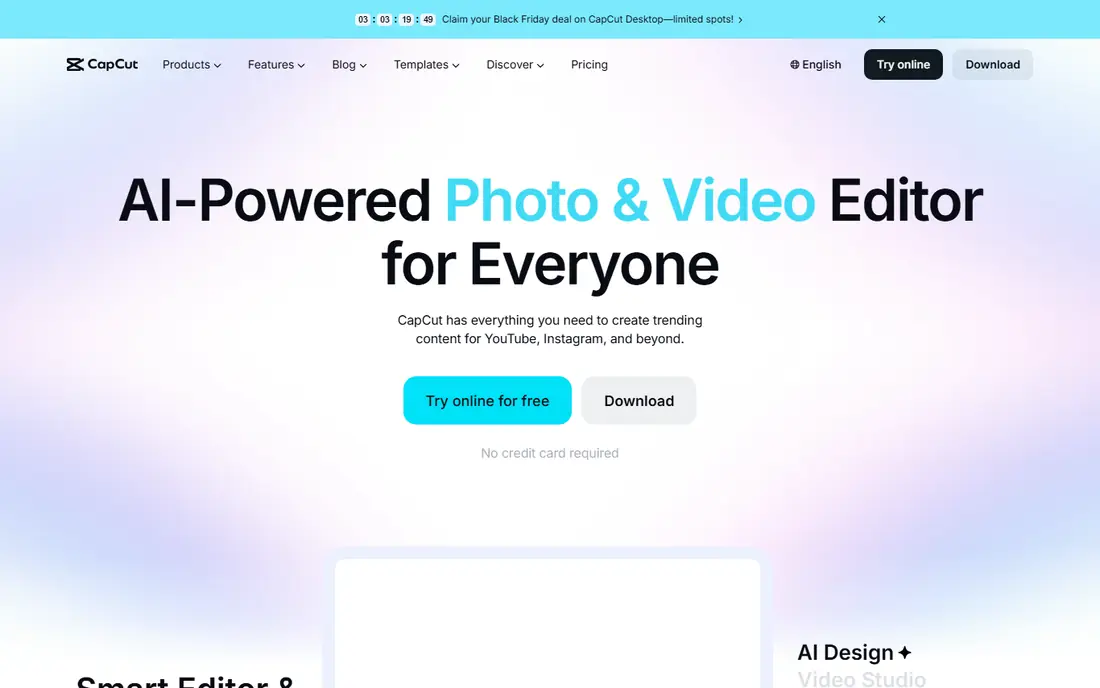
CapCut is the fastest way from an idea to a finished short video. Auto captions, trending templates, background removal and direct social exports are built in, and the editor feels made for vertical video. A creator making Shorts, Reels or TikTok clips can finish a video in CapCut in the time it takes to open a desktop editor and import footage.
The free tier is generous but not unlimited. Some effects, templates and cloud features need CapCut Pro, and in early 2026 the paid plans were restructured, with higher tiers covering 4K export and advanced AI tools. CapCut also suits short form better than long form projects. For social video, though, it is the easiest editor on this list.
- Templates and auto captions
- Fast social exports
- Desktop, web and mobile apps
- Some effects, templates and AI tools need a paid plan
- 4K and advanced AI features sit in higher tiers in 2026
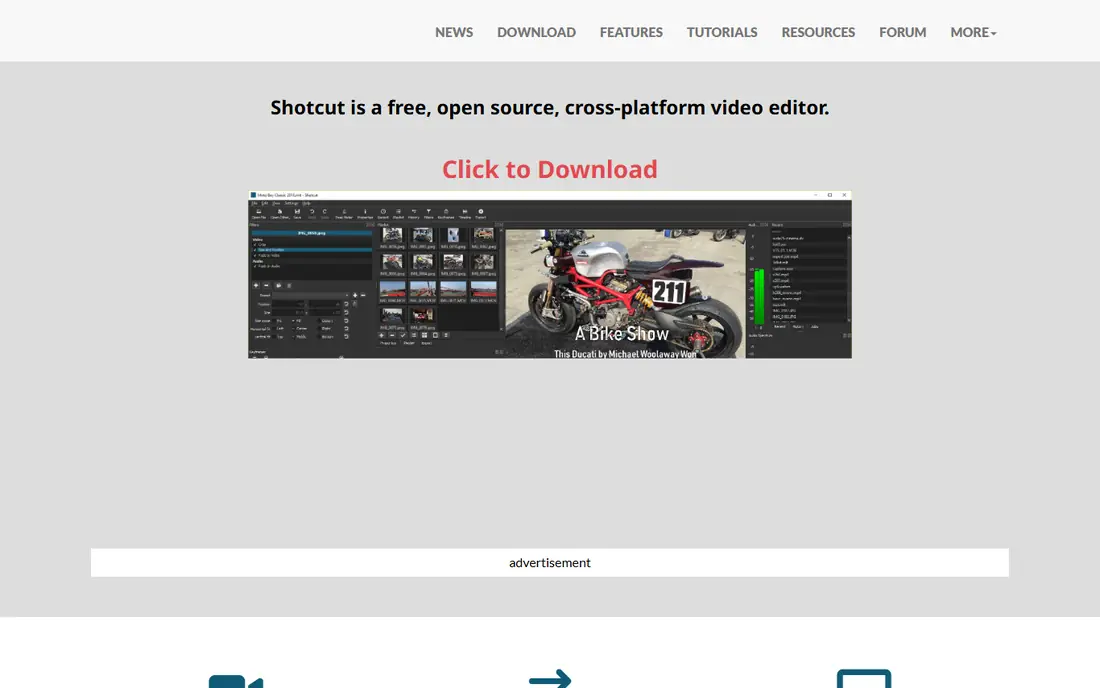
Shotcut is a capable, honest open source editor. It runs on Windows, Mac and Linux, supports a wide range of formats, and exports 4K video without a watermark or a subscription. Filters, transitions and multi track editing cover most YouTube and business video needs, and proxy editing helps on a modest computer.
Shotcut will not win a design contest. The interface looks dated next to CapCut or Clipchamp, and it has no template library or AI caption tool. A complete beginner may need a tutorial to get started. For a user who wants a free, private, cross platform editor with no strings, Shotcut is a dependable choice.
- Fully free and open source
- Wide format support
- 4K editing and export with no watermark
- Interface feels dated
- Fewer templates and AI tools than CapCut
- Learning curve for a complete beginner
OpenShot is the simplest open source editor on this list, and that is its strength. Drag clips onto a timeline, add a title and a transition, and export. A school project, a family video or a first YouTube video is easy to finish without learning a professional interface.
Large projects expose its limits. OpenShot can slow down or crash with many clips, effects or long timelines, and it lacks the advanced colour and audio tools of DaVinci Resolve. It suits short, simple videos for a beginner. When projects grow longer or more complex, Shotcut or Kdenlive are the natural next step.
- Simple drag and drop timeline
- Open source and free
- Cross platform for Windows, Mac and Linux
- Can be unstable with large projects
- Fewer advanced features than Shotcut or Kdenlive
- Performance varies by computer
Kdenlive is the open source editor for a user who has outgrown OpenShot but does not want to pay for software. Its multi track timeline, effects, titles and audio tools handle serious projects, and proxy editing makes 4K workable on a modest PC. It is popular with Linux users, and it also runs on Windows and Mac.
The learning curve is steeper than OpenShot, and the interface rewards a user who watches a few tutorials first. Kdenlive also lacks the template and AI features of CapCut. For a creator who wants a free, powerful timeline editor and who values privacy and open source software, Kdenlive is the best middle ground.
- Multi track timeline with strong effects
- Proxy workflows for 4K on modest PCs
- Open source and free
- Interface takes time to learn
- Some features vary by platform
- Fewer templates than commercial editors
Lightworks has a long film editing history, and its free version teaches a professional workflow without a watermark. Trimming, multi track editing and project organisation follow a pro logic that transfers well if you later move to a paid editor. For a student learning editing craft, that workflow education has real value.
The free cap is the catch. Free exports are limited to 720p, which is fine for a draft or a social post but not for a polished YouTube video. Higher resolutions and some advanced features need a paid plan. Lightworks suits learning and short drafts, while DaVinci Resolve suits finished 4K work.
- Professional timeline workflow
- Free version with no watermark
- Long history in film editing
- Free exports capped at 720p
- Advanced features and higher resolutions need a paid plan
- Interface is unusual for a beginner
Clipchamp is the easiest editor for a Windows user who wants a quick video without installing heavy software. It is built into Windows 11, runs in a browser, and offers templates, text, stock media and direct social exports. A business owner can make a promo, a tutorial or a social clip in an afternoon.
Free exports are capped at 1080p, which is enough for most social and web video but not for 4K work. Some premium features, stock assets and effects also need a paid plan. Clipchamp suits simple, fast projects on Windows. For 4K or complex editing, DaVinci Resolve or Shotcut are better.
- Built into Windows and available in a browser
- Templates and stock media
- Free HD exports
- Free exports capped at 1080p
- Some advanced features need a paid plan
- Needs an internet connection for many features
iMovie is the simplest free start for anyone with a Mac or an iPhone. It is polished, fast on Apple hardware, and it handles 4K video with trailers, titles and simple transitions. A family video, a school project or a first YouTube video can be finished without a tutorial.
Apple only access is the limit, and advanced users will quickly miss multi track control, detailed colour tools and pro audio features. iMovie is a beginner editor, not a professional suite. For an Apple user making simple videos, it is excellent. For a growing creator, DaVinci Resolve on Mac is the natural upgrade.
- Free on Mac and iPhone
- Smooth performance on Apple hardware
- 4K support and simple sharing
- Apple only
- Limited advanced tools
- Multi track and colour control are basic
VSDC is a Windows only editor with a surprisingly deep free feature set. It handles 4K, multi track editing, colour correction, motion tracking and a wide range of formats, and it runs well on a modest PC compared with DaVinci Resolve. For a Windows user who wants depth without a subscription, VSDC deserves a closer look.
The interface is dated and takes time to learn, and the most advanced tools sit in the paid Pro version. VSDC also lacks the template and AI workflow of CapCut. It suits a Windows creator who wants a capable free editor and who is willing to learn a less polished interface.
- Deep feature set for a free Windows editor
- 4K export
- No watermark on free exports in recent guides
- Windows only
- Interface feels dated
- Some advanced tools need the paid Pro version
Adobe Express suits a non editor who needs a good looking video quickly. Templates handle layout, text animation and sizing, brand tools keep colours and logos consistent, and stock assets fill gaps in your own footage. A small business can make a promo, an announcement or a social ad without learning timeline editing.
Express is not a full editor. Timeline control, multi track audio and detailed colour work are limited, and many premium templates need a paid plan. It is best as a template tool for short marketing video, paired with a timeline editor such as CapCut or Clipchamp when a project needs precise cutting.
- Templates for social and business video
- Brand kits and stock assets
- Web and mobile apps
- Timeline control is limited
- Many premium templates and assets need a paid plan
- Not a replacement for a timeline editor
How we picked these
We compared free export limits, watermarks, platform support and real project features for editors that are actively available in 2026. We kept editors with a genuine free tier, not just a trial, and we favoured editors that export without a watermark on the free plan. We left out HitFilm, which was discontinued in early 2025, and editors whose free exports carry a watermark, such as Filmora free exports. Prices and limits change, so check the vendor page before you start a long project.
How to choose the right free editor
Start with the video you actually make
Short social clips, long YouTube videos and business promos need different tools. CapCut, Clipchamp and Adobe Express suit short social and promo work. DaVinci Resolve, Shotcut and Kdenlive suit longer YouTube and business videos. Picking for your main video type saves more time than picking the most powerful editor.
Check your computer before you pick a pro editor
DaVinci Resolve rewards a strong computer, while Shotcut, OpenShot and VSDC run better on modest hardware. If your computer struggles, use proxy editing, edit at a lower preview resolution, or choose a lighter editor. A smooth editor you can actually run beats a powerful editor that stutters.
Check watermark and resolution limits first
A free editor that stamps a watermark on exports is not really free for published work. DaVinci Resolve, Shotcut, OpenShot, Kdenlive, VSDC and CapCut export without a watermark on their free plans in recent guides, while Lightworks caps free exports at 720p and Clipchamp caps free exports at 1080p. Confirm the limit on the vendor page for the version you install.
Learn one editor well before switching
Every editor has a learning curve, and switching often wastes the time you saved by choosing free software. Pick one editor for your main video type, learn its timeline, titles and export settings, and only switch when a project clearly needs a feature your editor lacks. For most creators, that first editor is DaVinci Resolve for long form or CapCut for short form.
Keep your project files backed up
Free software does not remove the need for backups. Keep original footage, project files and exported videos in at least two places, such as a local drive and a cloud folder. Open source editors in particular store projects as files you can copy, which makes backup simple if you do it regularly.
Frequently asked questions
What is the best free editing software?
DaVinci Resolve is the best free editor for serious video, with professional colour, audio and effects and no watermark. CapCut is best for fast social video, while Shotcut and Kdenlive are best for free open source editing. The right pick depends on whether you make long form, short form or business video.
What are the best free editing apps for mobile?
CapCut is the strongest free mobile editor for social video, with templates, auto captions and mobile and desktop apps. iMovie suits iPhone owners making simple videos, and Adobe Express suits template based mobile video for business. For a full timeline on a phone, CapCut gives the most control.
What is the best free video editing software for free with no watermark?
DaVinci Resolve, Shotcut, OpenShot, Kdenlive and VSDC all export without a watermark on their free plans in recent guides. CapCut also exports clean video on its free plan once you remove any default end clip. Avoid editors whose free exports carry a watermark unless you plan to pay to remove it.
What is the best video editing app free for beginners?
OpenShot and iMovie are the simplest starts, with Clipchamp close behind for Windows users. CapCut is also beginner friendly for social video, thanks to templates and auto captions. Start with a simple editor for your first few videos, then move to Shotcut, Kdenlive or DaVinci Resolve as your projects grow.
Can free editing software handle 4K video?
Yes, with the right editor and computer. DaVinci Resolve, Shotcut, Kdenlive and VSDC all support 4K editing and export for free, and proxy workflows help on modest PCs. Clipchamp free exports are capped at 1080p, and Lightworks free exports are capped at 720p, so check the limit before you start a 4K project.
Is CapCut really free?
Yes, CapCut has a free plan covering the core editor, many templates and HD exports, with no credit card required for basic use. Some effects, templates, cloud features and higher tier AI and 4K features need a paid plan, and paid plans were restructured in early 2026. Check the current CapCut pricing page before you rely on a specific paid feature.
Sources
- https://www.blackmagicdesign.com
- https://www.capcut.com
- https://www.shotcut.org
- https://www.openshot.org
- https://www.kdenlive.org
- https://www.lwks.com
- https://www.clipchamp.com
- https://www.apple.com
- https://www.videosoftdev.com
- https://www.adobe.com
- https://rankite.com/blog/best-free-editing-software-pc
- https://rankite.com/blog/best-freeware-video-editing-software
See where you really rank - block by block
ProMapRanker scans Google Maps across a grid of your service area. Simple monthly plans from $19, white-label on every plan.
Start freeKeep reading
 youtube alternatives
Best YouTube Alternatives in 2026
Looking for youtube alternatives in 2026? We compare Vimeo, Dailymotion, Twitch, Rumble, and more on price, audience, monetization, control and privacy.
Read → what's the best ai tool for photo editing
What Is the Best AI Tool for Photo Editing in 2026
What is the best AI tool for photo editing? We compare ten tools for 2026, from Photoshop and Lightroom to Luminar, Topaz, Canva and mobile editors today.
Read → twitter alternatives
Best Twitter Alternatives in 2026
Compare the best twitter alternatives for 2026, from Bluesky, Threads, and Mastodon to Reddit, Tumblr, and Micro.blog, with free plans and audience notes.
Read →