 ProMapRanker
Best Free Drawing Software in 2026
Key takeaways
- Krita is our overall pick for free digital painting, with a deep brush engine, animation tools and no paywall on core features.
- MediBang Paint is the easiest free start for comics and manga, while FireAlpaca suits older computers and simple line work.
- GIMP and Inkscape cover photo editing and vector work that painting apps do not, so many artists use two free apps together.
- Mobile artists have strong free choices in ibisPaint and Autodesk Sketchbook, but check brush, layer and export limits before settling in.
- All nine apps here have a genuinely free tier, and none requires a paid plan to draw, save and export finished work.
Quick comparison
| Pick | Great for | Pricing starts at | Free tier | |
|---|---|---|---|---|
 Krita Krita | Free digital painting | Free | Yes | Visit |
 MediBang Paint MediBang Paint | Comics and manga | Free | Yes | Visit |
 GIMP GIMP | Photo editing and painting | Free | Yes | Visit |
 FireAlpaca FireAlpaca | Lightweight line art | Free | Yes | Visit |
 Inkscape Inkscape | Vector drawing | Free | Yes | Visit |
 Autodesk Sketchbook Autodesk Sketchbook | Simple sketching | Free | Yes | Visit |
 ibisPaint ibisPaint | Mobile illustration | Free | Yes | Visit |
 Photopea Photopea | Browser-based editing | Free | Yes | Visit |
 Affinity by Canva Affinity by Canva | Pro vector and photo work | Free | Yes | Visit |
The best free drawing software
We compared free drawing apps on brush quality, layer handling, platform support, file export and how much of the app stays free in daily use. The best drawing apps free of charge are not all alike, since a painting app, a vector app and a photo editor solve different problems. Start with the kind of art you make most, then add a second app only if you need its strengths.
Krita is the strongest free painting app we found, and it is the one we would suggest first to most desktop artists. The brush engine is the main reason. Brushes can be tuned for size, opacity, texture and flow, and the app ships with a large set that covers sketching, inking, painting and texture work. Drawing assistants for perspective and symmetry, plus stabilisers for smoother lines, help newer artists produce cleaner work without buying extra tools.
Krita also goes beyond single images. Frame-by-frame animation tools, comic panel helpers and layer groups with masks make it useful for short animations and comic pages as well as illustrations. The catch is the learning curve. The interface packs many panels and options into one window, so first sessions can feel crowded. Performance on very large canvases can also strain older machines. If you can spare an hour to learn the layout and set up a simple workspace, Krita repays that time with an app that has no core feature locked behind payment.
- Deep brush engine with many brush types
- Animation and comic tools included
- Works on Windows, macOS, Linux and Android
- Interface can feel busy for first-time users
- Needs a decent computer for large canvases
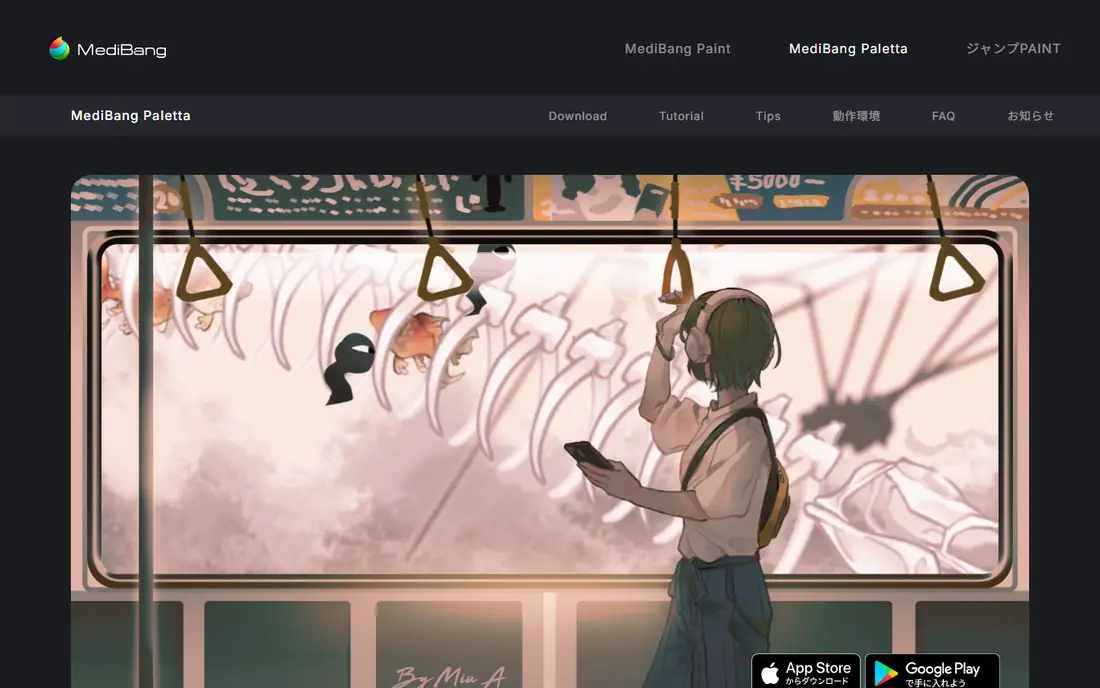
MediBang Paint is built for comics, manga and webtoons, and that focus shows from the first project. Panel tools, screen tones, speech balloons and a large library of free materials remove much of the setup work that comic artists face in a general painting app. Cloud sync lets you start a page on a computer and continue on a phone or tablet, which suits artists who sketch on the move and finish at a desk.
For pure painting, MediBang is lighter than Krita. Brush control is good, but the depth of tuning and the animation tools are more limited. For younger artists and comic makers, that trade is usually worth it. MediBang keeps the comic workflow in one place, and the free materials library means you spend less time drawing repeated textures and backgrounds by hand.
- Free comic panels, tones and fonts
- Cloud sync across desktop and mobile
- Large free brush and material library
- Account needed for cloud features
- Interface is simpler than Krita for painting
GIMP is best known as a free photo editor, but it also works as a drawing app for artists who edit photos and paint in the same project. Layers, masks, selection tools and filters are deep, and the app opens PSD, XCF and common image formats, which helps when you receive files from other artists. A large community supplies brushes, plugins and tutorials, so most common tasks have a documented route.
The honest catch is that GIMP was designed for image editing first. Brush handling, tablet feel and painting shortcuts are workable, but they do not feel as direct as Krita for long painting sessions. New users may also find the multi-window layout and menu depth confusing at first. GIMP earns its place here as a companion app. Use Krita or MediBang for painting and comics, then turn to GIMP when you need careful retouching, colour work or file conversion.
- Deep photo editing, layers and masks
- Large plugin and brush community
- Opens many file types including PSD files
- Painting workflow is less direct than Krita
- Interface takes time to learn
FireAlpaca is the app to try when your computer is older or you want the simplest possible start. It installs quickly, opens fast and runs smoothly on machines that struggle with heavier painting software. The brush stabiliser is a real highlight for line art, since it smooths shaky strokes without making lines feel stiff. Onion skin support for simple frame work and a clean layer panel keep the focus on drawing rather than menus.
The limit is depth. FireAlpaca does not match Krita for brush tuning, texture painting or animation, and artists who outgrow simple illustration may need to move on. That is not a flaw for its target audience. For school work, simple comics, character sketches and clean line art, FireAlpaca gives you a fast, free tool that stays out of the way. It also pairs well with MediBang, since both come from a similar design tradition and share a simple approach to comic work.
- Runs well on older computers
- Smooth brush stabiliser for clean lines
- Simple interface that beginners learn fast
- Fewer advanced painting features than Krita
- No built-in animation tools of note
Inkscape solves a different problem from the painting apps above. It draws with vectors, which are shapes defined by points and curves rather than pixels. That means a logo, icon or poster can be scaled from a phone screen to a large print without losing sharpness. Path editing, node control, text on paths and alignment tools give you precise control over shapes, and SVG export keeps files usable in web and print workflows.
Painters should not pick Inkscape as a first drawing app. Brush-style painting is limited, and the vector way of thinking takes time if you are used to sketching freely. For designers, logo makers and anyone who needs crisp, scalable art, Inkscape is the best free option by a clear margin. Many artists keep both Krita and Inkscape installed, using Krita for illustrations and Inkscape for logos, lettering and diagrams.
- Full vector editing with paths and nodes
- Ideal for logos, icons and print work
- Exports clean SVG files
- Not suited to painterly brush work
- Vector learning curve for new users
Autodesk Sketchbook is built around fast sketching. The interface hides most controls until you need them, leaving a large canvas and a small set of tools within reach. Radial menus let you switch brushes and colours with few taps, which suits tablet artists who want to stay in the flow of a sketch. Pen pressure and tilt support feel natural on supported devices, and the app handles quick concept sketches, storyboards and design notes with ease.
The trade is scope. Sketchbook does not offer the comic panels of MediBang, the animation depth of Krita or the vector tools of Inkscape. It is a sketching app first, and it is honest about that role. For daily sketch practice, client concept work and clean line sketches, that focus is a strength. Artists who need a full illustration pipeline will still want Krita or MediBang alongside it, but Sketchbook remains one of the best free drawing apps for pure sketching.
- Clean, distraction-free interface
- Quick radial menus for tools
- Good tablet and pen support
- Fewer comic and animation tools than rivals
- Desktop feature set is simpler than Krita
ibisPaint is one of the best drawing apps for phones and tablets, and it is a strong pick for younger artists who draw mainly on mobile. The brush library is large, with pens, pencils, watercolour styles and effects that cover anime, manga and general illustration. Layer tools, filters and stabilisers are included, and the app can record your drawing process as a video, which many artists enjoy sharing with friends and followers.
The free version is ad-supported, so expect ads between sessions and around some features. Small phone screens also make detailed work harder than on a tablet or computer, though a stylus helps a lot. For mobile-first artists, for kids trying digital art, and for sketching away from a desk, ibisPaint is hard to beat for free.
- Very large brush library on mobile
- Recording and sharing features for artists
- Works on phones as well as tablets
- Free version shows ads
- Small phone screens limit detailed work
Photopea is the best free drawing app when you cannot or do not want to install software. It runs in a browser on Windows, macOS, Linux and Chromebooks, and it opens PSD, XCF, AI and Sketch files directly. Layers, masks, blend modes and filters cover most photo editing and illustration tasks, and the layout will feel familiar to anyone who has used a desktop image editor. For school computers, shared machines and quick edits, that instant access is a major advantage.
The free version shows ads, and a paid option removes them, but drawing, editing and exporting remain free. Photopea also needs a stable connection, since it is a web app rather than a desktop install. Keep it bookmarked for file conversion, quick retouching and drawing on machines where installs are blocked.
- No install needed, works in a browser
- Opens PSD, XCF, AI and Sketch files
- Layers, masks and filters included
- Ad-supported free version
- Needs a stable internet connection
Affinity by Canva is a notable free option for artists who also do design work. The suite covers vector drawing, photo editing and page layout, with professional tools for shapes, text, colour and export. For illustrators who make posters, book covers, social graphics and logos, having vector and photo tools together saves switching between apps. The move to a free model removes the subscription barrier that once kept many beginners away.
Pure painters will still prefer Krita, since Affinity brush work is thinner and less tuned for long painting sessions. The free model is also recent enough that older guides and videos may still describe paid pricing, so check the current Affinity site for the latest terms. Even with those notes, Affinity belongs on this list. It gives free users a professional design toolkit that once cost a one-time fee, and it pairs well with Krita for finished, print-ready work.
- Professional vector, photo and layout tools in one suite
- No subscription for the free version
- Strong file compatibility
- Painting tools are thinner than Krita
- New free model means some guides still describe paid versions
How we picked these
We compared official feature pages, pricing pages, app store listings, privacy policies and public reviews for free drawing apps that work in October 2026. We looked for apps where drawing, saving and exporting stay free, not just a short trial, and we favoured apps with active development, clear platform support and honest limits on free tiers. We did not claim hands-on testing, and we did not rank on download counts alone, since a popular app can still be a poor fit for a given art style.
Choosing the right free app for your art
Start with the art you make most. Painters and illustrators should start with Krita on desktop or ibisPaint on mobile. Comic and manga artists should start with MediBang Paint, with FireAlpaca as a lighter alternative for clean line work. Logo and print designers should start with Inkscape for vectors, with Affinity by Canva as a broader design suite. Photo editors and Chromebook users should start with Photopea or GIMP, depending on whether you prefer a browser app or a desktop install.
Drawing apps for kids and beginners
The best drawing apps for kids are the ones with a simple interface, a forgiving brush and no payment traps. FireAlpaca and Autodesk Sketchbook fit that brief on desktop and tablet, while ibisPaint and MediBang Paint work well on mobile with adult guidance on ads and sharing settings. For the best drawing apps for 10 year olds free of charge, start with FireAlpaca or MediBang Paint, keep sessions short, and use a stylus or tablet pen if one is available. Krita, GIMP and Photopea handle PSD and common image files, Inkscape handles SVG, and MediBang and ibisPaint export standard image files for sharing and printing. That habit keeps layers and edits available if you return to a piece later.
Frequently asked questions
What is the best free drawing software overall?
Krita is our overall pick for free digital painting, thanks to its brush engine, layers, animation tools and fully free core. MediBang Paint leads for comics, Inkscape leads for vectors, and GIMP leads for photo editing, so the best free drawing app for you depends on your art type.
What are the best free drawing apps for mobile?
ibisPaint and MediBang Paint are the strongest free mobile choices, with large brush libraries and layer support on phones and tablets. Autodesk Sketchbook is simpler and calmer for sketching, while Photopea works in a mobile browser when you do not want to install an app.
Is there a best drawing app free for kids?
FireAlpaca on desktop and ibisPaint on mobile are good free starts for kids, since both are simple to learn and do not charge for core drawing tools. Adults should check ad settings, sharing options and screen time, and help younger artists save work in standard image formats.
Can free drawing software replace paid apps?
For many hobbyists, students and freelance illustrators, yes. Krita, GIMP, Inkscape and Affinity by Canva cover painting, photo editing, vector design and layout at no cost. Paid apps may still win for specific workflows, such as advanced animation or studio file pipelines, but free apps are no longer a weak compromise.
What is the best digital art software free for comics?
MediBang Paint is our pick for free comic work, with panels, tones, balloons and a free material library built in. Krita is a strong second choice for comic artists who want deeper painting and animation tools, and FireAlpaca suits simple, clean comic line work.
Does the best drawing app work on Chromebook?
Photopea is the easiest free choice on a Chromebook, since it runs in a browser with no install. Krita also runs on some Chromebooks through Android or Linux support, depending on the model, while GIMP and Inkscape need a Linux setup that not every Chromebook supports.
Sources
See where you really rank - block by block
ProMapRanker scans Google Maps across a grid of your service area. Simple monthly plans from $19, white-label on every plan.
Start freeKeep reading
 youtube alternatives
Best YouTube Alternatives in 2026
Looking for youtube alternatives in 2026? We compare Vimeo, Dailymotion, Twitch, Rumble, and more on price, audience, monetization, control and privacy.
Read → what's the best ai tool for photo editing
What Is the Best AI Tool for Photo Editing in 2026
What is the best AI tool for photo editing? We compare ten tools for 2026, from Photoshop and Lightroom to Luminar, Topaz, Canva and mobile editors today.
Read → twitter alternatives
Best Twitter Alternatives in 2026
Compare the best twitter alternatives for 2026, from Bluesky, Threads, and Mastodon to Reddit, Tumblr, and Micro.blog, with free plans and audience notes.
Read →