 ProMapRanker
Best Free Drawing Apps for Beginners in 2026

Key takeaways
- Krita is the most capable free desktop app for painting and illustration, while FireAlpaca and MyPaint are gentler first steps on a computer.
- MediBang Paint and ibisPaint suit manga, comics, and phone or tablet drawing, with panel tools, screentones, and large brush libraries.
- Sketchbook and Adobe Fresco suit quick sketches and realistic painting on tablets, with clean interfaces that do not overwhelm beginners.
- Kleki suits Chromebook and browser drawing with no install, while MyPaint suits simple, distraction-free painting practice.
- Start with the app that matches your device, then learn layers, brushes, and canvas flipping before you worry about advanced features.
Quick comparison
| Pick | Great for | Pricing starts at | Free tier | |
|---|---|---|---|---|
 Krita Krita | Full free painting on desktop | Free | Yes | Visit |
 MediBang Paint MediBang Paint | Comics and manga | Free | Yes | Visit |
 ibisPaint ibisPaint | Phone and tablet drawing | Free | Yes | Visit |
 Sketchbook Sketchbook | Quick sketches | Free | Yes | Visit |
 Adobe Fresco Adobe Fresco | Realistic painting on tablets | Free | Yes | Visit |
 FireAlpaca FireAlpaca | Simple desktop drawing | Free | Yes | Visit |
 Kleki Kleki | Browser drawing with no install | Free | Yes | Visit |
 MyPaint MyPaint | Simple painting practice | Free | Yes | Visit |
The best free drawing apps for beginners
We compared these apps on ease of learning, brushes, layers, device support, comic and manga tools, export options, and whether the full app is free or only a limited tier. The list covers desktop, tablet, phone, and browser drawing, so you can start on the device you already own.
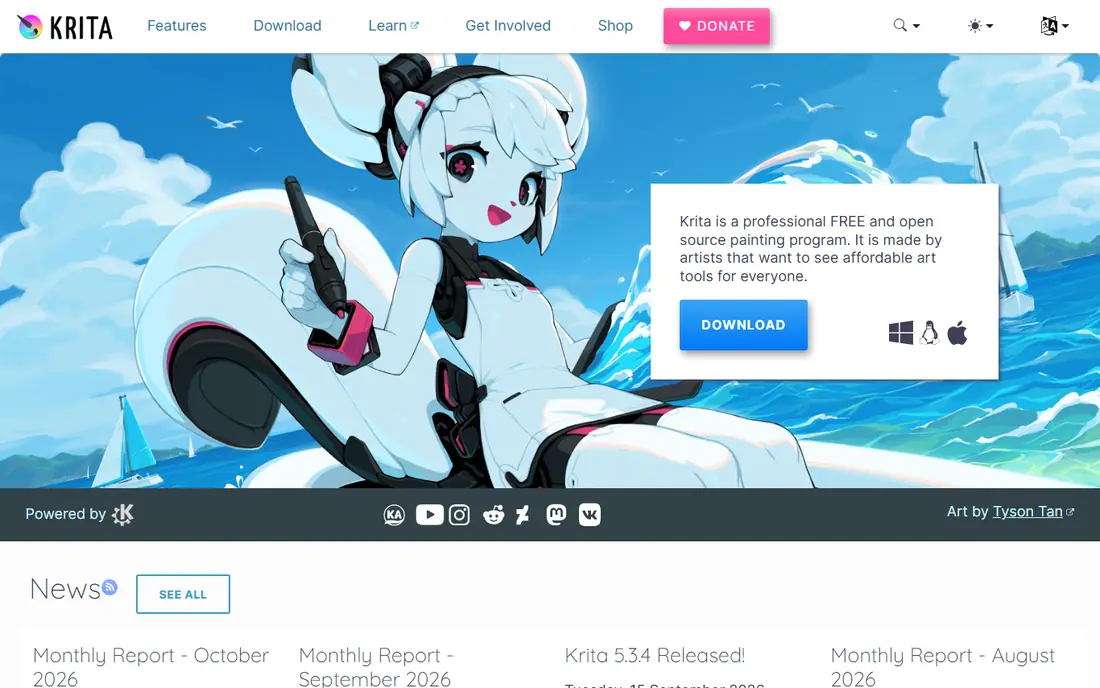
Krita is the strongest free drawing app for beginners who want room to grow, because it is free and open source with no paid tiers, ads, or locked features. It runs on Windows, Mac, and Linux, and it offers a large brush library, layers, stabilisers for smooth lines, and tools for painting, illustration, and animation. Beginners can start with a few basic brushes and layers, then learn more advanced tools as their skills grow. The interface can look busy on first open, so start with a simple canvas, one brush, and a few layers, and hide panels you do not need. Krita also opens PSD files with good fidelity for layers and common adjustments, which helps if you later work with Photoshop users. If you have a desktop computer and want one free app that can take you from first sketch to finished illustration, Krita is the best place to start.
- Free and open source with no ads
- Large brush library
- Layers and animation tools
- Good PSD file support
- Interface can feel busy at first
- Needs a desktop computer for the full version
- Animation and advanced tools take time to learn
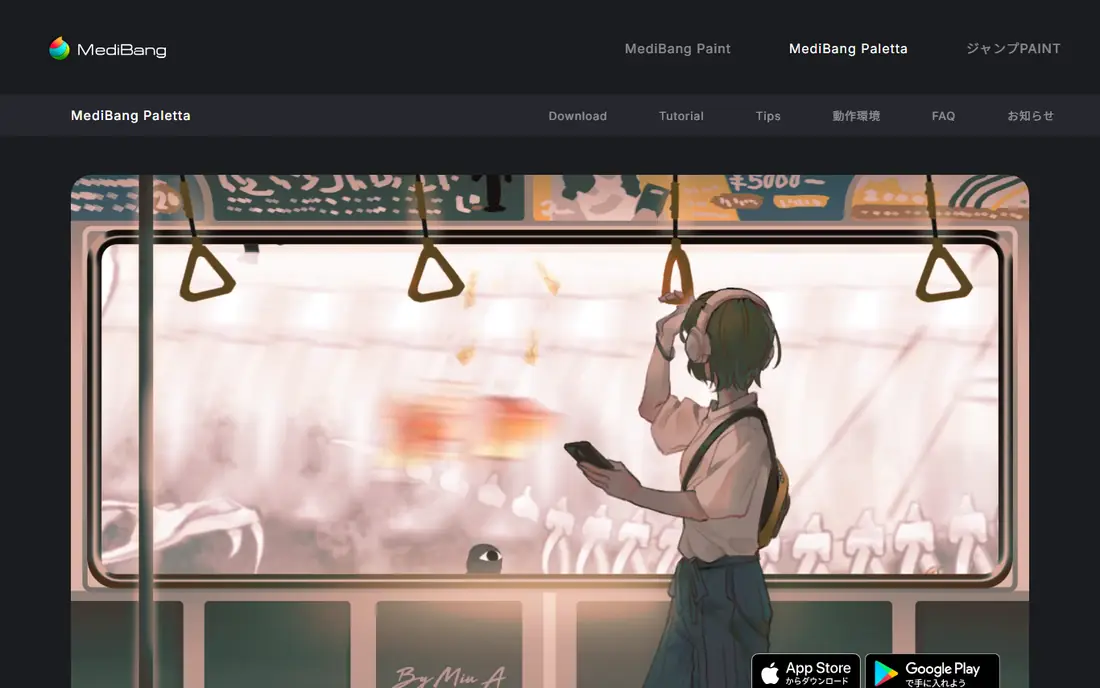
MediBang Paint is the best free choice for beginners who want to draw comics, manga, or webtoons. It includes panel division tools, screentones, speech bubbles, and page management that general painting apps do not offer, so you can plan a whole comic page rather than only a single image. The app is free on Windows, Mac, iOS, and Android, and cloud sync lets you start on a phone and continue on a computer. The comic focus means the interface has more options than a simple sketch app, so give yourself time to learn panels and tones one at a time. Start with a short comic or a single character sheet, use the built-in tones and fonts, and save your work to the cloud so you do not lose pages. If comics are your main goal, MediBang Paint will save you more time than a general painting app.
- Free on phone, tablet, and desktop
- Comic panel tools
- Screentones and speech bubbles
- Cloud sync across devices
- Cloud features need an account
- Interface has many comic options to learn
- Some materials need downloading
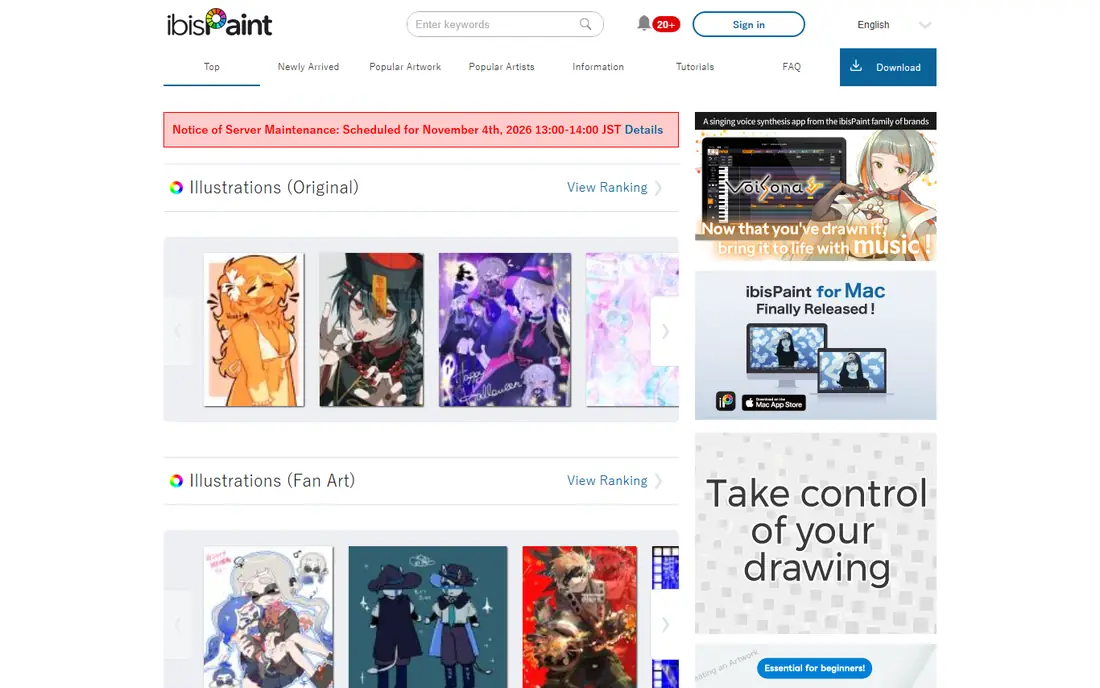
ibisPaint is the most popular free drawing app for phones and tablets, and it suits beginners who draw on a mobile device rather than a computer. It offers tens of thousands of brushes, tones, backgrounds, and speech bubble materials, plus manga panel tools, animation features, and a recording tool that saves your drawing process as a video. That recording feature is useful for learning, because you can watch your own strokes and spot where a drawing went wrong. The free version shows ads, and a paid Prime membership or add-on removes ads and adds features, but the core drawing tools are free. A phone screen can feel small for detailed work, so use a tablet or stylus if you have one, and zoom in for line work. If you want to draw anywhere, share quickly, and learn manga techniques on your phone, ibisPaint is a strong first app.
- Very large brush and material library
- Manga tools
- Drawing process recording
- Easy sharing from phone
- Free version shows ads
- Some advanced materials need a paid add-on
- Small phone screen limits detailed work
Sketchbook is the best free app for beginners who want to sketch without learning a complex interface first. The canvas stays clean, tools are easy to find, and the free version gives you the full brush library without ads in the core app, which is rare for a free drawing app. That simplicity makes it ideal for daily sketch practice, gesture drawing, and quick ideas. The trade-off is depth: Sketchbook has fewer comic, animation, and advanced illustration tools than Krita or MediBang Paint, so it is less suited to a full comic project or a complex painting workflow. Use Sketchbook to build a daily drawing habit, practise proportions and shading, and export sketches to share or to finish in another app. For pure sketching, its simplicity is an advantage, not a limit.
- Clean, simple interface
- All features included in the free version
- No ads in the core app
- Good brush library
- Fewer comic and animation tools than rivals
- Less suited to complex illustration workflows
- Some platform versions vary
Adobe Fresco suits beginners who want painting that feels like real watercolour, oil, or gouache on a tablet. Its Live Brushes bleed, blend, and dry in ways that mimic traditional media, which makes it fun to learn colour mixing and brush control without buying paints and paper. The interface is clean for a tablet, with pixel brushes, vector brushes, and Live Brushes in one place. The free version covers basic painting, while advanced features and some brushes need a paid plan, so check what is included before you rely on a specific brush. Fresco works best on iPad and Windows tablets with a stylus, and it benefits from Adobe cloud sync if you also use other Adobe apps. If realistic painting on a tablet is your goal, Fresco is the most enjoyable free starting point.
- Live Brushes for watercolour and oil effects
- Clean tablet interface
- Vector and pixel brushes in one app
- Adobe ecosystem
- Full features need a paid plan or Adobe subscription
- Best on iPad and Windows tablets
- Some tools need an Adobe account
FireAlpaca is a gentle first desktop app for beginners who find Krita too busy or whose computer is older and slower. It is lightweight, opens quickly, and has a simple interface with layers, a good stabiliser for smooth inking, and enough brushes for character art, comics, and illustration practice. That simplicity helps beginners focus on drawing rather than on settings. The trade-off is depth, because FireAlpaca has fewer brushes, filters, and animation tools than Krita, and there is no mobile version. A paid SE version adds some features, but the free version is enough for most beginner work. Start with FireAlpaca if you want a fast, simple desktop app, and move to Krita later when you need more brushes, animation, or advanced painting tools.
- Lightweight and fast on older computers
- Simple interface
- Good line stabiliser
- Free on Windows and Mac
- Fewer brushes and effects than Krita
- No mobile version
- Comic tools are simpler than MediBang Paint
Kleki is the best free option for beginners who cannot install software, whether they use a Chromebook, a school computer, or a shared device. Open the site in a browser and start drawing at once, with layers, brushes, and basic editing tools, and no account or download required. That low friction makes it ideal for quick practice, classroom work, and trying digital drawing for the first time. The feature set is smaller than Krita or MediBang Paint, with fewer brushes, no comic page management, and no advanced animation tools. Kleki also needs internet access, so it is not a choice for offline work. Use Kleki to learn layers, brush control, and colour, then move to a desktop or tablet app when you want more brushes and export options.
- Works in any modern browser
- No install or account needed
- Layers and basic tools
- Good for Chromebooks and shared computers
- Fewer brushes and features than desktop apps
- Needs internet access
- No advanced comic or animation tools
MyPaint is a free, open source painting app built around a simple, distraction-free canvas and a natural brush feel. It suits beginners who want to practise painting, sketching, and brush control without menus, panels, and options getting in the way. The brush engine feels responsive, and the infinite canvas option lets you sketch freely without worrying about page size at first. The minimal interface can also feel less guided than Krita or FireAlpaca, because there are fewer built-in tutorials and illustration tools, and there is no mobile version. MyPaint is best as a practice app: use it for daily sketches, colour studies, and brush experiments, then finish polished work in Krita or another fuller app if you need layers, text, or comic tools. For pure painting practice, its simplicity is the point.
- Free and open source
- Distraction-free painting canvas
- Natural brush feel
- Lightweight on desktop
- Interface is minimal and less guided for beginners
- Fewer illustration and comic tools
- No mobile version
How we picked these
We compared official app pages, app store listings, and public reviews for free drawing apps operating in October 2026. We kept apps with a genuine free version that lets beginners draw without paying, that run on at least one common device, and that offer layers and a usable brush set. We left out paid-only apps such as Procreate, apps that had stopped operating, and photo editors that do not offer a proper drawing workflow.
We also considered the beginner journey, not just feature counts. A powerful app that overwhelms a new user is a poor first choice, so the list includes simple apps such as Sketchbook, FireAlpaca, Kleki, and MyPaint alongside fuller apps such as Krita and MediBang Paint. That mix lets you start simple, build skills, and move to a fuller app when a specific project needs it.
What to learn first
Layers, brushes, and canvas flipping
Learn layers first: draw line art on one layer, colour on a layer below it, and shading on a layer above, so you can fix one part without erasing the rest. Try a few brushes rather than all of them, learn the stabiliser for smoother lines, and flip your canvas horizontally every few minutes to spot proportion errors that are hard to see in the original view.
Device, stylus, and file setup
Choose the device you already own, and add a stylus if you draw on a tablet or phone, because finger drawing limits line control. Set your canvas size for your goal: larger for print, smaller for social sharing, and save your working file before you export a flat PNG or JPEG. Export in PNG for web sharing with transparency, and keep the layered file so you can edit later.
Practice habits that help beginners
Draw for a short time each day rather than in rare long sessions, and use reference images for anatomy, perspective, and colour. Record your process in ibisPaint or save stages in Krita so you can see where a drawing improved or went wrong. Share work for feedback, but compare your progress with your own earlier work, not only with experienced artists online.
Frequently asked questions
What is the best free drawing app for beginners?
Krita is the best full free app for desktop beginners who want room to grow, while Sketchbook is the best simple app for quick sketches and FireAlpaca is the gentlest desktop start. For phone and tablet drawing, ibisPaint is a strong free choice, and for comics, MediBang Paint is best. Choose by device first, then by whether you want painting, sketching, or comics.
Are free drawing apps really free?
Yes, Krita, MediBang Paint, FireAlpaca, Kleki, and MyPaint are free with no paid tiers for core drawing, while ibisPaint, Sketchbook, and Adobe Fresco offer free versions with ads or paid upgrades for extra features. Check whether a free version limits brushes, exports, or cloud sync before you start a large project. For most beginner work, the free versions on this list are enough.
Which free drawing app is best for comics and manga?
MediBang Paint is best for comics and manga because it offers panel tools, screentones, speech bubbles, and page management in a free app. ibisPaint also offers manga materials and a large brush library for phone and tablet artists. Krita offers comic templates and works well if you want one app for painting and comics together.
Can I draw on a Chromebook for free?
Yes, Kleki works in a browser on a Chromebook with no install, and MediBang Paint and ibisPaint also offer web or Android options depending on your Chromebook model. Kleki is the simplest choice for a Chromebook, because it needs only a browser. For more brushes and layers, check whether your Chromebook supports Android apps, then try MediBang Paint or ibisPaint.
Do I need a stylus to draw digitally?
A stylus helps a lot for line control, pressure sensitivity, and detailed work, especially on tablets and phones, but you can start without one. Many beginners start with a finger on a phone or a mouse on a computer, then add an affordable stylus once they know they will keep drawing. If you buy a stylus, check that it works with your device and app before you rely on pressure sensitivity.
What is the best drawing app for beginners free on iPad?
Sketchbook and ibisPaint are strong free choices on iPad for sketching and character art, while Adobe Fresco offers free realistic painting with Live Brushes. MediBang Paint is best on iPad for comics. Check the current App Store listing for each app, because free features and iPad compatibility can change, and Krita does not have a fully supported native iPad version in the same way as its desktop app.
Sources
See where you really rank - block by block
ProMapRanker scans Google Maps across a grid of your service area. Simple monthly plans from $19, white-label on every plan.
Start freeKeep reading
 zendesk alternatives
Best Zendesk Alternatives in 2026
Compare the best Zendesk alternatives in 2026, from budget help desks to AI-first support tools, with current pricing, free plans, and honest trade-offs.
Read → wordpress alternatives
Best WordPress Alternatives in 2026
Looking for the best WordPress alternatives? We compare 8 free and paid options for blogs, business sites, stores, and developer-led projects in 2026.
Read → which real estate company has the best training
Best Real Estate Company Training in 2026
Compare which real estate company has the best training, from Keller Williams and eXp to Compass and Coldwell Banker, by program, mentor, and fit in 2026.
Read →