 ProMapRanker
Best Free CAD Software for Beginners in 2026

Key takeaways
- Tinkercad is the fastest first step, because it runs in a browser and needs no install.
- FreeCAD is the strongest fully free desktop option for parts that must fit together.
- Fusion for personal use and Onshape Free offer pro style workflows, but both carry limits on commercial use and, for Onshape, on privacy.
- The best beginner CAD software depends on the job: simple models, precise parts, rooms, or code based design each point to a different tool.
Quick comparison
| Pick | Great for | Pricing starts at | Free tier | |
|---|---|---|---|---|
 Tinkercad | Absolute beginners making a first model | Free | Yes | Visit |
 FreeCAD | Precise parametric parts with no cost | Free | Yes | Visit |
 Autodesk Fusion | Personal projects that need pro style tools | Free | Yes | Visit |
 Onshape | Browser based CAD with collaboration | Free | Yes | Visit |
 SketchUp Free | Rooms, furniture, and concept models | Free | Yes | Visit |
 LibreCAD | Simple 2D technical drawings | Free | Yes | Visit |
 OpenSCAD | Parts defined by code and parameters | Free | Yes | Visit |
 Blender | Organic shapes, sculpting, and art models | Free | Yes | Visit |
 Shapr3D | Modeling on a tablet with a pen | Free | Yes | Visit |
The best free CAD software for beginners
These are the free tools we would point a new maker to first, ordered from easiest to learn toward tools that reward more practice.

Tinkercad is the kindest place to start. You open a browser, drop shapes onto a workplane, group them, and export a file for printing. A school project, a simple bracket, or a phone stand can go from idea to printable file in one sitting, and that early win matters when you are still learning what CAD feels like.
The trade off is control. Tinkercad does not give you the dimension driven sketches and feature history that a parametric tool offers, so changing a complex model later can mean rebuilding parts of it. We still recommend it as a first week tool, not as a long term home for mechanical design.
- Runs in a browser with no install
- Drag and drop shapes make early success fast
- Direct export for 3D printing
- Limited precision controls for engineering parts
- No full parametric history to edit later
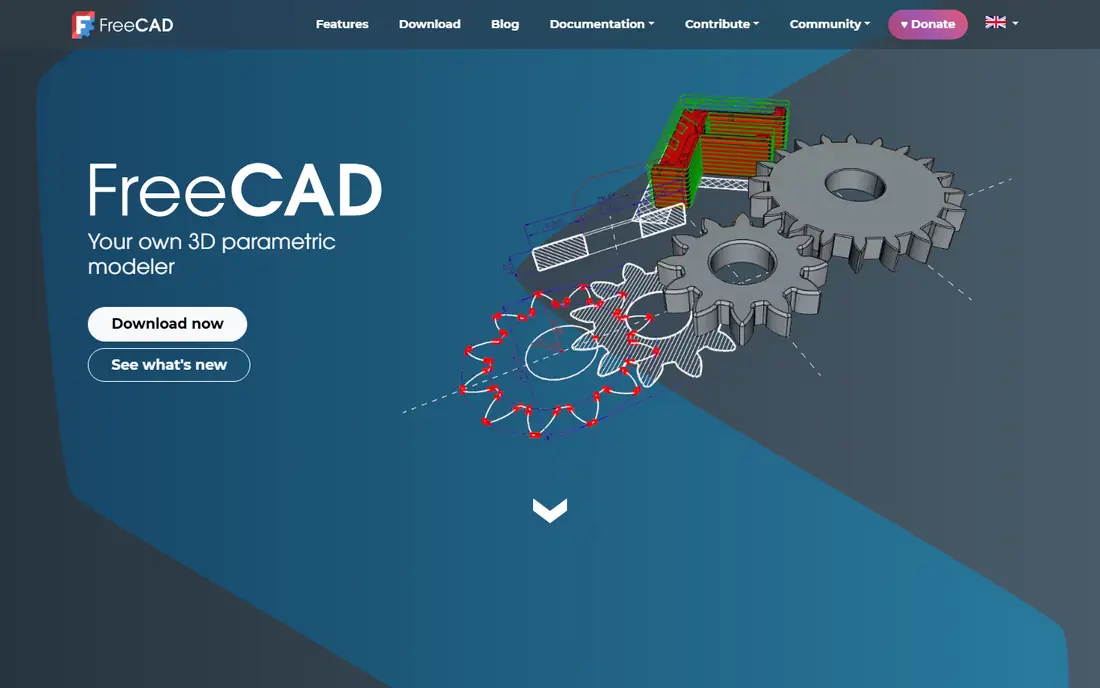
FreeCAD is our pick for a beginner who wants to learn real CAD without paying. You sketch with dimensions, pad and pocket those sketches into solids, and change a dimension later to update the part. That workflow transfers to paid CAD later, which is a real advantage for students and hobby makers.
Expect a slower start. Menus and workbenches take time to learn, and some tasks need a tutorial before they feel natural. Once the basics click, FreeCAD covers parts, assemblies, sheet metal work, and drawings in one free package, and there is no trial clock to worry about.
- Full parametric modeling, assemblies, and 2D drawings at no cost
- Works on Windows, Mac, and Linux
- Open source with no commercial use limit
- Interface feels less polished than paid tools
- Learning curve is steeper than Tinkercad
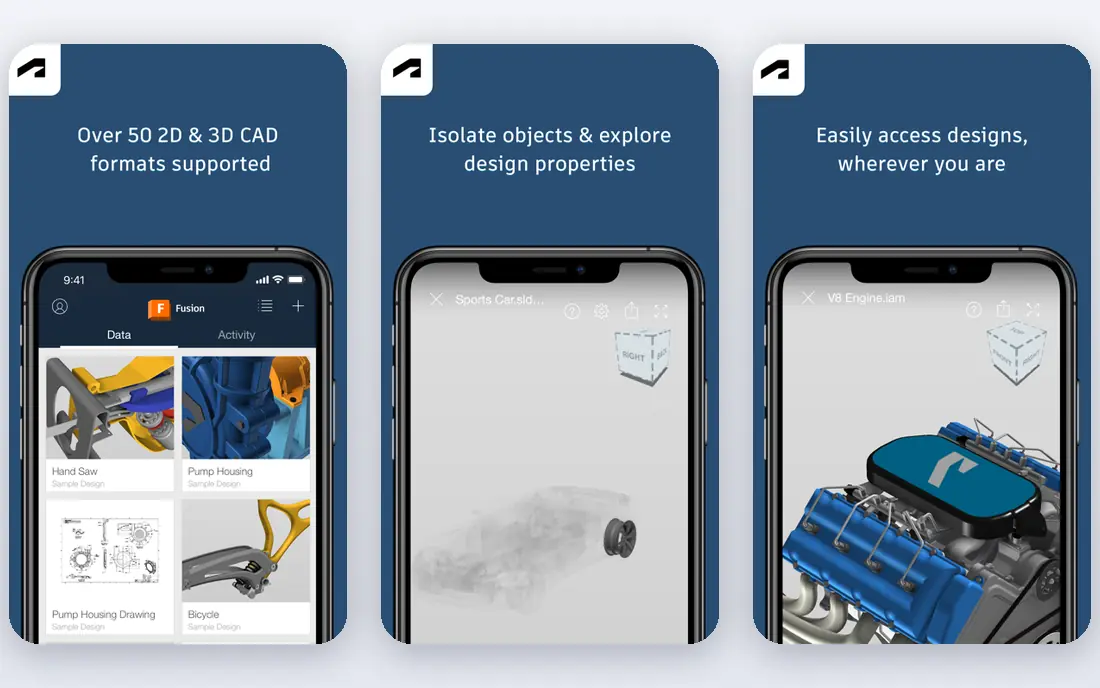
Fusion for personal use is the closest free route to professional CAD. The sketch, model, and drawing tools feel coherent, and the same app can prepare a part for machining. For a hobbyist who wants to grow past Tinkercad, this is a strong second step.
Read the limits before you build a business on it. Personal use is for non commercial home projects, active editable documents are capped, and a few export types are not included. If your work turns commercial, plan to move to a paid plan rather than stretching the free license.
- Integrated modeling, assemblies, drawings, and basic CAM in one app
- Large tutorial library
- Strong file export for common formats
- Personal use is non commercial with a limit on active editable documents
- Some export types and advanced features are restricted
Onshape suits beginners who want Fusion style parametric modeling without installing software. You model in a browser tab, share a link with a classmate, and roll back through versions when an edit goes wrong. For classrooms and low spec laptops, that browser first design is a genuine benefit.
The catch is privacy. Free plan documents are visible to others, so do not put client work, inventions you plan to patent, or personal designs you want to keep private into a free account. For public learning projects and school work, it is an excellent free option.
- Full parametric CAD in a browser with no install
- Real time collaboration and version history
- Runs well on lower spec machines
- Free documents are public, so private work needs a paid plan
- Non commercial use only on the free plan
SketchUp Free is the tool we suggest when the project is a room, a shed, a kitchen layout, or a quick concept rather than a machined part. The push and pull approach feels direct: draw a rectangle, pull it into a wall, add a door opening, and you have a space you can walk around in.
It is less suited to parts with tight tolerances, threads, or assemblies that must fit hardware exactly. For visual planning and early design ideas, though, few free tools get you to a readable model faster, and the shared model library helps beginners learn by example.
- Very fast for pushing and pulling boxes into rooms and objects
- Runs in a browser
- Large library of shared models
- Free web version is not for commercial use
- Precision engineering tools are limited compared with parametric CAD
LibreCAD is a calm, focused choice for 2D work. If you need a floor plan, a simple bracket drawing, or a diagram with clean lines and dimensions, it does that job without the weight of a 3D package. It runs on Windows, Mac, and Linux, and it costs nothing for any use.
Do not pick it for 3D printing models or sculpted shapes, since it is a 2D tool only. Pair it with a 3D tool when you need both: draft the plan in LibreCAD, then model the object elsewhere. For students learning drafting basics, that split keeps each lesson clear.
- Free and open source 2D drafting
- Good for floor plans and simple parts
- Light on system resources
- No 3D modeling
- Interface looks dated next to newer tools
OpenSCAD takes a different path: you write code that describes cubes, cylinders, and differences between them, and the program builds the solid. That sounds odd at first, yet it shines for parts like enclosures, mounts, and organizers where one parameter, such as a hole diameter, should update the whole design.
The downside is that you cannot just grab and drag a shape the way you can in Tinkercad. Beginners who like programming often love it, while visual thinkers may prefer FreeCAD. If you already write code, OpenSCAD can become the fastest way to make a family of similar parts.
- Designs are scripts, so a part can be resized by changing numbers
- Excellent for repeatable and configurable parts
- Free and open source
- No direct mouse modeling, so visual learners may struggle
- Previewing complex shapes can be slow
Blender belongs on this list for a different kind of beginner: the maker who wants creatures, masks, cosplay props, and decorative objects. Sculpting in Blender feels closer to clay than to engineering, and the result exports well for 3D printing once the mesh is checked.
It is not the right first tool for a bracket that must mate with a bolt, because Blender works with meshes rather than dimensioned solid features. Use it alongside a parametric tool, and let each one do what it does best: Blender for form, FreeCAD or Fusion for fit.
- Powerful sculpting and mesh tools for characters and props
- Free for commercial work
- Huge community tutorials
- Not a parametric engineering tool, so dimension driven parts are harder
- Interface has a steep learning curve
Shapr3D is our pick for beginners who think better with a pen in hand. Sketching on an iPad, extruding a profile, and filleting an edge feels closer to drawing than to menu hunting, and the models it produces are real solids, not just meshes.
The free Basic plan limits how many designs you can keep active, so it works best as a sketching and learning tool rather than a full project archive. If you have a tablet already, try it for early ideas, then move finished work to a desktop CAD tool when a project grows.
- Direct modeling with pen input feels natural on a tablet
- Solid modeling tools are genuinely capable
- Good for sketching ideas away from a desk
- Free Basic plan is limited in the number of designs
- Best experience needs a tablet and pen
How we picked these
We compared official product pages, pricing and license pages, and public documentation for free CAD tools available in October 2026. We kept only tools that are free to start, still maintained, and genuinely usable by a beginner, and we noted the license limit that matters most for each one, such as non commercial use or public documents. We did not claim hands on testing, and we did not list paid only tools as free.
What to check before you commit to a free CAD tool
Start with the project, not the app. A first printed toy points to Tinkercad, a part that must fit a bolt points to FreeCAD or Fusion, and a room layout points to SketchUp Free. Write down the file type you need at the end, such as STL for printing or STEP for sharing with a machinist, and confirm the free plan exports it.
Check the license in plain terms. Fully open source tools such as FreeCAD, LibreCAD, OpenSCAD, and Blender carry no commercial restriction, while free tiers from commercial vendors often limit commercial use, document privacy, or active projects. Also check your computer: browser tools suit low spec machines, while desktop CAD benefits from a modern processor and enough memory for larger assemblies.
Give yourself a two week test. Model the same simple object in two tools, change one dimension, and export it. The tool that makes that edit painless is the one you will still enjoy in month three, and that matters more than any feature list.
Frequently asked questions
What is the best beginner CAD software overall?
For most beginners, Tinkercad is the best first hour, and FreeCAD is the best free tool to grow into. Start in Tinkercad to learn shapes and printing, then move to FreeCAD when you need dimensions, assemblies, and drawings that update from a sketch.
Is FreeCAD really free for commercial work?
Yes, FreeCAD is open source and free for commercial use, with no trial period. That sets it apart from free personal tiers, which are usually limited to non commercial projects. Always check the current license page before commercial use, since terms can change.
Can I learn CAD without a powerful computer?
Yes, if you pick a browser tool such as Tinkercad, Onshape Free, or SketchUp Free. Desktop tools such as FreeCAD and Fusion run best on a reasonably modern machine, but small beginner projects do not need a workstation. Start small, then upgrade hardware only when large models slow you down.
Is Fusion still free for hobbyists in 2026?
Yes, Autodesk offers Fusion for personal use at no cost for non commercial home projects, with limits that include a cap on active editable documents and restricted exports. Read the personal use terms on the vendor page before you rely on it for a long project.
Do I need 2D or 3D CAD as a beginner?
It depends on the output. Choose 2D tools such as LibreCAD for plans and drawings, and 3D tools for printed parts, rooms, and products. Many beginners end up using one of each, since a drawing and a model answer different questions.
Sources
See where you really rank - block by block
ProMapRanker scans Google Maps across a grid of your service area. Simple monthly plans from $19, white-label on every plan.
Start freeKeep reading
 zscaler alternatives
Best Zscaler Alternatives in 2026
Looking for zscaler alternatives? We compare 9 SASE and zero trust platforms on architecture, data protection, pricing, and fit for your network and team.
Read → zapier alternatives free
Best Zapier Alternatives Free in 2026
Nine automation tools for zapier alternatives free in 2026, all with genuinely free tiers, plus free plan limits, starting prices and upgrade paths explained.
Read → which platform is best for online reputation
Which Platform Is Best for Online Reputation in 2026
Wondering which platform is best for online reputation? We compare 8 review, listing, and response tools for small and multi-location businesses and agencies.
Read →