 ProMapRanker
Best Free Alternatives to Photoshop in 2026

Key takeaways
- Photopea is the closest free match for Photoshop workflows, because it opens PSD files in a browser with layers intact.
- GIMP and Affinity offer the deepest desktop editing for people who want a full replacement rather than a quick browser tool.
- Krita is the clear pick for digital painting, while Darktable and RawTherapee handle RAW photo processing better than general editors.
- Canva, Pixlr, and Fotor trade depth for speed, and they suit social graphics and fast one-off edits.
- Every editor here has a usable free version, but browser tools show ads or limit exports unless you pay.
Quick comparison
| Pick | Great for | Pricing starts at | Free tier | |
|---|---|---|---|---|
 Photopea Photopea | Editing PSD files in a browser | Free | Yes | Visit |
 GIMP GIMP | Full desktop photo editing | Free | Yes | Visit |
 Affinity Affinity | Professional desktop editing | Free | Yes | Visit |
 Krita Krita | Digital painting and illustration | Free | Yes | Visit |
 Pixlr Pixlr | Fast browser edits | See website | Yes | Visit |
 Canva Canva | Social graphics and templates | Free | Yes | Visit |
 Paint.NET Paint.NET | Light Windows editing | Free | Yes | Visit |
 Darktable Darktable | RAW photo processing | Free | Yes | Visit |
 RawTherapee RawTherapee | Detailed RAW adjustments | Free | Yes | Visit |
 Fotor Fotor | Quick enhancements and collages | Free | Yes | Visit |
The best free alternatives to Photoshop
Photoshop remains a strong professional tool, but its subscription is hard to justify for casual editing, school work, or occasional design jobs. The free editors below cover most everyday tasks, from layered retouching to RAW processing and digital painting. We compared official feature pages, pricing pages, and public documentation to check what each free version actually includes.
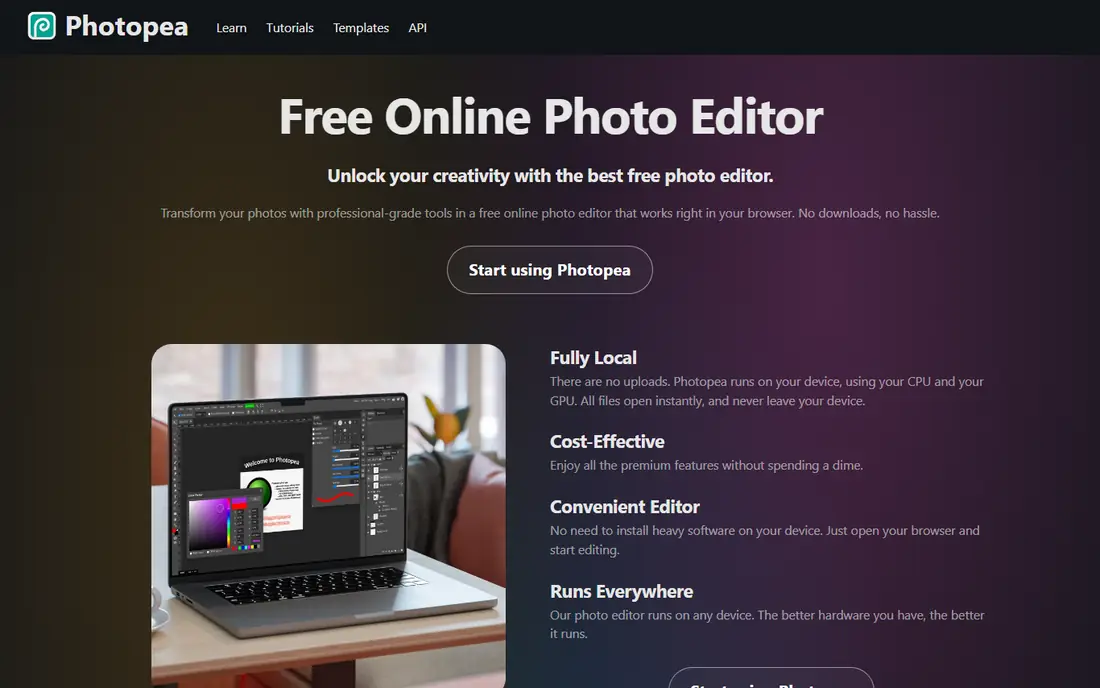
Photopea feels familiar from the first minute. Its panels, layer styles, masks, and selection tools sit where Photoshop users expect them, so the learning curve is short. You can open a PSD sent by a client, adjust layers, export a JPG or PNG, and close the tab without installing anything.
That convenience comes with limits. The free version shows ads, and a browser tab is not the best place for huge print files or dozens of high-resolution layers. For everyday web graphics, school projects, and quick client fixes, though, Photopea is hard to beat. A paid tier removes ads and adds more storage, but the free version already handles the core job.
- Opens PSD, XCF, and Sketch files
- Familiar Photoshop-style layout
- No install needed
- Ads on the free version
- Very large files can strain a browser
GIMP is the long-running open source answer to Photoshop, and its current version is far more polished than older releases. It handles layered compositing, retouching, color correction, and export for print and web. Plugins and scripts extend it further, from batch processing to specialized filters.
The catch is familiarity. Menus and tool names differ from Photoshop, so experienced Photoshop users will need a few sessions to settle in. Once that passes, GIMP becomes a dependable daily editor with no subscription, no account requirement, and no export lock-in. It is a strong pick for people who edit photos often and want full control.
- Layers, masks, and filters at no cost
- Large plugin and script library
- Runs on Windows, Mac, and Linux
- Interface takes time to learn
- Some Photoshop workflows need workarounds
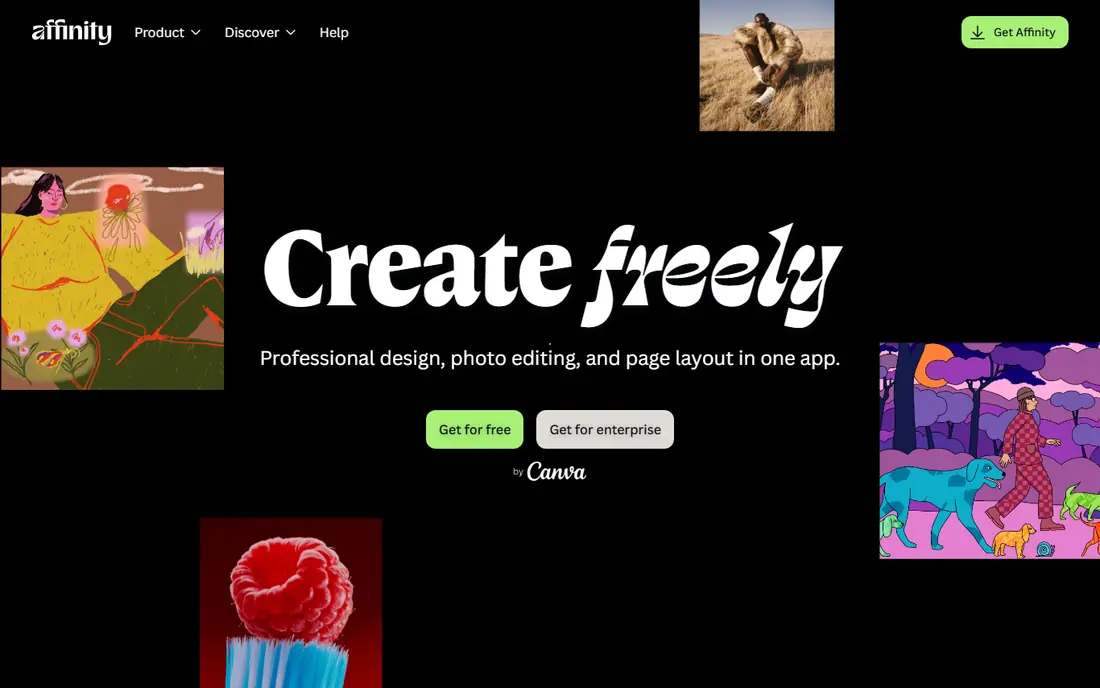
Affinity became free in late 2025, which changed this comparison in a major way. The core photo editor includes layers, masks, non-destructive adjustments, and RAW development, all in a clean desktop app. For print work and serious retouching, it sits closer to Photoshop than most free tools.
The trade-off is the ecosystem. Photoshop still has a larger library of third-party plugins and tutorials, and Affinity users may need to adapt a few workflows. Some newer generative AI features sit behind a paid plan, so check the current pricing page before assuming every feature is free. Even with those limits, Affinity is our pick for people who want a professional desktop editor at no cost.
- Professional layer and RAW tools
- Polished interface
- Works on Windows and Mac
- Smaller plugin ecosystem than Photoshop
- Some newer AI tools require a paid plan
Krita starts from a different question than most editors on this list. Instead of asking how to retouch a photo, it asks how to paint, draw, and animate. Its brush engines, stabilizers, and color management make it a favorite among illustrators, comic artists, and concept artists.
Photo editors will notice the gaps. Krita can crop, adjust, and work with layers, but it is not built for heavy photo restoration or complex compositing. If your main work is illustration, though, Krita is not a compromise. It is a purpose-built tool that happens to cost nothing, and its community produces brushes and tutorials that keep it current.
- Excellent brush engines
- Animation and illustration tools
- Fully free and open source
- Weaker for photo retouching than GIMP
- Photo tools are more limited
Pixlr suits the edit you need in five minutes. Open a photo, crop it, fix exposure, remove a background, and export. The browser version works on shared computers and Chromebooks, and the mobile apps cover quick edits on the go.
It is not a full Photoshop replacement. Complex layer stacks, detailed masking, and print color work are better handled in GIMP, Affinity, or Photopea. Pixlr wins on speed and simplicity, and its free tier is enough for social posts, listings, and school work. Check the pricing page for current limits, since free credits and export rules change.
- Quick browser editing with no install
- AI tools for background removal and enhancement
- Mobile apps available
- Free tier limits saves and some AI features
- Advanced layer work is thinner than desktop editors
Canva is best understood as a design tool with photo editing attached, not as a Photoshop clone. You can adjust brightness, crop, apply filters, and remove backgrounds, but the real strength is templates for posts, presentations, posters, and ads. A non-designer can produce a clean graphic in minutes.
That simplicity has a ceiling. Detailed retouching, channel work, and precise compositing belong elsewhere. Canva also reserves background removal, brand kits, and some premium assets for paid plans. For small businesses and creators who need frequent social graphics, the free tier still covers a lot, and it pairs well with a deeper editor for photo work.
- Large template library
- Simple drag-and-drop design
- Team sharing and brand tools
- Photo editing is basic compared with dedicated editors
- Best features require a paid plan
Paint.NET occupies a useful middle ground between a basic paint app and a full editor. It opens quickly, handles layers, and supports plugins for extra effects and file formats. For screenshots, simple composites, and everyday photo fixes on Windows, it is often all you need.
Windows-only support is the main limit. Mac and Linux users should look at GIMP or Photopea instead. Paint.NET also lacks the depth of Affinity for print work and the brush tools of Krita for illustration. Within its scope, though, it is fast, stable, and refreshingly simple.
- Fast and light on Windows
- Layers and plugins
- Easy to learn
- Windows only
- Less powerful than GIMP or Affinity for complex work
Darktable is closer to Lightroom than to Photoshop, and that focus is its strength. It processes RAW files without changing the originals, so you can revisit edits, compare versions, and export different sizes from one set of adjustments. Organization tools, tagging, and rating help photographers manage large shoots.
Beginners may find the module-based workflow confusing at first. Darktable also lacks the layered compositing tools that Photoshop users rely on for graphic design. Pair it with GIMP for pixel-level edits, and you have a free photo workflow that covers shooting, sorting, developing, and finishing.
- Non-destructive RAW editing
- Photo organization and tagging
- Free and open source
- Steep learning curve
- Not designed for layered graphic design
RawTherapee gives photographers precise control over RAW development, from demosaicing and noise reduction to tone curves and lens corrections. It is a strong choice when a photo needs careful recovery of shadows, highlights, or color rather than a quick filter.
The interface is technical, and new users should expect to read documentation before getting the best results. It also works best as part of a pair, with GIMP or Affinity handling layered edits after RAW development. For photographers who enjoy fine-tuning, that extra control is the point.
- Fine-grained RAW controls
- Batch processing
- No subscription or account
- Interface feels technical
- No photo catalog as polished as Darktable
Fotor is built for people who want a better photo without learning an editor. One-click enhancement, portrait retouching, filters, and collage layouts cover most casual needs. The browser version works well for quick fixes before posting.
Serious editors will hit limits quickly. Layer control is basic, and some tools and exports require a paid plan. Fotor still earns a place here for speed and simplicity, especially for sellers, students, and social media users who edit a few photos a week and do not want a complex app.
- One-click enhancements
- Collage and design templates
- Browser and mobile versions
- Free version includes watermarks or limits on some exports
- Deeper editing is limited
How we picked these
We compared official feature pages, pricing pages, app store listings, privacy policies, and public reviews for editors that offer a genuinely usable free version. We favored tools that exist and work today, support common formats, and do not require payment to open, edit, and export a basic file. We did not claim hands-on testing, and we checked vendor pages for current free tiers and paid limits. Where pricing varied by billing period or region, we listed the free starting point or wrote See website rather than guessing a single figure.
Choosing the right free editor for your work
Start with the job, not the brand. A browser tool suits a borrowed computer, a desktop editor suits daily work, and a RAW processor suits a camera workflow. Many people end up with two tools: one for fast edits and one for deeper work.
Match the tool to the file
If clients send PSD files, Photopea or Affinity will save the most time. If you shoot RAW, Darktable or RawTherapee should come first, with GIMP or Affinity for finishing. If you paint, Krita should be the main app, not an afterthought.
Check export and print needs
Free does not always mean unlimited. Browser tools may limit resolution, add watermarks, or restrict batch exports on free tiers. Before committing to a project, test an export at the size you need, and confirm color and file format support for print work.
Think about learning time
GIMP, Darktable, and RawTherapee reward patience with depth, while Pixlr, Fotor, and Canva reward speed with simpler controls. A tool you actually open beats a powerful tool you avoid. Pick the simplest editor that handles your usual jobs, and keep a deeper editor ready for harder projects.
Frequently asked questions
What are the best free Photoshop alternatives?
Photopea, GIMP, and Affinity are the strongest free Photoshop alternatives for layered editing, while Krita leads for painting and Darktable leads for RAW work. The best choice depends on whether you need PSD compatibility, desktop depth, or browser speed. For most people, starting with Photopea for quick work and GIMP or Affinity for deeper projects covers both needs.
Are free Photoshop alternatives really free?
Yes, for the tools listed here, the core editors are free to download or use in a browser. Some add optional paid tiers for extra storage, AI features, or ad removal, and browser tools may limit certain exports on free plans. Always check the vendor pricing page, since free limits change more often than the core features.
Which free alternative opens Photoshop PSD files best?
Photopea opens PSD files with layers intact in a browser, which makes it the most convenient option for PSD work. Affinity and GIMP can also open PSD files, though very complex Photoshop features may not translate perfectly. If PSD compatibility is central to your work, test a real client file before switching fully.
Is Affinity really free now?
Affinity became free in late 2025, with the core photo editor available at no cost on desktop. Some newer generative AI tools require a paid plan, so the free version covers most traditional editing while AI extras sit behind a subscription. Check the official Affinity pricing page for the current split between free and paid features.
What is the best free Photoshop alternative for beginners?
Pixlr and Canva are the easiest starting points, because they focus on quick edits and templates with little setup. Paint.NET is also friendly for Windows users who want layers without a steep learning curve. Beginners who plan to edit often may still benefit from learning GIMP or Photopea early, since those skills transfer to harder projects.
Can free editors replace Photoshop for professional work?
For many photo, web, and social projects, yes, especially with Affinity, GIMP, and Photopea. Print shops, studios, and teams that depend on Photoshop plugins, specific color workflows, or client files may still need Photoshop for some jobs. A practical approach is to use free tools for most work and keep Photoshop only for projects that truly require it.
Sources
See where you really rank - block by block
ProMapRanker scans Google Maps across a grid of your service area. Simple monthly plans from $19, white-label on every plan.
Start freeKeep reading
 youtube alternatives
Best YouTube Alternatives in 2026
Looking for youtube alternatives in 2026? We compare Vimeo, Dailymotion, Twitch, Rumble, and more on price, audience, monetization, control and privacy.
Read → what's the best ai tool for photo editing
What Is the Best AI Tool for Photo Editing in 2026
What is the best AI tool for photo editing? We compare ten tools for 2026, from Photoshop and Lightroom to Luminar, Topaz, Canva and mobile editors today.
Read → twitter alternatives
Best Twitter Alternatives in 2026
Compare the best twitter alternatives for 2026, from Bluesky, Threads, and Mastodon to Reddit, Tumblr, and Micro.blog, with free plans and audience notes.
Read →