 ProMapRanker
Best Free AI Tools to Add Person to Photo in 2026

Key takeaways
- Only add a real person to a photo with that person's permission, and say plainly when an image is AI edited if you share it.
- Photopea, GIMP, and Pixlr suit manual cut-and-paste edits with full control, while Fotor, Canva, and Media.io suit faster AI-assisted blends.
- Adobe Photoshop Express and YouCam Perfect are practical mobile options for quick group edits on a phone.
- Free tiers differ a lot, so check export quality, watermarks, and whether a free preview needs payment for a clean download.
- The best result comes from clear, well-lit reference photos, matched scale and lighting, and a careful check of hands, edges, and shadows.
Quick comparison
| Pick | Great for | Pricing starts at | Free tier | |
|---|---|---|---|---|
 Photopea | Free manual photo editing | Free | Yes | Visit |
 Fotor | Fast AI cutout and placement | Free | Yes | Visit |
 Adobe Photoshop Express | Mobile Adobe editing | Free | Yes | Visit |
 YouCam Perfect | Mobile cutout on a phone | Free | Yes | Visit |
 Canva | Simple design and photo edits | Free | Yes | Visit |
 Media.io | AI blending of two photos | Free | Yes | Visit |
 Picsart | Mobile creative edits | Free | Yes | Visit |
 Pixlr | Browser editing with layers | Free | Yes | Visit |
 GIMP | Full desktop editing | Free | Yes | Visit |
The best free ai tools to add person to photo
We compared free photo editors and AI-assisted tools that can place a person from one photo into another, using cutout, layer, and AI blending methods. We list only legitimate creative tools for family photos, group shots, and design work. Use them only with the permission of the person being added, and do not use them to create misleading images of real people or to place someone in a photo in a way that could harm them. If you share an AI-edited image, say that it was edited.
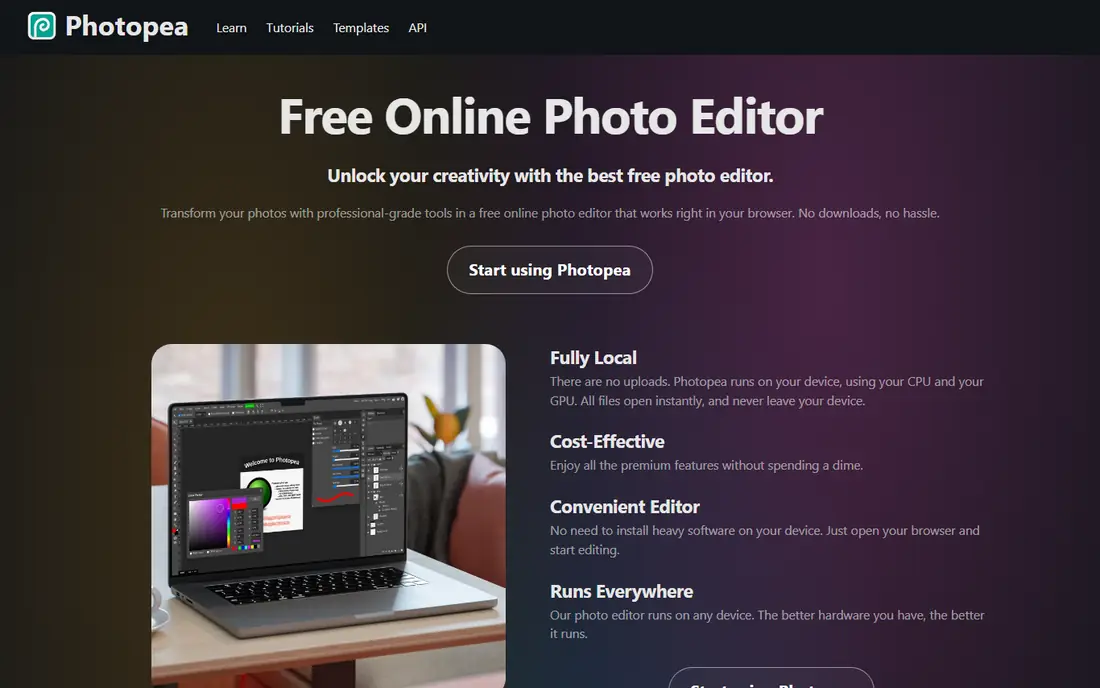
Photopea is the closest free equivalent to a desktop photo editor, running in a browser with layers, masks, and selection tools. To add a person, you cut them from a reference photo, paste them as a new layer, then adjust size, position, and colour to match the target photo. That manual control gives the most honest result for a careful editor, because you decide every edge and shadow yourself.
The trade-off is time and skill. A clean cutout around hair takes patience, and matching light and perspective is a learned skill. Photopea also shows ads on the free version, and large projects can slow down in a browser. We recommend Photopea if you want a free tool with no subscription and you are willing to learn basic masking. For a faster result, pair it with an AI cutout tool, or choose Fotor or Media.io below.
- Free browser editor with layers and masks
- Opens PSD files
- Files processed locally
- Ads on the free version
- Manual cutouts take time and skill
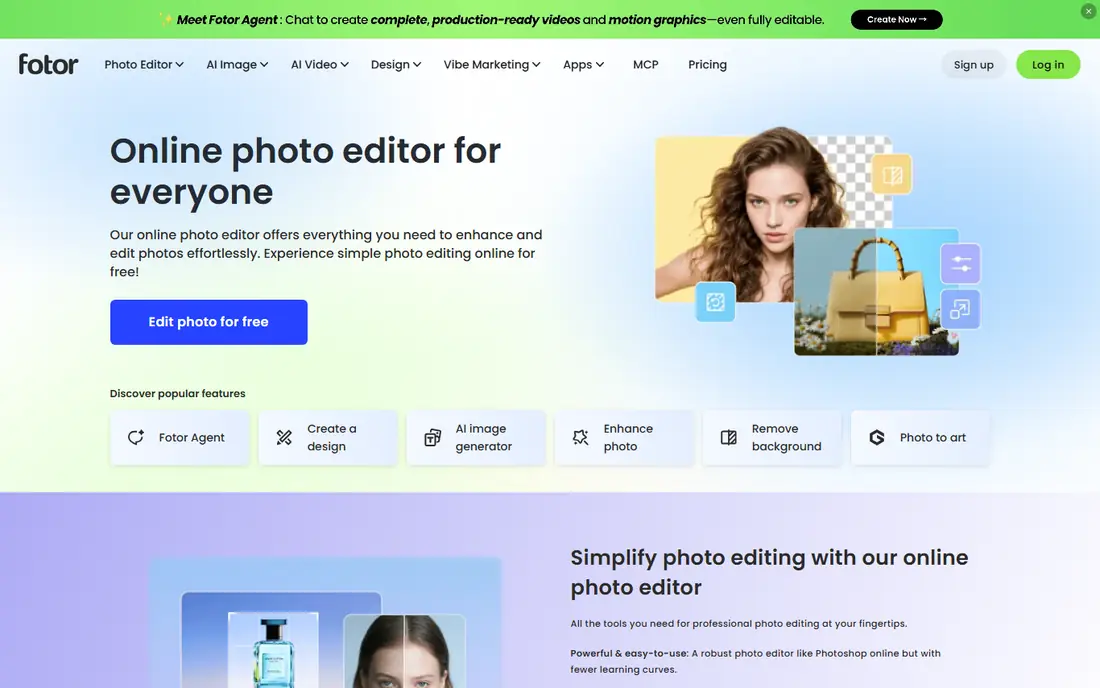
Fotor offers a dedicated add-person workflow that uses AI background removal to cut a person from a reference photo, then lets you place, resize, and rotate them in a new scene. That approach is much faster than manual masking, and it suits family photos where you want to add someone who missed a group shot. You can also use preset backgrounds or upload your own scene.
AI cutouts are not perfect. Hair edges, glasses, and busy backgrounds can still need a manual touch, and the most advanced AI features may sit behind a paid plan. We recommend Fotor for quick, good-looking group edits where speed matters more than pixel-perfect control. Check the export before you share, and fix edges and shadows by hand if the blend looks off.
- AI background removal
- Easy placement and resizing
- Watermark-free saves on the features we checked
- Advanced AI features may need a paid plan
- AI blending can still need manual fixes
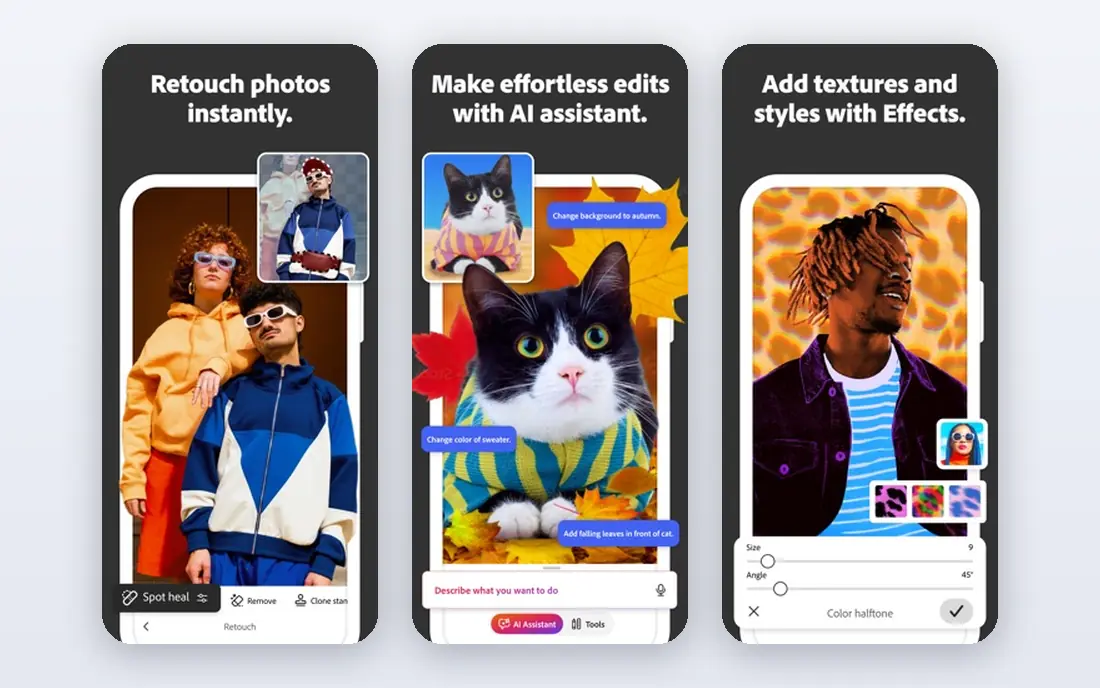
Adobe Photoshop Express brings Adobe editing to a phone with a free tier that covers common photo fixes, layers, and adjustments. You can cut out a person, place them in another photo, and adjust brightness, colour, and size to match the scene. For a quick family edit on a phone, that is often enough, and the Adobe name gives some confidence about export quality.
It is not full Photoshop, and detailed masking on a small screen is harder than on a desktop. Some advanced features need a paid plan. We recommend Photoshop Express for mobile users who want a trusted, free starting point and who are happy to do a simple, careful placement rather than a complex composite. For desktop control, use Photopea or GIMP.
- Free mobile editing from Adobe
- Easy layers and adjustments
- Good for quick phone edits
- Full Photoshop features need a paid plan
- Smaller screen makes detailed masking harder
YouCam Perfect is a mobile photo app with an add-photo workflow that uses AI cutout to remove a person from one photo and place them in another. That workflow suits phone users who want to add a friend or family member to a group shot without opening a desktop editor. The app also offers general photo fixes that help match colour and light after placement.
Free use covers the core workflow, but some features and effects need in-app purchases, and results depend heavily on the quality of the reference photo. A blurry or poorly lit reference will give a weaker blend. We recommend YouCam Perfect for quick mobile group edits, and we suggest using the clearest reference photo you have. Always get permission from the person you add, and check the result closely before sharing.
- AI cutout tools on mobile
- Add-photo workflow for group edits
- Easy sharing
- Some features need in-app purchases
- AI results vary with photo quality
Canva is a design tool that also handles simple photo edits. You can place a cutout person on a new background, adjust size and position, and add text or frames for cards and social posts. That makes Canva a good pick for family cards, invitations, and social images where the photo edit is part of a larger design.
Precision is the limit. Canva is not a dedicated photo editor, and its background remover availability depends on plan, so check whether your free or paid plan includes it. For a careful composite with tricky hair or shadows, Photopea or GIMP will give better control. We recommend Canva when the end product is a card or social post, and the placement itself is simple.
- Free tier with background remover on some plans
- Easy layers and templates
- Simple sharing
- Background remover may need a paid plan
- Less precise than dedicated photo editors
Media.io offers an AI add-person tool that blends a person from a reference photo into a target photo, aiming to match lighting, shadows, and perspective. That AI blending can look more natural than a simple paste, especially for group shots where light direction matters. It runs in a browser, so there is no app to install, and free credits let you test it before paying.
Free credits are limited, and AI blending can still alter a face or produce odd hands, edges, or shadows. We recommend Media.io for testing AI blending on a family or group photo, with a careful review of the result. Use only photos of people who have given permission, keep the reference photo clear and front-facing where possible, and say the image is AI edited if you share it publicly.
- AI blending that matches light and shadows
- Browser-based
- Free credits on signup
- Free credits are limited
- AI output needs a careful check for likeness and edges
Picsart is a popular mobile editor with cutout tools that let you remove a person from one photo and place them in another, then add text, stickers, or effects. That mix suits social posts and creative family edits where you want more than a plain composite. The free tier covers basic editing, and the app is easy to learn for beginners.
Some AI tools and premium effects need a paid plan, and the free app includes ads and prompts to upgrade. Results also depend on manual care with edges and colour matching. We recommend Picsart for mobile users who want a creative, social-friendly edit, and who are willing to spend a few minutes refining the placement. For a clean, realistic group photo, a dedicated cutout tool may give a better result.
- Free mobile editing with cutout tools
- Stickers, text, and effects
- Large user community
- Some AI tools need a paid plan
- Ads and upsells in the free app
Pixlr runs in a browser with layers, masks, and AI cutout tools, making it a middle ground between manual editors like Photopea and fast AI tools like Fotor. You can cut out a person, place them in a new photo, and adjust colour and size, with AI help for the hardest part, which is the initial cutout. That balance suits users who want some control without learning a full desktop editor.
Free use includes ads, and some AI features sit behind a paid plan, so check the current plan page before you rely on a specific tool. We recommend Pixlr for browser-based edits where you want layers and a reasonably clean cutout without installing software. As with every tool here, use clear reference photos and check edges, shadows, and scale before you share.
- Free browser editor with layers
- AI cutout tools
- No install needed
- Some AI features need a paid plan
- Free version includes ads
GIMP is a free, open-source desktop editor with layers, masks, and a wide plugin library. To add a person, you select and mask them from a reference photo, paste them as a layer, and refine edges, colour, and shadows by hand. That gives the most control of any free tool on this list, and there is no subscription, no ads, and no export limit.
The learning curve is the trade-off. GIMP takes time to learn, and AI-assisted cutout depends on plugins rather than built-in tools, so a beginner may find Fotor or Media.io faster for a first edit. We recommend GIMP for users who want a free desktop editor for the long term and who are willing to learn masking. For a one-off family photo, a browser or mobile tool will be quicker.
- Fully free desktop editor
- Layers, masks, and plugins
- No subscription or ads
- Steeper learning curve
- AI features depend on plugins, not built-in tools
How we picked these
We compared official product pages, app store listings, and public documentation, and we favoured tools that are live in October 2026, that offer a genuinely free tier, and that can place a person from one photo into another by cutout, layers, or AI blending. We did not claim hands-on testing. We excluded tools that focus on undressing, non-consensual edits, or other harmful uses, and we included only legitimate creative tools with a plain consent warning in this article.
What to check before you choose
Start with consent and honesty. Only add a real person with that person's permission, and do not place someone in a photo that misleads others about where they were or what they did. If you share an AI-edited image, say that it was edited, especially for family photos that others may take as real. That simple step protects the person in the photo and the people who see it.
Next, check the free tier in detail. Some tools offer a free preview but charge for a clean, full-resolution download, while others offer free exports with ads. Check watermark rules, export size, and whether the AI tool you need is free or paid. A tool that looks free but charges for the final download is not free for your purpose.
Finally, judge the result with fresh eyes. Check scale, perspective, light direction, shadows, hands, and hair edges, and compare skin tones between the added person and the rest of the photo. Small mismatches are what make a composite look fake. Take time to adjust colour and brightness, and ask the person in the photo to review it before you share it.
Frequently asked questions
What is the best free ai tool to add person to photo for a family group shot?
Fotor and Media.io are good first tries for fast AI-assisted group edits, while Photopea and GIMP give more manual control for a careful result. Use the clearest reference photo you have, match light and scale, and check edges and shadows before sharing. Always get permission from the person you add.
Can I add a person to a photo for free without Photoshop?
Yes. Photopea and GIMP are free desktop-style editors, Pixlr and Fotor run in a browser, and YouCam Perfect, Picsart, and Adobe Photoshop Express work on a phone. Each offers a free tier, though some advanced AI features need a paid plan. Pick the tool that matches your device and your comfort with manual editing.
How do I make an added person look natural in a photo?
Match scale and perspective first, then match light direction, shadow direction, and colour temperature. Use a clear, well-lit reference photo taken from a similar angle, and check hands, hair edges, and feet closely. Small adjustments to brightness and contrast often matter more than a perfect cutout.
Is it okay to add a deceased loved one to a family photo?
Many families do this as a memorial keepsake, and tools on this list can help. Use a clear photo of your loved one, be open that the image is AI edited when you share it, and consider how family members will feel about it. A memorial edit made with care and honesty is very different from a misleading edit of a living person.
Do free AI photo tools keep my photos private?
It depends on the tool. Photopea processes files locally in your browser, while AI cloud tools upload your photos to a server for processing. Read the privacy policy for the tool you choose, avoid uploading sensitive photos to a service you do not trust, and delete uploads where the tool allows it.
Sources
- https://www.photopea.com
- https://www.fotor.com/features/add-person-to-photo/
- https://www.adobe.com/express/
- https://www.perfectcorp.com/consumer/apps/youcam-perfect
- https://www.canva.com
- https://www.media.io/image-effects/add-people-to-photo.html
- https://picsart.com
- https://pixlr.com
- https://www.gimp.org
- https://www.perfectcorp.com/consumer/blog/photo-editing/add-people-to-photos
See where you really rank - block by block
ProMapRanker scans Google Maps across a grid of your service area. Simple monthly plans from $19, white-label on every plan.
Start freeKeep reading
 zscaler alternatives
Best Zscaler Alternatives in 2026
Looking for zscaler alternatives? We compare 9 SASE and zero trust platforms on architecture, data protection, pricing, and fit for your network and team.
Read → zapier alternatives free
Best Zapier Alternatives Free in 2026
Nine automation tools for zapier alternatives free in 2026, all with genuinely free tiers, plus free plan limits, starting prices and upgrade paths explained.
Read → which platform is best for online reputation
Which Platform Is Best for Online Reputation in 2026
Wondering which platform is best for online reputation? We compare 8 review, listing, and response tools for small and multi-location businesses and agencies.
Read →