 ProMapRanker
Best Free AI Old Photo Restoration Tools in 2026

Key takeaways
- PicWish and Fotor are the best free starting points for quick browser restoration of scratches, fading, and blur.
- Remini and MyHeritage lead for faces, with strong portrait sharpening and family archive workflows.
- Free tiers usually limit monthly images or resolution, so test two tools on the same photo before you pay.
- Only restore photos you own or have permission to use, and keep the original scan untouched as your archive copy.
Quick comparison
| Pick | Great for | Pricing starts at | Free tier | |
|---|---|---|---|---|
 PicWish | Easy overall restoration | See website | Yes | Visit |
 Remini | Portrait and facial detail | See website | Yes | Visit |
 MyHeritage Photo Enhancer | Family archives and genealogy | See website | Free trial | Visit |
 Fotor | Fast browser restoration | See website | Yes | Visit |
 VanceAI | Scratch repair and fading | See website | Yes | Visit |
 insMind | All-in-one restoration toolkit | See website | Yes | Visit |
 Photomyne | Scanning and restoring albums | See website | Free trial | Visit |
 Canva | Simple restoration for beginners | See website | Yes | Visit |
The best free AI old photo restoration tools
AI restoration tools repair scratches, reduce noise, sharpen faces, colorize black and white prints, and upscale low-resolution scans. Only restore photos you own or have permission to use, and never use these tools to alter photos of people in misleading ways. We compared official feature pages and public guides, and we favored tools with a usable free tier for family photo work.
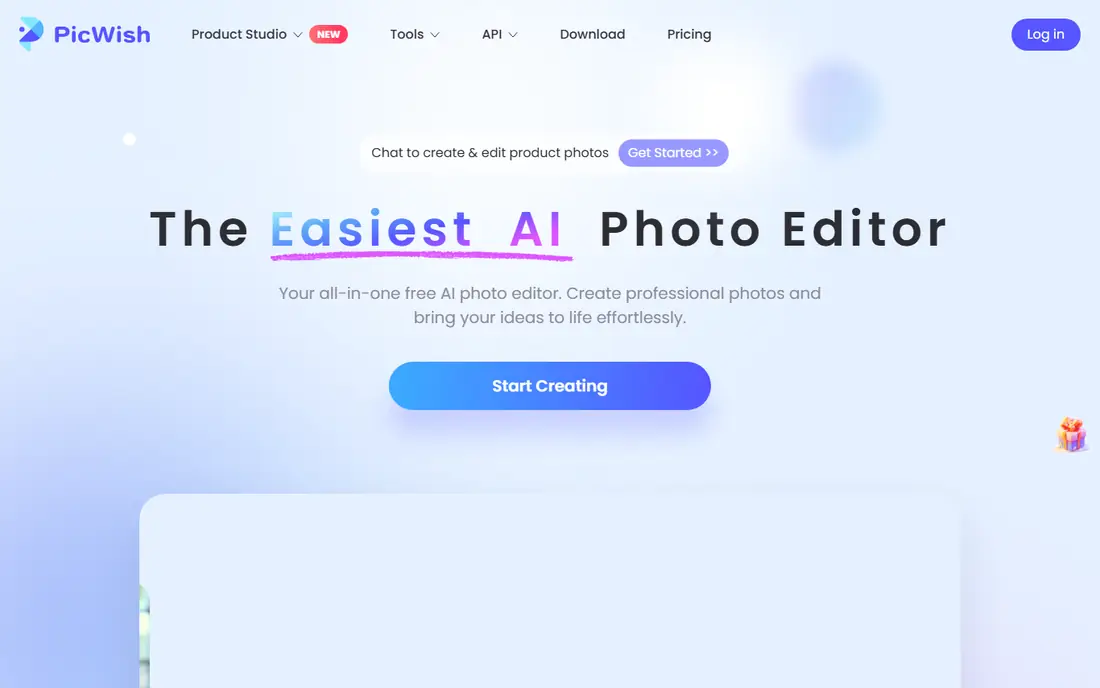
PicWish is the best free starting point for most family photo projects. Upload a scan, choose restoration, and the tool handles scratch repair, clarity, and colorization in one workflow, usually in under a minute. That simplicity matters when you face a box of prints and want steady progress rather than a long learning curve.
Free use is limited, so save credits for your best scans and test the result on one photo first. Severe tears or missing facial detail can still defeat any automatic tool, and the output in those regions is an educated guess, not a recovered original. For light fading, scratches, and blur, PicWish is hard to beat for speed.
- Simple repair, clarify, colorize, and enhance workflow
- Fast browser processing
- Good for light to moderate damage
- Free credits are limited
- Heavy damage still needs manual review
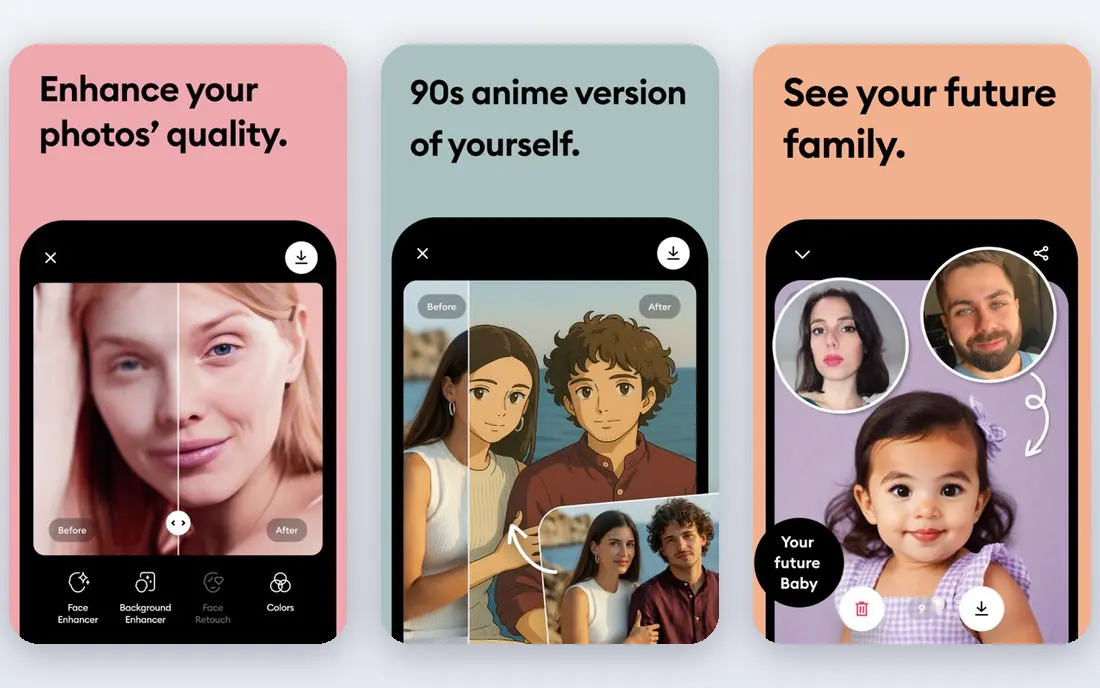
Remini built its name on face enhancement, and it remains the strongest free option for old portraits where faces are soft or low resolution. The mobile app and web tool sharpen facial detail in one tap, which rescues many grainy childhood photos and scanned portraits that other tools leave blurry. For a single face that matters, Remini often produces the most dramatic improvement.
The catch is smoothing. Some outputs look airbrushed, with skin detail lost in favor of a clean look, so compare the result with the original and lower the strength if the tool allows it. Free use carries limits, and full resolution exports may need a paid plan. Use Remini for faces, and pair it with another tool for full-scene repair.
- Strong face enhancement for old portraits
- Simple mobile app
- Fast one-tap results
- Free use is limited
- Heavy smoothing can look artificial on some faces
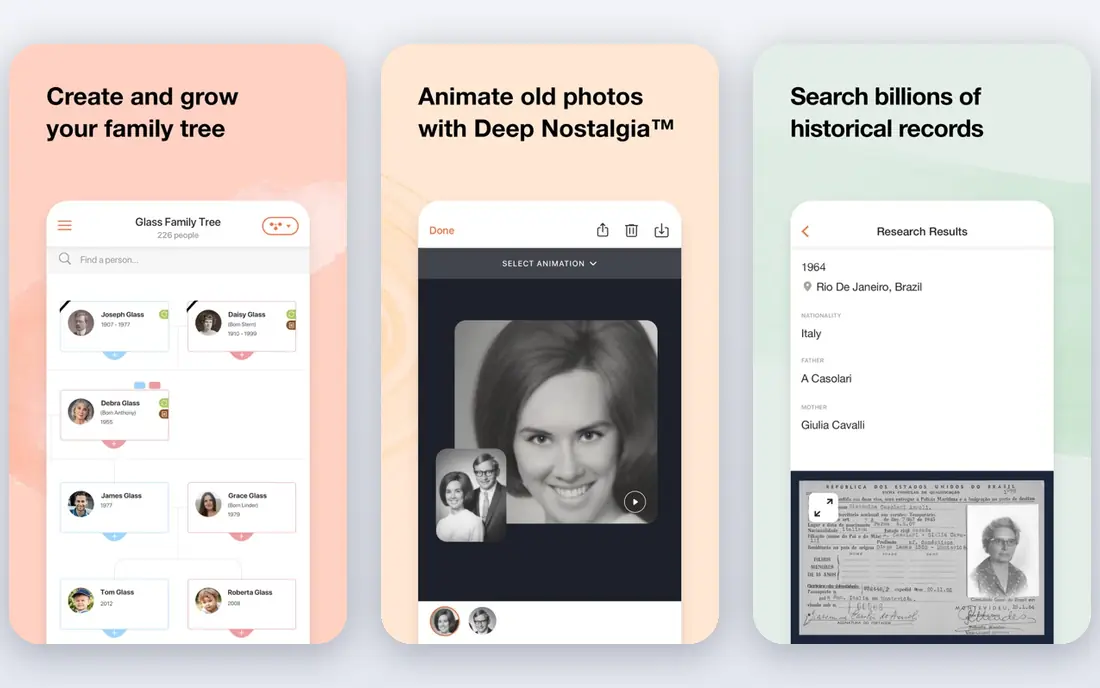
MyHeritage Photo Enhancer, also offered through its Reimagine app, suits anyone restoring photos as part of family history research. Enhancement sharpens blurry faces, colorization adds plausible color to black and white prints, and the results sit naturally alongside a family tree and archive. That context makes it easier to label, date, and share restored photos with relatives.
Free use is limited, and the full experience leans toward a paid genealogy plan. Colorization is also an interpretation, not a record of true colors, so label colorized copies as such in your archive. For a genealogy project with many old portraits, MyHeritage is the most fitting choice on this list.
- Enhancement and colorization in a family archive workflow
- Sharpening tuned for old portraits
- Useful with family trees
- Free use is limited
- Best value comes with a genealogy subscription
Fotor is a fast, browser-based option for anyone who wants restoration without installing software. Its AI enhancer sharpens, denoises, and upscales scans, and its old photo repair workflow handles fading, scratches, and blur in a few clicks. Because it runs in a browser, it works on almost any computer and suits a quick project.
Free use covers casual restoration well, but export size and credit limits apply, and severe damage may need the manual editing tools alongside the AI result. Fotor is best for a beginner who wants a free, no-install start and a set of editing tools in the same place. For faces alone, Remini may still do better.
- Free browser enhancement and upscaling
- Quick repair for faded and scratched photos
- No install needed
- Free exports may carry limits
- Deeper repair needs manual editing tools
VanceAI offers a dedicated old photo restoration tool that targets scratches, stains, fading, and blur, with enhancement options aimed at printable results. That focus makes it a good second tool when a general enhancer leaves scratches or color problems behind. Upload a scan, run restoration, and compare the output with the original at full size before you print.
The interface feels more like a toolkit than a guided app, so a total beginner may prefer PicWish or Fotor first. Free credits are limited, and higher resolution work may need a paid plan. VanceAI earns its place for a restorer who wants a dedicated repair tool and is willing to test settings on a copy.
- Dedicated old photo restoration tool
- Good for scratches and color fading
- Printable enhancement options
- Free use is limited
- Interface is more tool-focused than beginner-friendly
insMind bundles restoration, enhancement, colorization, and denoising into one online toolkit, which suits a project with mixed damage across many photos. One photo may need scratch repair, the next may need color, and the next may need noise reduction, and insMind covers those jobs without switching tools. The browser workflow keeps the process quick for casual users.
As with every tool here, results vary by damage type, and no single setting fixes every photo. Free tier limits apply to volume and resolution, so plan your best scans first. insMind is a good all-in-one backup when your first tool handles one damage type well but struggles with another.
- Restore, enhance, colorize, and denoise in one place
- Browser-based
- Useful for varied damage
- Free tier limits apply
- Results vary by damage type, so test on each photo
Photomyne takes a different starting point: scanning whole albums with a phone, then restoring the results. Its app photographs multiple prints at once, crops them, and applies sharpening and color restoration for aged or faded prints. That workflow suits someone with albums to digitize before any single photo gets detailed repair.
Phone scan quality depends on lighting, glare, and camera steadiness, so a flatbed scan still wins for a precious print. Full features need a paid plan after the trial. Photomyne is best for bulk digitizing, with detailed AI repair in another tool afterward for the photos that matter most.
- Phone scanning for whole albums
- Sharpening and color restoration for aged prints
- Album organization
- Full features need a paid plan
- Phone scans vary with lighting and camera quality
Canva is widely seen as the easiest app for a total beginner to restore an old photo. Its photo editor includes enhancement and restoration-style tools that remove light damage, balance tones, and prepare a photo for sharing or printing, all inside a design tool many people already use. The free plan covers casual use well.
Dedicated tools beat Canva on severe scratches, tears, and facial detail, so treat Canva as a light repair and sharing tool, not a full restoration studio. For a beginner who wants one free app to fix a slightly faded scan and share it with family, Canva is the lowest-friction choice on this list.
- Free plan with photo editing and enhancement
- Very easy for beginners
- Useful for sharing restored photos
- Restoration is lighter than dedicated tools
- Best for light damage, not severe repair
How we picked these
We compared official feature pages, free tier terms, and public guides for tools that restore old photos in 2026. We favored tools with a usable free tier, a clear restoration focus, and support for common damage types like scratches, fading, blur, and color loss. We left out tools that only enhance modern photos with no old photo workflow, and we excluded any tool marketed for altering photos of people without consent.
What to check before you restore
Start with a good scan. A flatbed scan at a high resolution gives every tool more detail to work with, while a phone photo of a print adds glare and distortion. Always work on a copy and keep the original scan untouched, so you can retry with another tool or setting without losing the source.
Damage type and expectations
Match the tool to the damage. Faces need Remini or MyHeritage, scratches and fading need PicWish or VanceAI, and bulk albums need Photomyne. Accept that severely damaged regions are reconstructed by guesswork, not recovered, and check faces closely before sharing a restored photo as a historical record. Label colorized copies as colorized, since the colors are plausible, not proven.
Privacy and permission
Only restore photos you own or have permission to use, and check the privacy policy before uploading family photos to any cloud tool. Some tools store uploads for processing, and terms differ on retention. For sensitive family photos, prefer a tool with clear deletion options, and delete uploads when the project is done.
Frequently asked questions
What is the best free AI old photo restoration tool?
PicWish is the best free starting point for overall restoration, while Remini leads for faces and MyHeritage leads for family archives. Test two tools on the same photo, since each AI handles damage differently and one may suit your specific photo better.
What are the best AI old photo restoration tools for free use?
PicWish, Fotor, insMind, and Canva offer usable free tiers for browser restoration, and Remini offers free face enhancement with limits. VanceAI and MyHeritage offer limited free use, while Photomyne offers a trial. Free tiers usually limit monthly images or export resolution.
Can AI really fix badly damaged old photos?
AI handles fading, scratches, stains, and blur well, but heavy damage with missing facial features still needs human review. When detail is missing, the model infers what might have been there, which can change a face. For a precious print, pair AI repair with a careful manual check and keep the original scan.
Is AI photo restoration free?
Both free and paid options exist. Free tiers cover casual family projects, while paid plans add volume, resolution, and advanced features. Open tools that run locally are also available for technical users, but most beginners do better starting with a free browser tool on this list.
Should I colorize a black and white old photo?
Colorization can make a photo feel alive for family sharing, but treat it as interpretation, not history. Skin, sky, and clothing colors are predicted, not recovered, and one-off objects are often guessed. Keep a black and white restored copy alongside any colorized version in your archive.
Sources
See where you really rank - block by block
ProMapRanker scans Google Maps across a grid of your service area. Simple monthly plans from $19, white-label on every plan.
Start freeKeep reading
 zoho inventory alternatives
6 Alternatives to Zoho Inventory, Compared on Price and Fit
Zoho Inventory alternatives: 6 tools compared on price, free plans and fit. Katana leads the list for manufacturers. Fit and flaws are laid out for each entry.
Read → zoho crm alternatives
Best Zoho CRM Alternatives (2026)
Need Zoho CRM alternatives? We compare 7 tools on cost, free access and who each suits. Every pick gets a straight assessment. Built for quick decisions.
Read → zelle alternatives
Best Zelle Alternatives in 2026
Compare the best Zelle alternatives for sending money to friends, paying sellers and moving funds abroad, with honest notes on fees, speed and safety in 2026.
Read →