 ProMapRanker
Best File Sync Software Free in 2026

Key takeaways
- Truly free sync tools, such as Syncthing and FreeFileSync, have no storage cap from a vendor, but you supply your own devices or drives.
- Free cloud plans range from 2 GB to 20 GB, so check the limit before you move a photo library or a work folder.
- Sync is not the same as backup. A file deleted on one device can disappear everywhere unless version history or a separate backup is in place.
- The best free option depends on whether you want device-to-device sync, cloud access from anywhere, or both.
Quick comparison
| Pick | Great for | Pricing starts at | Free tier | |
|---|---|---|---|---|
 Syncthing | Private device-to-device sync | Free | Yes | Visit |
 FreeFileSync | Folder mirroring and backups | Free | Yes | Visit |
 Google Drive | Everyday cloud sync | Free | Yes | Visit |
 Dropbox | Simple sharing and sync | Free | Yes | Visit |
 OneDrive | Windows and Office users | Free | Yes | Visit |
 pCloud | Extra free cloud storage | Free | Yes | Visit |
 MEGA | Large free cloud storage | Free | Yes | Visit |
 Box | Simple cloud file sharing | Free | Yes | Visit |
 Resilio Sync | Fast peer-to-peer sync | Free | Yes | Visit |
The best file sync software free
Free sync tools fall into two groups. Some sync directly between your own devices, and some sync through a cloud account with a free storage limit. Both can work well, but they solve different problems.
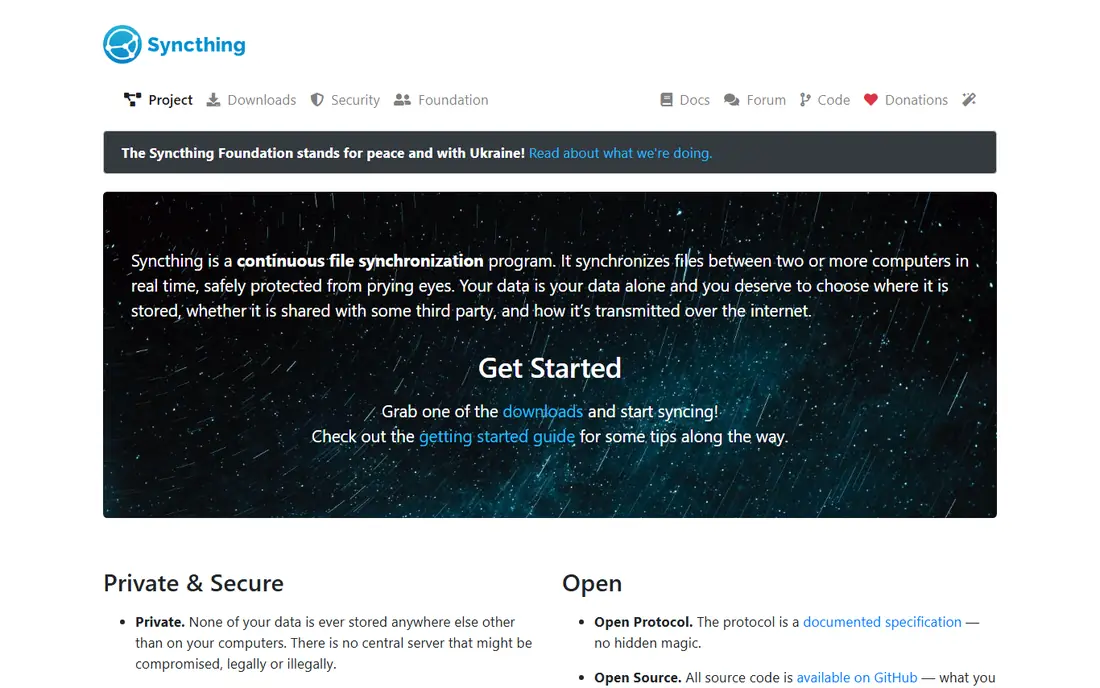
Syncthing keeps a shared folder in step across your own devices without sending files through a vendor cloud. That design appeals to people who want control over where their files live, and it means there is no vendor storage limit to hit. Once folders are shared and devices are paired, changes copy in the background.
The trade-off is setup. You need to pair each device, approve shared folders, and make sure devices can reach each other on your network. There is also no cloud copy waiting if every device is lost or damaged, so pair Syncthing with a separate backup for files you cannot replace. For daily sync between a laptop, a desktop, and a phone, it is hard to beat on price and privacy.
- Open source and fully free
- No central cloud server
- Works across Windows, macOS, Linux, and Android
- Setup takes more steps than a cloud app
- No built-in cloud backup if all devices fail
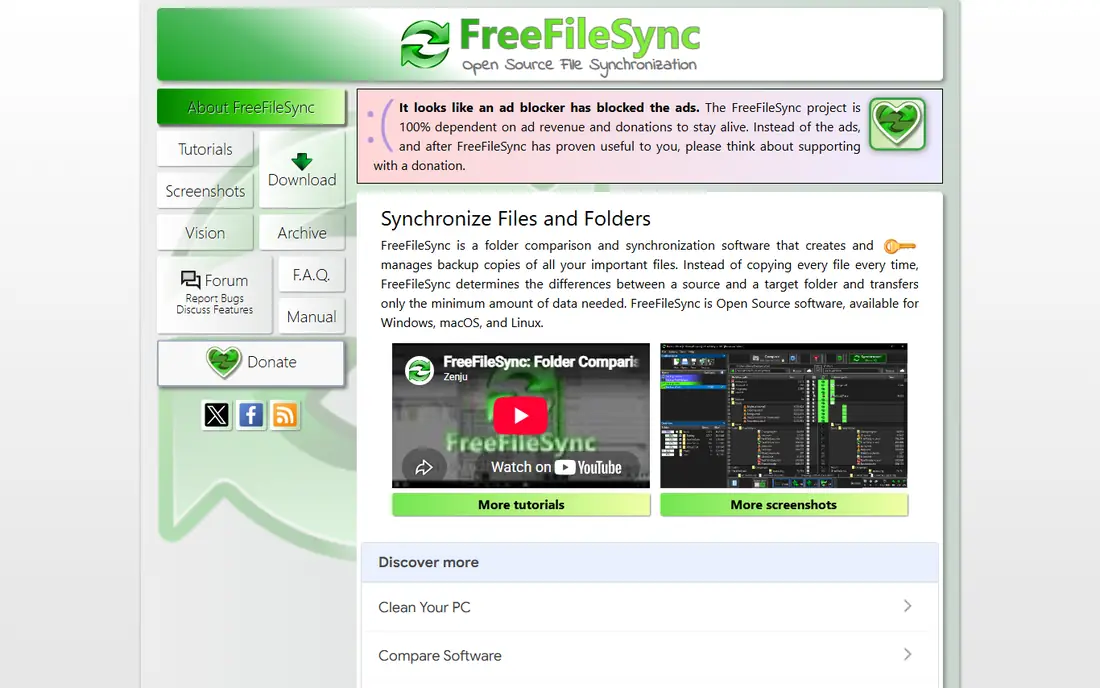
FreeFileSync is best thought of as a folder comparison and copying tool rather than a always-on cloud drive. You pick a source and a target, compare them, and choose mirror, two-way, or update mode. That control makes it a good fit for syncing to an external drive, a NAS, or a second computer on a schedule you set.
Versioning is a useful safety net. It can keep older copies of changed or deleted files, which helps when a sync would otherwise remove something you still need. The interface is functional rather than polished, and real-time sync takes extra setup with its companion tool. If you want a set-and-forget cloud folder, look at the cloud options below instead.
- Free and open source
- Mirror and two-way modes
- Versioning for changed or deleted files
- Interface looks dated
- Real-time sync needs a companion tool and some setup

Google Drive is the default free sync choice for many people because it is already tied to a Google account. Files sync to a folder on your computer, stay available on the web, and open in Docs, Sheets, and Slides without extra software. Sharing a file or folder with a link is quick, and version history helps recover earlier drafts.
The 15 GB free allowance sounds generous until you count Gmail and Google Photos against the same total. Photos and large attachments can fill it faster than expected. If you mainly sync documents and a modest set of files, the free plan is plenty. If you sync video or a full photo library, plan to pay or to keep large files elsewhere.
- 15 GB free shared with Gmail and Photos
- Strong web apps and sharing
- Works on most devices
- Free storage is shared across Google services
- Larger files need a paid plan
Dropbox earned its reputation by making sync feel invisible. Install the app, drop files in the Dropbox folder, and they appear on your other devices. Sharing is just as simple, with links, folder invites, and controls for who can view or edit. For small document sets and frequent sharing, that simplicity still stands out.
Storage is the limit. The free plan offers only 2 GB, which fills quickly with photos or project files. There is also a device limit on the free plan, so check how many computers and phones you need connected. Dropbox Basic works best as a tidy sync folder for active work, not as a home for your whole drive.
- Very easy setup and sharing
- Reliable sync on desktop and mobile
- File requests and link controls
- Free plan offers only 2 GB
- Device limit applies on the free plan
OneDrive fits naturally on Windows, where it is built into File Explorer and pairs with Word, Excel, and PowerPoint. Files can be set to stay online only until you need them, which saves local disk space, and sharing from Office apps is straightforward. For households or offices already using Microsoft accounts, setup is close to automatic.
The free plan gives 5 GB, which covers documents and school or office work but not a large media collection. People outside the Microsoft ecosystem may find Google Drive or Dropbox a better fit, since OneDrive shines most with Office and Windows. Check the storage used by email attachments and photos before relying on the free tier alone.
- Built into Windows
- 5 GB free
- Smooth Office file handling and sharing
- Free storage is modest
- Best experience requires a Microsoft account and Office apps
pCloud gives new accounts 10 GB of free storage, which is more than Dropbox or OneDrive offer at the free level. That extra room makes it a useful second cloud for photos, documents, or a backup copy of an active project. Desktop apps sync a local folder, and mobile apps give access on the move.
Read the signup details before you count on the full amount, since part of the free storage can depend on completing steps such as verifying an account or inviting others. Even with that caveat, pCloud is a solid free option for people who want more room without paying. Paid plans add more storage and features, but the free tier is usable on its own.
- 10 GB free on signup
- File versioning and sharing
- Apps for desktop and mobile
- Full free amount may need extra steps to reach the full amount
- Larger plans are paid
MEGA offers one of the largest free cloud allowances in this list, at 20 GB. That makes it practical for a photo backup, a study archive, or a shared project folder without an immediate upgrade. Files are encrypted end to end by design, and sharing links can carry a password and an expiry date for extra control.
Free storage terms have changed over time, so confirm the current allowance on the MEGA site before you move a large collection. The sync app also needs a little care when you first point it at a very large folder, since the first sync takes time. For a roomy free cloud with strong encryption defaults, MEGA is a strong pick.
- 20 GB free storage
- End-to-end encryption by design
- Sharing links with passwords and expiry
- Free storage terms can change
- Sync app setup needs care for large folders
Box is a clean, business-minded cloud drive that also works well for personal use. The free personal plan offers 10 GB, and sharing folders with view or edit access is straightforward. The web interface is tidy, and previewing documents without downloading them saves time.
The main limits sit on the free tier. There is a cap on the size of a single file you can upload, and some desktop sync features are reserved for paid plans. That makes Box better for documents, PDFs, and modest media files than for huge video files. If your files are mostly documents and you share with others often, it is a calm, reliable choice.
- 10 GB free
- Clean sharing and collaboration
- Good web interface
- Free plan has a file size limit
- Desktop sync features are limited on free accounts
Resilio Sync moves files directly between your devices, much like Syncthing, but with a more polished setup flow. It handles large files well, since transfers do not pass through a cloud server with a storage cap. That makes it a good fit for video projects, photo libraries, and folders that are too large for a free cloud plan.
The catch is the same as with any peer-to-peer tool. At least one device holding the files needs to be online for another device to sync, and there is no cloud copy to fall back on. Paid versions add management and selective sync features for teams. For personal use across a few devices, the free version covers the core job well.
- Fast peer-to-peer transfers
- No cloud storage limit
- Works across desktop and mobile
- Free version lacks some business features
- No cloud copy if devices are offline
How we picked these
We only included tools with a real free plan or a fully free edition, and we checked official sites and pricing pages for current free storage limits. We favoured tools that still work in October 2026, sync across common devices, and offer sharing or version history where relevant. Tools with only a short trial were left out, since the topic asks for free software, not a free trial of paid software.
How to choose a free sync tool
Start by listing what you actually sync. Documents and spreadsheets fit almost any free cloud plan, while photos and video need either a large free allowance, such as MEGA or pCloud, or a device-to-device tool with no vendor cap. Next, count your devices. A free plan with a device limit can surprise you when you add a second laptop or a tablet.
Then think about access. Cloud tools let you open files from any browser, even when your home computer is off. Peer-to-peer tools keep files private and avoid storage caps, but they need a device online to sync. Many people use both: a cloud folder for active work and sharing, plus a device-to-device tool or an external drive for large archives. Whichever route you take, keep a separate backup. Sync copies mistakes as fast as it copies good files, so version history, a trash folder, or a regular backup is what saves you after an accidental delete.
Frequently asked questions
What is the best file sync software free?
Syncthing is our pick for private device-to-device sync, while Google Drive is the easiest free cloud option for most people. MEGA gives the most free cloud storage in this list. The right pick depends on file size, device count, and whether you need web access when your own devices are off.
What is the best free file sync software for large files?
Peer-to-peer tools such as Syncthing and Resilio Sync have no vendor storage cap, so they handle large folders better than a small free cloud plan. FreeFileSync also works well for mirroring large folders to a drive or NAS. Just make sure at least one device stays online long enough to finish the transfer.
What is the best sync software for Windows and Mac together?
Syncthing, FreeFileSync, Google Drive, Dropbox, and pCloud all work across Windows and macOS. Pick a cloud tool if you want web access and easy sharing, or a device-to-device tool if you want to avoid storage limits and keep files off a vendor server.
Does free file sync replace backup?
No. Sync mirrors changes, including deletions and overwrites, across devices. A backup keeps separate copies at a point in time, so you can recover after a mistake, ransomware, or device loss. Use version history where available, and keep at least one backup copy outside your sync folder.
How much free storage do cloud sync tools offer?
Free allowances in this list range from 2 GB on Dropbox to 20 GB on MEGA, with Google Drive at 15 GB shared across Google services, pCloud at 10 GB, Box at 10 GB, and OneDrive at 5 GB. Check the current figure on the vendor site, since free tiers change over time.
Sources
See where you really rank - block by block
ProMapRanker scans Google Maps across a grid of your service area. Simple monthly plans from $19, white-label on every plan.
Start freeKeep reading
 zscaler alternatives
Best Zscaler Alternatives in 2026
Looking for zscaler alternatives? We compare 9 SASE and zero trust platforms on architecture, data protection, pricing, and fit for your network and team.
Read → zapier alternatives free
Best Zapier Alternatives Free in 2026
Nine automation tools for zapier alternatives free in 2026, all with genuinely free tiers, plus free plan limits, starting prices and upgrade paths explained.
Read → which platform is best for online reputation
Which Platform Is Best for Online Reputation in 2026
Wondering which platform is best for online reputation? We compare 8 review, listing, and response tools for small and multi-location businesses and agencies.
Read →