 ProMapRanker
Best File Recovery Software Free in 2026

Key takeaways
- Every tool on this list has a real free tier or edition, not just a scan that requires payment to recover anything, though free limits vary widely.
- Recuva and PhotoRec are the only fully free options with no recovery cap, while most others cap free recovery by size, file count, or file type.
- Stop using the drive as soon as you notice a loss, and recover files to a different drive, because new writes can overwrite the files you want back.
- Preview before you recover, and make a disk image first if the drive is failing, clicking, or disconnecting, rather than scanning the original repeatedly.
- For Android data recovery, start with the phone backup and cloud trash first, because desktop tools cannot always reach modern Android storage.
Quick comparison
| Pick | Great for | Pricing starts at | Free tier | |
|---|---|---|---|---|
 Recuva | Quick free recovery on Windows | Free | Yes | Visit |
 PhotoRec | Fully free recovery on any system | Free | Yes | Visit |
 TestDisk | Lost partitions and boot problems | Free | Yes | Visit |
 Disk Drill | Beginner friendly recovery with preview | See website | Yes | Visit |
 EaseUS Data Recovery Wizard | Largest beginner free allowance | See website | Yes | Visit |
 Stellar Data Recovery | Photos and videos with preview | See website | Yes | Visit |
 DMDE | Low cost technical recovery | See website | Yes | Visit |
 R-Studio | RAID and advanced recovery | See website | Yes | Visit |
 MiniTool Power Data Recovery | Guided recovery for Windows users | See website | Yes | Visit |
 Wondershare Recoverit | Camera media and damaged video | See website | Yes | Visit |
The best file recovery software free
We only included tools that let you actually recover files for free, even if the free amount is limited, and we note that limit for each tool. The list moves from fully free tools to beginner tools with capped free tiers, then to technical tools.
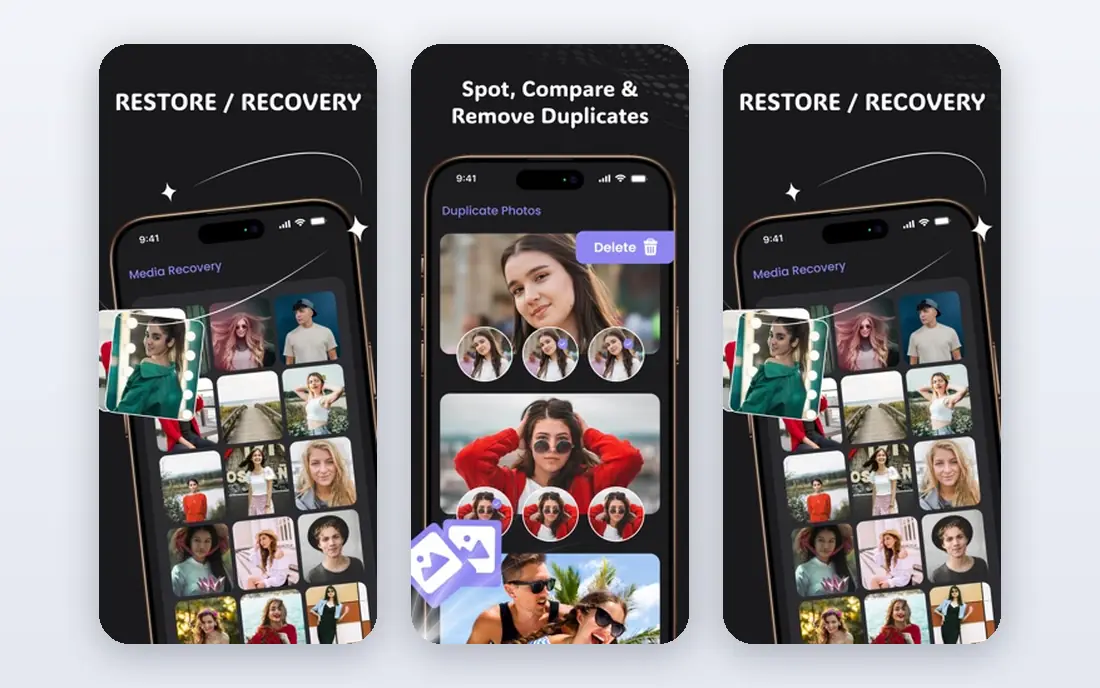
Recuva is the simplest free starting point for Windows users. You pick the drive, choose a file type if you know it, and let the wizard scan for deleted files. The free version does not impose the small size caps that many rivals use, which makes it practical for a folder of documents or a batch of photos that were deleted recently.
The honest limits are platform and polish. Recuva runs on Windows only, and it will not help with a failing drive that needs imaging or with a complex RAID setup. For a recent deletion from a healthy Windows drive, though, it is the first tool we would try, because it costs nothing and it recovers real files, not just a preview.
- Free version recovers without a size cap
- Simple wizard
- Preview and secure deletion included
- Windows only
- Interface looks dated
- Deep scan can be slow on large drives
PhotoRec is free, open source, and available on Windows, Mac, and Linux, and it recovers files by scanning for file signatures rather than relying on the file system. There is no recovery cap, which makes it a strong choice when the budget is zero.
The trade off is usability. PhotoRec is a command line style tool, and the files it returns often have generic names, so you will need time to sort photos and documents afterward. If you are comfortable with a text interface and you want a fully free tool, that trade is worth it. If you need a polished preview, start with Recuva or Disk Drill instead.
- Completely free and open source
- Works on Windows, Mac, and Linux
- Recovers many file types by signature
- No graphical interface in the classic version
- Recovered files lose original names
- Sorting results takes time
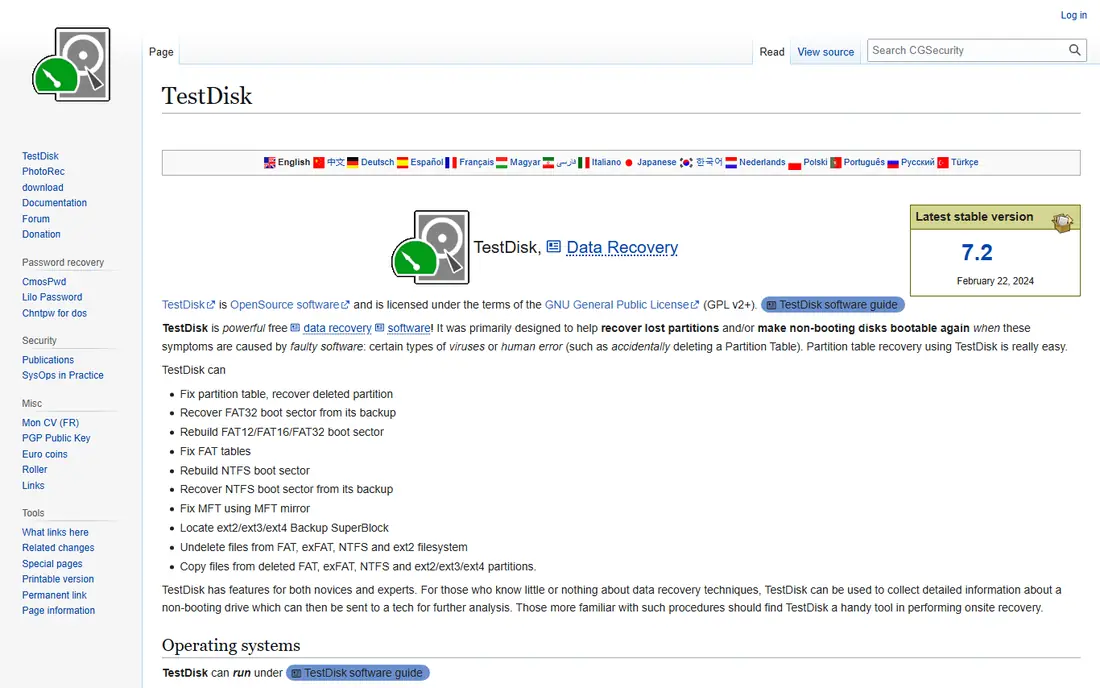
TestDisk is the companion to PhotoRec, and it solves a different problem. When a partition disappears, a drive shows as unallocated, or a boot sector is damaged, TestDisk can analyze the disk and try to rebuild the partition table. That can bring back a whole drive at once, which is far faster than recovering files one by one.
TestDisk is powerful, and that power needs care. Read the documentation, work on a copy or image where possible, and do not write changes to the original drive until you understand what the tool found. For a simple deleted file, use PhotoRec or Recuva instead. For a lost partition, TestDisk is the free tool that belongs on this list.
- Completely free and open source
- Rebuilds partition tables
- Works on Windows, Mac, and Linux
- Text interface only
- Wrong choices can make damage worse
- Not a file by file recovery tool
Disk Drill is the easiest tool on this list for a non technical user. You pick a drive, scan, preview photos and documents in a normal folder view, and recover only what you need. It can also create a byte by byte image of a failing drive, so you scan the image instead of stressing the original, which is the safe way to handle a drive that is making noise or disconnecting.
The free tier is the catch. On Windows, free recovery is capped at a small amount, though scanning and preview are free, so you can confirm that your files are findable before you pay. On Mac, the free allowance has been more generous in past listings, so check the current vendor page for your system. For a small job, Disk Drill is excellent. For a large job, compare its paid price with Recuva or PhotoRec first.
- Clear interface with preview
- Disk imaging for failing drives
- Supports many file systems and cameras
- Free recovery on Windows is limited in size
- Deep scans take time
- Paid plan needed for larger jobs
EaseUS Data Recovery Wizard is the beginner tool with the most useful free allowance. Its free tier starts with a smaller amount and can reach up to 2 GB, which is often enough for a folder of documents or a set of photos without paying anything. The workflow is simple: choose a location, scan, preview, and recover, with clear guidance at each step.
The paid pricing needs care. A monthly plan can cost far more than a one time job should, so compare the yearly or lifetime option before you buy, and only buy after the free scan shows your files. EaseUS is not the right choice for RAID work or for Linux, but for a formatted drive or an accidental deletion on Windows or Mac, it is a strong free first try.
- Guided three step workflow
- Up to 2 GB free recovery in its free tier
- Handles formatted drives and lost partitions
- Monthly paid pricing is poor value for a one time job
- Advanced features sit in higher tiers
- No Linux version
Stellar Data Recovery offers a free tier with up to 1 GB of recovery, which covers many photo and document jobs. Its preview is useful, because you can check that a photo or video is intact before you spend money or time on a full recovery. It also handles formatted drives, lost partitions, and RAW volumes, which covers the most common home data loss cases.
Higher plans add video repair, RAID recovery, and other advanced tools, and those plans cost more, so check which tier your job actually needs. For a simple photo recovery, the free tier may be enough. For damaged video that will not play after recovery, the repair features in a paid tier may be worth the extra cost, but only after preview confirms the files exist.
- Free tier allows up to 1 GB recovery
- Good preview for photos and video
- Handles formatted and RAW drives
- Paid tiers rise in price for video repair and RAID
- Scan can be slow on large drives
- Some features need a higher plan
DMDE is a technical tool with a generous free edition. It lets you recover up to 4,000 files from a selected directory in one request, which can cover a whole folder of documents or photos for free. The paid edition is also low priced compared with most rivals, which makes DMDE a good value when a free tool is not enough and a beginner tool is too limited.
The interface is the main barrier. DMDE shows disk structures, partitions, and file system details that a beginner may find confusing, and a wrong choice can cause problems. If you are comfortable with disk tools, DMDE gives you professional level control for little money. If you are not, start with Recuva, Disk Drill, or EaseUS, and keep DMDE as a second option.
- Free edition recovers up to 4,000 files from one folder per request
- Low paid price
- Strong partition and disk tools
- Interface is technical
- Learning curve for beginners
- Free limit is per folder, not total
R-Studio is built for technicians and for difficult cases. It handles RAID arrays, network drives, and many file systems, and it includes disk imaging, a hex editor, and detailed scan controls. That depth matters when a beginner tool finds nothing, or when the damage involves a RAID setup that a simple wizard cannot rebuild.
The free demo is limited, mainly to preview and to recovery of very small files, so R-Studio is not a free solution for a large job. It belongs on this list because the demo lets you confirm that a complex case is recoverable before you pay, and because its paid price is reasonable for the control it offers. For a simple deletion, it is more tool than you need.
- Advanced RAID and network recovery
- Supports many file systems
- Hex editor and disk imaging included
- Demo limits recovery to small files
- Interface is technical
- Paid price is higher than beginner tools
MiniTool Power Data Recovery organizes recovery into modules for deleted files, damaged partitions, lost partitions, and digital media. That structure helps a Windows user pick the right scan without learning disk internals. Preview lets you check files before recovery, and the free edition covers small jobs, which is enough for a recent deletion of a few files.
The free cap means a large photo library will need a paid plan, and the paid price should be compared with Disk Drill and EaseUS for the same job. MiniTool is a good middle choice: easier than DMDE and R-Studio, more structured than Recuva, and useful when you know the type of loss but not the exact file location.
- Clear guided modules for deletion, formatting, and partition loss
- Preview before recovery
- Free edition for small jobs
- Windows focused
- Free edition has a size cap
- Paid price is higher than DMDE for similar work
Wondershare Recoverit is a good choice for camera cards and video files, because it handles many camera formats and offers video repair on higher tiers. The free tier lets you scan and preview, with a limited amount of free recovery, so you can confirm that your media is findable before you pay. Bootable media is also useful when a system will not start and you need to recover files from its drive.
The free amount is small, so Recoverit is not the best free choice for a large library. It earns its place for a specific job: a memory card with photos or video, or a video file that recovered but will not play. For a general free recovery, try Recuva or PhotoRec first, then use Recoverit when camera media is the priority.
- Free scan and preview with limited free recovery
- Strong camera and video support
- Bootable media for unbootable systems
- Free recovery amount is small
- Paid pricing varies by term
- Video repair needs a higher tier
How we picked these
We compared official vendor pages, free tier terms, and public documentation, and we required a real free recovery option, not just a free scan. We favored tools that still work in October 2026, that support common file systems, and that offer preview or imaging where it matters. We did not claim hands-on testing, and we wrote See website where a paid price was not clearly published, rather than inventing a number.
How to recover files without making things worse
Stop writing to the affected drive right away. Install the recovery tool on a different drive or on a USB stick, and recover files to a separate drive with enough free space. That single habit prevents many recoveries from failing.
If the drive is failing, make an image first. Disk Drill, R-Studio, and DMDE can create a disk image, and scanning that image is safer than scanning a drive that disconnects or makes unusual sounds.
Frequently asked questions
What is the best free file recovery software?
For most Windows users, Recuva is the best fully free starting point, because it recovers without a size cap and has a simple wizard. PhotoRec is the best fully free choice across Windows, Mac, and Linux, though it needs more patience to sort results. For a beginner who wants preview and a guided workflow, Disk Drill and EaseUS are strong, with capped free tiers.
What is the best Android data recovery software?
Start with the phone itself, not a desktop tool. Check the Photos trash, the Files trash, and your Google or cloud backup, because deleted items often stay recoverable there for a limited time. Desktop tools that claim Android recovery work best on older devices or on SD cards, and they cannot always reach internal storage on modern Android phones, so a backup restore is often the safer first step.
Is free file recovery software safe?
Reputable tools from the vendors on this list are safe when downloaded from the official site, but free tools from unknown sites can carry malware. Always download from the vendor homepage, avoid tools that demand payment before showing a scan result, and recover files to a different drive. If a tool asks for unrelated permissions or installs extra software, remove it and use a known vendor instead.
Why do some recovered files not open?
A recovered file may be partly overwritten, fragmented, or found by signature without its full structure, which can leave a photo or video that will not open. Preview helps, because it shows whether the file is intact before you recover it. For video, a repair feature in Stellar or Recoverit may fix a file that recovered but will not play, but a file that was overwritten cannot be rebuilt by software alone.
How much can I recover for free?
It depends on the tool. Recuva and PhotoRec have no recovery cap in their free versions, TestDisk is fully free for partition work, and DMDE allows up to 4,000 files per folder in its free edition. EaseUS allows up to 2 GB, Stellar allows up to 1 GB, and Disk Drill, MiniTool, and Recoverit have smaller free allowances. Check the vendor page for the current limit before you start a large job.
Sources
See where you really rank - block by block
ProMapRanker scans Google Maps across a grid of your service area. Simple monthly plans from $19, white-label on every plan.
Start freeKeep reading
 zscaler alternatives
Best Zscaler Alternatives in 2026
Looking for zscaler alternatives? We compare 9 SASE and zero trust platforms on architecture, data protection, pricing, and fit for your network and team.
Read → zapier alternatives free
Best Zapier Alternatives Free in 2026
Nine automation tools for zapier alternatives free in 2026, all with genuinely free tiers, plus free plan limits, starting prices and upgrade paths explained.
Read → which platform is best for online reputation
Which Platform Is Best for Online Reputation in 2026
Wondering which platform is best for online reputation? We compare 8 review, listing, and response tools for small and multi-location businesses and agencies.
Read →