 ProMapRanker
Best File Recovery Software in 2026


Beginners who want a clean scan and preview · Pricing starts at: $89
Key takeaways
- Stop using the drive as soon as files go missing, since new writes can overwrite exactly what you hope to recover.
- Recuva and PhotoRec cover simple Windows deletions for free, while Disk Drill and EaseUS suit people who want a guided scan and preview.
- R-Studio and DMDE are the stronger picks for damaged drives, lost partitions, and RAID work, but they expect more technical skill.
- Recover recovered files to a different drive, never back to the same drive you scanned.
- No software can fix a drive that is physically broken or not detected at all, and that case belongs with a recovery lab.
Quick comparison
| Pick | Great for | Pricing starts at | Free tier | |
|---|---|---|---|---|
| Disk Drill | Beginners who want a clean scan and preview | $89 | Yes | Visit |
 EaseUS Data Recovery Wizard | Guided recovery with a generous free tier | $69.95 per month | Yes | Visit |
 Recuva | Quick free recovery on Windows | Free | Yes | Visit |
 Stellar Data Recovery | Photo and video recovery with repair tools | $59.99 per year | Yes | Visit |
 Wondershare Recoverit | Corrupted video and camera media | $59.95 per year | Free trial | Visit |
 PhotoRec | Free open source recovery with no limits | Free | Yes | Visit |
 R-Studio | Technicians and RAID recovery | $49.99 | Free trial | Visit |
 DMDE | Budget professional-grade recovery | $20 | Yes | Visit |
The best file recovery software
We compared widely used recovery tools on price, free tiers, supported systems, and how much hand-holding each one gives a stressed user. Our pick for most people is Disk Drill for its clear preview, while Recuva remains the first try for a simple Windows deletion.
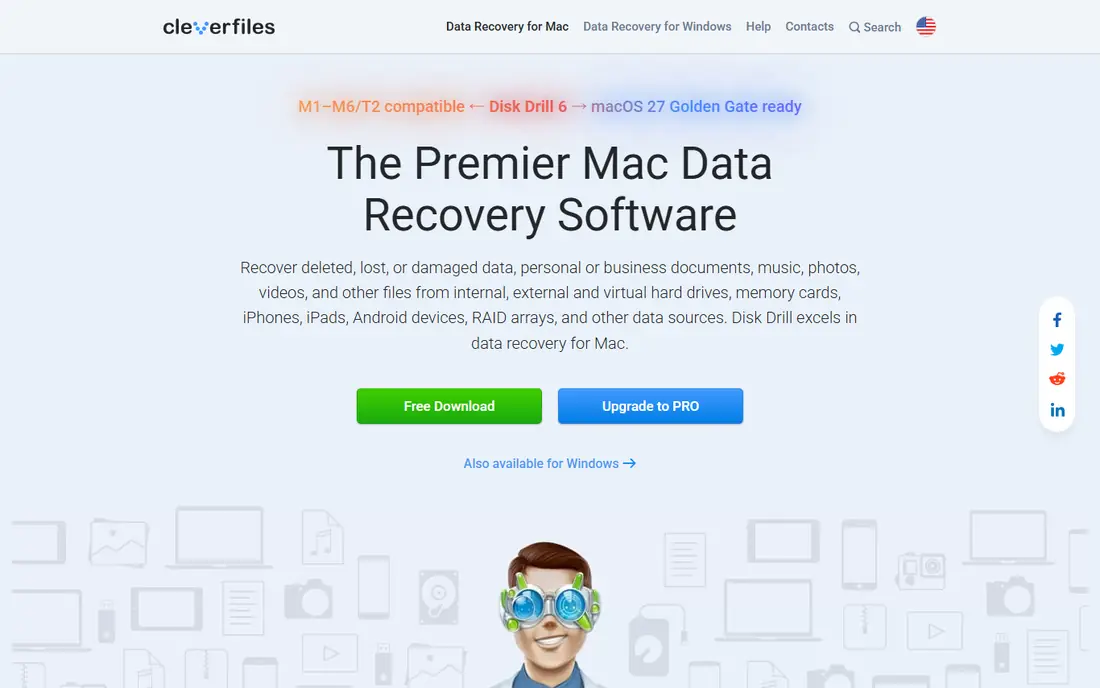
Disk Drill earns the top spot because it keeps a tense job calm. You pick a drive, run a scan, preview what it found in a normal folder view, and only then decide what to recover. That preview step matters, since it stops you paying for a tool before you know your files are still there.
The extra safety feature is disk imaging, which copies a failing drive before you scan it further. Scanning the image instead of the original puts less strain on damaged hardware. The trade-off is price, since full recovery needs a paid license, and the free tier covers only a small amount. Deep scans also run slowly on very large drives, so start one when you can leave the computer alone.
- Clear interface
- Byte-to-byte disk imaging
- Strong file preview before recovery
- Free recovery amount is limited
- Deep scans on large drives can take a long time
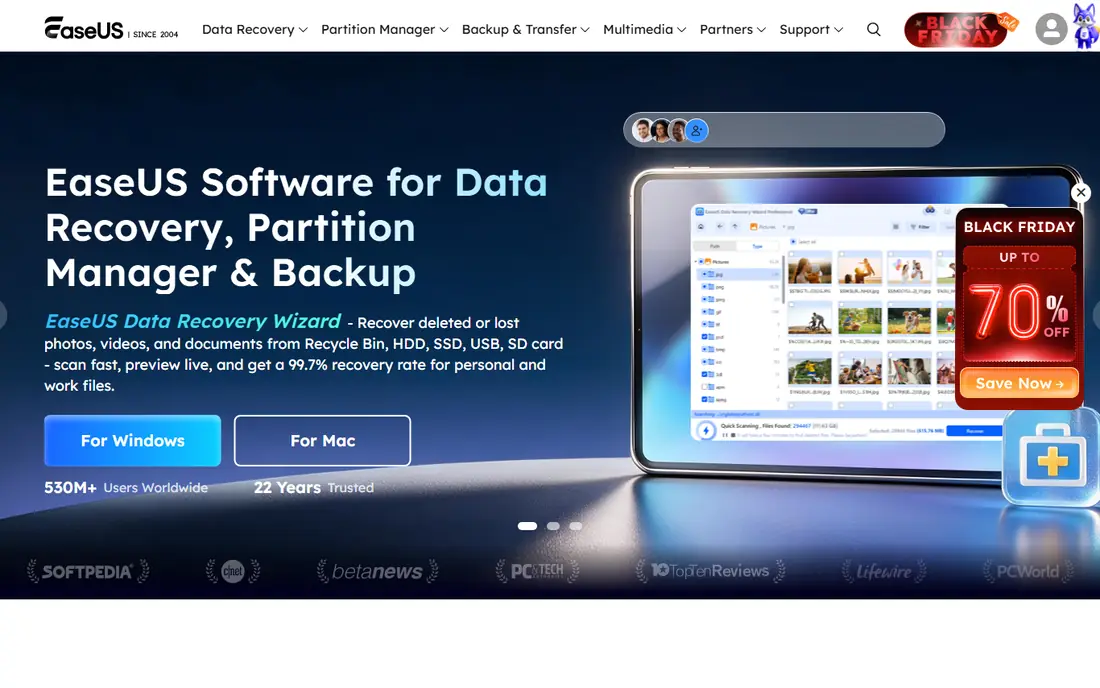
EaseUS follows a familiar pattern of scan, preview, and recover, and it does that pattern well for people who do not want to learn file systems first. Its free tier is the practical draw, since up to 2 GB can cover a folder of documents or a batch of photos without spending anything. Support for formatted drives and lost partitions makes it useful beyond a single accidental deletion.
The catch is pricing structure. A monthly plan costs a lot for a job you may only do once, so compare the yearly option before you buy. Power users may also find that RAID work and deeper disk tools belong elsewhere. For a straightforward home recovery, though, the guided flow and free allowance are hard to beat.
- Simple three-step workflow
- Up to 2 GB of free recovery
- Handles formatted drives and lost partitions
- Monthly price is poor value for a one-time job
- Advanced features sit in higher tiers
Recuva is the tool we suggest trying first when a file was recently deleted on a Windows computer. The wizard asks what kind of file you lost and where it lived, then scans and lists what it can bring back. The free version handles most everyday deletions, and a paid Pro version adds automatic updates and support.
Limits show up quickly with harder jobs. Recuva is Windows only, so Mac and Linux users need another pick from this list. It also struggles with badly corrupted or failing drives, where a disk image and a stronger tool make more sense. Still, for a quick undelete, it is fast, free, and refreshingly plain.
- Free version covers most basic deletions
- Simple wizard
- Deep scan mode for harder cases
- Windows only
- Weak with severely damaged drives
- Development has slowed
Stellar suits people whose loss is mainly photos and videos rather than office documents. The scan and preview workflow is straightforward, and the free tier lets you recover up to 1 GB before paying. Higher tiers add photo and video repair, which helps when recovered media files play back with glitches or missing frames.
Pricing is the main thing to weigh. The entry yearly plan covers standard recovery, but RAID and more advanced repair work sit in pricier editions. Read the edition comparison on the vendor site before checkout, since buying the wrong tier is an easy mistake. For family photos and camera cards, Stellar is a solid middle-ground choice.
- 1 GB of free recovery
- Photo and video repair in higher tiers
- Works on Windows and Mac
- Yearly pricing adds up
- RAID recovery needs the Technician edition
Recoverit focuses on a painful case, which is video that was deleted or damaged on a camera card or drive. It scans for a wide range of file types, previews results, and includes video repair tools that try to fix files that recover in broken pieces. That focus makes it a good second look when a general tool returns a video that will not play.
The downside is the same as with most paid tools in this group. Free use is mainly for scanning and preview, so full recovery needs a license. If your loss is documents or a whole partition, cheaper or free tools may do the same job. If it is wedding footage or client video, the repair features justify a closer look.
- Strong video recovery and repair features
- Supports many camera formats
- Clear preview
- Free recovery is limited
- Yearly cost for a single job can feel steep
PhotoRec is the honest free option, built as open source software with no paywall on recovery. It ignores the file system and carves files out by their contents, which helps when a partition table is damaged or a drive was formatted. It runs on Windows, Mac, and Linux, and it costs nothing at any stage.
Comfort is where it gives ground. There is no slick graphical preview, and recovered files often arrive with generic names, so sorting through hundreds of photos takes patience. Pairing it with TestDisk from the same project helps with partition repair, but both tools expect a user who is comfortable with text menus. If budget is zero and patience is available, PhotoRec is genuinely capable.
- Completely free with no recovery cap
- Works on Windows, Mac, and Linux
- Handles many file types
- Command-line interface with no polished preview
- Recovered files get generic names
R-Studio is the pick for people who already know what a file system is and need control over the recovery process. It handles RAID arrays, damaged partitions, and network recovery, and it includes disk imaging plus a hex editor for manual inspection. Technicians value that depth when a consumer tool reports nothing useful.
That depth is also the barrier. The interface is dense, options are plentiful, and a beginner can feel lost within minutes. The demo limits recovery to small files, so testing it on real data means paying first. For a home user with one deleted folder, R-Studio is overkill. For a damaged array or a complex case, it is one of the few tools worth its price.
- Deep RAID and network recovery
- Disk imaging and hex editing
- Supports Windows, Mac, and Linux
- Interface assumes technical knowledge
- Demo recovers only small files
DMDE gives professional-grade capability at a price far below most rivals, which is why technicians often keep it in their kit. It can scan drives, rebuild partitions, edit disk structures, and recover files from damaged file systems. The free edition lets you recover a limited number of files per folder, which is enough to test it on a real case.
Looks and ease of use are the compromise. The interface feels dated, and the workflow expects you to understand partitions and file systems at least a little. Beginners who want a wizard should start with Disk Drill or EaseUS instead. Users who want strong capability on a tight budget, and who do not mind a steeper learning curve, will find DMDE hard to match for the money.
- Low entry price
- Partition and disk editing tools
- Works on Windows, Mac, and Linux
- Dated interface
- Learning curve for beginners
How we picked these
We compared official feature pages, pricing pages, and app listings for tools that are still offered and supported in October 2026. We favored tools with a clear free tier or trial, a preview before payment, and coverage for common cases such as deletion, formatting, and partition loss. We also kept a mix of beginner tools and technician tools, since one deleted photo and one failed RAID array are very different jobs.
We did not claim hands-on lab testing for every tool, and we did not invent success rates or ratings. Prices came from vendor pages and recent pricing summaries, and any price that could not be pinned down is listed as See website in other articles in this series. If a price changes between our check and your purchase, the vendor page is the final word.
What to do before you scan
First, stop writing to the affected drive. Do not install the recovery tool on that same drive, do not save new files there, and do not run a repair utility that writes changes before you have an image or a copy. Installing on a different drive, or running a portable copy from a USB stick, gives your deleted files the best chance of staying intact.
Second, match the tool to the damage. A recent deletion on a healthy drive is a job for Recuva, Disk Drill, or EaseUS. A formatted card or a lost partition points toward PhotoRec, DMDE, or R-Studio. A drive that clicks, grinds, or vanishes from your computer should be powered off and sent to a lab, since repeated scanning can make physical damage worse.
Third, check the free tier before paying. Scan and preview first, confirm your files appear with sensible names and sizes, and only then buy the license that covers the amount you need. Recover to a different drive, verify the recovered files open, and then make a backup so the same scare does not happen twice.
Frequently asked questions
What is the best file recovery app for a simple deleted file?
For a simple deletion on Windows, start with Recuva, since it is free and quick. On a Mac, or when you want a clearer preview, Disk Drill or EaseUS are better first tries. If the file was deleted long ago or the drive has been heavily used since, scan soon and expect lower odds.
What are the best file recovery tools for a formatted drive?
PhotoRec, DMDE, and R-Studio handle formatted drives well, since they look past the file system for file contents. Disk Drill and EaseUS also cover formatted drives with a friendlier workflow. Always recover to a different drive so the recovery itself does not overwrite data.
Can free file recovery software really work?
Yes, for straightforward cases. Recuva recovers many deleted files at no cost on Windows, and PhotoRec has no recovery cap on any system. Free tiers from paid tools also help with small jobs, but they limit how much you can recover before a license is needed.
Why do some recovered files not open?
A recovered file may be partly overwritten, which leaves gaps in its contents. Photos may show half an image, and videos may refuse to play. Repair features in Stellar or Recoverit can fix some of these files, but a file that has been fully overwritten cannot be rebuilt by software.
Is it safe to keep scanning a failing drive?
Repeated scanning can stress a failing drive, so image it first when the tool supports imaging. If the drive makes unusual noises, disappears often, or is not detected, stop and contact a recovery lab. Software cannot repair physical damage, and continued use can reduce what a lab can save.
Sources
See where you really rank - block by block
ProMapRanker scans Google Maps across a grid of your service area. Simple monthly plans from $19, white-label on every plan.
Start freeKeep reading
 zoho inventory alternatives
6 Alternatives to Zoho Inventory, Compared on Price and Fit
Zoho Inventory alternatives: 6 tools compared on price, free plans and fit. Katana leads the list for manufacturers. Fit and flaws are laid out for each entry.
Read → zoho crm alternatives
Best Zoho CRM Alternatives (2026)
Need Zoho CRM alternatives? We compare 7 tools on cost, free access and who each suits. Every pick gets a straight assessment. Built for quick decisions.
Read → zelle alternatives
Best Zelle Alternatives in 2026
Compare the best Zelle alternatives for sending money to friends, paying sellers and moving funds abroad, with honest notes on fees, speed and safety in 2026.
Read →