 ProMapRanker
Best Fan Control Software in 2026

Key takeaways
- FanControl is the best free starting point for most Windows desktops, with custom curves tied to any sensor.
- Argus Monitor is the paid alternative if you want a polished curve editor plus drive health monitoring in one app.
- Vendor tools such as iCUE, CAM and Armoury Crate only make sense if you own that vendor's hardware.
- MSI Afterburner controls GPU fans well, but it does not replace a case-fan controller.
- Always disable a second fan tool before testing a new one, since two tools fighting over the same fans causes erratic speeds.
Quick comparison
| Pick | Great for | Pricing starts at | Free tier | |
|---|---|---|---|---|
 FanControl | Custom curves on most desktops | Free | Yes | Visit |
 Argus Monitor | Polished paid control plus monitoring | $16.45 per year | Free trial (30 days) | Visit |
 MSI Afterburner | GPU fan curves and overclocking | Free | Yes | Visit |
 Corsair iCUE | Corsair fans, coolers and hubs | Free | Yes | Visit |
 NZXT CAM | NZXT coolers, fans and controllers | Free | Yes | Visit |
 ASUS Fan Xpert | ASUS motherboard owners | Free | Yes | Visit |
 MSI Center | MSI motherboard and laptop owners | Free | Yes | Visit |
 GIGABYTE Control Center | GIGABYTE motherboard owners | Free | Yes | Visit |
 SpeedFan | Older motherboards only | Free | Yes | Visit |
The best fan control software
Fan software is only useful if it can actually talk to your fans. Motherboard headers, GPU fans and brand hubs all use different paths, so the best tool for a custom desktop is often different from the best tool for a branded gaming PC. We compared official feature pages, hardware support and pricing, and we kept only tools that still work on current or legacy hardware in October 2026.

FanControl, built by Rem0o, uses LibreHardwareMonitor for sensor data, so it can read CPU, GPU, motherboard and storage temperatures and tie fans to any of them. Its mix curves are the standout feature, since they let a case fan respond to whichever component is hottest, rather than only to CPU temperature. Profiles for quiet, normal and gaming use are easy to switch once the curves are set.
The main limits are scope and setup. FanControl does not control RGB lighting, so you may still need a vendor app for lights. First-time setup also needs care, since you must identify each fan header and test curves under load. For most desktop owners, it is still the first download we suggest.
- Free
- Custom curves from any sensor
- Mix curves combine CPU, GPU and other sensors
- Lightweight
- No RGB lighting control
- Setup takes care on first use
- Compatibility depends on motherboard sensors
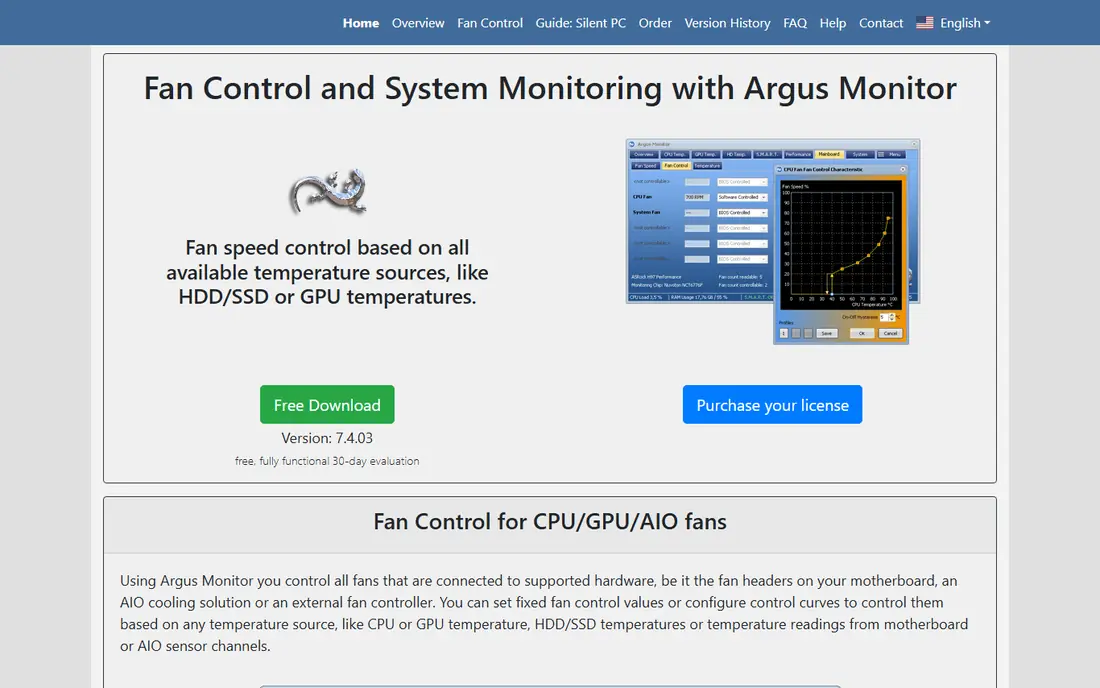
Argus Monitor pairs fan control with detailed hardware monitoring in one paid app. You can set manual speeds or temperature curves from CPU, GPU, motherboard, storage and AIO sensors, with hysteresis and averaging to stop fans hunting up and down. It also tracks drive health, which is useful if you want one dashboard for cooling and storage warnings.
Pricing is based on update periods, with a one-year license at $16.45 and a three-year license at $35.95 in recent listings, plus a 30-day trial. When the license period ends, you can keep using versions released during that period. If you want a tidier interface than FanControl and you do not mind paying a small annual fee, Argus Monitor is the natural paid pick.
- Polished curve editor
- Controls motherboard, GPU, AIO and controller fans
- Drive health and SMART monitoring
- Paid after the trial
- Some devices may be blocked if another tool controls them
- Windows only
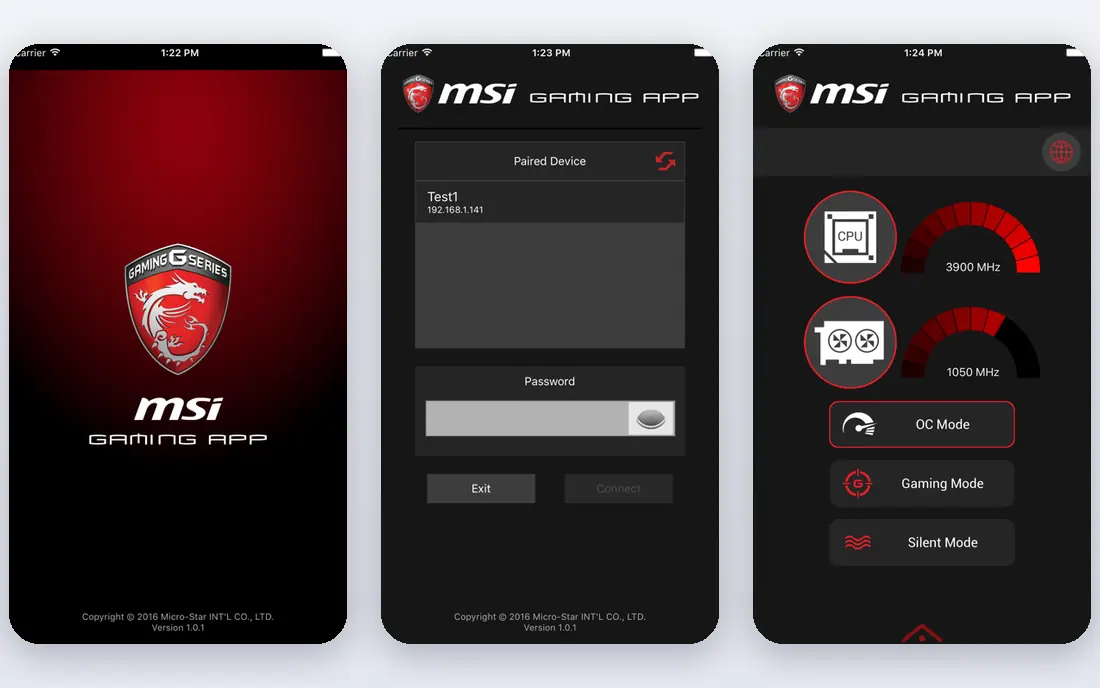
MSI Afterburner is the standard free tool for GPU cooling, even on graphics cards from other brands. Its fan curve editor lets you set GPU fan speed against GPU temperature, and it pairs that with clock, voltage and power controls for users who overclock. On-screen monitoring during games helps you see whether a curve is actually keeping temperatures in check.
The limit is clear in the name of the job. Afterburner does not control case fans connected to motherboard headers, so you still need FanControl, Argus Monitor or a vendor tool for the rest of the system. Use it for the graphics card, and pair it with a case-fan tool for a complete setup.
- Free
- Excellent GPU fan curve editor
- Works with most desktop GPUs
- On-screen monitoring included
- GPU fans only, not case fans
- Interface looks dated
- Some laptop GPUs are limited
Corsair iCUE is free software, but it only earns its place if you own Corsair cooling hardware. Connected through a Commander hub or a compatible cooler, it controls fan speeds from temperature sensors and manages RGB lighting in the same profiles. That single-app control is convenient for a full Corsair build.
If you have only one Corsair fan and the rest of the system is generic, iCUE will not help with the other fans. The app can also feel heavy compared with FanControl. Buy into iCUE for a Corsair system, not as a general fan controller.
- Full control of Corsair hubs, fans and coolers
- Lighting and cooling in one app
- Sensor-based curves
- Only controls Corsair hardware
- App can feel heavy
- Hub hardware may be needed for full control
NZXT CAM is the companion app for NZXT cases, coolers and fan controllers such as the GRID and Smart Device ranges. It gives you fan curves, temperature graphs and lighting control for that hardware in a clean interface. Monitoring for CPU, GPU and storage is included, so it can serve as a daily dashboard.
The same hardware limit applies as with iCUE. CAM will not control generic motherboard fans in the way FanControl does, and some users dislike its account prompts. If your cooling is NZXT based, it is the simplest route. If it is not, start elsewhere.
- Free
- Clean dashboard for NZXT cooling
- Fan curves for NZXT controllers and coolers
- System monitoring included
- Fan control needs NZXT hardware
- Some users prefer to avoid its account and cloud features
ASUS Fan Xpert, inside Armoury Crate, is the built-in option for ASUS motherboard owners. It can auto-tune each fan, finding its speed range, then apply presets or custom curves. For a user who wants quieter operation without learning a new app, that auto-tuning is genuinely useful.
The drawback is the bundle. You install Armoury Crate to get Fan Xpert, and the suite is larger than a single-purpose tool. Curve control is also less flexible than FanControl for mixed-sensor setups. If you already run Armoury Crate for an ASUS board, use Fan Xpert first and only switch if you need more control.
- Free with Armoury Crate
- Automatic fan tuning for ASUS boards
- Quiet, standard and turbo presets
- Needs a supported ASUS motherboard
- Armoury Crate install is large
- Advanced curve options are fewer than FanControl
MSI Center is the vendor utility for MSI desktops and laptops, and its fan controls sit alongside system modes for performance, silent and balanced use. On desktops with supported MSI boards, it can manage case and CPU fans from the same app you use for other MSI features. On laptops, it mainly offers preset modes rather than full custom curves.
That model-by-model variation is the catch. Two MSI systems can offer very different fan options, so check what your exact model supports before you rely on MSI Center alone. Desktop users who want full curves should compare it with FanControl.
- Free
- Built-in fan modes for MSI systems
- Pairs with MSI hardware monitoring
- No extra purchase
- Fan options vary a lot by model
- Laptop control is more limited
- Interface varies by version
GIGABYTE Control Center includes Smart Fan tools for supported GIGABYTE motherboards, with curve editing and presets for CPU and system fans. It is the path of least resistance if you already use GIGABYTE software for a board or graphics card, since no extra purchase or account is needed for basic control.
As with other vendor tools, the exact options depend on your board and BIOS version. Users with mixed-brand hardware will still need a general tool for the rest of the system. Use GIGABYTE Control Center for a GIGABYTE board, and treat it as a starting point rather than a universal controller.
- Free
- Smart Fan controls for GIGABYTE boards
- Fan curve and preset options
- Pairs with GIGABYTE GPU tools
- Only for supported GIGABYTE hardware
- Feature set varies by board
- App updates can change the interface
SpeedFan earned its reputation on older motherboards, and it still has a niche there. On legacy systems where modern tools cannot see fan headers, SpeedFan can sometimes take control when nothing else will. It also monitors temperatures, voltages and drive health.
For a modern desktop, we do not recommend it as a first choice. Development has stalled, support for new boards is limited, and setup is fiddly. Try FanControl or Argus Monitor first on any recent system, and keep SpeedFan only for an older machine that those tools cannot handle.
- Free
- Long history with older boards
- Can control fans on hardware newer tools miss
- Largely outdated
- No recent development
- May not work on modern boards
- Interface is dated
How we picked these
We compared official feature pages, hardware support lists and pricing, and we separated true fan control from monitoring-only tools. A tool made this list only if it can actually change fan speeds on supported hardware, not just display temperatures. We kept one legacy option for older boards and flagged it clearly, rather than pretending it suits modern systems.
What to check before you set fan curves
Start by listing how your fans are connected. Fans on motherboard headers, GPU fans and fans on a brand hub each need a different tool, and a single app rarely covers all three. Write down which fan cools what, then pick the tool that controls the largest group first.
Test under load, not at idle. A curve that looks quiet on the desktop can let temperatures climb during a game or a render. Run a demanding task, watch CPU and GPU temperatures, and adjust the curve in small steps. Keep a safe fallback profile so a mistake does not leave fans at minimum speed during heavy work.
Curves, hysteresis and noise
Use smooth curves with gentle slopes rather than sharp jumps, since steep steps cause fans to surge audibly. Hysteresis, or a delay before fans change speed, stops constant speeding up and slowing down when temperatures hover near a threshold. Aim for a quiet idle, a steady mid-load speed and full speed only at high temperatures.
Avoiding conflicts between tools
Run only one fan control tool at a time. Disable fan control in your motherboard utility, GPU tool or RGB app before testing a new controller, since two tools writing to the same fan cause erratic behavior. If speeds jump for no clear reason, a conflict is the first thing to check.
Frequently asked questions
What is the best fan control software for most PC users?
FanControl is the best free starting point for most Windows desktops, since it controls motherboard, GPU and some controller fans from one app. Argus Monitor is the best paid alternative if you want a more polished editor. Vendor tools win only when your cooling hardware comes from that vendor.
Can fan control software control all my fans?
Not always. Motherboard fans, GPU fans and brand-hub fans often need different tools. FanControl covers the widest range on desktops, MSI Afterburner covers GPU fans, and iCUE or CAM cover their own brand hubs. Check how each fan is connected before you choose.
Is FanControl really free?
Yes. FanControl is free to download and use, with donations accepted by the developer. It does not charge for curves, profiles or sensor mixing. That makes it easy to try before you consider a paid tool such as Argus Monitor.
Why do my fans speed up and slow down constantly?
That hunting usually comes from a steep curve or a missing hysteresis setting. Smooth the curve around the temperature where the problem happens, and add a delay so small temperature changes do not trigger a speed change. Also check that no second fan tool is fighting for control.
Is it safe to set fans to low speeds for quiet operation?
It is safe if temperatures stay within the safe range for your CPU and GPU under load. Test with a demanding task after any change, and keep a fallback profile with higher speeds. Never set all fans to minimum and assume idle temperatures will hold during gaming or rendering.
Sources
See where you really rank - block by block
ProMapRanker scans Google Maps across a grid of your service area. Simple monthly plans from $19, white-label on every plan.
Start freeKeep reading
 zscaler alternatives
Best Zscaler Alternatives in 2026
Looking for zscaler alternatives? We compare 9 SASE and zero trust platforms on architecture, data protection, pricing, and fit for your network and team.
Read → zapier alternatives free
Best Zapier Alternatives Free in 2026
Nine automation tools for zapier alternatives free in 2026, all with genuinely free tiers, plus free plan limits, starting prices and upgrade paths explained.
Read → which platform is best for online reputation
Which Platform Is Best for Online Reputation in 2026
Wondering which platform is best for online reputation? We compare 8 review, listing, and response tools for small and multi-location businesses and agencies.
Read →