 ProMapRanker
Best Editing Software Free in 2026

Key takeaways
- This article covers free video and photo editing software, since the keyword is broad and readers need both kinds of tool.
- DaVinci Resolve is the strongest free video editor for serious projects, while Shotcut and Kdenlive suit lighter computers.
- GIMP, Photopea and Affinity cover layered photo editing without a subscription, with Photopea needing no install.
- CapCut and Canva suit fast social edits and templates, but their best exports and effects sit behind paid plans.
- Every tool here has a genuine free tier, but check export limits, watermarks and paid features before starting a large project.
Quick comparison
| Pick | Great for | Pricing starts at | Free tier | |
|---|---|---|---|---|
 DaVinci Resolve | Serious free video editing | Free | Yes | Visit |
 CapCut | Fast social video | Free | Yes | Visit |
 GIMP | Deep free photo editing | Free | Yes | Visit |
 Photopea | Browser photo editing | Free | Yes | Visit |
 Canva | Template-based edits | Free | Yes | Visit |
 Kdenlive | Open-source video editing | Free | Yes | Visit |
 Shotcut | Lightweight video editing | Free | Yes | Visit |
 OpenShot | Simple video editing | Free | Yes | Visit |
 Affinity | Full desktop photo editing | Free | Yes | Visit |
 Pixlr | Fast browser photo edits | Free | Yes | Visit |
The best editing software free
We state the angle plainly: this list covers free video editing software and free photo editing software together, since the keyword covers both. Each tool below has a genuine free tier that lets you finish real projects without paying, even if some advanced features need a paid plan.

DaVinci Resolve is the strongest free video editor in this list for serious work. It combines timeline editing, colour grading, visual effects and audio tools in one program, and the free version exports in 4K without adding a watermark. That combination is unusual, since most free editors limit resolution or brand the export.
The cost is hardware and learning time. Resolve runs best on a computer with a decent graphics card and memory, and its many pages take time to learn. For YouTube creators, filmmakers and small businesses making regular video, that effort pays off in quality that paid editors struggle to beat for free.
- Professional editing, colour and audio tools
- 4K export without watermark
- Windows, Mac and Linux
- Needs a powerful computer
- Steep learning curve for beginners
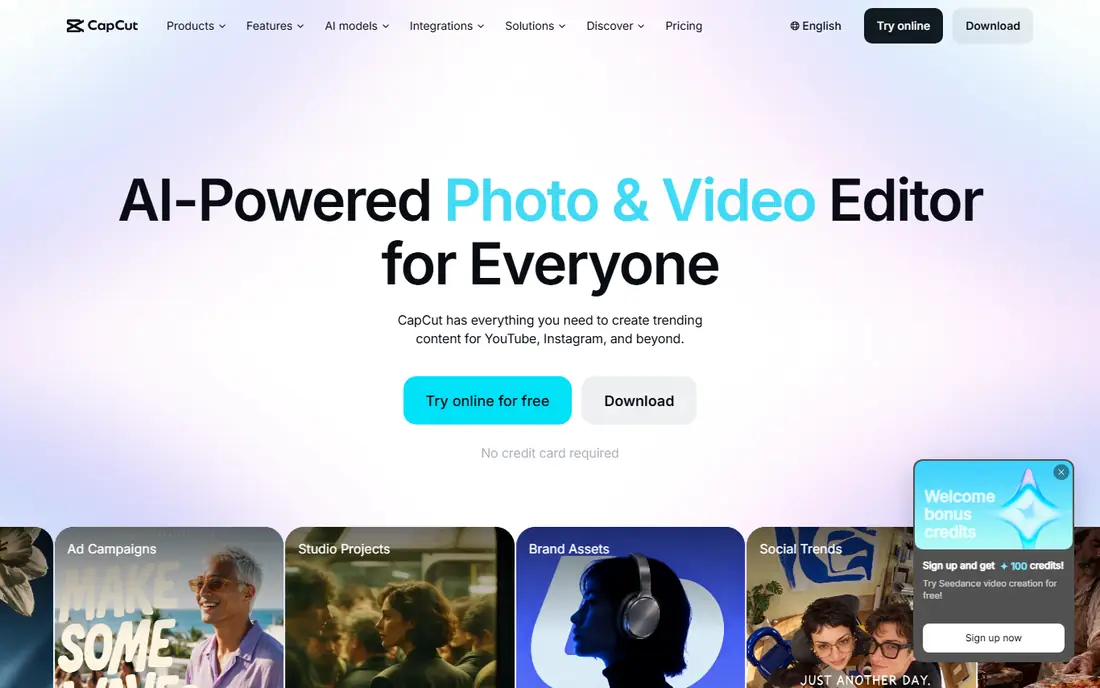
CapCut suits short social video better than any other free tool here. Templates, auto captions, transitions and music make a vertical clip ready in minutes, and the editor works on web, desktop and mobile. Creators who post daily will value that speed over deep colour tools.
The free tier has limits. Higher-resolution exports and some effects and templates need a paid plan, and free exports can carry limits that matter for client work. CapCut is best for fast social content, paired with Resolve or Shotcut when a project needs full quality control.
- Easy templates and captions
- Fast social exports
- Web, desktop and mobile versions
- 4K and watermark-free exports need a paid plan for some features
- Some effects are paid
GIMP is the long-running open-source answer to Photoshop. It handles layers, masks, retouching, compositing and colour correction on Windows, Mac and Linux, with no account, subscription or watermark. Plugins extend it for RAW handling, batch work and specialised retouching tasks.
The interface feels less polished than modern editors, and some Photoshop habits need relearning. GIMP also handles layered PSD files less cleanly than Photopea or Affinity. For photographers and designers who want a free desktop editor they can keep forever, GIMP remains a dependable core tool.
- Full layered editing
- Huge plugin range
- Open source with no subscription
- Interface feels dated
- Some Photoshop workflows need extra steps
Photopea runs in a browser and feels close to Photoshop for layered editing. It opens PSD, XCF and other layered files, supports masks, adjustments and smart objects, and needs no install, which helps on shared or locked-down computers. Work stays on your device in the free version, since files are processed locally.
The free version shows ads, and very large files can feel slower than a desktop editor. A paid Premium plan removes ads and changes some allowances, but the free tier still finishes real photo work. Photopea is our pick when you need Photoshop-style editing without installing anything.
- Opens PSD files in a browser
- No install needed
- Layers, masks and adjustments included
- Ad-supported free version
- Large files can feel slow in a browser
Canva suits non-designers who need a finished post, poster or short video quickly. Templates cover social posts, presentations, flyers and video, and photo tools handle cropping, filters, background removal on some plans and basic adjustments. Team sharing and brand folders help small businesses stay consistent.
Free content is limited, and premium templates, images and tools need a paid plan. Canva is not a deep photo editor like GIMP, and its video editor suits short clips rather than long projects. Use Canva for fast, template-based work, and a dedicated editor for detailed retouching or grading.
- Huge template library
- Easy photo and video edits
- Collaboration built in
- Free assets are limited
- Advanced tools and some content need a paid plan
Kdenlive is a capable open-source video editor with a normal multi-track timeline, effects, transitions and audio tools. Proxy editing helps modest computers handle 4K footage, and the program is free with no watermark or export cap imposed by the software itself. It suits creators who want an open tool without a subscription.
Colour grading and effects are more basic than Resolve, and the interface can feel busy at first. Kdenlive still handles most YouTube, course and business video well. It is a strong middle step between simple editors such as OpenShot and a professional tool such as Resolve.
- Multi-track timeline
- Proxy editing for 4K
- Open source on Windows, Mac and Linux
- Colour and effects tools are basic next to Resolve
- Interface can feel busy
Shotcut is an open-source editor that runs well on lower-end computers. It supports a wide range of formats without conversion, offers filters, transitions and multi-track editing, and imposes no export cap of its own. That makes it practical for older laptops and simple projects.
The interface is less polished than CapCut or Canva, and colour tools are basic next to Resolve. Shotcut suits creators who need a free, reliable editor for straightforward cuts, titles and exports, without the hardware demands of a professional suite.
- Runs well on older computers
- Wide format support
- No export cap imposed
- Interface is less polished
- Colour tools are basic
OpenShot is the simplest open-source video editor here. Its interface shows the timeline, preview and effects clearly, and a first finished video takes little learning time. It handles trimming, titles, transitions and basic animation for short projects on Windows, Mac and Linux.
Heavy 4K work and complex effects will strain OpenShot, and advanced editors offer more control. OpenShot suits beginners, school projects and short business clips where speed matters more than depth. Move to Shotcut or Kdenlive when projects grow longer or more layered.
- Very simple interface
- Quick first edits
- Cross-platform and open source
- Not built for heavy 4K projects
- Fewer advanced tools
Affinity, now under Canva, offers a full desktop editor free for individuals with a free Canva account. Photo, vector and layout tools sit in one app, PSD files import with layers preserved, and adjustments, masks and live filters stay editable. That depth makes it the closest free desktop match to Photoshop in this list.
Some AI tools need a Canva premium plan, and the full suite is desktop-based rather than browser-based. Affinity suits photographers and designers who want a professional desktop editor without a subscription, and who are happy to work on Mac or Windows.
- Full photo, vector and layout tools in one app
- PSD import with layers
- Non-destructive editing
- Some AI tools need a paid Canva plan
- Desktop only for the full suite
Pixlr offers two browser editors: a simple editor for quick fixes and a layered editor for deeper work. Both run without an install, and AI tools help with background removal and generation on eligible plans. That makes Pixlr handy for fast edits on any computer.
Free access has restrictions, including limits on saves and AI allowances that paid plans remove. Pixlr suits quick social edits, collages and light retouching, while GIMP, Photopea or Affinity suit detailed, layered photo projects that need full control.
- Two browser editors for simple and layered work
- AI tools on some plans
- No install
- Free access has restrictions
- Unlimited saves and some AI features are paid
How we picked these
We compared official product pages, free tier terms and export limits for video and photo editors with a genuine free option. We favoured tools that let you export finished work without paying, and we noted where paid plans remove limits or add features. We left out trial-only editors and tools whose free tier watermarks every export. We compared feature pages, pricing and public reviews rather than claiming hands-on testing.
How to choose the right free editor
Start with the job. For video, choose Resolve for serious projects, Kdenlive or Shotcut for modest computers, OpenShot for simple first edits, and CapCut or Canva for fast social clips. For photos, choose GIMP or Affinity for deep desktop work, Photopea or Pixlr for browser editing, and Canva for template-based graphics.
Next, check the free tier limits that affect your work. Look for export resolution, watermarks, save limits, ads and whether premium assets appear in templates. A tool that looks free can still charge for the export quality or asset you need most, so test one real project before committing a series to it.
Finally, consider your computer and file habits. Browser editors suit shared machines and quick jobs, while desktop editors suit large files and offline work. Keep original files and project files backed up, since free tools vary in how they save work, and a lost project file costs more time than any paid plan would have.
Frequently asked questions
What is the best editing software free for video?
DaVinci Resolve is the strongest free video editor for serious projects, with professional editing, colour and audio tools and 4K export without a watermark. Shotcut and Kdenlive suit lighter computers, while CapCut suits fast social clips. The best choice depends on your computer and the length of your projects.
What is the best free photo editing software?
GIMP and Affinity suit deep desktop photo editing, while Photopea suits browser-based layered editing without an install. Canva suits template-based graphics, and Pixlr suits fast browser fixes. For RAW photo libraries, pair a layered editor with a dedicated RAW tool, since most editors here focus on pixel editing.
Is free editing software really free for commercial work?
Most tools here allow commercial use of exports on their free tier, but check each licence and plan page for your exact use. Open-source tools such as GIMP, Kdenlive, Shotcut and OpenShot allow commercial use without payment. Commercial tools with free tiers may limit assets, exports or AI features, so read the free plan terms before client work.
Do free editors add watermarks?
DaVinci Resolve, GIMP, Photopea, Kdenlive, Shotcut, OpenShot and Affinity do not watermark free exports in normal use. CapCut and Canva can limit some exports or assets on free plans, so check the export before publishing client work. If a watermark appears, it usually signals a premium asset or feature in the project.
Can I edit video and photos in one free tool?
Canva covers basic photo and short video edits in one place, but it is not a deep editor for either medium. Most creators pair one video editor and one photo editor, such as Resolve with GIMP, or CapCut with Photopea. That pairing gives full control in each medium without paying for a suite.
Sources
See where you really rank - block by block
ProMapRanker scans Google Maps across a grid of your service area. Simple monthly plans from $19, white-label on every plan.
Start freeKeep reading
 zscaler alternatives
Best Zscaler Alternatives in 2026
Looking for zscaler alternatives? We compare 9 SASE and zero trust platforms on architecture, data protection, pricing, and fit for your network and team.
Read → zapier alternatives free
Best Zapier Alternatives Free in 2026
Nine automation tools for zapier alternatives free in 2026, all with genuinely free tiers, plus free plan limits, starting prices and upgrade paths explained.
Read → which platform is best for online reputation
Which Platform Is Best for Online Reputation in 2026
Wondering which platform is best for online reputation? We compare 8 review, listing, and response tools for small and multi-location businesses and agencies.
Read →