 ProMapRanker
Best DVD Burning Software in 2026

Key takeaways
- Free tools such as ImgBurn, CDBurnerXP, and AnyBurn cover most data and image burns at no cost.
- Paid tools earn their price mainly through menus, disc copying, cover design, and added protection features.
- A DVD holds standard-definition video, so check your disc type and drive before you buy software.
- Always download from the official site, since older free tools are often repackaged with unwanted extras elsewhere.
Quick comparison
| Pick | Great for | Pricing starts at | Free tier | |
|---|---|---|---|---|
 Nero Burning ROM | Secure and detailed disc projects | $49.95 | Free trial | Visit |
 Ashampoo Burning Studio | Everyday burning with menus | $30 | Yes | Visit |
 ImgBurn | Precise image and data burns | Free | Yes | Visit |
 CDBurnerXP | Simple free burning on Windows | Free | Yes | Visit |
 BurnAware | Clean data, audio, and ISO burns | Free | Yes | Visit |
 AnyBurn | Lightweight free burning | Free | Yes | Visit |
 DVDFab DVD Creator | Video DVDs with menus | See website | Free trial | Visit |
 Leawo DVD Creator | Custom video DVD menus | See website | Free trial | Visit |
 Express Burn | Fast basic burns on Windows and Mac | See website | Free trial | Visit |
The best DVD burning software
DVD burning is now a niche job, and that makes a focused tool more useful than a large media suite. The picks below cover data backup, audio CDs, playable video DVDs, and disc copies.
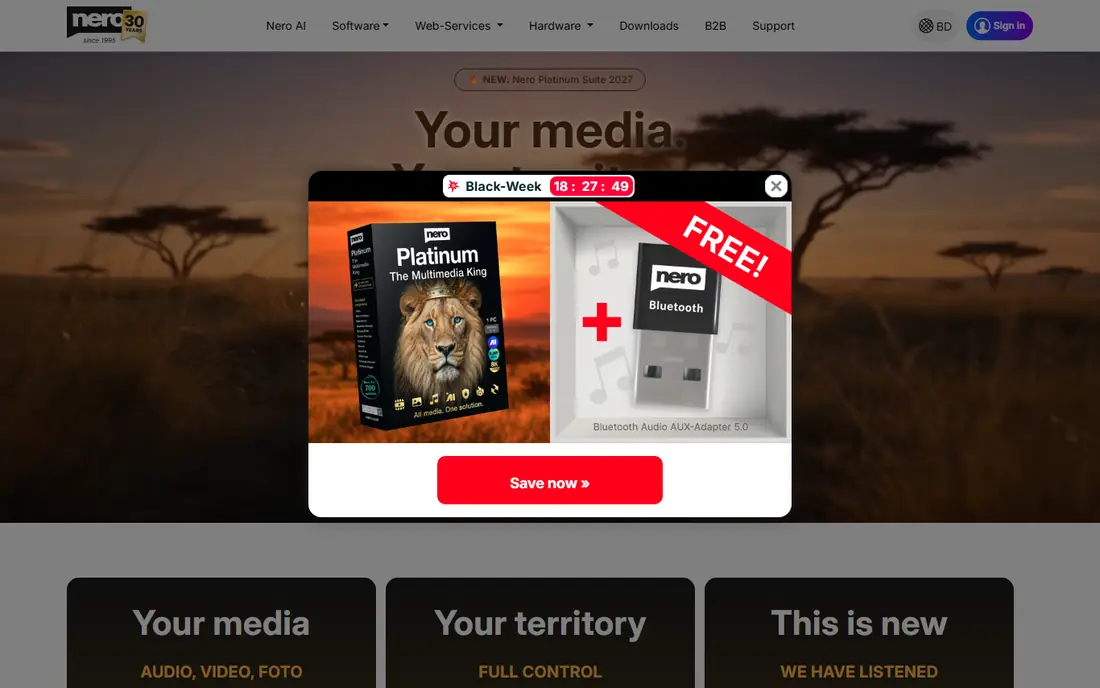
Nero Burning ROM remains the reference point for people who burn discs often and want fine control over the result. It handles data discs, audio CDs, video discs, and disc images, and it includes options for verification and protection that free tools often leave out. For archive work, the ability to add a password and check a burn after it finishes is a practical benefit, not just a marketing line.
The trade-off is the learning curve. The menus hold many settings, and a first-time user can spend time finding the right mode for a simple job. If you burn only a data disc a few times a year, a free tool below will do. If discs are part of a regular workflow, Nero is a sensible paid pick.
- Wide disc support
- SecurDisc protection
- Disc copying and audio ripping
- Interface can feel dense
- Windows only

Ashampoo Burning Studio suits readers who want one program for most disc jobs without learning Nero. You can burn files, copy a disc, rip an audio CD, make a backup, and create a video disc from the same main screen. Disc spanning is useful when a backup is larger than one disc, since the program can split it across several discs in order.
A separate free edition exists, which makes it easy to test the basic workflow before paying. The paid version adds more polished menus and extra features, so check which edition matches the job you have in mind. For family videos and routine backups, this is our pick for most people.
- Clear layout
- Data, audio, video, and Blu-ray support
- Disc spanning
- Some menu features sit in the paid version
- Windows only
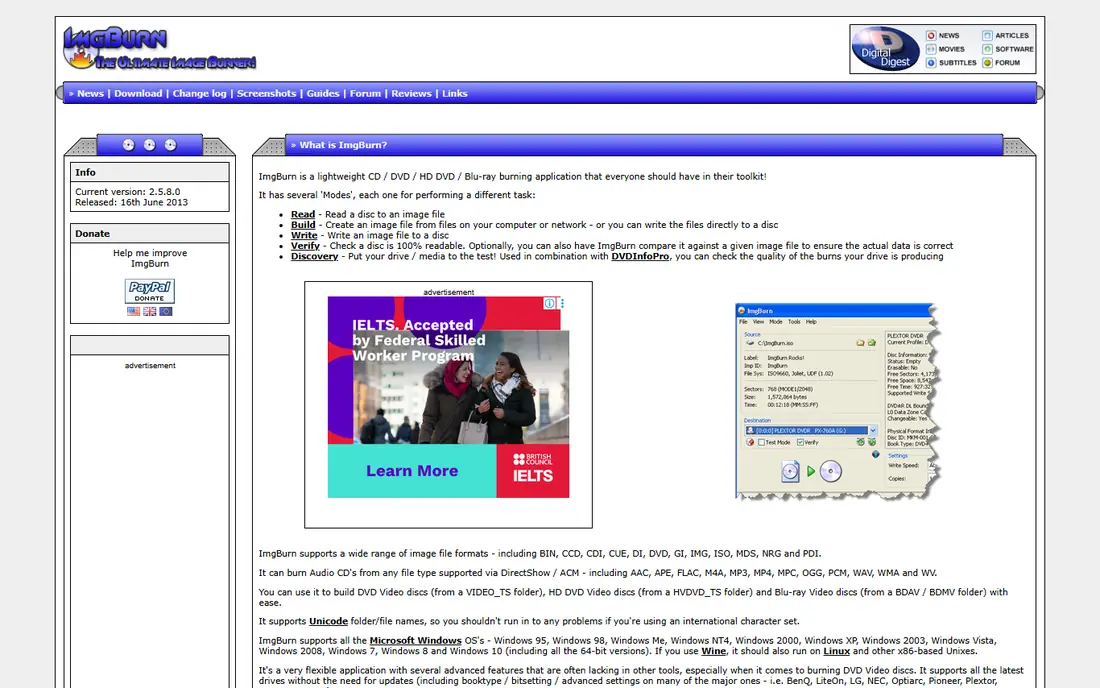
ImgBurn is a small, focused Windows tool for burning disc images and data discs. It gives clear control over write speed, verification, and layer breaks, and its logs help when a burn fails and you need to find why. That precision is why it still appears in many guides even though it has not had a recent major update.
It is not a video authoring tool. If you want menus and chapters for a playable DVD, use DVDFab DVD Creator or Leawo DVD Creator instead. For ISO files, boot discs, and plain data backups, ImgBurn is hard to beat at its price, which is free.
- Free
- Strong ISO and image handling
- Detailed burn logs
- No video DVD menu authoring
- Interface looks dated
- No recent major update
CDBurnerXP is a good first stop for Windows users who want a free tool without a steep learning curve. It burns data discs, audio CDs, and ISO images, and it can copy discs and erase rewritable media. The layout is plain, which helps when you just want to add files, choose a speed, and burn.
Its limits are honest ones. It does not turn a folder of videos into a polished DVD with menus, and it is not a full media suite. For the common jobs of backing up files and burning an audio CD for a car or stereo, it covers the ground well.
- Free
- Data, audio, and ISO support
- Easy layout
- No DVD menu authoring
- Windows only
BurnAware Free handles data discs, audio CDs, MP3 discs, DVD video folders, and ISO images. It feels light on older PCs, and the main screen keeps each job separate, so you are less likely to pick the wrong disc type. Paid Premium and Professional versions add disc copying, spanning, and ISO extraction, with prices listed on the vendor site.
The free edition is enough for most home users. If you need direct disc-to-disc copying, check the paid tiers before you install, since that feature is not in the free build. For a clean, no-fuss burner, BurnAware is a strong free choice.
- Free edition covers core jobs
- Blu-ray support
- Low system load
- Disc copying and some extras need a paid version
- Windows only
AnyBurn is a compact Windows program that covers the basics well. It burns data discs, audio CDs, and disc images, creates ISO files, and copies discs in the paid and free builds described on its site. Because it is small, it suits older machines and users who do not want a large suite installed for one job.
The design is plain, and there is no menu builder for video DVDs. That is fine if your goal is a data backup or an ISO burn. For a quick, free, and light tool, AnyBurn earns a place on this list.
- Free
- Small download
- Data, audio, and image support
- No video menu authoring
- Basic design
DVDFab DVD Creator is built for one job: turning video files into a playable DVD with menus and chapters. It accepts many common video formats, so you are less likely to need a separate converter first. Menu templates let you add a title screen and chapter selection without designing from scratch.
It is not the best pick for a plain data backup, since tools above do that faster and cheaper. If your main need is a watchable DVD from home videos or downloaded clips you own, this is a focused and capable option. Check the current trial limits on the vendor site before you start a large project.
- Wide video format support
- Menu templates
- ISO and folder output
- Price varies by plan
- Focused on video, not general data burning
Leawo DVD Creator gives more control over the look of a video DVD than most general burners. You can pick a menu template, change text and background, trim clips, and then burn to disc, ISO, or a DVD folder. That control matters when the disc is a gift or a family archive rather than a quick copy.
The trial is limited, so a long video may need the paid version to finish. Read the trial terms on the vendor site first. For users who care about how the menu looks, Leawo is worth the extra step over a plain burner.
- Menu templates and editing
- Video to DVD conversion
- ISO output
- Trial limits video length
- Windows and Mac builds differ in detail
Express Burn from NCH Software is one of the few options here with both Windows and Mac builds. It burns data discs, audio CDs, and video DVDs through a short wizard, which suits users who want a result without studying disc formats. It also handles ISO images and Blu-ray discs on supported drives.
The free trial is a good way to check drive compatibility, especially on a Mac with an external burner. Paid features add more control, so confirm the current price on the vendor site. For cross-platform households, Express Burn is a practical pick.
- Windows and Mac versions
- Simple workflow
- Audio and video disc support
- Advanced features need the paid version
- Interface is basic
How we picked these
We compared official feature pages, pricing pages, and app listings for tools that still work on current Windows and Mac systems in October 2026. We kept only tools that burn real discs, not converters that stop at a video file. We favored tools with a clear free or trial path, honest limits, and support for the disc types readers actually use.
What to check before you burn
Match the disc to the player
A data DVD will not play as a movie in a standard DVD player, even if the files are videos. For a player, you need a video DVD with the right folder structure, which is what DVDFab DVD Creator and Leawo DVD Creator produce. For a computer, a data disc is usually simpler and faster.
Check your drive and media
Many slim laptops have no built-in optical drive, so you may need an external USB burner. Check that the drive supports the disc type you plan to use, such as DVD-R, DVD+R, or Blu-ray, and buy a small pack first to test. Burning at a moderate speed and turning on verification, where offered, reduces failed discs.
Keep the original files
A burned disc is a copy, not a backup plan on its own. Keep the original files on a drive or in cloud storage as well, since discs can scratch and drives can fail. Label the disc with the date and contents so you can find it later without guessing.
Frequently asked questions
What is the best free DVD burning software?
For most Windows users, Ashampoo Burning Studio Free, CDBurnerXP, and BurnAware Free cover data, audio, and ISO jobs at no cost. ImgBurn is best when you need detailed control over an image burn. The best free DVD burning software depends on whether you need menus, since free general burners do not build polished video DVDs.
What is the best DVD maker software for video DVDs with menus?
DVDFab DVD Creator and Leawo DVD Creator are the strongest picks here, since both are built around menus, chapters, and video conversion. Ashampoo Burning Studio in its paid version also offers menu options. Choose DVDFab for wide format support and Leawo when menu design matters most.
Can I burn a DVD on a Mac?
Yes, with a tool such as Express Burn and an external USB DVD burner, since most current Macs have no built-in drive. Check the Mac version details on the vendor site, since features can differ from Windows. The built-in Finder can also burn a simple data disc on supported systems.
Is ImgBurn still safe to use?
ImgBurn itself remains widely used, but download it only from its official site at imgburn.com. Third-party mirrors have bundled unwanted software in the past. Its age shows in the design, but its core burning functions still work on Windows 10 and Windows 11.
Do I need a Blu-ray burner for a DVD?
No. A standard DVD burner handles CDs and DVDs. You need a Blu-ray writer only for Blu-ray discs, which hold far more data. Check your drive label before you buy blank Blu-ray media.
Sources
- https://www.nero.com
- https://www.ashampoo.com
- https://www.imgburn.com
- https://www.cdburnerxp.se
- https://www.burnaware.com
- https://www.anyburn.com
- https://www.dvdfab.com
- https://www.leawo.com
- https://www.nchsoftware.com
- https://www.dvdfab.cn/resource/dvd/best-dvd-burning-software
- https://www.reviewstown.com/software/top-10-free-dvd-burning-software/
See where you really rank - block by block
ProMapRanker scans Google Maps across a grid of your service area. Simple monthly plans from $19, white-label on every plan.
Start freeKeep reading
 zscaler alternatives
Best Zscaler Alternatives in 2026
Looking for zscaler alternatives? We compare 9 SASE and zero trust platforms on architecture, data protection, pricing, and fit for your network and team.
Read → zapier alternatives free
Best Zapier Alternatives Free in 2026
Nine automation tools for zapier alternatives free in 2026, all with genuinely free tiers, plus free plan limits, starting prices and upgrade paths explained.
Read → which platform is best for online reputation
Which Platform Is Best for Online Reputation in 2026
Wondering which platform is best for online reputation? We compare 8 review, listing, and response tools for small and multi-location businesses and agencies.
Read →