 ProMapRanker
Best Document Scanning Apps in 2026

Key takeaways
- Adobe Scan is the best general pick for clean PDFs with free text recognition, while Genius Scan suits readers who want simple scanning with less account pressure.
- Microsoft Lens was retired in 2026, so do not build a new workflow on it. The scan feature inside OneDrive is Microsoft current replacement path.
- Most scanner apps are free to download, but OCR export, batch tools, and cloud sync often sit behind a subscription, so check what the free version actually exports.
- Apple Notes and Google Drive already scan well for occasional use, and they cost nothing extra if you already use those platforms.
Quick comparison
| Pick | Great for | Pricing starts at | Free tier | |
|---|---|---|---|---|
 Adobe Scan | Clean PDFs with OCR | Free | Yes | Visit |
 CamScanner | Many PDF tools in one app | Free | Yes | Visit |
 Genius Scan | Simple, private scanning | Free | Yes | Visit |
 SwiftScan | Fast cloud-friendly scanning | Free | Yes | Visit |
 Scanner Pro | iPhone power users | Free | Yes | Visit |
 TurboScan | Quick multi-page scans | See website | Yes | Visit |
 iScanner | Scanning plus PDF editing | Free | Yes | Visit |
 Apple Notes | iPhone owners who want zero setup | Free | Yes | Visit |
 Google Drive | Android and Google users | Free | Yes | Visit |
The best document scanning apps
These apps turn paper into usable PDFs or images by finding page edges, flattening the page, and cleaning up contrast. The differences lie in text recognition, export options, privacy, and how hard the app pushes a subscription.
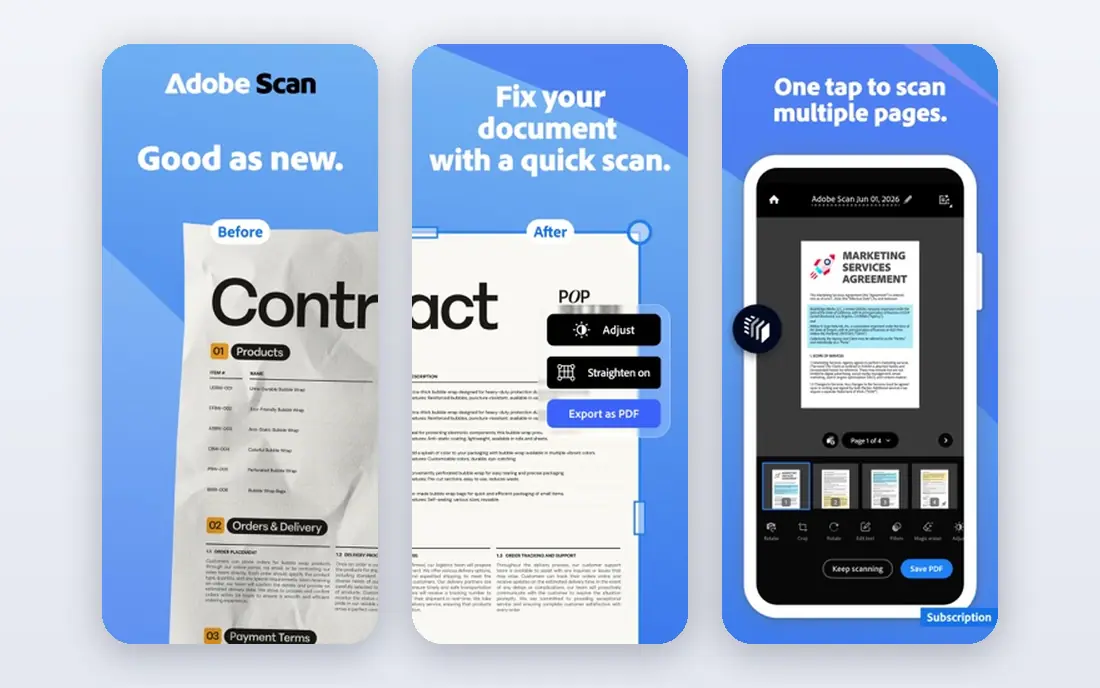
Adobe Scan is the safest general recommendation. It captures documents, books, whiteboards, and ID cards, recognises text in the scan, and produces clean, cropped PDFs that are easy to share or file. The free version covers the core job well, and users who already use Acrobat can move scans into a fuller PDF workflow without changing apps.
The trade is the account and the upsell. You need an Adobe account to use it, and advanced editing, signing, and storage features sit in paid Acrobat plans. If you only need to scan and share PDFs, the free version is enough. If you need heavy PDF editing, budget for Acrobat or pick a scanner with editing built in, such as iScanner.
- Free unlimited scans with text recognition
- Clean PDF output
- Works well with Adobe Acrobat
- Account required
- Premium features and extra storage need a paid Acrobat plan
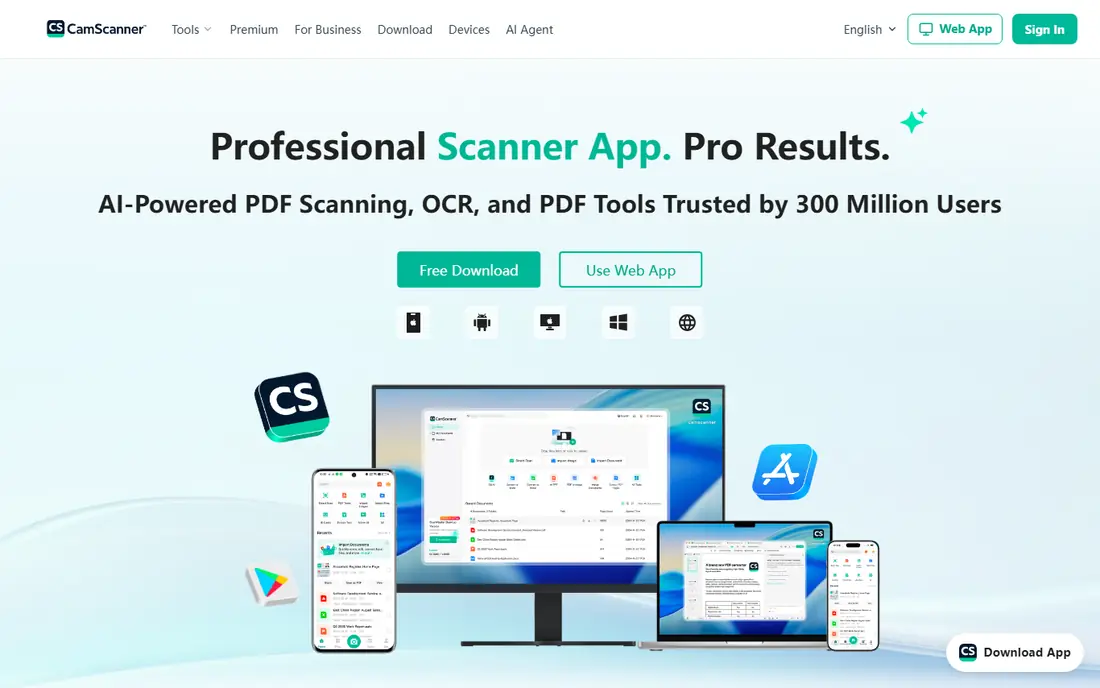
CamScanner has one of the broadest toolsets in this category. It scans documents, extracts text, converts files, signs PDFs, and syncs across devices, which suits small businesses that scan receipts, contracts, and forms every day. The free version lets you test that workflow before paying.
Free users will see ads and watermarks on some outputs, and the most useful tools sit behind a premium subscription. Past concerns about ads in the app also mean privacy-conscious users should read the current privacy policy before scanning sensitive documents. For everyday business scanning, the breadth is useful. For sensitive legal or medical papers, a more private option such as Genius Scan may fit better.
- Wide feature set
- Text extraction, conversion, and signing tools
- Works on iPhone and Android
- Free version shows ads and adds watermarks to some outputs
- Premium features are subscription-only
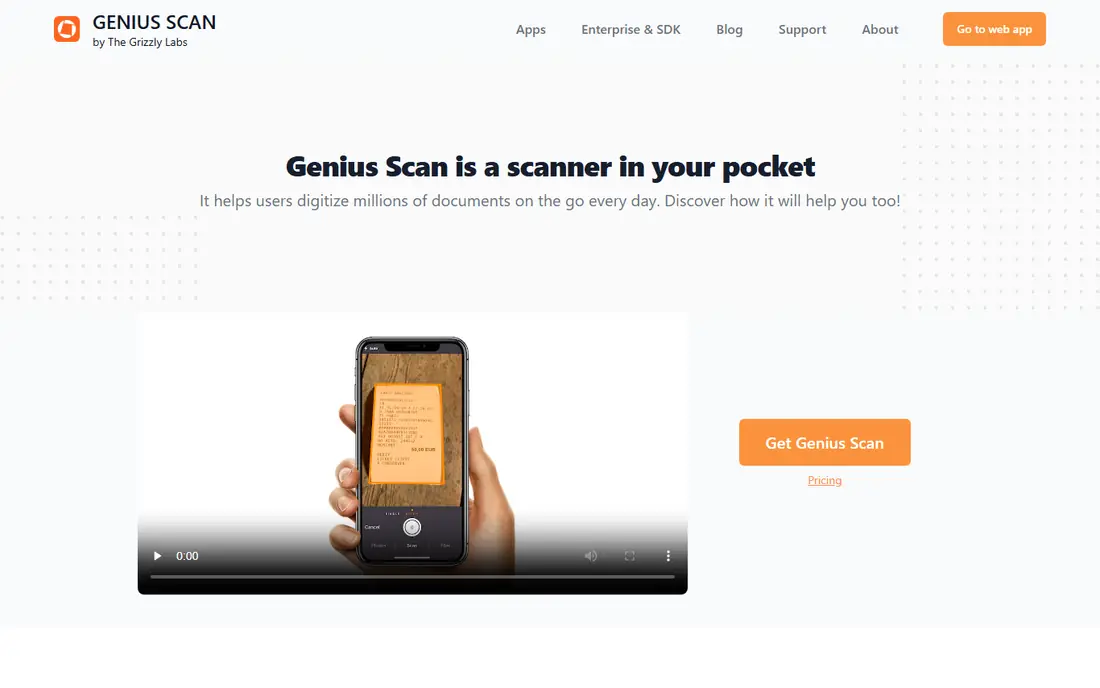
Genius Scan keeps the job simple. It finds page edges, corrects perspective, cleans up the image, and exports a PDF or image without forcing you through a long setup. Processing happens on the device by default, which is a real privacy advantage for contracts, medical forms, and other sensitive papers.
The limit is that full text recognition and some advanced export options require Genius Scan Plus. If you scan mainly to store and share readable PDFs, the free version does the job. If you need searchable text from every scan, check the Plus price in your app store before committing to Genius Scan as your only scanner.
- Clean, fast scanning
- On-device processing by default
- No account needed for core scanning
- Full OCR and advanced export features need the paid Plus tier
SwiftScan, formerly Scanbot, focuses on speed and cloud sync. It scans multi-page documents quickly, produces sharp PDFs, and sends them to cloud storage, email, or other apps with little friction. That suits professionals who scan on the move and file documents into a shared drive the same day.
As with most apps here, the free download covers basic scanning, while OCR and advanced features sit behind a subscription. SwiftScan is a good pick when your workflow ends in a cloud folder. It is less compelling if you mainly scan for personal records and want everything kept on the device.
- High-quality scans
- Fast sync to cloud services
- Good multi-page handling
- Premium features, including full OCR, need a subscription
Scanner Pro from Readdle is free to download, with paid features sold as Scanner Pro Plus in-app purchases. It is built for Apple users who scan often, with automatic edge detection, multi-page PDFs, and workflows that send scans to cloud services or other apps. Integration with other Readdle apps is a bonus for users already in that ecosystem.
Android users cannot use it, which limits its audience. Older guides that list Scanner Pro as a one-time purchase are out of date, so check the current in-app purchase terms in the App Store before budgeting. For iPhone users who scan daily, it remains one of the most polished options.
- Strong iPhone and iPad workflow
- Good PDF handling
- Integrates with Readdle apps
- IPhone and iPad only
- Paid features sit behind Scanner Pro Plus in-app purchases
TurboScan is a straightforward scanner that does the core job with little fuss. Its SureScan mode takes multiple shots of a page to improve quality in poor light, which helps with receipts and old documents. Multi-page PDFs are easy to build, and export to email, cloud storage, and other apps is simple.
It does not try to be a full document management system, so teams that need shared folders, tagging, and workflow automation should look at Adobe Scan, CamScanner, or a desktop tool instead. For personal scanning and quick business scans, TurboScan speed and simplicity are genuine strengths.
- Fast capture
- Useful SureScan mode for difficult lighting
- Simple PDF and image export
- Fewer cloud and collaboration features than larger rivals
- Pricing varies by store
iScanner combines a scanner with PDF tools, including text recognition, editing, signing, and file conversion. That makes it useful for someone who receives a contract, scans it, signs it, and returns it from a phone without opening a desktop app. It runs on iPhone and Android, with a free download and a subscription for full features.
The breadth can feel busy, and the free version will prompt you to upgrade for the tools that make iScanner stand out. If you only need clean scans, a simpler app such as Genius Scan is cheaper in attention, if not in money. If you sign and edit PDFs often, iScanner saves app switching.
- Scanning, OCR, PDF editing, and signing in one app
- Useful for contracts on the move
- Many features are subscription-only
- Interface can feel busy
Apple Notes is easy to overlook because it is not sold as a scanner, but its built-in document scanner works well. You open a note, scan pages, and Notes finds edges, flattens pages, and stores the result. Text inside scans is searchable through Live Text on supported devices, which covers a common reason people install a separate scanner.
It lacks the batch tools, advanced OCR export, and cross-platform reach of dedicated apps. For an iPhone owner who scans occasionally, Notes is the right starting point, and it costs nothing extra. For high-volume scanning or Android use, pick a dedicated app from this list instead.
- Built into iPhone and iPad
- Free
- Text in scans is searchable
- No extra account needed
- Apple devices only
- Fewer export and batch tools than dedicated scanners
Google Drive includes a document scan feature on Android and inside its mobile app, which turns paper into a PDF stored directly in Drive. That direct storage is the main advantage. A receipt scanned at a shop can sit in the right Drive folder minutes later, searchable and shareable, without a separate export step.
Dedicated scanners offer more control over image cleanup, batch naming, and OCR export. Drive is best for Google users who scan occasionally and value simple storage over fine control. It is also a natural replacement path for former Microsoft Lens users who want a free, maintained scan feature inside a cloud app they already use.
- Built-in scan feature
- Free with a Google account
- Easy sharing and search in Drive
- Scanning is a feature inside Drive, not a dedicated scanner
- Fewer fine controls than specialist apps
How we picked these
We compared app store listings, vendor pages, and October 2026 scanner guides, and we kept only apps that are still offered and still scan on current phones. We excluded Microsoft Lens, because Microsoft removed it from app stores on 9 February 2026 and stopped new scans on 9 March 2026. We favoured apps with a usable free version, clear PDF export, and text recognition or searchable scans, and we noted where a subscription gates the most useful features.
How to choose a scanner for your papers
Start with volume. Occasional scanners should use Apple Notes or Google Drive and skip a subscription entirely. Daily scanners should test Adobe Scan, Genius Scan, and CamScanner with real papers, including a receipt, a contract, and a page from a book, because edge detection and contrast handling differ more on real paper than in a demo.
Check privacy before you scan sensitive papers. On-device processing, as in Genius Scan, keeps more data on your phone. Cloud sync is convenient, but it means scans pass through a vendor server, so read the privacy policy and check whether the app offers a setting to keep scans local. For tax, legal, and medical documents, that setting matters more than a small difference in scan quality.
Test the export, not just the scan
A good-looking scan that exports as a watermarked image is not a good result. Before you commit, export a multi-page PDF, check that text is searchable where promised, and confirm that the file opens cleanly on a computer. Also check file naming and folder options, because a scanner that dumps every file with a generic name will cost you time later when you need to find a specific document.
Frequently asked questions
What is the best app for scanning documents?
Adobe Scan is the best general pick for clean PDFs with free text recognition. Genius Scan is the best simple and private pick, and Apple Notes or Google Drive are the best free built-in picks for occasional scanning.
What is the best document scanning software for a business?
Adobe Scan and CamScanner suit businesses that scan daily, because they cover OCR, PDF tools, and sharing. For sensitive business papers, Genius Scan on-device processing is a strong privacy advantage, and desktop tools may suit high-volume office scanning better than any phone app.
Is Microsoft Lens still available?
No. Microsoft retired Microsoft Lens in 2026. It left app stores in February 2026 and stopped creating new scans in March 2026. Microsoft points users to the scan feature inside OneDrive, and Google Drive and Adobe Scan are solid alternatives.
Do free scanner apps add watermarks?
Some do. CamScanner free outputs can carry watermarks, and many scanner apps reserve clean exports or OCR for paid tiers. Adobe Scan and Genius Scan free versions produce usable PDFs for most everyday needs, so test export before paying.
What is the best document scanning app for iPhone?
Adobe Scan and Scanner Pro are the strongest dedicated iPhone options, while Apple Notes is the best built-in option. Scanner Pro suits heavy iPhone users, Adobe Scan suits users who also use Acrobat, and Notes suits occasional scanning with no extra app.
Sources
- https://www.adobe.com/acrobat/mobile/scanner-app.html
- https://www.camscanner.com
- https://thegrizzlylabs.com/genius-scan/
- https://swiftscan.app
- https://readdle.com/scannerpro
- https://www.turboscan.com
- https://iscanner.com
- https://www.apple.com/notes/
- https://www.google.com/drive/
- https://thedolceway.com/blog/document-scanner-apps-free-vs-paid
See where you really rank - block by block
ProMapRanker scans Google Maps across a grid of your service area. Simple monthly plans from $19, white-label on every plan.
Start freeKeep reading
 zscaler alternatives
Best Zscaler Alternatives in 2026
Looking for zscaler alternatives? We compare 9 SASE and zero trust platforms on architecture, data protection, pricing, and fit for your network and team.
Read → zapier alternatives free
Best Zapier Alternatives Free in 2026
Nine automation tools for zapier alternatives free in 2026, all with genuinely free tiers, plus free plan limits, starting prices and upgrade paths explained.
Read → which platform is best for online reputation
Which Platform Is Best for Online Reputation in 2026
Wondering which platform is best for online reputation? We compare 8 review, listing, and response tools for small and multi-location businesses and agencies.
Read →