 ProMapRanker
Best Document Editing Apps in 2026


Strict Word file compatibility · Pricing starts at: $9.99 per month
Key takeaways
- Google Docs and Microsoft Word remain the safest defaults, one for free collaboration and one for strict Word file compatibility.
- LibreOffice Writer and Apple Pages give strong editing at no extra cost, with offline use as a clear advantage.
- Zoho Writer, WPS Writer, and ONLYOFFICE Docs are strong lower-cost options when teams need online editing without paying for a full office suite.
- Notion and Dropbox Paper suit notes and team pages more than formal documents, so check formatting and export options before committing.
Quick comparison
| Pick | Great for | Pricing starts at | Free tier | |
|---|---|---|---|---|
| Microsoft Word | Strict Word file compatibility | $9.99 per month | Yes | Visit |
 Google Docs | Free team editing | Free | Yes | Visit |
 Apple Pages | Apple device owners | Free | Yes | Visit |
 LibreOffice Writer | Free offline editing | Free | Yes | Visit |
 Zoho Writer | Free online editing | Free | Yes | Visit |
 WPS Writer | Low-cost office suite | Free | Yes | Visit |
 ONLYOFFICE Docs | Office-format teams | See website | Yes | Visit |
 Notion | Docs plus team wikis | See website | Yes | Visit |
 Dropbox Paper | Light team notes | Free | Yes | Visit |
The best document editing apps
We compared official feature pages, pricing pages, and app store listings for editors that handle real documents, not just notes. Our pick for most people is Google Docs for free sharing, with Microsoft Word close behind when file fidelity matters most.
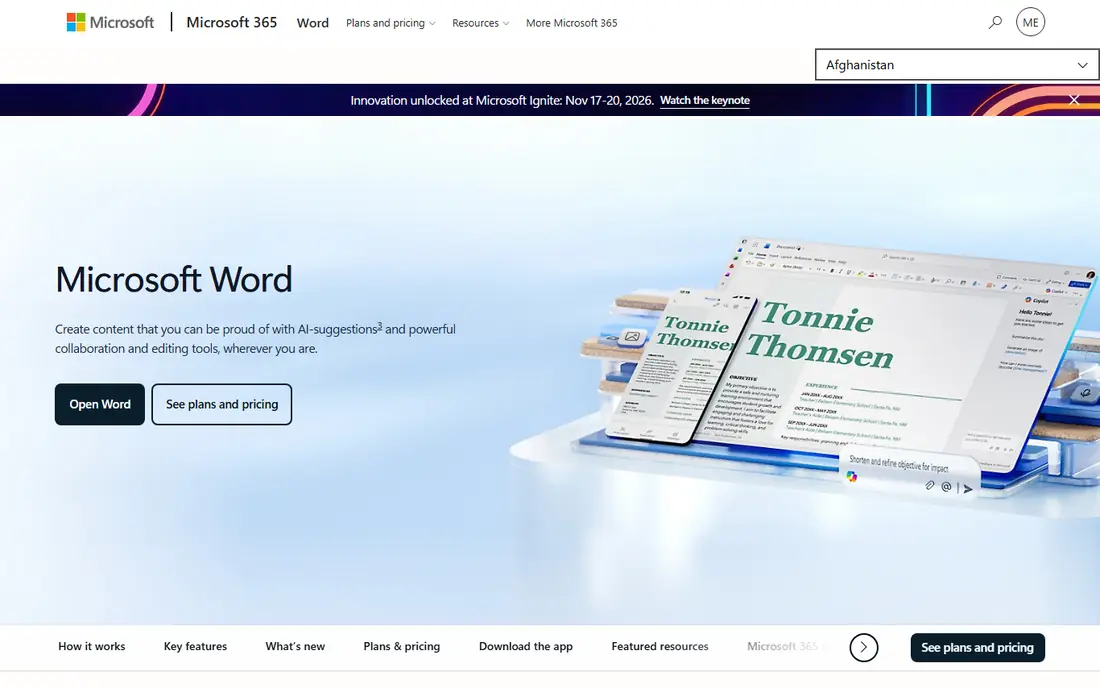
Word stays the reference point for document editing because most schools, employers, and clients send and expect .docx files. Its desktop apps handle complex formatting, styles, tables, and tracked changes with fewer surprises than web-only editors. Collaboration is solid in the web version, and comments and version history help teams review a draft without losing earlier wording.
The catch is cost and weight. The free web version covers basic writing, but the full desktop experience sits behind Microsoft 365, listed at $9.99 per month for Personal in recent vendor and comparison pages. Word can also feel heavy for a quick note or a simple letter. If your work lives in Word files all day, that cost is easy to justify. If it does not, a free editor may do the same job.
- Best compatibility with .docx files
- Strong Track Changes and desktop apps
- Wide template and formatting range
- Full desktop apps require a paid plan
- Subscription cost adds up for a household
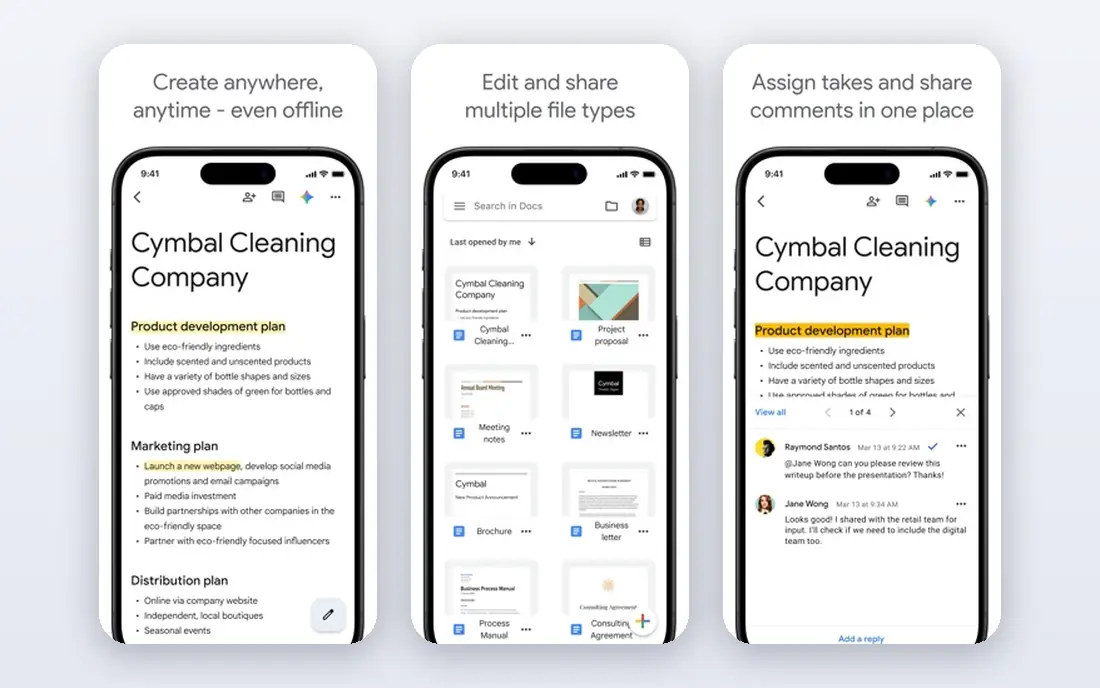
Google Docs is our pick for most casual and team writing because it removes friction. You share a link, people edit together, and suggestions, comments, and version history keep the review process visible. It works in a browser on almost any computer, and mobile apps cover edits on the go. For school work, internal drafts, and shared plans, it is hard to beat at no cost.
The trade-off shows up with complex documents. A heavily formatted Word file with custom styles, fields, or intricate tables may shift when converted. Docs also leans on a Google account and an internet connection for its best experience, although offline mode is available with setup. Export to Word, PDF, and other formats is straightforward, so keep a final copy in the format your recipient needs.
- Free with a Google account
- Simple real-time co-editing
- Easy sharing and commenting
- Weaker handling of very complex Word layouts
- Offline setup needs care
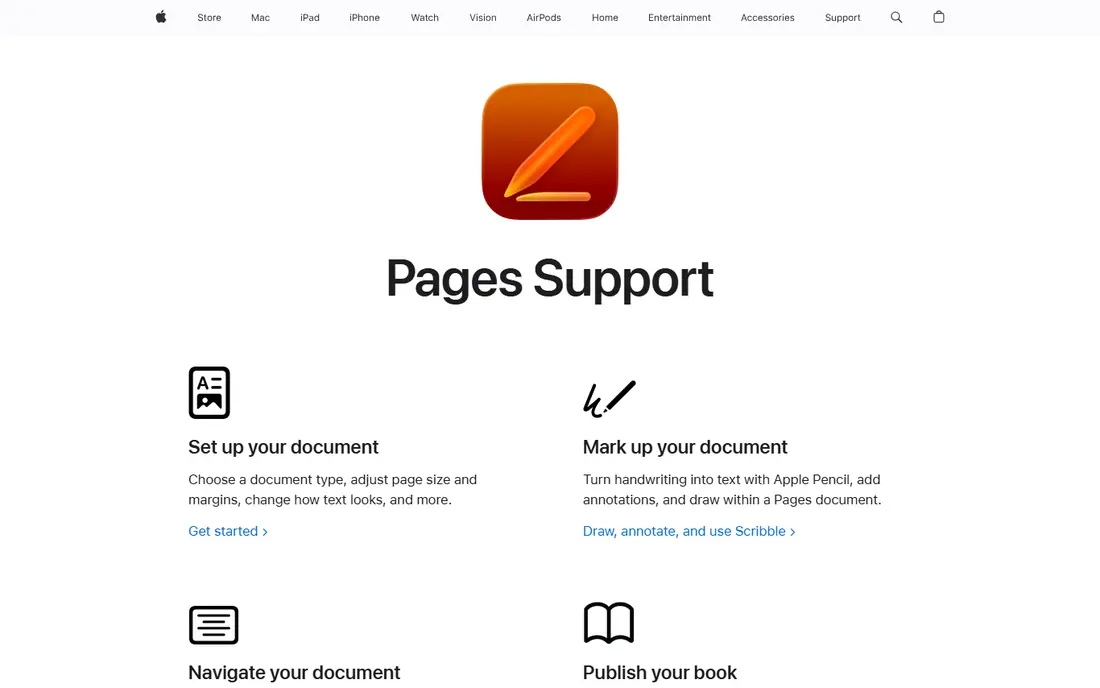
Pages suits people who already live on a Mac, iPhone, or iPad. It opens fast, looks polished, and handles images, shapes, and page layout with more design control than a plain text editor. Templates cover resumes, reports, newsletters, and posters, and iCloud lets you start on one device and finish on another. Collaboration with other Apple users is simple, and web access through iCloud helps when you borrow a computer.
The limit is workplace fit. Many offices standardize on Word or Google Docs, so a Pages file often needs export before it can be reviewed. Export is built in, but check tables, fonts, and page breaks in the exported file before sending it to a client. If your circle is mostly Apple-based, Pages is a strong free choice. If it is mixed, keep it for personal and design-heavy work.
- Free on Apple devices
- Polished templates and media layout
- Clean iCloud sharing
- Less common in Windows workplaces
- Some Word formatting can shift on export
LibreOffice Writer is the best free desktop editor for people who want control over their files. It opens and saves Word documents, supports styles, tables of contents, footnotes, and tracked changes, and it works without an account or a subscription. Because files live on your computer, you can edit on a plane, in a rural office, or on an older machine without worrying about sync.
Collaboration is the weak point. There is no built-in real-time co-editing comparable to Google Docs, so teams must pass files back and forth or pair Writer with a shared drive. The interface also looks less modern than paid rivals. For solo writers, students, and small offices that value privacy and offline access, those limits matter less than the price, which is zero.
- Free and open source
- Full offline desktop editing
- No account required
- Interface feels dated
- Collaboration is weaker than web editors
Zoho Writer is a strong free alternative to Google Docs for people who want a full online editor without a Google account at the center of everything. It supports real-time collaboration, comments, tracked changes, and document automation, and it can work offline in supported browsers. The writing view is calm, and formatting tools cover the headings, tables, and styles most reports need.
The main question is ecosystem. If your team already uses Google Workspace or Microsoft 365, switching to Zoho adds another account and another place to look for files. Zoho also reserves some automation and business features for paid tiers. As a standalone editor, though, the free plan is unusually complete. It fits freelancers, small teams, and anyone who wants online editing with a lower profile than the big two.
- Full online editor at no cost
- Offline mode and collaboration
- Clean Word compatibility for common documents
- Smaller ecosystem than Google or Microsoft
- Some advanced features sit in paid Zoho plans
WPS Writer appeals to people who want a Word-like program without paying for Word. The interface will feel familiar at once, with tabs, styles, and a ribbon-style toolbar, and the wider WPS Office suite adds spreadsheets and presentations. Mobile apps are capable, and PDF reading and basic PDF tools make it useful for forms and shared documents. A free tier covers everyday writing.
The cost of free is visible. Expect upgrade prompts and some limits on premium tools, templates, and cloud storage. Privacy-minded users should also read the current privacy terms before storing sensitive work in the cloud version. For students and small businesses that need a full desktop suite on a tight budget, WPS Writer is a practical pick, as long as you accept the upsell nudges.
- Familiar Word-like interface
- Free desktop and mobile apps
- PDF tools included in the suite
- Free version includes ads and prompts to upgrade
- Some features require a paid plan
ONLYOFFICE Docs targets teams that need to edit Word, Excel, and PowerPoint formats in a browser without losing formatting. Its editors look and behave much like desktop office apps, with tabs, styles, and comments, and it can be hosted by the team itself or used through a cloud workspace. That control matters for organizations with strict data rules or an existing document system.
The trade-off is complexity. A solo writer who just needs a quick letter will find Google Docs or Pages simpler. Self-hosting also needs technical setup and upkeep, while cloud editions vary in price and limits, so check the current pricing page before planning a rollout. For a team that edits Office files together every day, ONLYOFFICE Docs earns its place through format fidelity and deployment choice.
- Strong Office format compatibility
- Self-hosting option
- Collaborative editing for teams
- Setup is more work for self-hosted use
- Cloud pricing varies by edition
Notion is best viewed as a workspace that happens to edit documents well, rather than a direct Word replacement. Pages are built from blocks, so you can mix text, checklists, tables, images, and linked databases in one place. Teams use it for handbooks, project notes, meeting records, and planning docs that need to stay linked and searchable. Templates speed up common pages, and sharing controls suit internal work.
Formal documents are where Notion shows its limits. A resume, a legal-style report, or a client document with strict page layout may need export and cleanup in another editor. Print output and Word export can shift formatting, so test a sample before relying on it for client delivery. If your main need is shared knowledge and living documents, Notion is excellent. If it is polished, paginated files, pair it with Word or Docs.
- Combines documents, wikis, and databases
- Flexible blocks and templates
- Good for shared knowledge
- Not ideal for formal Word documents
- Export and print formatting need checking
Dropbox Paper fits short team documents, meeting notes, briefs, and checklists. It keeps the editor simple, supports comments and task lists, and embeds media without fuss. If your files already live in Dropbox, Paper keeps notes close to the assets they describe, which helps small teams avoid yet another folder of stray docs.
It is not a full word processor. Long reports with complex styles, footnotes, and strict page control will feel constrained, and export options should be checked before you use it for a formal deliverable. Think of Paper as a shared notepad with structure, not a replacement for Word. For brainstorming, status notes, and lightweight collaboration inside Dropbox, it is a clean and free option.
- Free with a Dropbox account
- Simple collaborative notes
- Easy media and task lists
- Lighter formatting than full word processors
- Tied to Dropbox for the best experience
How we picked these
We compared official product pages, pricing pages, and app store listings, and we favored editors that exist and work in October 2026, handle common document formats, and fit a clear use case. We did not claim hands-on testing. We weighed format compatibility, collaboration, offline access, price, and export options, and we left out tools that are notes-only, discontinued, or too narrow for general document editing.
What to check before you choose a document editor
Start with the file format your readers need. If clients send Word files and expect Word files back, Word, LibreOffice Writer, WPS Writer, or ONLYOFFICE Docs reduce conversion risk. If your team edits together in real time, Google Docs, Zoho Writer, and Notion offer smoother sharing. Check export on a real sample, not just a blank page, because tables, fonts, and headings are where conversions fail.
Cost, privacy, and offline access
Free plans differ in important ways. Some are fully free desktop apps, some are free web tiers with storage limits, and some are free only for basic use. Read what a free plan includes, how much cloud storage you get, and what happens to your files if you stop paying. If you handle sensitive work, prefer an offline editor or a provider whose privacy terms you have read, and keep local backups of key documents.
A simple way to decide
Pick the editor that matches your most common task, not the one with the longest feature list. A student writing essays needs different tools than a team publishing a handbook. Try your top two choices on the same document, share it with a colleague, and export it to the format you must deliver. The editor that survives that test with the least cleanup is the right one, even if it is not the most famous name here.
Frequently asked questions
What is the best document editing app for most people?
Google Docs is our pick for most people because it is free, easy to share, and covers everyday writing well. Microsoft Word is the better pick when strict Word compatibility, desktop tools, or tracked changes matter most.
What is the best document editing software for offline use?
LibreOffice Writer is a strong free offline choice, since it runs on your computer without an account. Microsoft Word desktop apps and Apple Pages also work offline once installed, while web editors need offline setup in advance.
What are the best document editing apps for teams?
Google Docs, Zoho Writer, and ONLYOFFICE Docs all support collaborative editing, comments, and version history. Notion adds wikis and databases, which helps teams that need living documents rather than one-off files.
What is the best app for editing documents on a phone?
Google Docs, Microsoft Word, WPS Writer, and Apple Pages all offer capable mobile apps for reading and editing. For long or complex edits, a larger screen still helps, but short fixes, comments, and approvals work well on a phone.
Are free document editing tools good enough for work?
Yes, for many jobs. Google Docs, LibreOffice Writer, Apple Pages, and Zoho Writer handle reports, letters, and shared drafts at no cost. Paid plans mainly add storage, advanced collaboration, desktop apps, or business controls, so check what your work actually needs before paying.
Sources
See where you really rank - block by block
ProMapRanker scans Google Maps across a grid of your service area. Simple monthly plans from $19, white-label on every plan.
Start freeKeep reading
 zscaler alternatives
Best Zscaler Alternatives in 2026
Looking for zscaler alternatives? We compare 9 SASE and zero trust platforms on architecture, data protection, pricing, and fit for your network and team.
Read → zapier alternatives free
Best Zapier Alternatives Free in 2026
Nine automation tools for zapier alternatives free in 2026, all with genuinely free tiers, plus free plan limits, starting prices and upgrade paths explained.
Read → which platform is best for online reputation
Which Platform Is Best for Online Reputation in 2026
Wondering which platform is best for online reputation? We compare 8 review, listing, and response tools for small and multi-location businesses and agencies.
Read →