 ProMapRanker
Best Document Accessibility Platform in 2026

Key takeaways
- Adobe Acrobat Pro is our pick for most teams because it combines checking, tagging and reading-order tools in one editor.
- CommonLook PDF Validator and axesPDF QuickFix suit specialist teams that need detailed standards reporting and fast fixes.
- PAC 3 is a useful free checker for screening PDFs before deeper remediation work.
- Software alone does not guarantee compliance: automated checks miss meaning and usability issues, so manual review and real screen-reader testing still matter.
Quick comparison
| Pick | Great for | Pricing starts at | Free tier | |
|---|---|---|---|---|
 Adobe Acrobat Pro | Everyday PDF remediation | $19.99 per month | Free trial | Visit |
 CommonLook PDF Validator | Detailed standards reports | See website | No | Visit |
 axesPDF QuickFix | Fast PDF fixes | See website | Free trial | Visit |
 Foxit PDF Editor | All-round PDF editing | $10.99 per month | Free trial | Visit |
 Equidox | Guided PDF remediation | See website | Free trial | Visit |
 PAC 3 | Free PDF/UA screening | Free | Yes | Visit |
 PDFix | Automated PDF enhancement | See website | Yes | Visit |
 Siteimprove | Website-linked PDF checks | See website | Free trial | Visit |
 AbleDocs | Managed remediation services | See website | No | Visit |
The best document accessibility platforms
A document accessibility platform checks PDFs and other documents for barriers, helps fix tags, reading order, alt text and form labels, and reports against standards such as WCAG and PDF/UA. No tool can make an organisation compliant on its own, because software cannot judge meaning, context or real usability. Here are nine tools that help teams do the work properly.
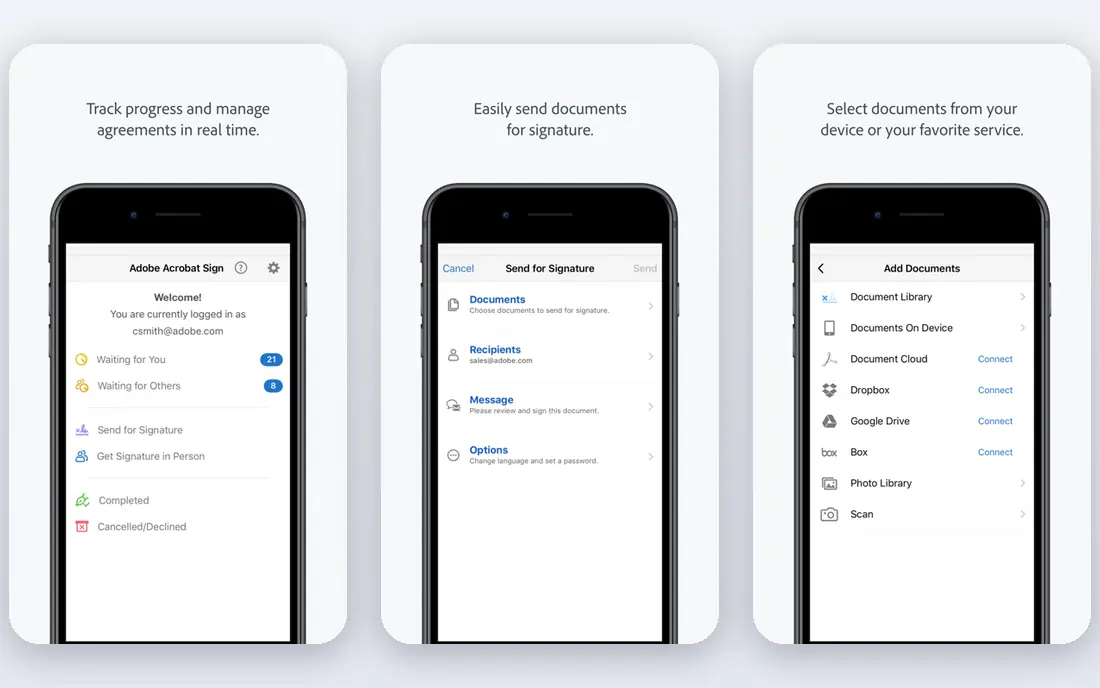
Adobe Acrobat Pro is the baseline tool for most PDF accessibility work. Its accessibility checker flags missing tags, reading-order problems, missing alt text and untitled documents, and it offers automated fixes for some issues. The tag tree editor and reading-order tool let a skilled user repair structure that automated tools cannot fix alone.
The price is a subscription, and the tool does not replace training. A team that only runs the checker and ignores manual tests will still publish PDFs that screen readers struggle with. As a daily editor plus checker, though, Acrobat Pro is the most practical starting point.
- Built-in accessibility checker
- Tag tree and reading-order tools
- Widely used in offices
- Subscription cost
- Full remediation still takes skill and time
CommonLook PDF Validator, now part of Allyant, is a plug-in for Adobe Acrobat Pro that guides users through standards checks and manual tests. It highlights the link between content and tags, which helps remediation staff find the exact item behind a failed check. Reports document results in a form that federal and enterprise teams often need for records.
It does not add tags to a completely untagged PDF on its own, so Acrobat remains part of the workflow. Teams that need formal reporting and multi-standard coverage will value the depth, while occasional users may find the interface demanding at first.
- Tests against Section 508, WCAG and PDF/UA
- Detailed certification-style reports
- Tag-based highlighting
- Works as an Acrobat Pro plug-in, so Acrobat cost is extra
- Learning curve for new users
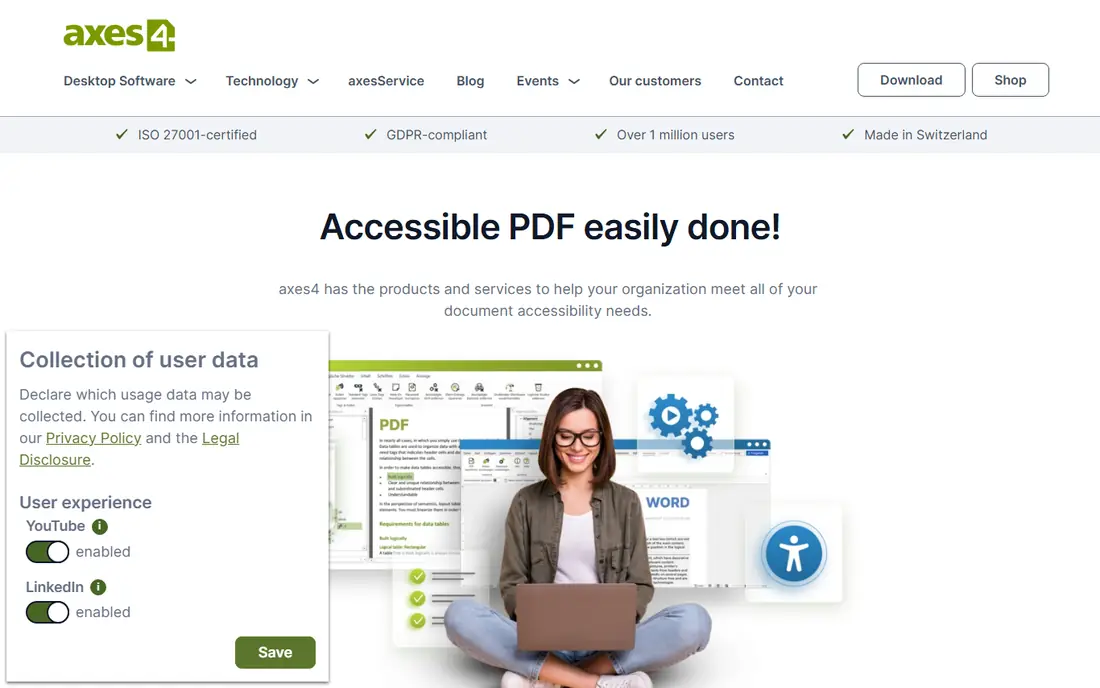
axesPDF QuickFix is built to speed up the fix stage. It checks PDFs against PDF/UA, WCAG and Section 508 criteria, and it repairs many common issues quickly, with editing views for tags, structure and document properties. That speed helps teams with a backlog of reports, forms and guides.
It is a professional tool with pricing to match, and it works best in trained hands. For a specialist remediation team, the time saved on routine fixes can justify the cost. For a one-off PDF, a free checker plus Acrobat may be enough.
- Quick detection and one-click fixes for many issues
- Clear checker views
- Strong PDF/UA focus
- Professional pricing
- Best for users who already understand PDF structure
Foxit PDF Editor gives teams a complete PDF editor with accessibility checking built in, at a lower annual cost than Acrobat Pro for many users. Editing, OCR, form creation and accessibility checks sit in one app, which suits offices that handle many document types. The ribbon interface feels familiar to Microsoft Office users.
Very complex remediation, such as rebuilding a badly tagged long report, may still be easier in Acrobat with a specialist plug-in. For everyday business PDFs, Foxit is a capable and more affordable alternative.
- Full PDF editing plus accessibility checks
- Familiar Office-style interface
- Lower cost than Acrobat Pro
- Accessibility depth varies by task
- Some complex remediation still needs specialist tools
Equidox offers a guided approach to making PDFs accessible, with options to scan documents, send them for remediation, or work through fixes in its software. The workflow helps teams that do not have a full-time accessibility specialist, because steps are ordered and reports explain what changed. It supports ADA, Section 508 and WCAG-focused work.
Pricing is quoted, so small teams need to ask for a price for their volume. For organisations with a steady flow of PDFs and limited in-house expertise, the guided model can be more reliable than ad-hoc editing.
- Guided remediation workflow
- Automated plus manual conversion options
- Detailed reports
- Quote-based pricing
- Web-based workflow may not suit every team
PAC 3, the PDF Accessibility Checker from the PDF/UA Foundation community, is a free tool for validating PDFs against PDF/UA. It shows structure, content and screen-reader preview views that help a reviewer see how a document will actually behave. For screening, training and spot checks, it is an excellent free option.
It does not fix PDFs in the way Acrobat or axesPDF do, so teams still need an editor for repairs. Use PAC 3 to screen and verify, then fix in your editor of choice, and re-check before publication.
- Free PDF/UA checker
- Screen-reader preview
- Deep structure views
- Checker only, not a full remediation editor
- Interface suits technical users
PDFix Desktop offers automated enhancements for PDFs, including tagging support and local processing, with a free Lite version for basic use. It suits teams that need to process many straightforward documents quickly, such as invoices, letters and simple reports. Local processing can also help teams with privacy concerns about cloud uploads.
Automated tagging quality varies with document complexity, and complex layouts still need human review. Treat PDFix as a fast first pass, not as a final guarantee, and always verify with a checker and a screen reader.
- Automated tagging and enhancement
- Local processing option
- Multi-language support
- Automated results still need manual review
- Full features are paid
Siteimprove is useful when the problem is not one PDF but hundreds linked from a website. Its accessibility checker scans site content and flags linked PDFs with issues, so a web team can find and prioritise the files that visitors actually reach. Monitoring over time shows whether fixes stick after site updates.
It does not repair PDFs itself, so a team still needs Acrobat, Foxit or a specialist tool for fixes. As a discovery and monitoring layer for large sites, Siteimprove fills a gap that desktop checkers cannot cover alone.
- Finds PDFs linked from websites
- Accessibility monitoring across a site
- Clear issue reports
- Not a PDF remediation editor
- Enterprise pricing
AbleDocs provides managed document accessibility services, with experts remediating PDFs and other documents to WCAG and PDF/UA-focused standards. That model suits organisations with large backlogs, complex documents or legal deadlines, where hiring and training a full in-house team would take too long. Services can cover conversion, testing and reporting.
It is a service rather than a simple desktop licence, so cost and timing depend on scope. For a team that needs a large library fixed reliably, outsourcing to specialists can be more practical than buying software alone.
- Expert-led remediation for large volumes
- Accessibility services plus tools
- Supports WCAG and PDF/UA work
- Service pricing, not a simple software licence
- Turnaround depends on volume and complexity
How we picked these
We compared official product pages, checker descriptions and public guidance for PDF accessibility tools, and we favoured tools that are still offered, test against recognised standards, and cover a real stage of the workflow: screening, fixing, monitoring or managed remediation. We used See website where pricing is quoted or varies by volume, and we stated plainly that software alone does not guarantee compliance. Our comparison rests on vendor documentation and public accessibility guidance, not on claimed hands-on testing.
How to build a reliable accessibility workflow
Start with the source document, not just the PDF. Headings, alt text, table headers and reading order are far easier to set in Word or InDesign than to repair after export. Export a tagged PDF, run a checker, fix structure and alt text, then test with a screen reader such as NVDA or VoiceOver. That manual test catches meaning problems that no automated check can judge.
What automated checks miss
Automated tools can flag missing alt text, but they cannot tell if alt text is accurate or useful. They can check heading order, but not whether headings describe the content well. They can find untagged content, but not whether the reading order makes sense to a listener. Budget time for human review on every important document, and keep a checklist for tables, forms, links and scanned images.
Choosing tools for your volume
A team that fixes a few PDFs a month needs a checker plus one good editor. A team with hundreds of PDFs needs screening, batch processing and monitoring as well. A team with legal deadlines or complex reports may need managed services for the backlog while it trains staff for new documents. Match the tool mix to volume, not just to the price of one licence.
Frequently asked questions
Does using one of these tools make my PDFs compliant?
No. Tools help you check and fix issues, but compliance depends on the document, the standard that applies, and manual review. Software alone does not guarantee compliance, and final testing with assistive technology is still needed.
What is the difference between WCAG and PDF/UA?
WCAG sets web content accessibility principles that also apply to documents published online, while PDF/UA is a specific standard for accessible PDF files. Many teams aim for both, because PDF/UA covers PDF structure in detail and WCAG covers the wider web context.
Can automated tools fix every accessibility issue?
No. Automated tools fix many structural issues, but alt text meaning, reading order sense, table logic and form labels often need human judgement. A clean checker report is a good sign, not proof that a document is fully usable.
Which tool should a small team start with?
Start with PAC 3 for free screening and Adobe Acrobat Pro or Foxit PDF Editor for fixes, depending on budget. Learn tagging, reading order and alt text on a few real documents before buying specialist plug-ins or services.
How often should I re-check published PDFs?
Re-check whenever a document is updated, and audit linked PDFs on a website regularly. Siteimprove-style monitoring helps for large sites, while a simple spreadsheet and a quarterly sample check can work for a small library.
Sources
See where you really rank - block by block
ProMapRanker scans Google Maps across a grid of your service area. Simple monthly plans from $19, white-label on every plan.
Start freeKeep reading
 zoro.to alternatives
Best Zoro.to Alternatives in 2026
We compare the best zoro.to alternatives in 2026, listing only legal licensed anime streaming services, from Crunchyroll to free options for fans today.
Read → zip alternatives
Best Zip Alternatives in 2026
We compare the best zip alternatives for buy now, pay later in 2026, covering pay-in-4 plans, fees, spending limits, and credit reporting options today.
Read → yesware alternatives
Best Yesware Alternatives in 2026
Compare the best yesware alternatives for sales email tracking, templates, and sequences, with current pricing and honest tradeoffs for small sales teams.
Read →