 ProMapRanker
Best Disk Imaging Software in 2026


All in one backup and security · Pricing starts at: See website
Key takeaways
- The best disk imaging software creates a full image of a drive that you can restore after a crash, a failed update, or a hardware swap.
- Clonezilla and Rescuezilla are the strongest free disk imaging software options, while Acronis and Macrium Reflect suit users who want scheduled imaging plus support.
- EaseUS Todo Backup, AOMEI Backupper, and Veeam Agent give Windows users free or low cost imaging with friendlier interfaces than Clonezilla.
- Always test rescue media after setup: an image you cannot boot from is not a backup.
- Free editions often omit cloud backup, dissimilar hardware restore, and ransomware protection, so check the paid tier before you rely on a free tool for a business PC.
Quick comparison
| Pick | Great for | Pricing starts at | Free tier | |
|---|---|---|---|---|
| Acronis Cyber Protect Home Office | All in one backup and security | See website | Free trial | Visit |
 Macrium Reflect | Reliable Windows cloning | See website | Free trial | Visit |
 Clonezilla | Free expert cloning | Free | Yes | Visit |
 EaseUS Todo Backup | Friendly Windows backup | See website | Yes | Visit |
 AOMEI Backupper | Free Windows imaging | See website | Yes | Visit |
 Rescuezilla | Free graphical cloning | Free | Yes | Visit |
 Veeam Agent | Free single machine backup | Free | Yes | Visit |
 R-Drive Image | Scriptable imaging for technicians | See website | Free trial | Visit |
 O and O DiskImage | Straightforward Windows imaging | See website | Free trial | Visit |
The best disk imaging software
We compared tools that create full disk or system images, not just file backups. The list mixes free and paid tools, and favors tools that are still maintained in 2026 with working rescue media.
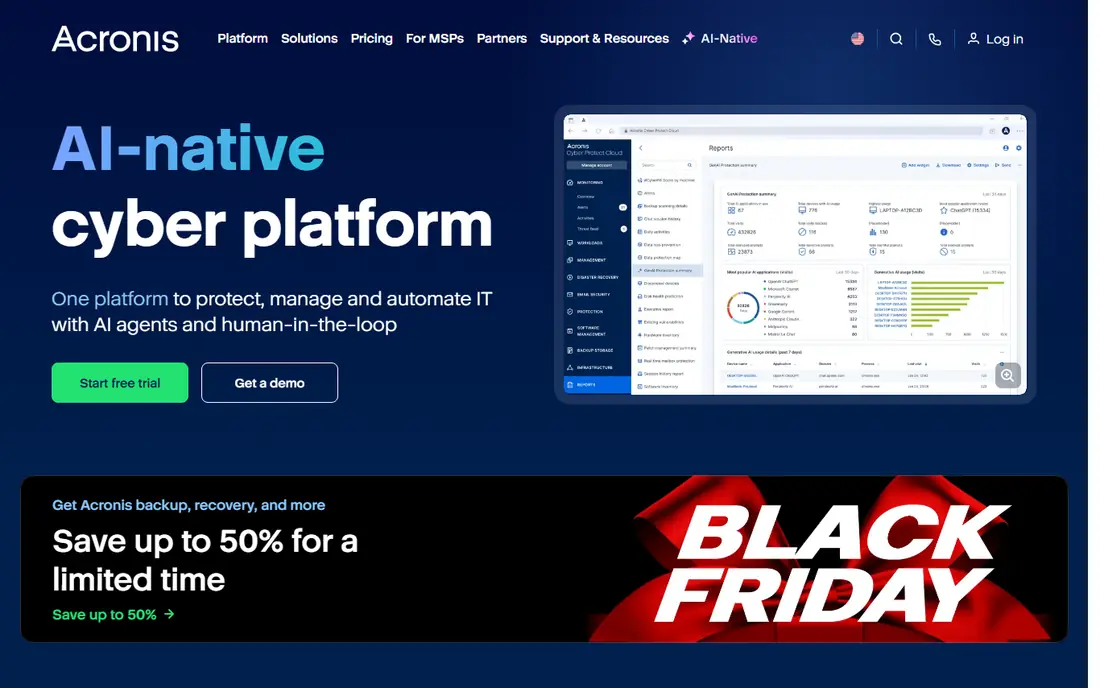
Acronis Cyber Protect Home Office, formerly Acronis True Image, is the most complete consumer package here. It creates full, incremental, and differential images, schedules them automatically, and adds active protection against ransomware, which is a sensible pairing for a home PC. You can restore a whole system or single files, and create bootable rescue media for recovery.
The honest trade off is cost over time, since Acronis is subscription software. A free trial lets you test the full workflow before paying, and the vendor site lists current plans. If you want backup plus security in one console, and you are happy to pay yearly, it is a strong pick. If you only need plain imaging, a free tool below will do the job.
- Full disk imaging with scheduling
- Built in anti ransomware protection
- Local, NAS, and cloud destinations
- Subscription pricing adds up over time
- Interface packs in many features for beginners
Macrium Reflect has long been a favorite among technicians for reliable Windows imaging. It handles full, differential, and incremental images, builds rescue media you can trust, and restores to a new drive with clear options. For a business workstation or a home PC that must come back fast after a failure, that reliability matters more than a polished dashboard.
Recent listings describe Macrium as trial only for free use, so we list a free trial rather than a free plan. Pricing is on the vendor site and varies by edition. The interface is functional rather than friendly, but once a schedule is set, it tends to run quietly in the background.
- Dependable scheduled imaging
- Strong rescue media builder
- Rapid restore options on paid tiers
- Free edition is no longer the main offer
- Interface feels technical for absolute beginners
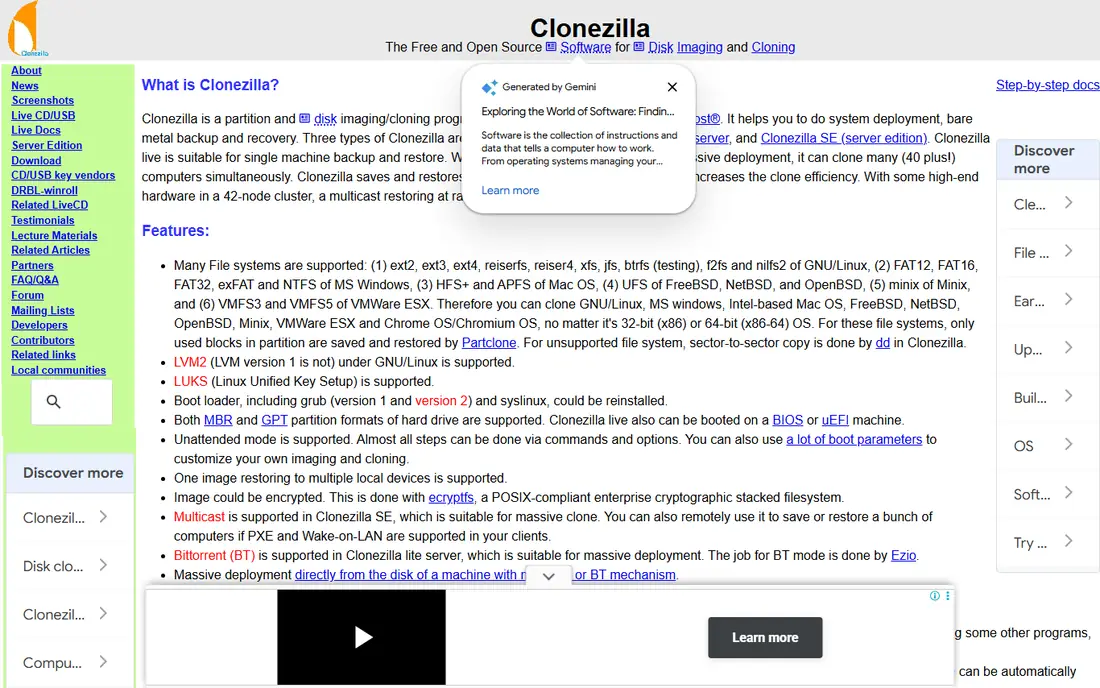
Clonezilla is the best free disk imaging software for users who are comfortable with a bootable tool and a text interface. It clones disks and partitions, supports a wide range of file systems including NTFS and ext4, and offers encryption options. The server editions support multicast and large deployments, which is why IT teams use it for labs and fleets.
It is not a set and forget home backup tool. You boot from media, choose options carefully, and manage schedules yourself. For a technician or a careful home user who wants full control at no cost, it is hard to beat. For a beginner, Rescuezilla or EaseUS will feel far easier.
- Free and open source
- Supports many file systems
- Server editions for mass deployment
- Text based interface with a learning curve
- No friendly scheduler for casual users
EaseUS Todo Backup is a friendly Windows option that covers system backup, disk imaging, file backup, and cloning in one program. It is a good fit for users moving from an old hard drive to an SSD, since cloning and bootable media are built in. The interface explains each job in plain terms, which helps first time users.
A free tier exists, but the vendor site should be checked for current limits, since free and paid features change over time. Paid editions add scheduling depth and support. For home users who want a guided setup and are willing to pay for the full feature set later, EaseUS is a practical choice.
- Clear interface for system, disk, and file backup
- Cloning for HDD to SSD moves
- Bootable media creation
- Some advanced features sit on paid tiers
- Free tier limits should be checked before business use
AOMEI Backupper is another strong free Windows imaging tool, with system backup, disk backup, partition backup, and cloning. It suits home users who want scheduled images without paying, and technicians who need a quick cloning job. Bootable media creation is included, which is essential for recovery.
The free edition covers the core imaging job well, but check the vendor site for what is reserved for paid editions, such as dissimilar hardware restore or priority support. For a personal PC with a simple backup routine, the free tier is often enough. For business use, compare the paid edition with Macrium before deciding.
- Free system and disk imaging for Windows
- Cloning and bootable media
- Straightforward job setup
- Advanced features and support sit on paid editions
- Interface is functional rather than modern
Rescuezilla is the friendlier face of free cloning. It provides a graphical interface for disk imaging and cloning in a bootable live environment, which makes it far easier than Clonezilla for users who want free software without a text menu. It is a good pick for a one off clone, a drive swap, or a rescue job.
As a smaller open source project, it does not match Clonezilla for mass deployment or Macrium for scheduled business backup. Use it for personal cloning and recovery, keep a second copy of important files, and test the boot media before you need it. For the price, which is free, it is an excellent tool to keep on a USB drive.
- Free and open source
- Graphical interface over Clonezilla style imaging
- Bootable live environment
- Smaller project than Clonezilla
- Fewer enterprise deployment features
Veeam Agent for Windows and Linux brings enterprise backup technology to a single machine at no cost. It creates full system images, supports scheduled backups, and restores whole volumes or single files. For a home user or a small business with one key PC, that pedigree is reassuring.
The free edition is for individual machines, not managed fleets, so IT teams with many PCs will need paid Veeam products for central control. Check the vendor site for current free edition terms, since Veeam updates its licensing over time. For a single machine that must be recoverable, it is one of the strongest free picks.
- Free for one machine
- Enterprise grade backup engine
- Image and file level restore
- Free edition is limited to single machine use
- Central management needs paid Veeam products
R-Drive Image is a technician friendly tool that creates disk images without a heavy interface. It supports scripting and command line use, which helps IT staff automate imaging jobs and repeat them across machines. On the fly imaging means you can create an image while Windows is running, with some limits on open files.
Beginners may find it less guided than consumer tools, and pricing is on the vendor site with a free trial. For a technician who wants a fast, scriptable imager and does not need a consumer dashboard, it is a solid choice. For a home user, start with a friendlier tool first.
- Lightweight imaging without bloat
- Scripting and command line support
- On the fly imaging
- Interface is technical
- Less hand holding for beginners than EaseUS or AOMEI
O and O DiskImage is a straightforward Windows imaging tool from a long running German software vendor. It covers system and disk imaging, cloning, scheduled jobs, and bootable recovery media, without piling on unrelated features. That focus suits users who want imaging done well and nothing else.
A free trial is available, and pricing is published on the vendor site. It is less generous as a free tool than AOMEI or Rescuezilla, so judge it as a paid product. For a Windows user who prefers a clean, focused imager with support, it deserves a place on the shortlist.
- Clear Windows imaging and cloning
- Scheduled images
- Bootable recovery media
- Pricing is on the vendor site and varies by edition
- Less free tier depth than AOMEI or EaseUS
How we picked these
We compared official vendor pages, app listings, and 2026 roundups for tools that create full disk images and are still maintained. We kept tools with working rescue media, scheduled imaging or cloning, and a clear free or paid offer. We excluded abandoned imaging tools and file only backup apps that cannot restore a whole system. Where pricing was not clearly published, we wrote See website.
What to check before you buy
Test the restore, not just the backup. After your first image, boot from rescue media and confirm you can see the image and start a restore, even if you do not complete it. Check destination support for your setup, including external drives, NAS, and cloud, and confirm whether encryption, compression, and incremental images are included in your tier.
Also check scheduling and retention. A good tool runs images automatically, keeps several versions, and warns you when a job fails. Set a schedule that fits your data change rate, keep at least one image offline or offsite, and store rescue media separately from the PC it protects.
Free imaging software: what to watch
Free tools cover the core job well, but paid tiers often add dissimilar hardware restore, cloud destinations, and priority support. If you plan to restore to different hardware, or you need central management for several PCs, check those features before you commit to a free edition.
Frequently asked questions
What is the best free disk imaging software?
Clonezilla and Rescuezilla are the strongest free picks, with Clonezilla offering more power and Rescuezilla offering an easier graphical interface. AOMEI Backupper and Veeam Agent also offer free imaging for Windows users who want a friendlier setup.
What is the best disk imaging software for Windows?
Macrium Reflect and Acronis Cyber Protect Home Office are the safest paid picks for Windows, while EaseUS Todo Backup and AOMEI Backupper are strong free or low cost options. Choose based on scheduling, rescue media, and support needs.
How often should I create a disk image?
For most home users, a weekly full or incremental image plus an image before major updates is a good baseline. For business PCs with changing data, daily incremental images with weekly full images give a better recovery point.
Can I restore a disk image to a different computer?
Sometimes, but it depends on hardware differences and drivers. Some paid tools offer dissimilar hardware restore, while free tools may need manual driver work. Test this before you rely on it for a hardware swap.
Do I need disk imaging if I already back up files?
File backup protects documents, while disk imaging protects the whole system, including the operating system, apps, and settings. Imaging restores a PC far faster after a drive failure, so the two approaches work best together.
Sources
See where you really rank - block by block
ProMapRanker scans Google Maps across a grid of your service area. Simple monthly plans from $19, white-label on every plan.
Start freeKeep reading
 zscaler alternatives
Best Zscaler Alternatives in 2026
Looking for zscaler alternatives? We compare 9 SASE and zero trust platforms on architecture, data protection, pricing, and fit for your network and team.
Read → zapier alternatives free
Best Zapier Alternatives Free in 2026
Nine automation tools for zapier alternatives free in 2026, all with genuinely free tiers, plus free plan limits, starting prices and upgrade paths explained.
Read → which platform is best for online reputation
Which Platform Is Best for Online Reputation in 2026
Wondering which platform is best for online reputation? We compare 8 review, listing, and response tools for small and multi-location businesses and agencies.
Read →