 ProMapRanker
Best Digital Platforms for Middle School Teachers in 2026


Assignment home for schools · Pricing starts at: Free
Key takeaways
- A middle school stack usually needs three parts: a home for assignments, a way to run interactive lessons, and a quick way to check understanding.
- Google Classroom and Canvas cover the assignment home, while Nearpod and Edpuzzle make lessons and video more interactive.
- Kahoot and Seesaw suit different ages and tasks, so match the tool to the lesson, not to a single brand for everything.
- Student-data privacy must be checked before any classroom use, including who can join, what data is collected, and how long it is kept.
- Every tool here is school-facing and teacher-led, with no anonymous contact, dating, or open chat with strangers.
Quick comparison
| Pick | Great for | Pricing starts at | Free tier | |
|---|---|---|---|---|
| Google Classroom | Assignment home for schools | Free | Yes | Visit |
 Canvas | Full courses and grading | See website | Yes | Visit |
 Seesaw | Portfolios and family sharing | Free | Yes | Visit |
 Nearpod | Interactive live lessons | Free | Yes | Visit |
 Kahoot | Quick review games | Free | Yes | Visit |
 Schoology | District courses and groups | See website | No | Visit |
 ClassDojo | Behaviour and family messages | Free | Yes | Visit |
 Edpuzzle | Interactive video lessons | Free | Yes | Visit |
The best digital platforms for middle school teachers
Middle school teachers need tools that keep work organised, hold attention in a forty-minute lesson, and give quick feedback without adding hours of admin. We compared official feature pages, pricing pages, app store listings, privacy policies, and public reviews, with a focus on classroom fit for grades six to eight, ease of use, and student-data handling. Only school-safe, teacher-led tools are listed here.
A note on privacy: before students use any tool, check your school or district approval list, the vendor privacy policy, and the account setup. Use school-managed accounts where possible, limit personal data to what the lesson needs, and confirm how data is stored, shared, and deleted. Rules such as FERPA in the United States and similar school-data rules elsewhere vary by place, so a district check matters more than a marketing claim.
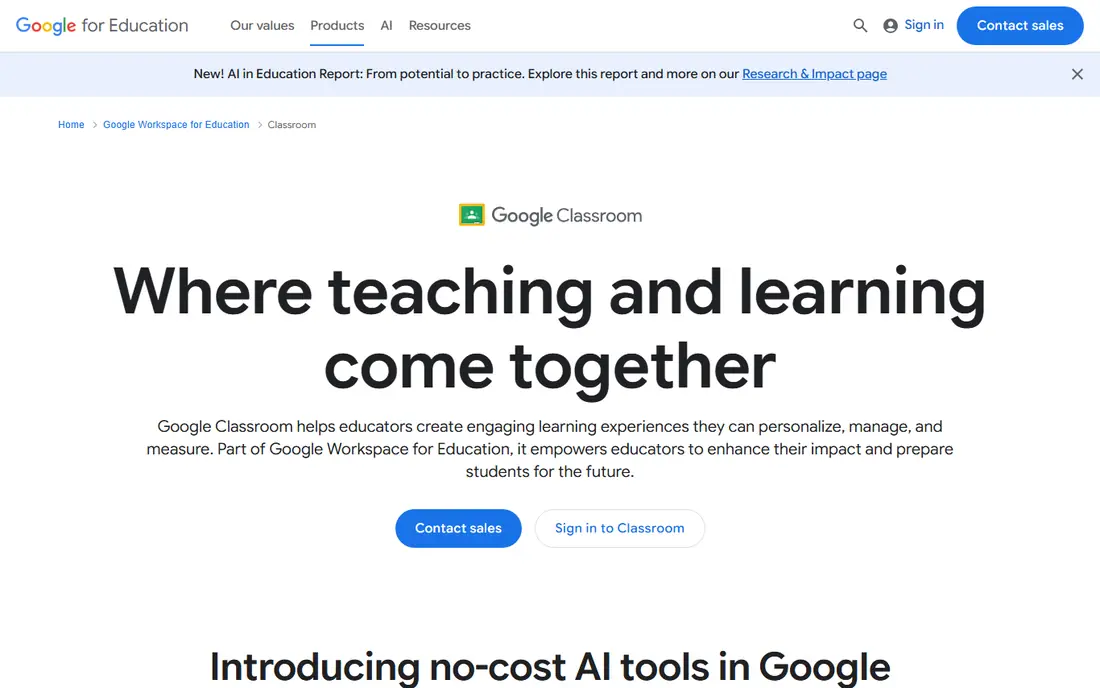
Google Classroom is the simplest home for middle school work. Teachers can post assignments, share materials, collect work, and return feedback with comments and rubrics. Students see due dates and missing work in one place, which helps in grades six to eight, when organisation skills are still forming. The link to Docs, Slides, and Drive means most work stays in tools students already know.
Classroom is less of a full course system than Canvas. Advanced analytics, originality reports, and admin controls vary by Workspace for Education edition, so a school should confirm its edition before promising a feature. For a Google school, Classroom is the natural starting point, and other tools on this list can plug into it for lessons and checks.
- Included with Google Workspace for Education Fundamentals for eligible schools
- Simple assignment and grading flow
- Strong Google Docs link
- Reporting and advanced analytics vary by paid edition
- Best fit is schools already using Google tools
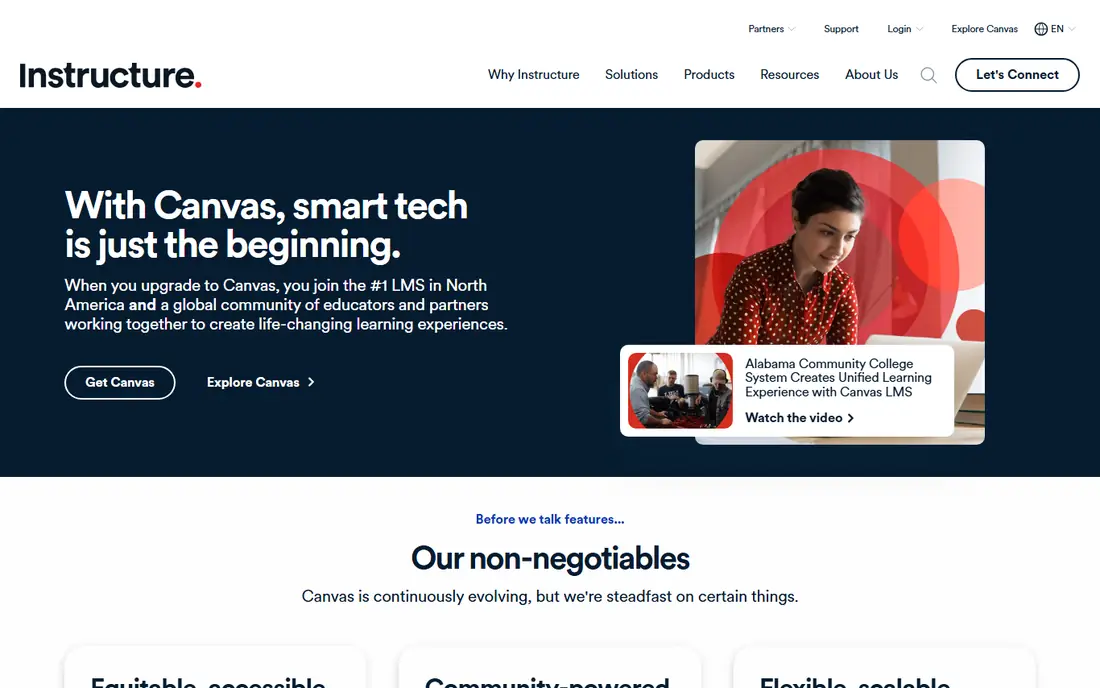
Canvas suits schools that want a full learning system, not just an assignment inbox. Courses can be built from modules, with pages, quizzes, discussions, and a gradebook that tracks progress over a term. That structure helps middle school teams that share units across classes and need consistent grading. Canvas Lite, introduced for individual educators in September 2026 in recent reports, gives a free starting point for a single teacher pilot.
Canvas takes more setup than Classroom, and institutional plans are quoted rather than listed as a simple price. A single teacher can still pilot it, but a school rollout needs admin planning and training. For a district or a school that needs course structure, analytics, and integration depth, Canvas is a strong choice.
- Full course structure with modules, grading, and analytics
- Canvas Lite gives individual teachers a free start
- Wide integration options
- Full institutional pricing is quote-based
- Setup is heavier than Classroom for a single class
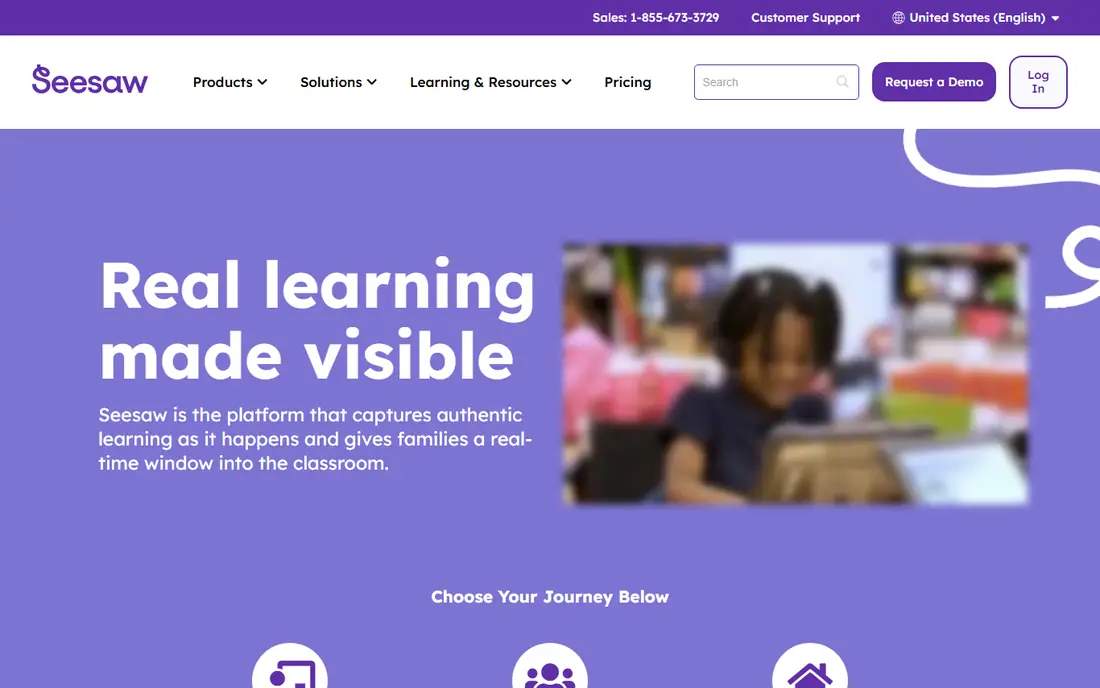
Seesaw lets students show learning in ways that text alone cannot. A student can photograph a model, record an explanation, or draw a diagram, and the teacher can approve work before families see it. That portfolio view suits grades six and seven, where students may explain well by voice or image before they write at length. Family sharing, with teacher approval, keeps parents in the loop without opening a public feed.
Seesaw is not a full gradebook or course system, so most middle schools will pair it with Classroom or Canvas. Paid plans add more portfolio, messaging, and admin features, and a school should confirm current pricing before a rollout. For showing growth over a term and giving every student a way to explain, Seesaw is a warm and practical pick.
- Student portfolios with photos, voice, and video
- Family sharing with teacher control
- Simple for younger middle schoolers
- Less suited to full secondary grading
- Paid features add portfolio and admin depth
Nearpod turns a slide deck into a lesson students can join and answer in. Teachers can add polls, open questions, quizzes, drawings, and video checks, then see answers live and spot who is stuck. That live view is valuable in middle school, where a quiet class can hide confusion until a test. Student-paced mode also works for homework or catch-up work after an absence.
The free plan has limits, including a 40-student cap per lesson in recent listings, and paid Gold tiers were listed around $159 per year in recent comparisons. A teacher with larger classes or heavy use should check current tiers before relying on the free plan. For guided lessons where every student must respond, Nearpod is one of the most useful tools here.
- Interactive slides, polls, quizzes, and video in one lesson
- Teacher-paced and student-paced modes
- Real-time formative view
- Free Silver plan caps class size at 40 students per lesson in recent listings
- Paid tiers are per teacher per year
Kahoot is best used in short bursts. A ten-minute game at the end of a lesson can reveal which facts stuck and which need reteaching, and the competitive format holds attention for review. Teachers can build quizzes, use ready-made sets, and see which questions caused trouble. That quick feedback is the real value, not the leaderboard alone.
Kahoot is less useful for teaching new, complex ideas from scratch. The free tier also caps player counts and features, with paid teacher plans reported around $17 per month in recent listings, so a teacher should confirm current limits. Use Kahoot for recall, warm-ups, and low-stakes checks, and use Nearpod or Edpuzzle when a lesson needs deeper interaction.
- Fast live games for review and recall
- Familiar format for students
- Teacher reports on answers
- Free tier caps players and features
- Best for review, not for deep new learning
Schoology, now part of PowerSchool, suits districts and schools that need courses, groups, and communication in one place. Teachers can run classes, share resources, set assignments, and grade work, while schools manage users and groups centrally. Discussion and group tools also support team projects, which fit middle school group work when a teacher sets clear roles and rules.
Schoology is heavier than Classroom for a single teacher who just needs an assignment inbox. Pricing is quoted, so a school must request a proposal. For a district that wants one system for courses and school-wide groups, Schoology is a credible alternative to Canvas, and the choice often comes down to the systems the district already uses.
- Course, group, and discussion tools in one system
- District-level management
- Assignment and grading depth
- Quote-based pricing
- Heavier setup than a single-class tool
ClassDojo helps with classroom culture and family contact. Teachers can award points for positive behaviours, share class stories, and message families in one place, with controls over who sees what. For middle school, the value is more in family messaging and positive recognition than in a points race, so teachers should use it with clear, kind rules and avoid public ranking.
ClassDojo does not replace Classroom, Canvas, or Schoology for assignments and grades. It also needs a privacy check like any tool that holds student and family details, including how messages and photos are stored. Used well, as a family link and a positive culture tool, ClassDojo can support a middle school class without adding a heavy system.
- Simple behaviour points and class stories
- Family messaging with teacher control
- Free core tools for teachers
- Behaviour points need careful use to avoid shaming
- Not a full assignment or grading system
Edpuzzle makes video accountable. A teacher can take a short video, add questions at key points, and assign it as homework or classwork. Students cannot skip ahead without answering in many settings, and the teacher can see who watched, where they paused, and which questions caused trouble. That data helps a teacher start the next lesson with the right reteach, not a guess.
The free plan limits storage and some features, so a teacher who assigns many videos should check current paid tiers. Edpuzzle also works best with short, purposeful videos, not long lectures. For flipped lessons, science demos, and reading support, Edpuzzle turns a passive video into a check for understanding.
- Questions inside video stop passive watching
- Teacher view shows who watched and answered
- Easy to assign from Classroom
- Free plan limits video storage and class features
- Long videos still need a clear lesson purpose
How we picked these
We compared official feature pages, pricing pages, app store listings, privacy policies, and public reviews. We favoured tools that are sold and supported now, in October 2026, and that fit middle school teaching, from assignment homes to interactive lessons and review games. We excluded tools with anonymous contact, dating, or open stranger chat, and we flagged privacy checks in the intro rather than treating any tool as safe by default. Where a vendor did not publish a simple entry price, we marked it as See website rather than guessing.
What to check before you pay
Start with your approval list and your lesson goal, not a free trial alone. Check whether your school already pays for a tool, whether student accounts are school-managed, and what data the tool collects. Then pilot one tool with one class for two weeks, and measure what changed: did missing work fall, did you spot confusion earlier, or did admin time rise? A tool that adds a new inbox without a clear lesson gain is not worth the switch.
Next, check the practical limits. How many students can join free, how many videos or lessons can you store, and what happens when a student has no device at home? Plan an offline or paper fallback for those cases. Finally, agree on classroom rules with students: how to join, how to respond respectfully, and what happens to work after the term ends. Clear rules protect students and make the tool easier to defend to families.
Frequently asked questions
Which tool should a new middle school teacher start with?
Google Classroom, if your school uses Google tools, since it covers assignments and feedback in one place. Add Nearpod or Edpuzzle for interactive lessons once the assignment routine is settled.
Are these tools safe for student data?
They are school-facing tools, but safety depends on your school setup and the vendor policy. Use school-managed accounts, check your district approval list, and limit personal data to what the lesson needs.
Can I use these tools without a district contract?
Some offer free teacher plans, including Classroom, Seesaw, Nearpod, Kahoot, ClassDojo, and Edpuzzle. District contracts add admin controls, support, and data terms, so check your school policy first.
Is Kahoot good for teaching new topics?
Kahoot is best for review and recall. For new topics, use Nearpod for guided lessons or Edpuzzle for video checks, then use Kahoot to test recall after the learning.
What about students without devices at home?
Plan a fallback, such as paper copies, in-class time, or a school device loan. Avoid making a grade depend on a tool a student cannot access at home.
Should I use points systems in middle school?
Points can support positive culture if used kindly and privately, with clear rules. Avoid public ranking or shaming, and focus on specific behaviours you want to recognise.
Sources
See where you really rank - block by block
ProMapRanker scans Google Maps across a grid of your service area. Simple monthly plans from $19, white-label on every plan.
Start freeKeep reading
 worlds best local seo company
8 Worlds Best Local SEO Companies for Map Pack Growth in 2026
Compare the worlds best local seo company options for Google Business Profile work, citations, reviews, and multi-location rankings and reporting in 2026.
Read → world's best web hosting company
World's Best Web Hosting Company in 2026
Searching for the world's best web hosting company? We compared 10 hosts on price, renewal rates, speed, and support to help you choose well today in 2026.
Read → who's got the best nanny tax services
Who's Got the Best Nanny Tax Services in 2026
We answer who's got the best nanny tax services, comparing full filing, back taxes, software, and pricing so families can handle nanny taxes correctly.
Read →